Cash drawer
Kitchfly can open the cash drawer on its own when you take a cash payment, record cash in or cash out, open the shift and do the cash count. There's also an Open drawer button for making change. Every opening is recorded with who, when and why, so you can see if someone opens the drawer without a sale.
What you need
- A cash drawer connected to the receipt printer. Almost all come with a phone-style cable (RJ11 or RJ12) that plugs into the printer's DK or Cash drawer port. It works with common thermal printers: Epson TM, Star, Bixolon, Xprinter and similar.
- The Kitchfly app for Android (Bluetooth or network printer) or the Kitchfly app for Windows. The drawer opens with a signal sent through the printer, which a regular browser can't send.
Using Kitchfly in the browser or on an iPad?
Many Windows printer drivers have an Open cash drawer when printing option (in the printer preferences). If you turn it on along with Print the receipt automatically when closing an order, the drawer opens with every receipt. Note that it also opens for card payments and doesn't record who opened it.
Turn it on at the register
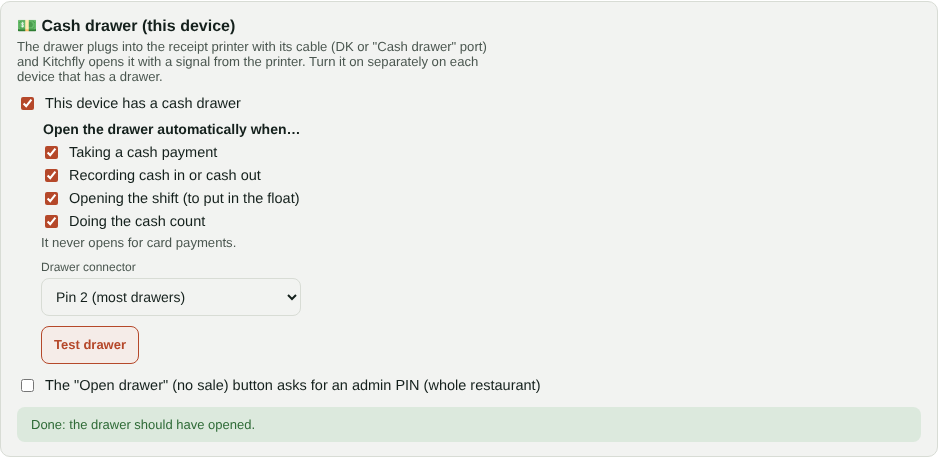
On the device that has the drawer (the register tablet or computer), go to Settings → Printing → Cash drawer (this device):
- Check This device has a cash drawer.
- Choose when it opens on its own: taking a cash payment, recording cash in or cash out, opening the shift and doing the cash count. It never opens for card payments.
- Tap Test drawer. If it doesn't open, change Drawer connector to Pin 5 and try again (few drawers use it).
Each device is set up separately: the bar computer won't open the register's drawer.
The receipt printer must be selected
The drawer opens through the receipt printer you chose in the app (Android: Tablet settings; Windows: Printers on this computer). If it says no receipt printer is selected, choose it first.
Open the drawer without a sale
At the POS, tap Cash → Open drawer, enter a reason (for example Make change) and tap Open drawer.
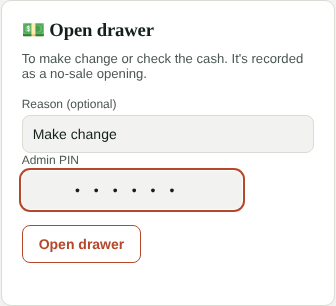
For more control, check The "Open drawer" (no sale) button asks for an admin PIN in the same settings section. It applies to the whole restaurant; admins open it without a PIN.
See who opens the drawer
- The cash count report shows the shift's openings, how many were no sale and by whom.
- Orders → Drawer shows every opening by date, with a summary by employee. No-sale openings are highlighted in red.
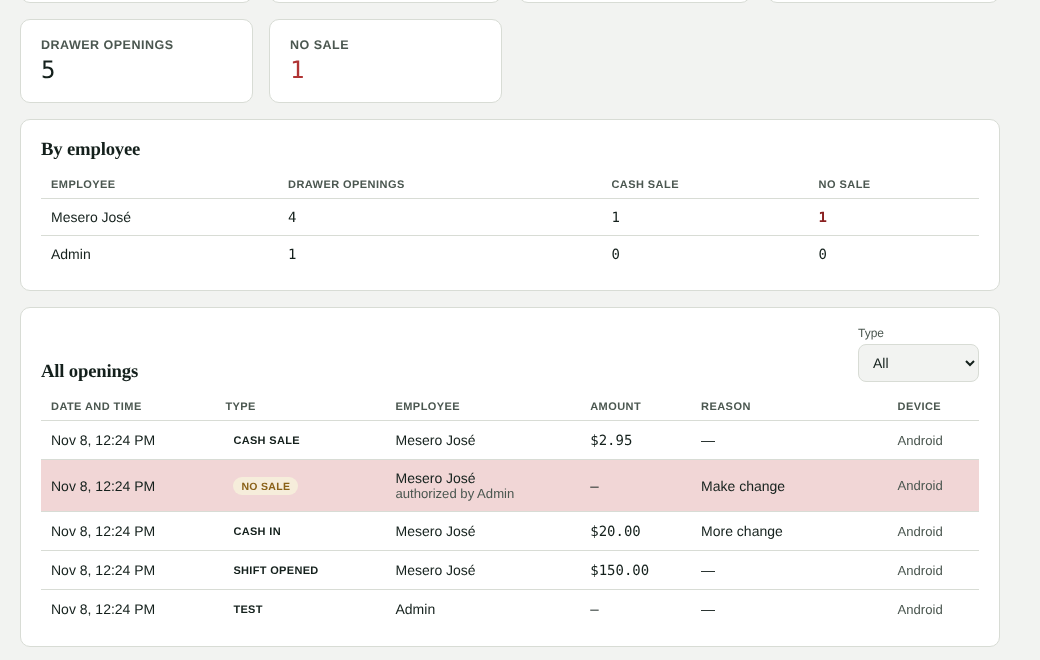
Several no-sale openings by the same employee, especially when the cash count comes up short, are the signal to look into.
FAQ
Does it work without internet? Yes. The signal comes from the printer, and openings are saved on the device and sent when the internet is back. If the button requires an admin PIN, it can't open without a sale while offline.
The drawer doesn't open. Check that the cable goes into the printer's DK port (not the computer), that the printer is on and that Test drawer works. If the report says The printer didn't respond, the tablet couldn't reach the printer.
Can I connect the drawer by USB? Kitchfly opens drawers that plug into the receipt printer, which is most of them.