Close an order
Close the order when the customer pays. That's when the sale is recorded for your reports, the Dashboard and QuickBooks.
- In the POS, open the ticket and tap Close order.
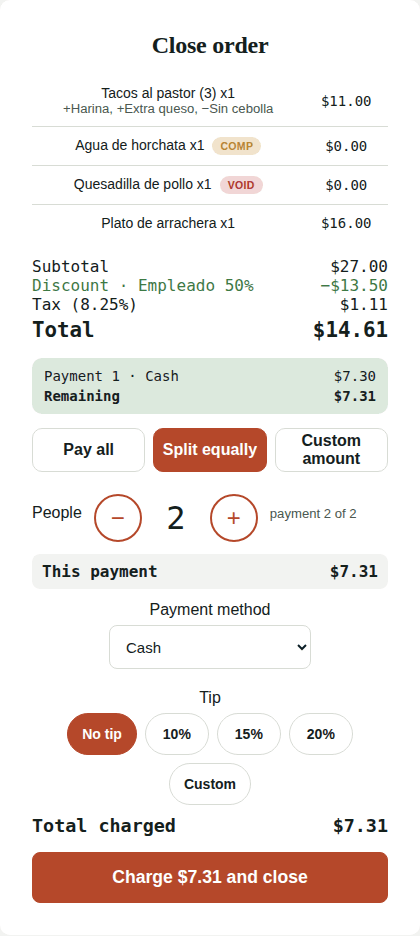
- Review the dishes, Subtotal, Discount (if any), Tax and Total. Tax is calculated with the Sales tax % from Settings → Sales & costs, after the discount.
- Choose Pay all, Split equally or Custom amount. See Split the bill.
- Choose the Payment method (Cash or Card) and the Tip: No tip, 10%, 15%, 20% or Custom.
- Tap Charge $… and close.
You'll see Order closed! Total: $… with a Print receipt button. Tap New order to start the next one. See Print receipts and kitchen tickets.
Cash payments
To charge in cash the cash drawer must be open. If it isn't, the POS shows a message with an Open drawer button.
Card payments
- If you connected Square, choosing Card opens a secure card form and the charge goes through your Square account.
- If Square isn't connected, Card only records that the customer paid by card (for example on your own terminal). No charge is made.
Dishes not sent to the kitchen
If you close an order with dishes that were never sent, Kitchfly sends them at close so stock is still discounted.
Sales outside the POS
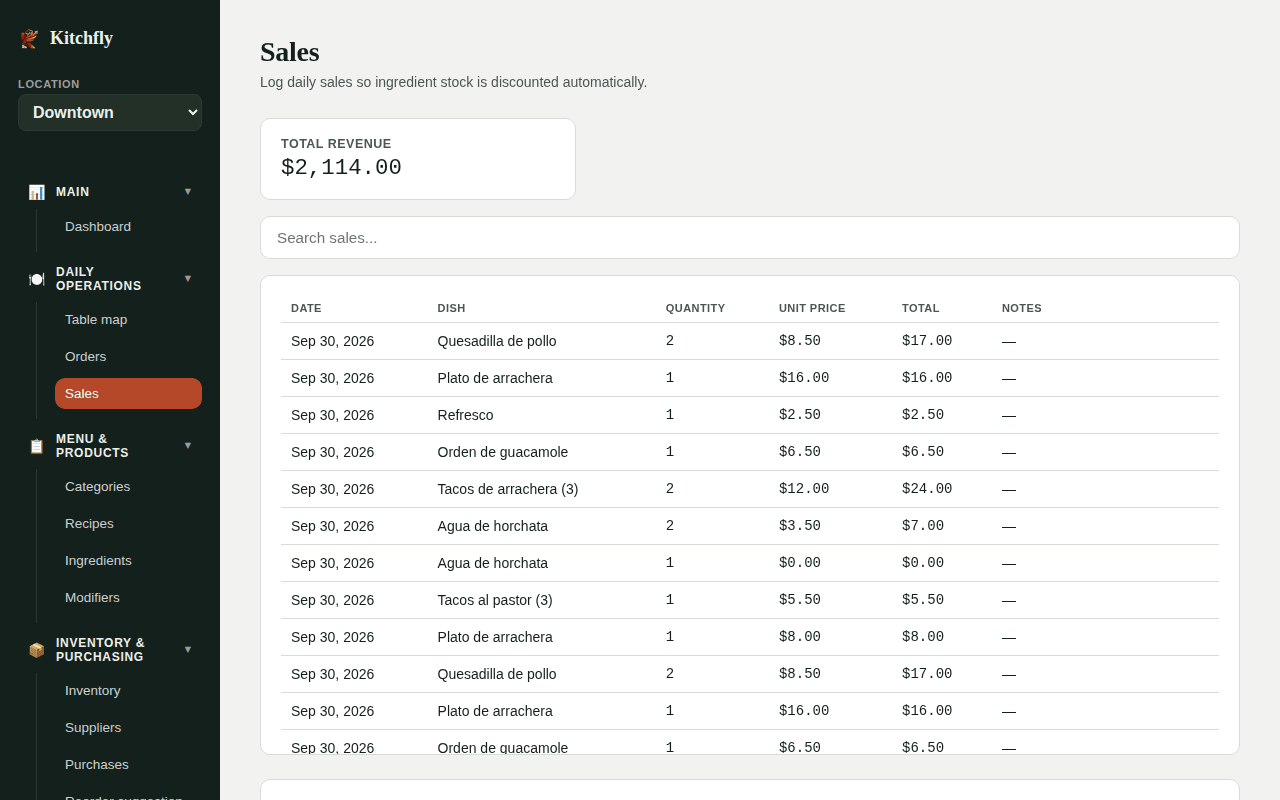
If you sell something without a ticket (catering, an event), log it in Sales → Log a sale, choosing the Dish and the Quantity sold. Stock is discounted the same way.
Still need help?Use the Support button inside Kitchfly (how) or email [email protected] with your restaurant name and a screenshot. We'll get back to you as soon as possible.