Scan invoices with AI
Take a photo of your supplier's invoice (or upload the PDF they sent you) and Kitchfly enters it for you: supplier, invoice number, date, and every item with its quantity and amount. You check it, fix anything that's off, and save. A 15-line invoice is recorded in under a minute.
Saving does the same thing as recording a purchase by hand: it adds the stock, updates each ingredient's price (and your recipe costs), adds the invoice to Accounts payable if the supplier gives you credit, and sends it to QuickBooks if you connected it.
1. Scan
Go to Purchases → 📷 Scan invoice.
- Take photo: opens the camera on your phone or tablet.
- Upload photo or PDF: pick a photo you already have or the supplier's PDF (up to 10 pages and 15 MB).
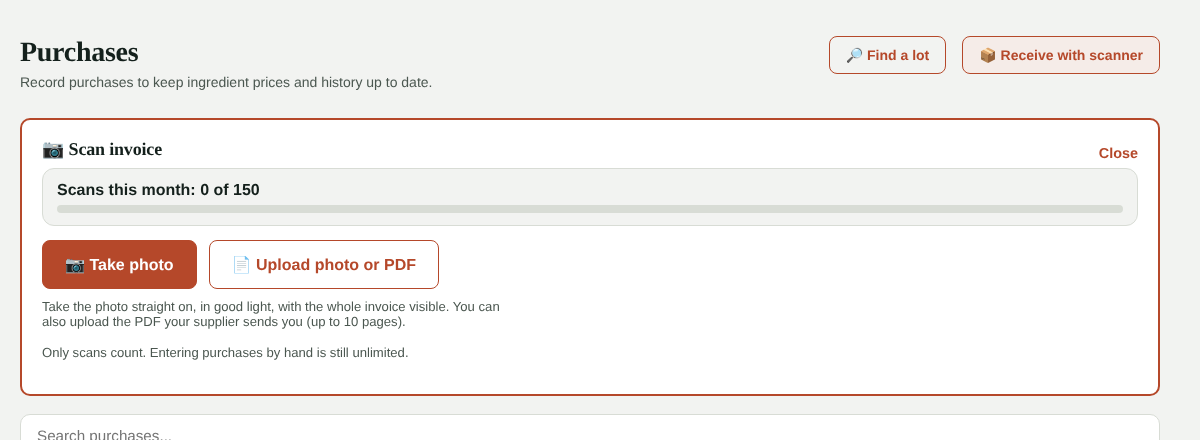
In 5 to 20 seconds the invoice is ready to review.
For a good read
Take the photo straight on, in good light, with no shadows and the whole invoice in frame (all four corners). If the invoice has several pages, upload it as a PDF.
2. Review
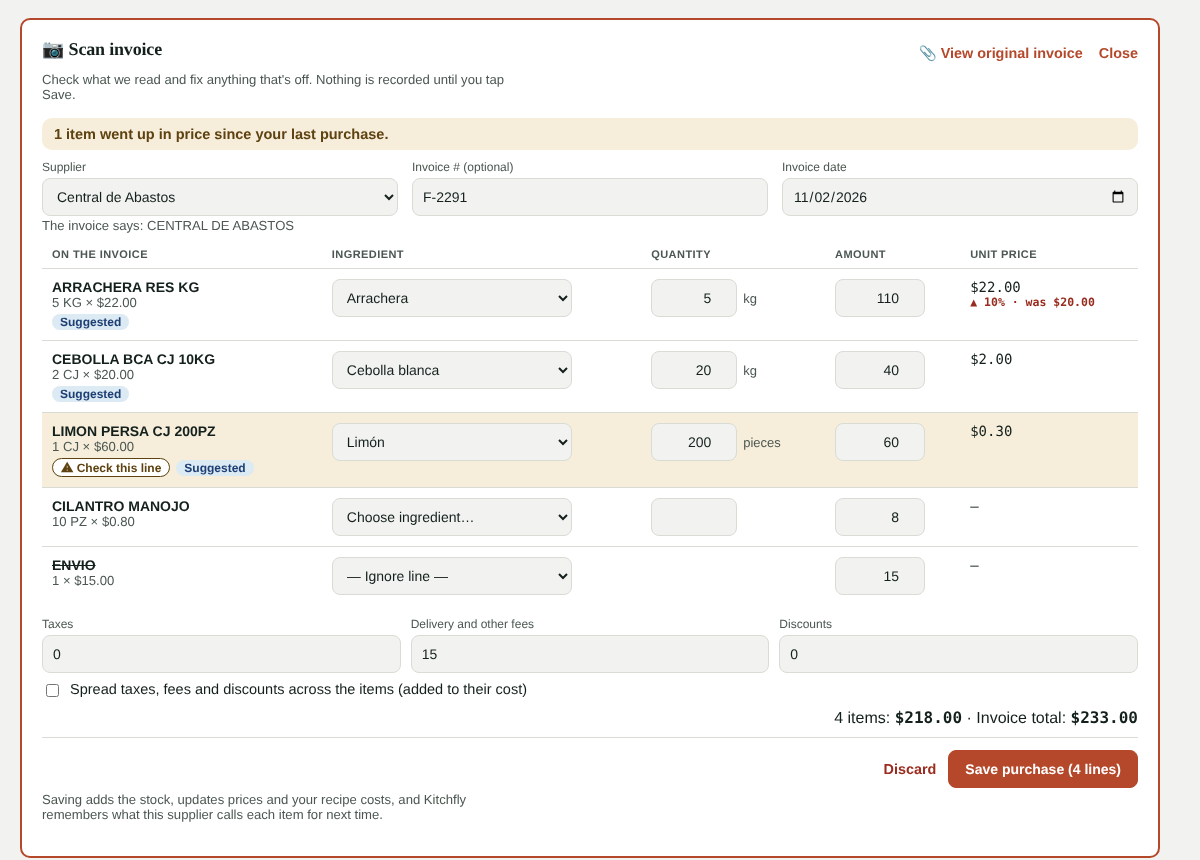
- Supplier: if you already have it, it's selected for you. If it's new, choose + New supplier and it's created when you save.
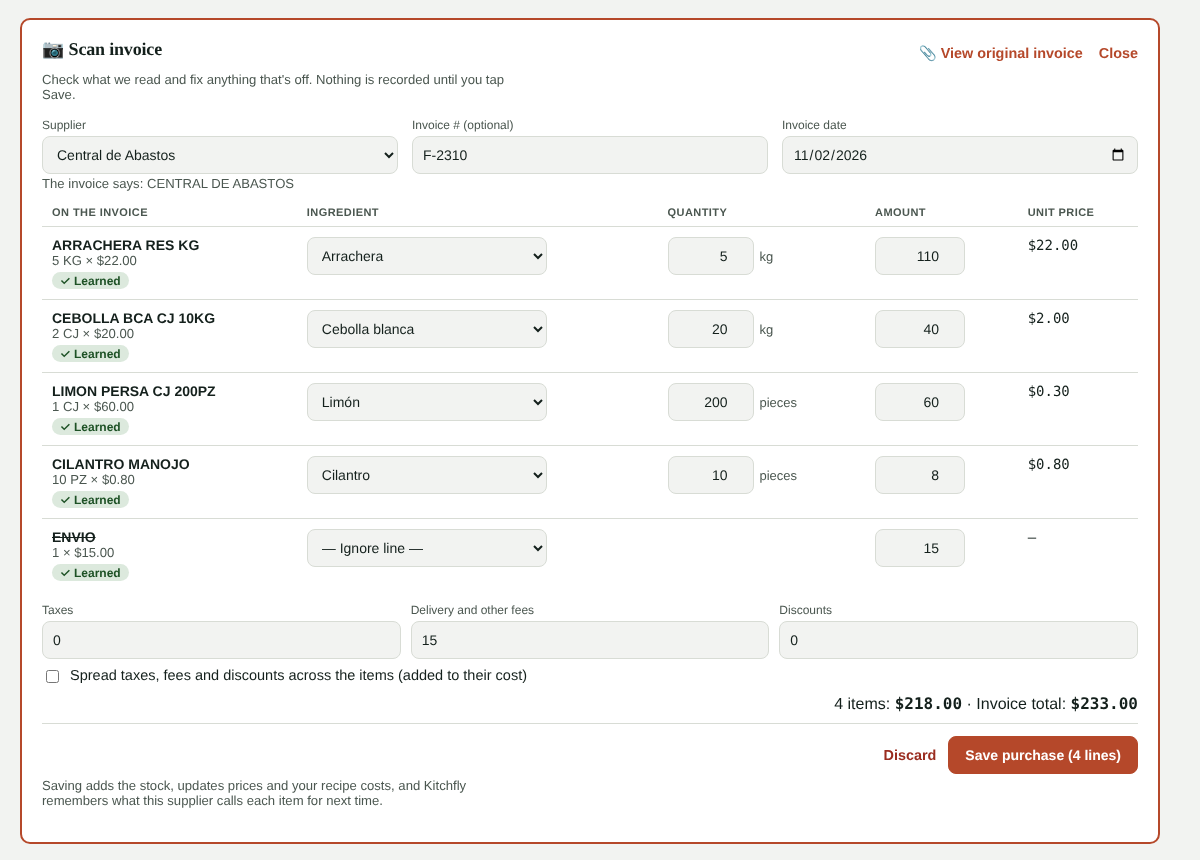
- Ingredient: each line comes with its matching ingredient. Suggested means the AI proposed it; Learned means you already confirmed it for this supplier. If the item doesn't exist, choose + Create ingredient. For bags, delivery or deposits choose — Ignore line —.
- Quantity: in the unit you buy the ingredient in. Kitchfly converts packs: 2 cases of 10 kg are 20 kg.
- Unit price: if it changed since your last purchase, it's marked (▲ up, ▼ down).
- Lines in yellow with ⚠ Check this line weren't read clearly (blurry photo, handwriting). Compare them with the invoice using 📎 View original invoice.
Alerts show at the top:
- Went up in price: how many items cost more than last time.
- Doesn't match: the lines don't add up to the printed total. Check for a missing line or amount.
- Already recorded: there's another purchase with the same invoice number from that supplier. If you save it, Kitchfly asks you to confirm.
Taxes, delivery and discounts stay out of the ingredient cost. To include them, check Spread taxes, fees and discounts across the items: they're split according to each line's amount.
3. Save
Tap Save purchase. The purchases show up in the list with a 📎 so you can open the original invoice whenever you need it (for your accountant, for example).
Nothing is recorded until you save. If you close the page first, the invoice stays under Scanned invoices not saved yet so you can finish it later.
Kitchfly learns your suppliers
Every time you save, Kitchfly remembers what that supplier calls each item and how it's packed. The next invoice from that supplier comes in already matched, with quantities converted, so reviewing takes a glance.
Scans per month
| Plan | Scans per month |
|---|---|
| Basic | 150 |
| Pro | 400 |
The counter sits at the top of Scan invoice and resets on the 1st of each month. Every invoice that's read counts, even if you discard it afterwards. If the file isn't an invoice or couldn't be read, it doesn't count.
If you hit the limit, tap Buy 100 more scans ($5.00). You pay by card and they're good until the end of that month.
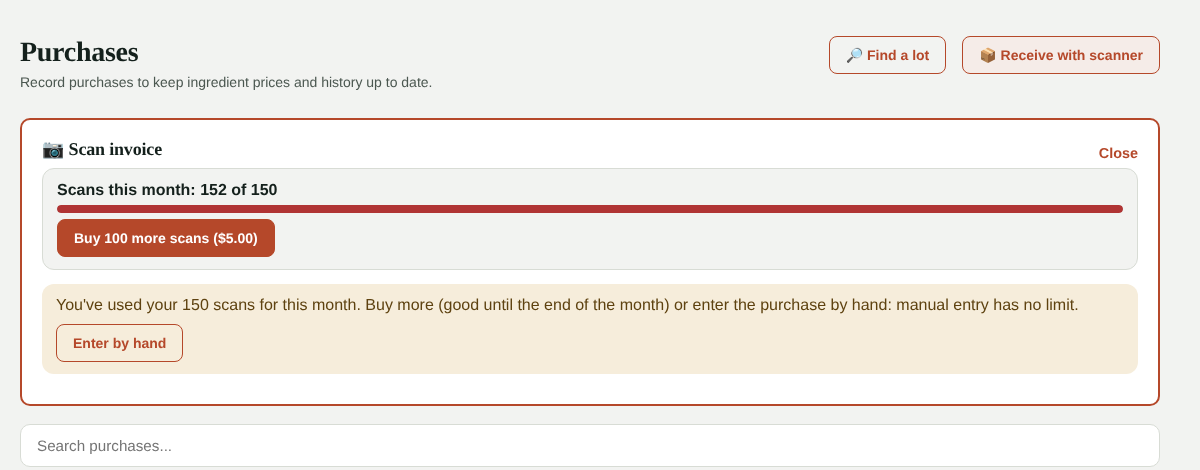
Entering purchases by hand has no limit
Scanning is a shortcut. You can keep entering purchases by hand (or receiving with the barcode scanner) as often as you like.
FAQ
Who can scan invoices? Admins, same as recording purchases.
What happens to the photo? It's sent to Claude, Anthropic's AI, only to read it, and it's stored in Kitchfly with the purchase. Nobody else can see it.
Does it read invoices in Spanish? Yes, Spanish or English, including common distributor abbreviations (CS, EA, LB…).
What if it gets something wrong? Fix the line before saving. If you change the ingredient or quantity, Kitchfly learns it for that supplier's next invoice.