Customer display
Put a tablet or a second monitor at the register, facing the customer. While you ring up the order, the customer sees it live; at checkout they pick a tip, can earn points with their phone and ask for an emailed receipt. When there's no order, it shows a welcome, your promotions and photos of your best-selling items.
It's included in both plans. It works on any tablet (iPad or Android) or monitor with a browser.
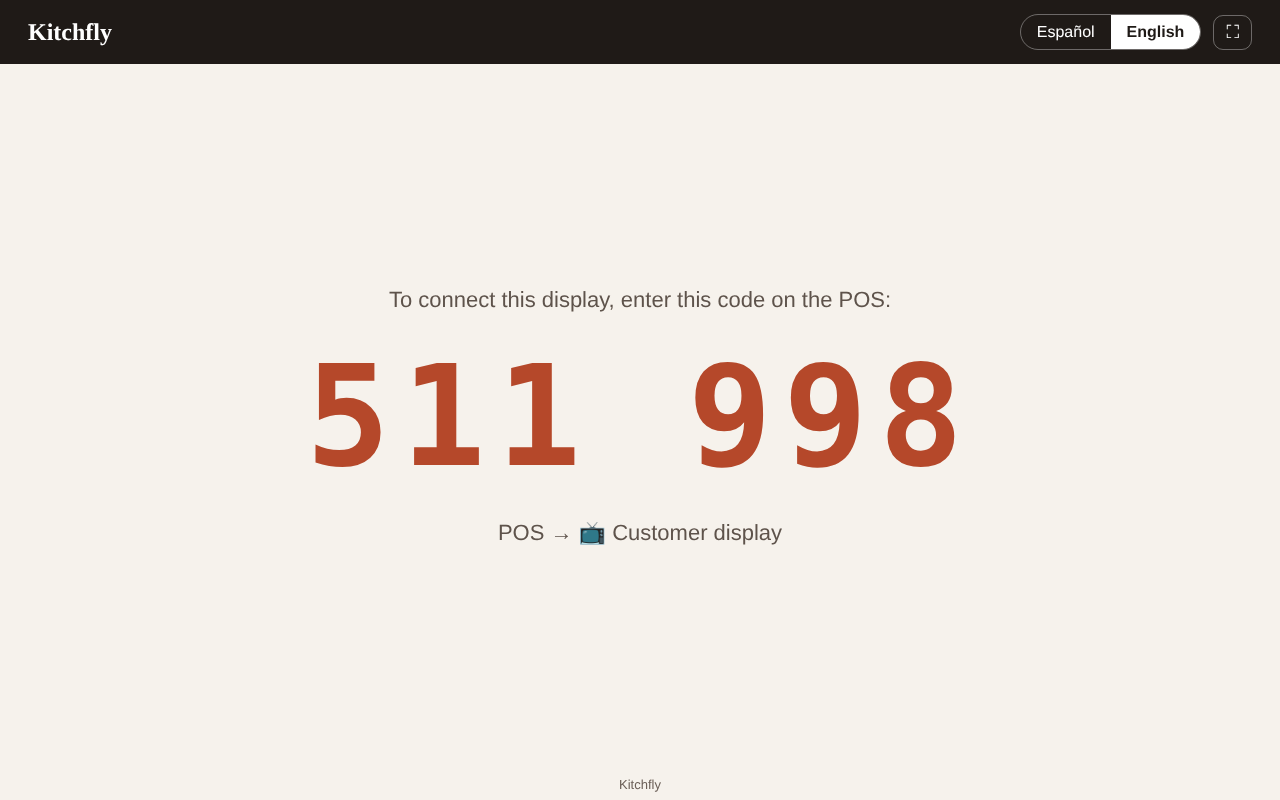
1. Open the display on the tablet or monitor
In the tablet's browser (or a browser window on the second monitor) open:
app.kitchfly.com/?pantalla=cliente
A 6-digit code appears. Tap ⛶ for full screen.
Second monitor on the register computer
Open Chrome or Edge, drag the window to the customer-facing monitor, enter the address above and press F11 (or tap ⛶).
2. Link it to your POS
On the POS tap 📺 Customer display, enter the code and, optionally, a name (for example "Front counter"). Done: that register's orders show on that display.
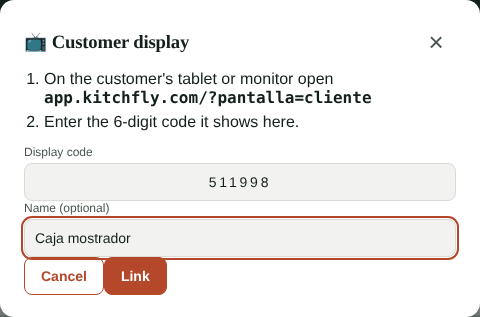
Each register remembers its display. With two registers, link one display to each. The green dot on the 📺 button means the display is connected.
What the customer does
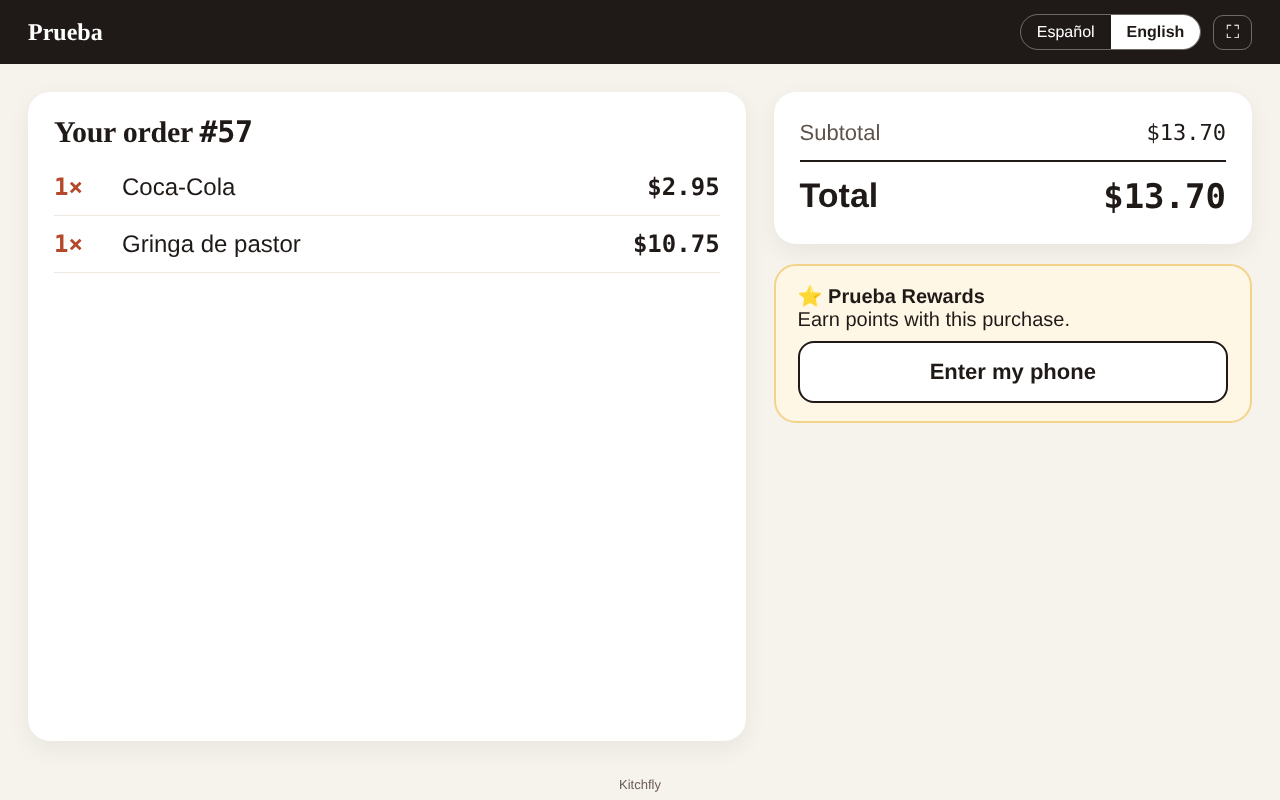
See their order. Each item you add appears instantly with its modifiers, discounts, tax and total. Kitchen notes aren't shown.
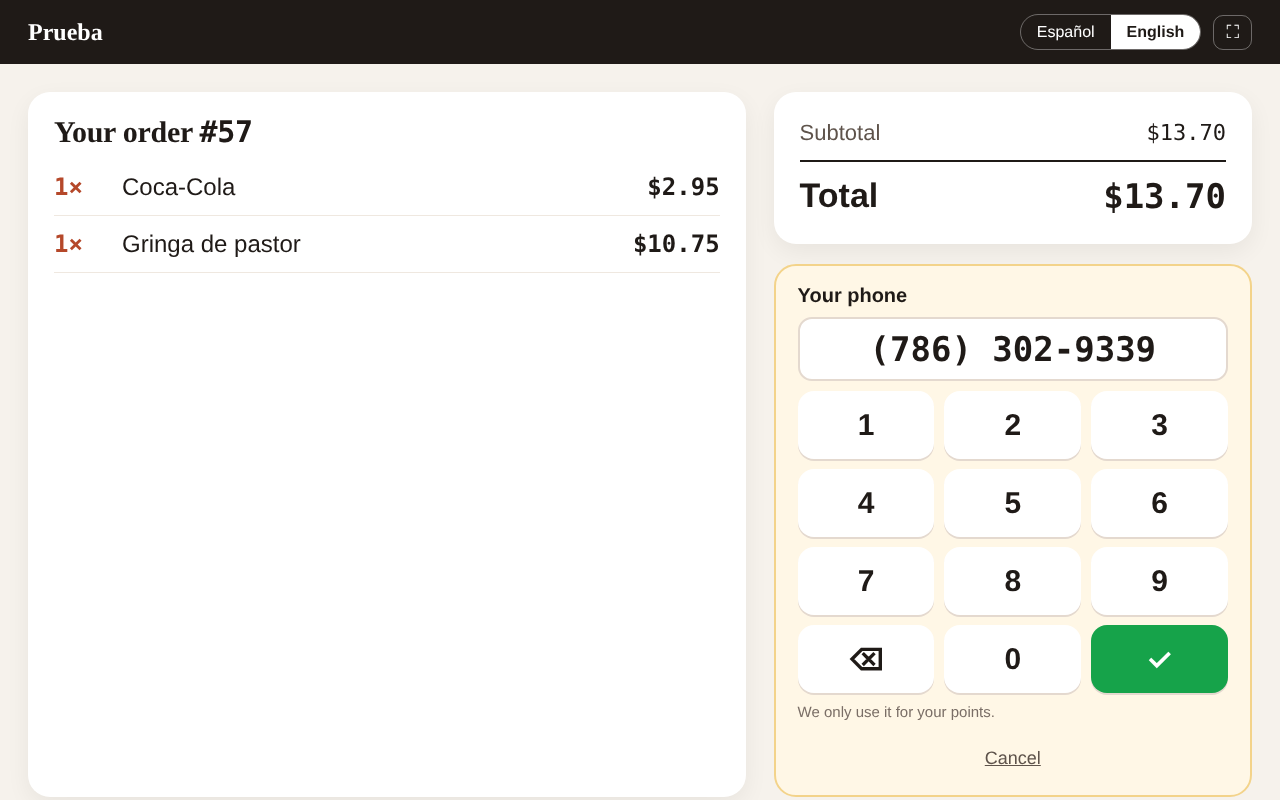
Earn points. If your loyalty program is on for the POS, the customer taps Enter my phone. New customers enter their name and they're signed up. The customer shows on your ticket within a few seconds.
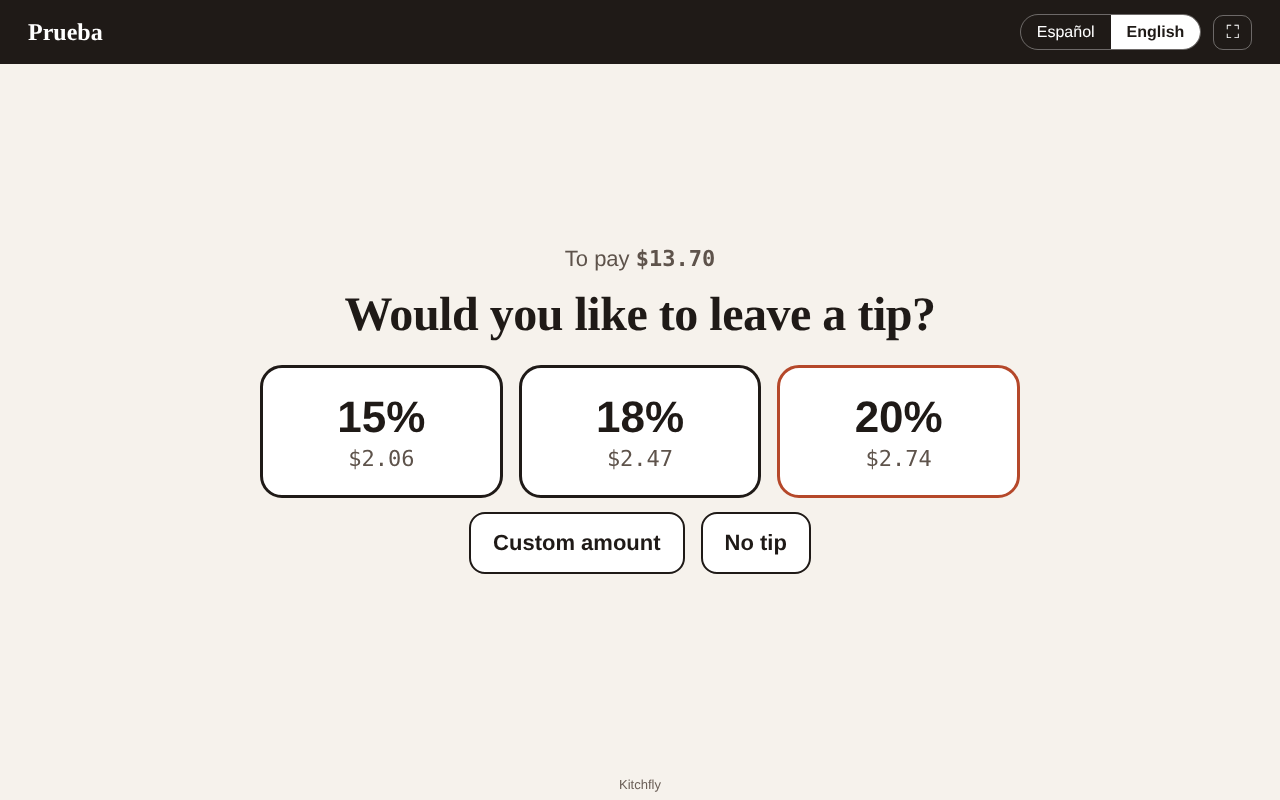
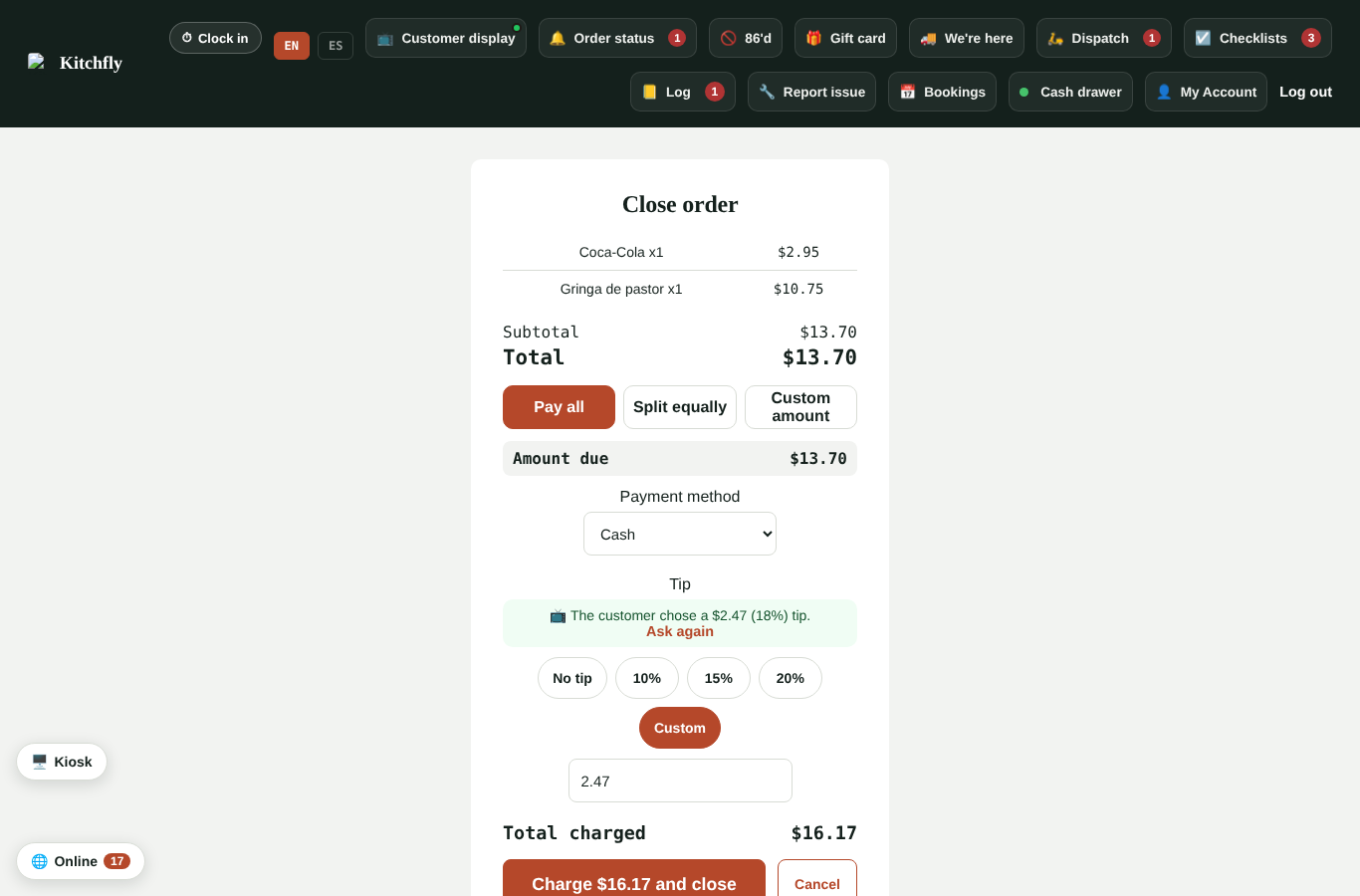
Choose the tip. When you tap Close order, the display asks the customer for a tip (15, 18 or 20%, a custom amount or no tip). Their choice shows in your checkout; you can change it before charging.
With a card reader
If you charge with a card reader, the customer picks the tip on the reader.
Get a receipt. After paying they see "Thank you!", what they paid and their loyalty progress, and can enter their email to get the receipt. After 30 seconds the display goes back to the welcome screen.
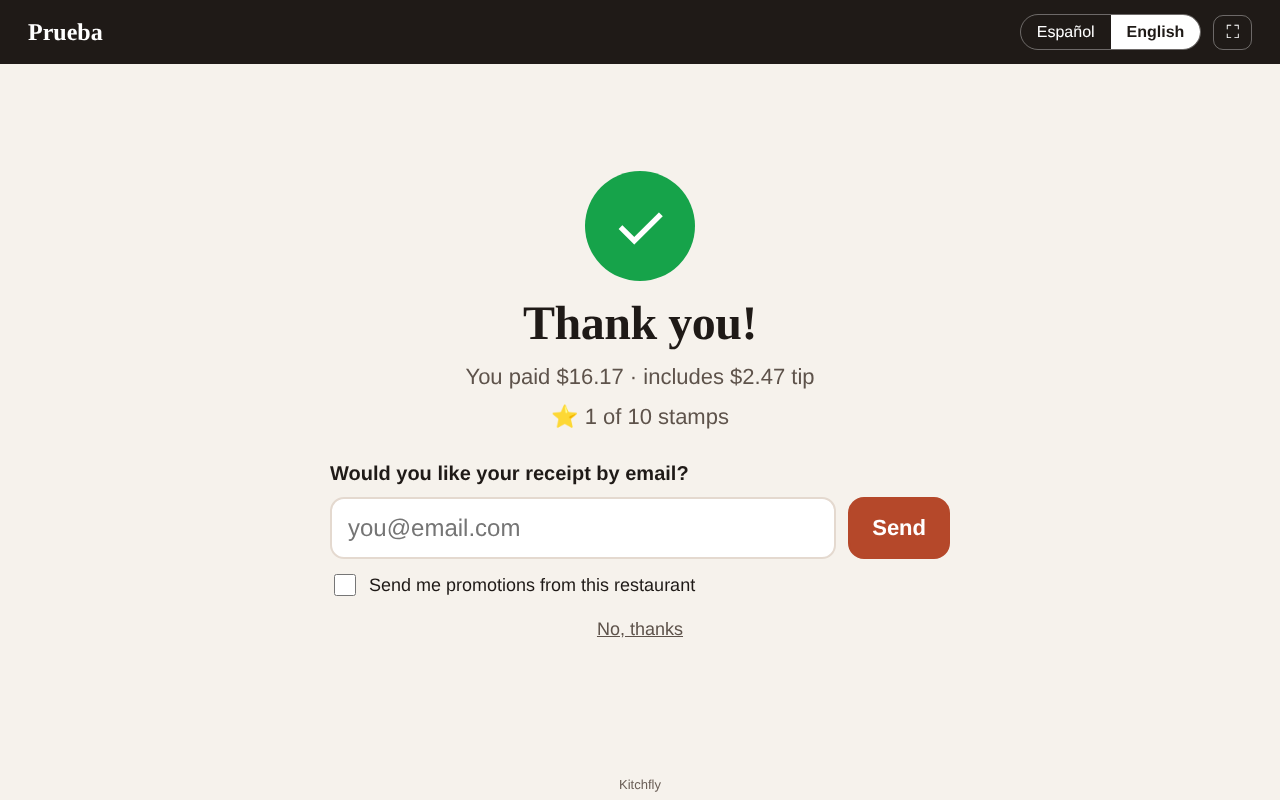
The customer can switch the language (Spanish or English) at the top right.
Settings
In Settings → Customer display you choose:
- Whether the customer picks the tip and which percentages they see.
- Whether they can earn points with their phone and ask for an emailed receipt.
- What shows when there's no order: photos of your best-selling items (the ones with photos), your active promotions and a welcome message in Spanish and English.
- Your linked displays: rename or unlink them (the display shows a code again).
FAQ
Do I need an app? No: it's a browser page. On a tablet you can add it to the home screen.
Does the screen turn off? Kitchfly asks the browser to keep it on while it's open. If your tablet still turns it off, increase the auto-lock time in the tablet's settings.
What if the internet drops? The display shows "Reconnecting…" and catches up on its own when it's back. The POS keeps working without it.