Allergens
Kitchfly tracks the FDA's 9 major allergens: milk, eggs, fish, crustacean shellfish, tree nuts, peanuts, wheat (gluten), soy and sesame.
You mark them once on your ingredients and every dish inherits them automatically, including sub-recipes. If you change an ingredient, every dish that uses it updates.
You'll see them in Menu & products → Allergens, on each recipe, on the POS, on the kitchen display, on the online menu and on the table QR.
1. Mark your ingredients' allergens
- Go to Menu & products → Allergens → Ingredients.
- Tap Not reviewed to see only the ones left.
- Check the allergens for each ingredient. If it has none, check None so it counts as reviewed.
- Tap Save.
Suggestions
Kitchfly reads your ingredient names and suggests likely allergens (for example, Queso Oaxaca → milk, Flour tortilla → wheat). Tap Apply suggestions, check them and save. They're only suggestions: you confirm.
You can also mark them when you create or edit an ingredient, in the Allergens section.
An ingredient that's not reviewed isn't the same as one with no allergens. While a dish has unreviewed ingredients it shows as Incomplete and its allergens aren't shown to guests.
2. Check each dish
Open a recipe: the Allergens card shows what it contains and which ingredient each one comes from.
Tap Edit to:
- Add by hand anything that isn't in the recipe (for example, the peanut oil it's fried in). Allergens that come from ingredients can't be removed.
- Mark May contain (cross-contact): it's prepared next to something that has it, like the same fryer or cutting board.
3. The menu matrix
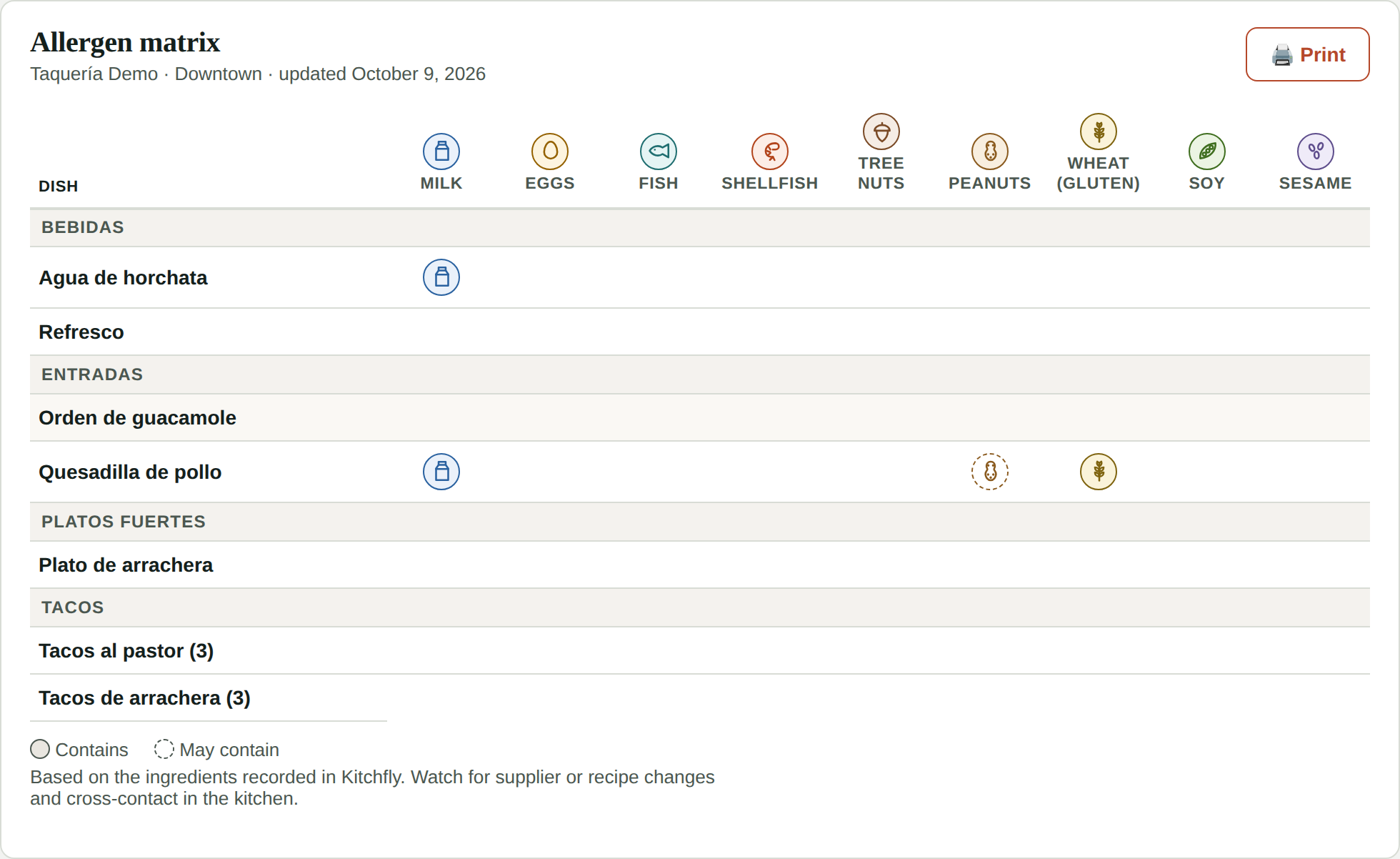
In Allergens → Menu matrix you see all your dishes against the 9 allergens: a solid icon means contains, a dashed one means may contain. Hover over an icon to see which ingredient it comes from.
Tap Print to keep it in the kitchen or show it during an inspection.
On the POS and in the kitchen
- Every dish on the POS shows its allergen icons.
- When a server adds an allergy alert to an item (for example, dairy allergy), they see what the dish contains. If the alert conflicts with the dish, the ticket flags it in red: Heads up! This dish contains milk.
- On the kitchen display that dish shows CONTAINS MILK in red so the cook double-checks it.
Kitchfly understands alerts in English or Spanish: tree nut, celiac, shellfish, cacahuate, lácteos…
On the online menu and table QR
Each dish shows its allergen icons, and the dish details list them by name. Guests can tap Filter by allergies and pick, for example, No milk: dishes that contain it or may contain it are hidden.
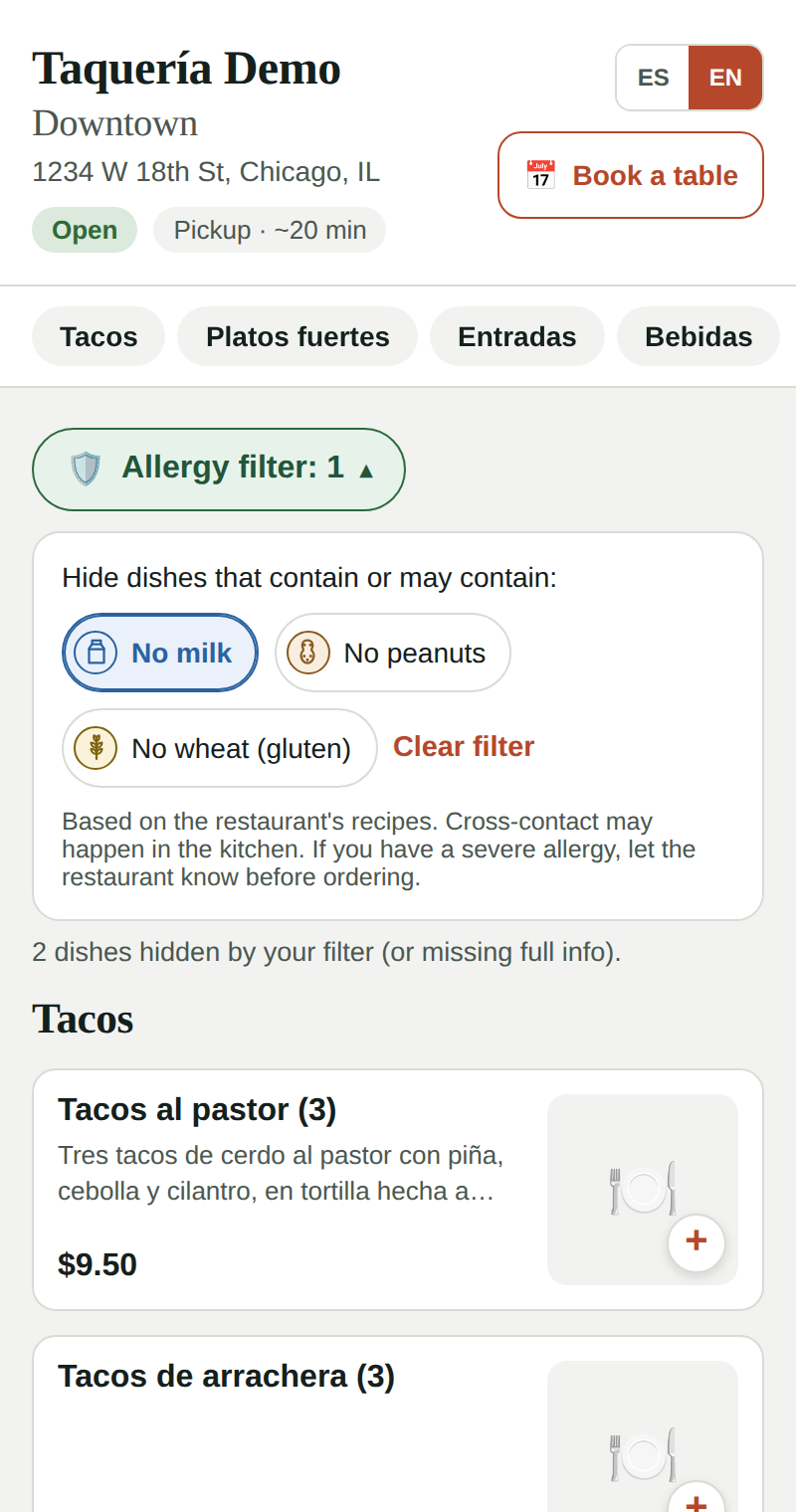
Dishes with incomplete info show no icons and are hidden when a guest uses the filter. Instead, we ask the guest to check with the restaurant.
You're responsible for the information
Kitchfly calculates allergens from what you record. Review them when you change suppliers or recipes, and tell guests about cross-contact. The online menu shows a notice asking guests with severe allergies to check with you before ordering.