Kitchfly Pay: take card payments
Kitchfly Pay is Kitchfly's payment processor. Activate it once and take cards, tap, Apple Pay and Google Pay on every channel:
- POS: with a card reader (WisePOS E or S700) or by keying in the card.
- Self-service kiosk, with a reader.
- Table QR: the customer pays from their phone.
- Online orders and your website.
- Events (tickets) and catering (deposits and balances).
Money is deposited to your bank account and every charge, fee and deposit shows up in Finance → Kitchfly Pay. Kitchfly Pay runs on Stripe, which stores the card data: Kitchfly never sees or stores card numbers.
Rates
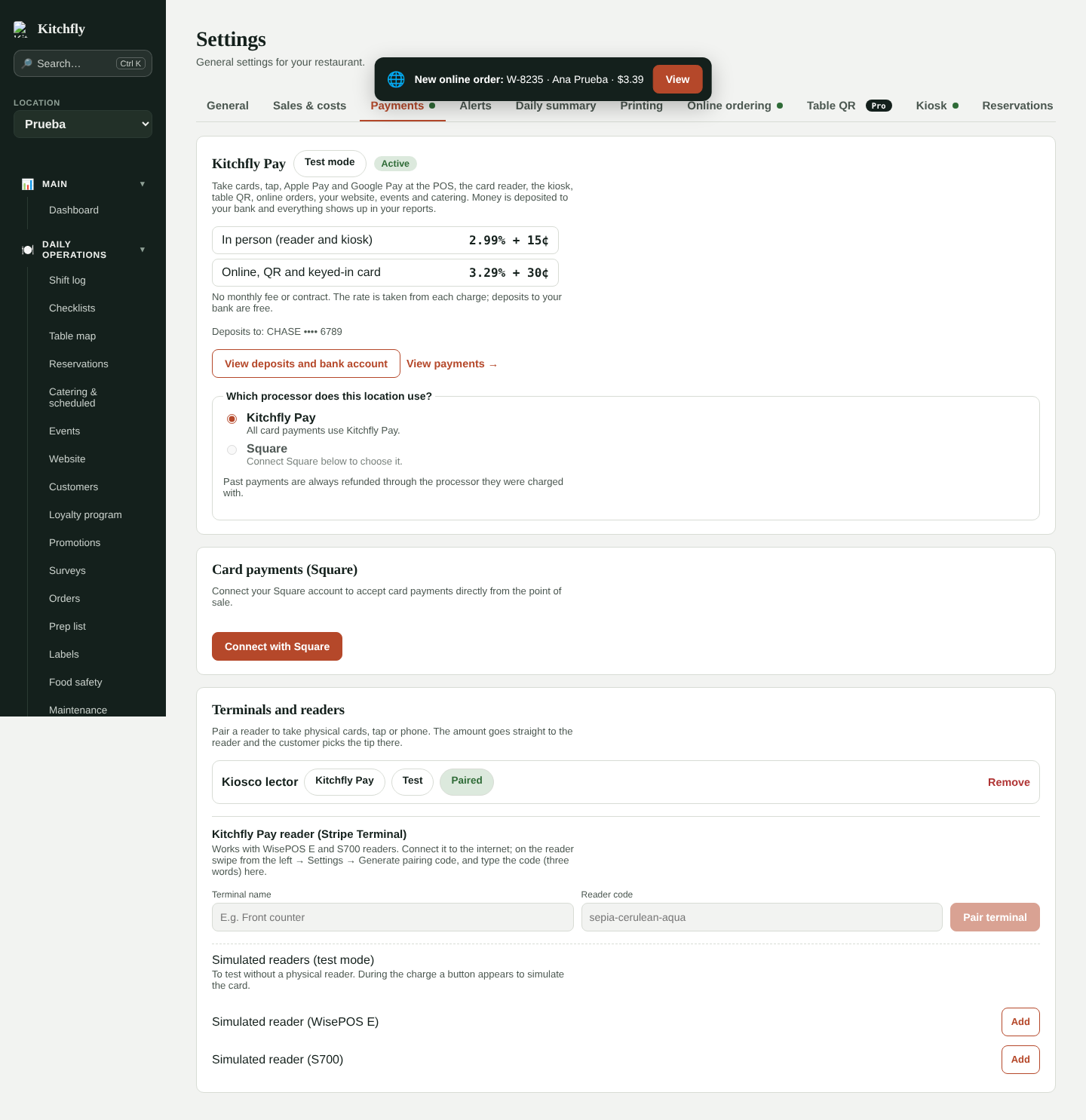
No monthly fee, no contract and no payout fee. The rate is taken from each charge:
| Type of charge | Rate |
|---|---|
| In person (reader at the POS or kiosk) | The one shown in Settings → Payments (for example, 2.99% + 15¢) |
| Online, table QR, events, catering and keyed-in card | The one shown in Settings → Payments (for example, 3.29% + 30¢) |
The rate also applies to the tip (the tip is part of the charge). If you refund a payment, the proportional part of the fee is returned to you.
Activate (once, admin)
- Go to Settings → Payments and click Activate Kitchfly Pay.
- We'll take you to Stripe's secure page. Enter your business and owner details, and the bank account where you want deposits.
- When you're done you come back to Kitchfly. If everything is fine you'll see Active; if Stripe needs to review something you'll see In review (it usually takes a few minutes).
Each location has its own account
If you have several locations, activate Kitchfly Pay at each one (switch location at the top left). That way each one gets its deposits in the bank you choose.
When Stripe needs one more item (for example, an ID), you'll see Active · info needed and an alert in the bell. Click Complete information before the deadline so your payments aren't paused.
If you also use Square
Each location takes payments with one processor. If Kitchfly Pay is active and Square is connected, choose which one to use in Settings → Payments → Which processor does this location use?. When you activate Kitchfly Pay at a location without Square, it's selected automatically.
Past payments are always refunded through the processor they were charged with, even if you switch processors later.
Pair a reader
- Connect the reader (WisePOS E or S700) to the internet over Wi-Fi or Ethernet.
- On the reader swipe from the left → Settings → Generate pairing code. Three words appear.
- In Kitchfly go to Settings → Payments → Terminals and readers, type a name (for example Register 1) and the code, and click Pair terminal.
The first time, the location's address is used (Settings → General): make sure it has street, city, state and ZIP code.
To charge, choose Card (reader/terminal) on the POS: the amount goes straight to the reader and the customer picks the tip there. For the kiosk, choose the reader in Settings → Kiosk.
Taking payments
- POS: choose Card (reader/terminal) for the reader, or Card to key in the card in the secure form.
- Online, QR, events and catering: the customer sees a card form with Apple Pay and Google Pay (on devices that have them). If their bank asks to verify the payment, a bank window appears.
- Online orders: the card is authorized when the order is placed and charged when you accept it. If you reject it (or nobody accepts it in time), the authorization is released and the customer isn't charged.
Refunds
In Orders, open the order and click Refund. The money goes back to the customer's card (5 to 10 business days depending on their bank) and comes out of your Kitchfly Pay balance.
Finance → Kitchfly Pay
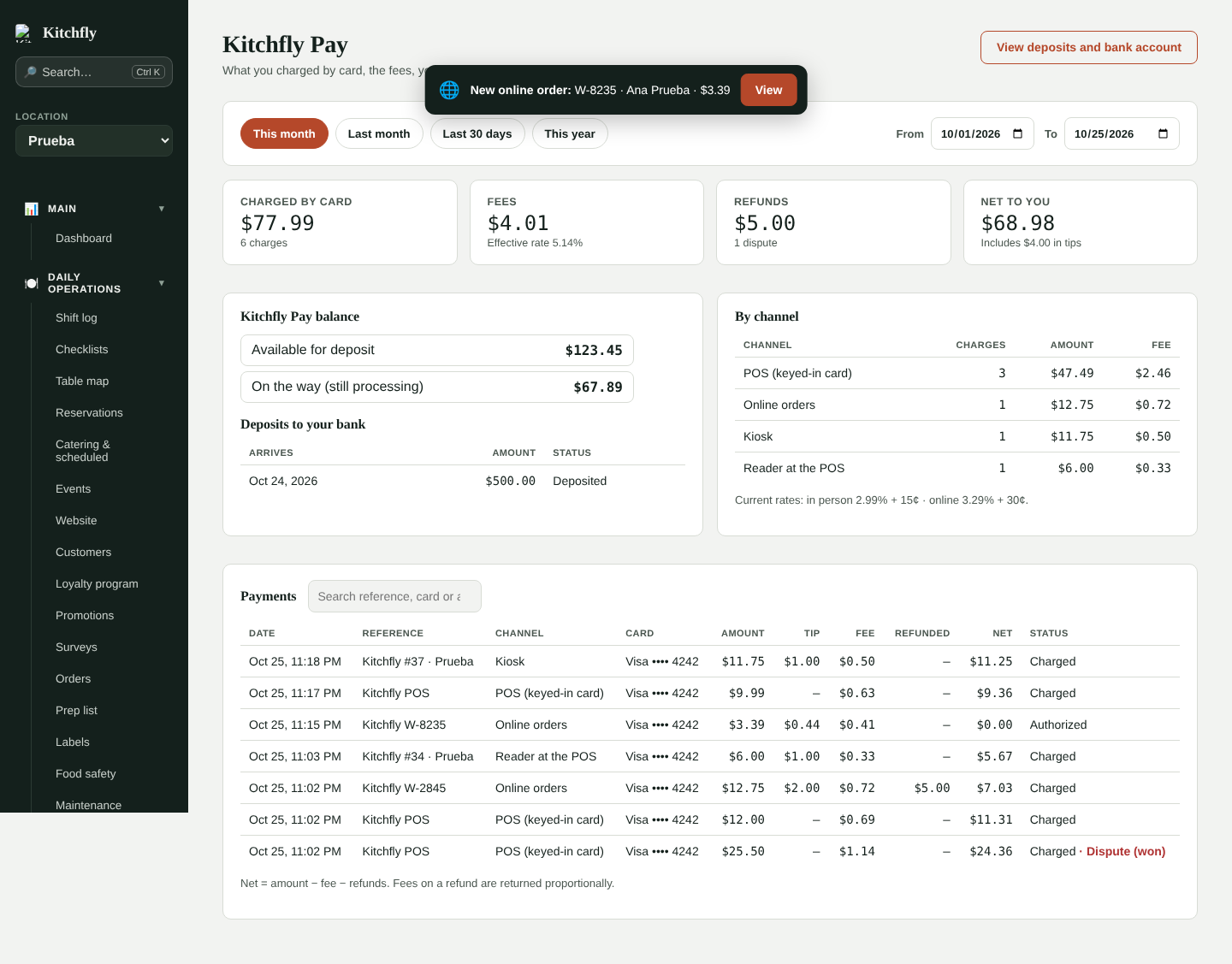
- Charged by card, Fees (with the effective rate), Refunds and Net to you.
- Balance: what's available to deposit and what's still processing.
- Deposits to your bank: how much and when each one arrives.
- By channel: POS, reader, online orders, QR, kiosk, events and catering.
- Payments: every charge with its reference, card, tip, fee, refund and net.
View deposits and bank account opens your Stripe dashboard, where you can change your bank account and download your tax documents (1099-K).
Disputes (chargebacks)
If a customer disputes a charge with their bank, you'll see an alert in the bell and get an email. The disputed amount is held from your balance while it's resolved. Email [email protected] with the ticket or order receipt to respond to the dispute. If it's won, the money goes back to your balance.
How often do deposits arrive?
Every business day, with what was charged a few days earlier (the first deposit can take up to 7 days while Stripe verifies the account).