Reservations and waitlist
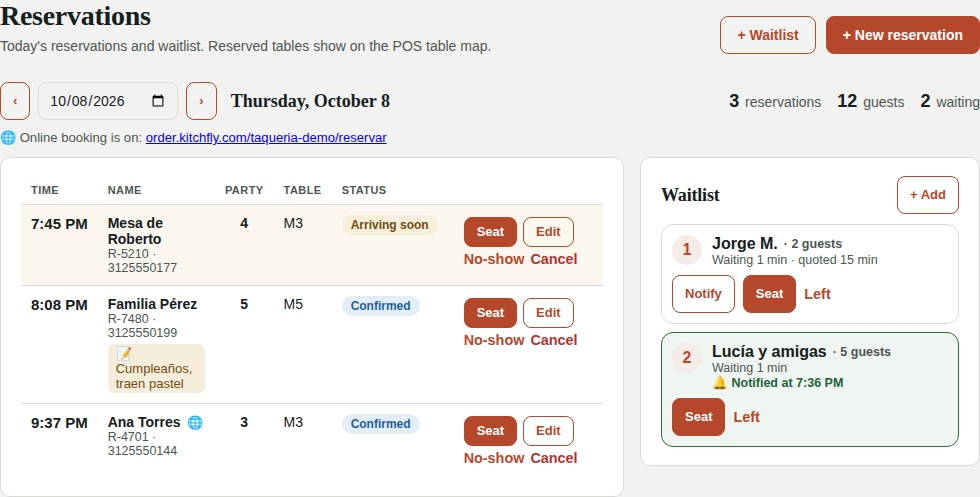
With reservations (Pro plan) you record held tables, guests can book online, and walk-ins go on the waitlist. It all connects to your table map: reserved tables show up marked in the POS.
The admin opens them in Daily operations → Reservations, and the host or server with the 📅 Bookings button in the POS.
Before you start
- Draw your tables in Table map and set how many seats each one has. Kitchfly uses that number to know where each party fits (a table without seats counts as 4).
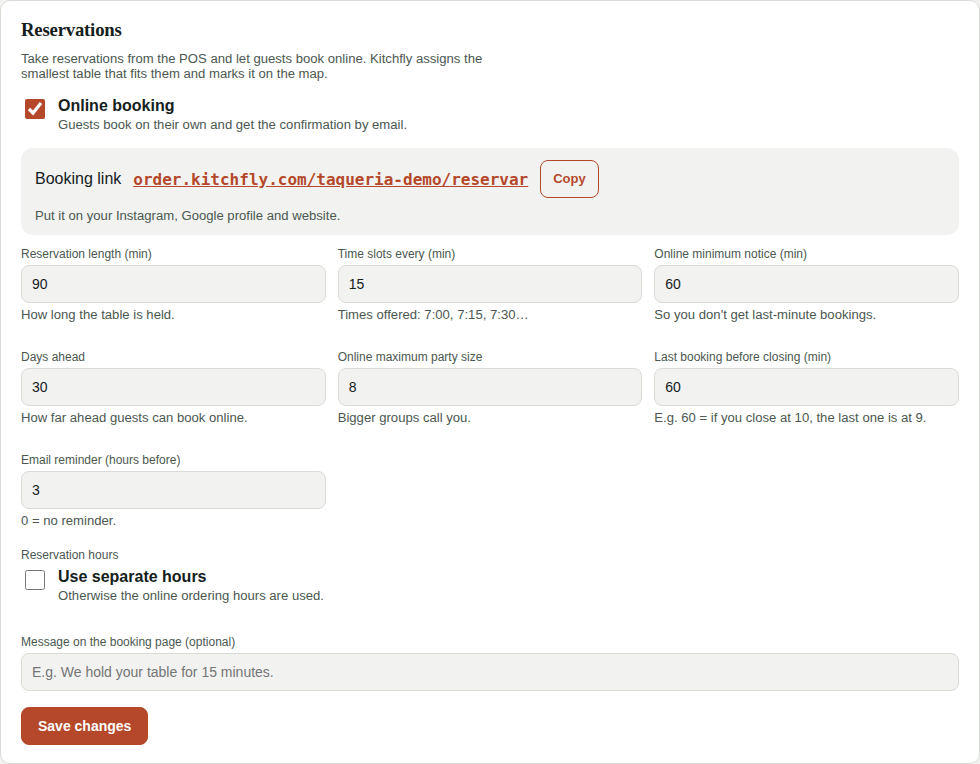
- Check the settings in Settings → Reservations: how long each reservation lasts (90 minutes by default), how often times are offered, and the hours. If you don't set separate hours, the online ordering hours are used.
Add a reservation
- Tap + New reservation.
- Enter name, party size and phone. If they give you their email, they get the confirmation and a reminder.
- Pick the date and tap one of the available times (crossed-out ones have no table that fits). You can also type another time.
- Under Table, leave Assign the best free table (the smallest one that fits them) or pick one. If there's no table, you can save it without a table and seat them when they arrive.
- Add notes (birthday, high chair…) and tap Save reservation.
Each reservation has a code (for example R-4821) so you can find it when the guest calls.
When they arrive
- Tap Seat, confirm the table and you're done: it shows as Seated. Then the server opens the order on that table as usual.
- If they don't show, tap No-show. If they cancel by phone, tap Cancel (if they left an email, we let them know).
- 30 minutes before, the reservation shows Arriving soon, and 15 minutes after the time, Late.
On the POS table map and the Live floor, a table with a reservation in the next hour and a half shows 📅 and the time, so you don't give it to another party.
Waitlist
- When someone walks in without a reservation and there's no table, tap + Waitlist.
- Enter name, party size and the wait you quoted. If they leave an email, we can notify them.
- When their table is ready, tap Notify: they get a "your table is ready" email (if they left no email, call out their name).
- Tap Seat and pick the table, or Left if they didn't wait.
The list shows how long each party has been waiting and turns red once they pass the quoted time.
Online booking
In Settings → Reservations turn on Online booking. You get a link like order.kitchfly.com/your-restaurant/reservar: put it on your Instagram, Google profile and website.
If you also use online ordering, your ordering page shows a 📅 Book a table button at the top, and the booking page has Order takeout to go back to the menu.
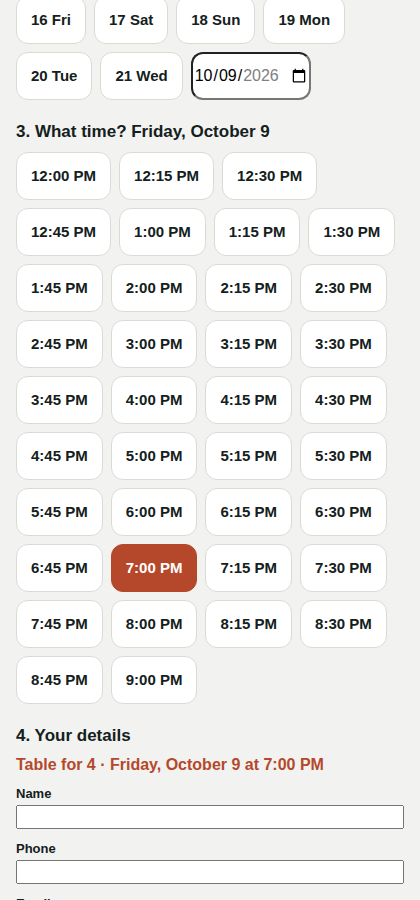
Guests pick party size, day and time, and Kitchfly only offers times when there's a free table that fits them. When they book:
- They get a confirmation email with a link to view or cancel their reservation.
- A few hours before, they get a reminder (3 hours by default; 0 = no reminder).
- You get an alert in the bell, and the reservation shows with 🌐 in the list. If they cancel, we let you know too.
You can limit the maximum party size online (big groups call you), the minimum notice and how many days ahead they can book.
Meals take longer (or shorter)?
Kitchfly holds each table for the length you set. If your meals run longer or shorter, adjust Reservation length so reservations on the same table don't overlap.