Set up your table map
The Table map is a floor plan of your restaurant. You build it once, then servers pick a table by tapping it in the POS and can see at a glance which ones are taken.
Pro plan
The table map is part of the Pro plan. If you're on Basic, switch from My Account (see Subscription). Each location has its own map.
Add tables
- In the menu, go to Daily operations → Table map.
- Type the table's name (for example Table 5, Bar 1 or Patio 2) and click Add table.
- The table shows up in the corner of the plan. Drag it into place.
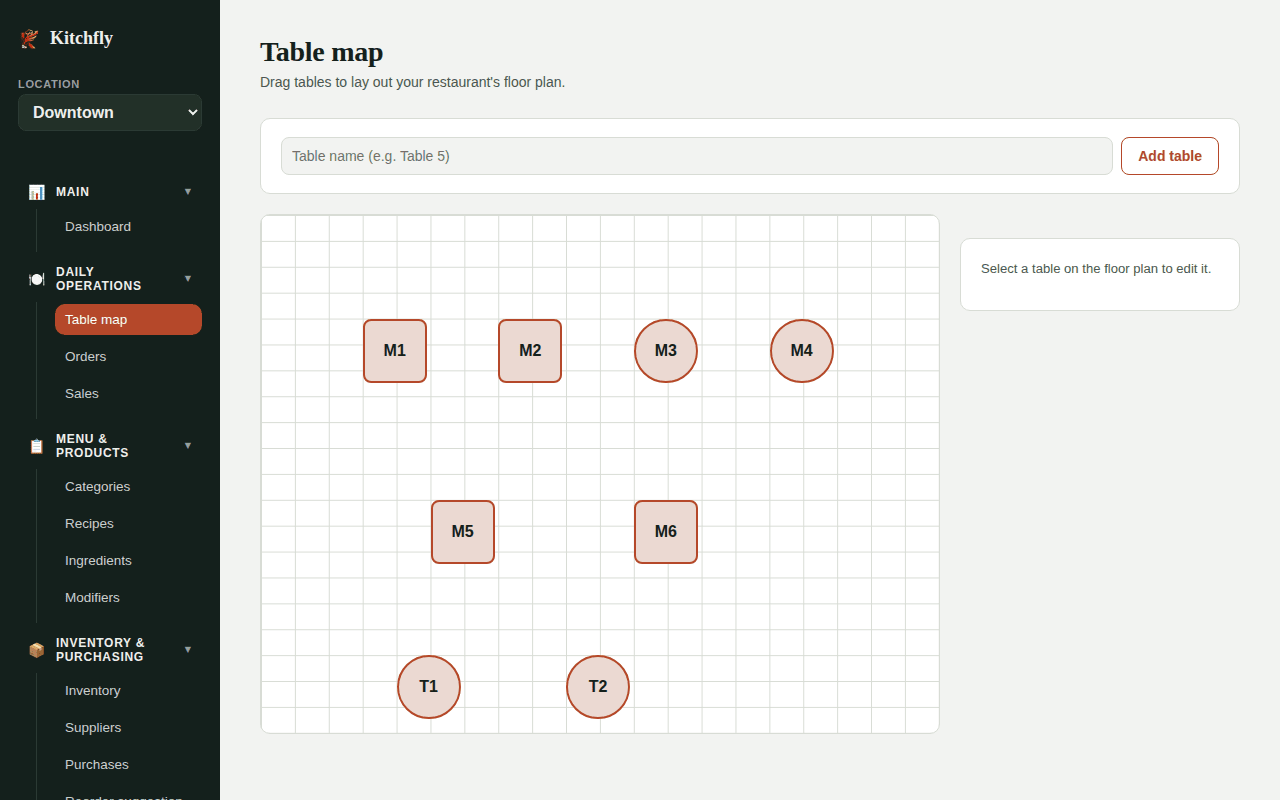
Repeat for all your tables. Use the grid as a guide so the plan looks like your real dining room.
Edit a table
Click a table on the plan and edit it in the panel on the right:
- Name: what servers see in the POS and the kitchen sees on the kitchen display.
- Capacity: how many people fit.
- Zone: for example Dining room, Patio or Bar, to group them.
- Shape: Square or Round.
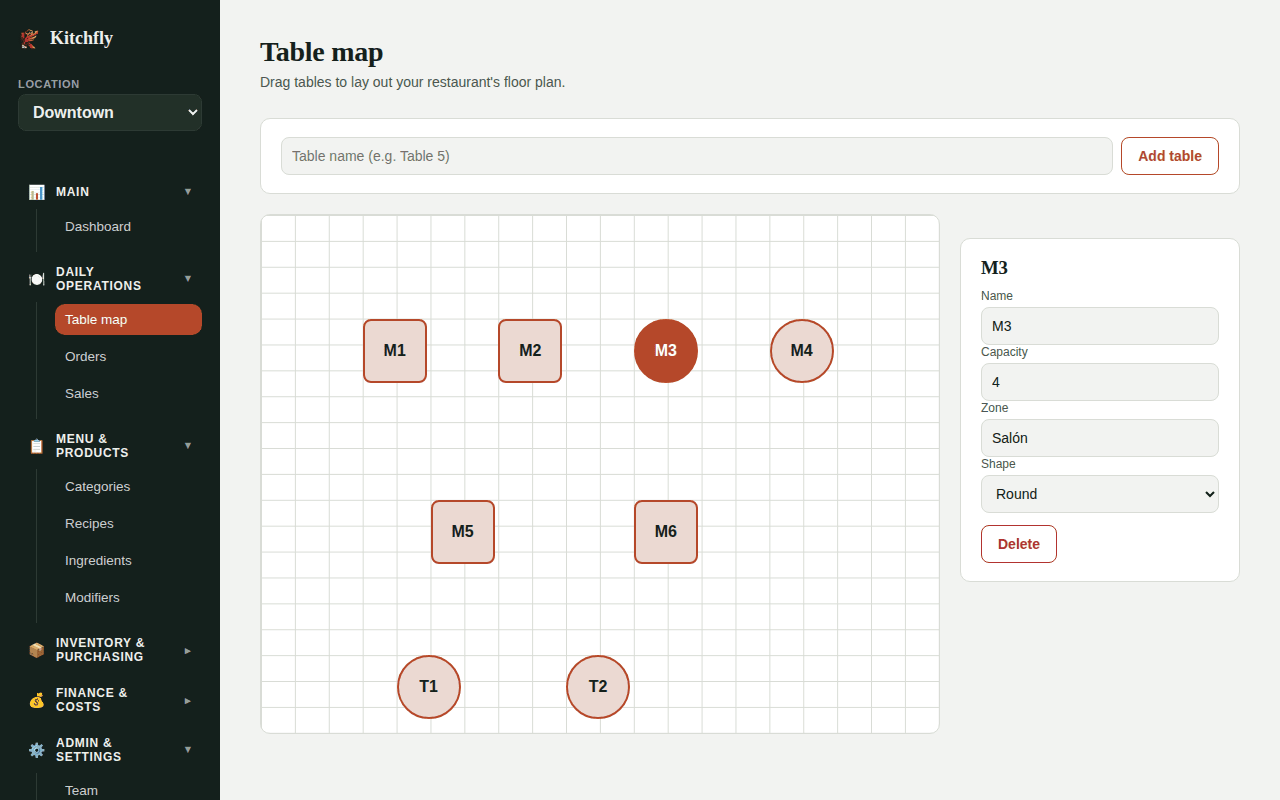
Changes save on their own when you leave each field, and the position saves when you drop the table. To delete it, click Delete.
How it's used in the POS
When taking an order, servers see a mini plan under Table / zone and tap the table (Take orders in the POS):
- Green: free.
- Orange: the table you picked for this order.
- Red: taken by another open order. Tapping it opens that order, handy for adding dishes to a table that's already eating.
- Purple 📱: the table ordered from their phone or is calling the server (Table QR).
- Yellow: partially paid, for example $16/$31.
- Blue ✓: paid in full; tap it when they leave to free it.
When the order is paid or canceled, the table goes back to green.
Rather not use a map?
If you have no tables set up, the POS shows a text field to type the table or zone, as before.
Live floor
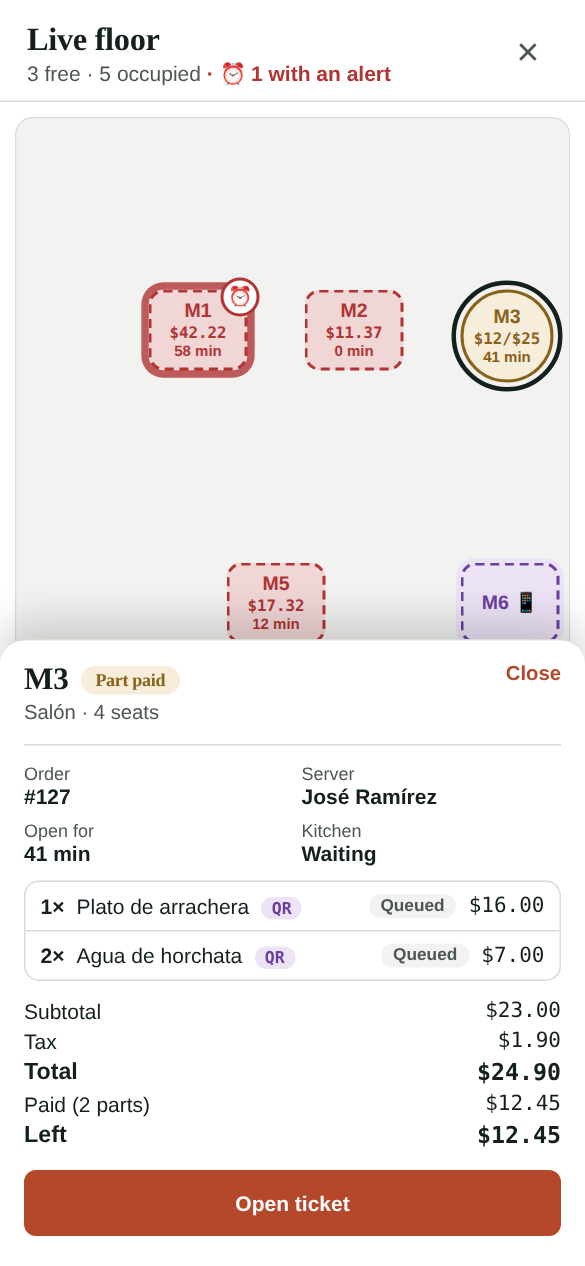
To see the whole floor in a big view, tap ⤢ View map next to Table / zone on the POS. Admins open it with ⤢ Floor view in Table map or Orders.
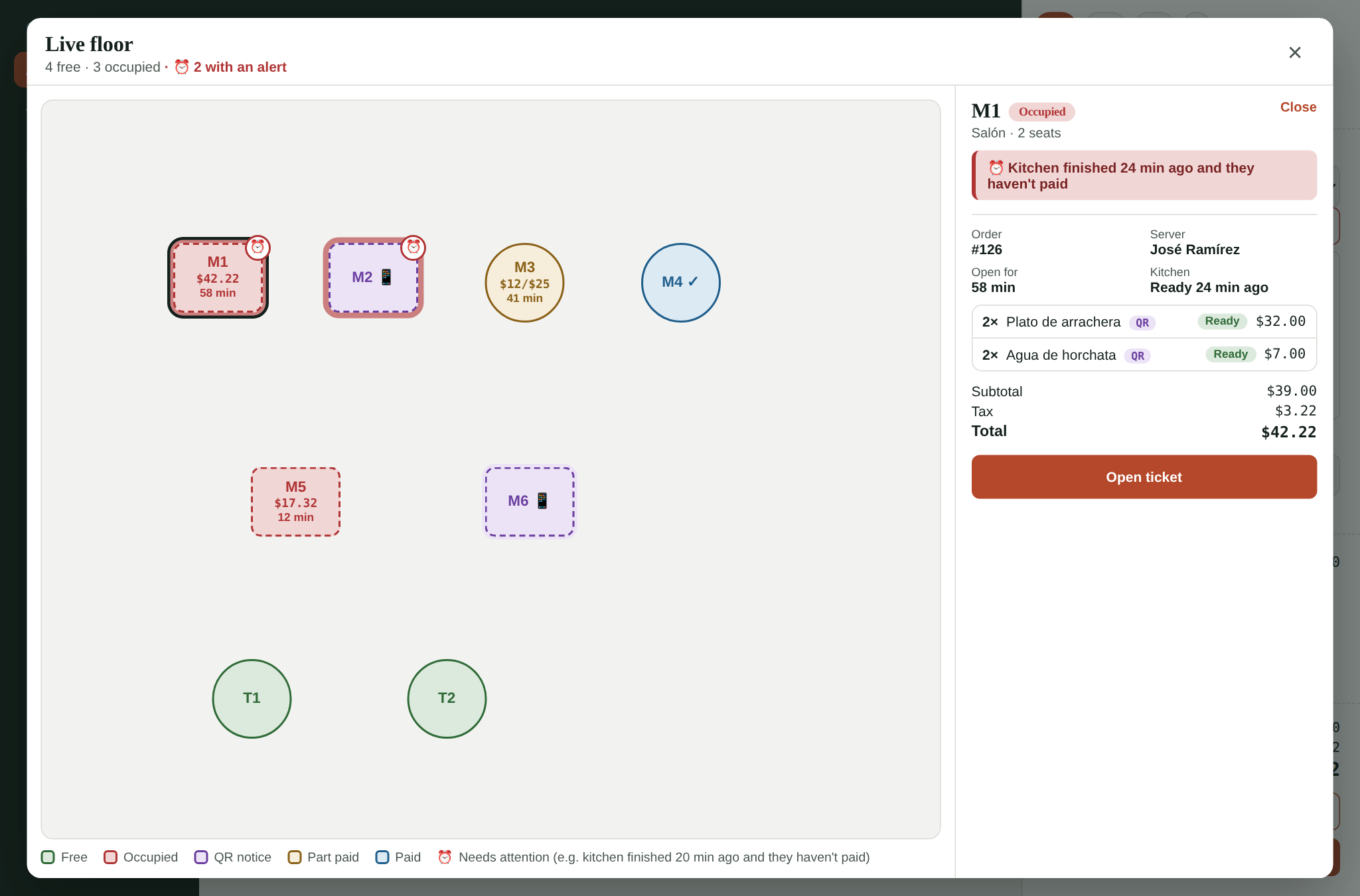
- Every occupied table shows its total and how long it's been open.
- Tap a table to see its details on the right: server, dishes with their kitchen status (Not sent, Queued, Cooking, Ready), QR tags, subtotal, tax, total, what's been paid and what's left.
- You can handle its table QR notices right there (approve, reject, done).
- The button depends on the table: New order at this table (free), Open ticket (occupied) or Free table (paid). Admins see the details and handle notices; tickets are opened from the POS.
- It refreshes on its own every few seconds.
Time alerts ⏰
A table gets a ⏰ and a red ring when:
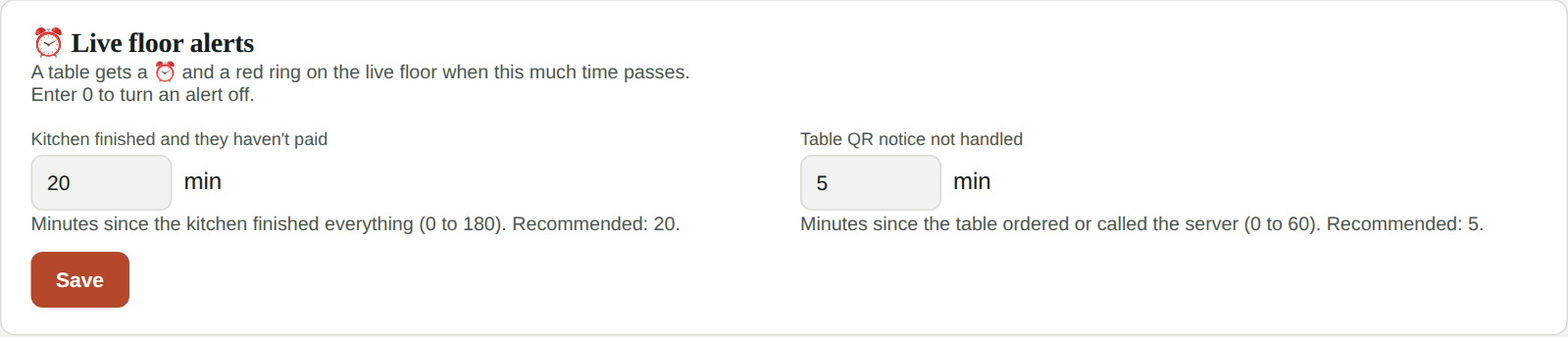
- The kitchen finished and they haven't paid after a set time (20 minutes unless you change it): they probably want the check.
- A table QR notice hasn't been handled for a while (5 minutes unless you change it).
The admin picks those minutes in Table map → Live floor alerts. Enter 0 to turn an alert off.
The View map button shows how many tables have an alert so you notice without opening it, and inside the floor view there's a Need attention list.
On a portrait tablet or phone, the table details slide up from the bottom and you can scroll the map.
Orders and payments from the table
On the Pro plan, each table can have its own QR code so guests order and pay from their phone. The map shows which tables ordered, which paid part of the check and which paid in full. See Table QR.