Self-service kiosk
The kiosk is a tablet on your counter where customers order and pay on their own, without waiting in line at the register. Orders reach the kitchen display and the order screen like any other order, and they deduct inventory the same way.
It's included in both the Basic and Pro plans.
What you need
| Equipment | What for |
|---|---|
| A 10"+ tablet (Android or iPad) | The kiosk screen |
| A stand or mount with a lock | Keeps the tablet fixed on the counter |
| A Square Terminal (optional) | Only if you want customers to pay by card at the kiosk |
Without a terminal the kiosk still works: customers order on the tablet and pay at the counter.
1. Set it up
Go to Settings → Kiosk:
- Turn on Kiosk on.
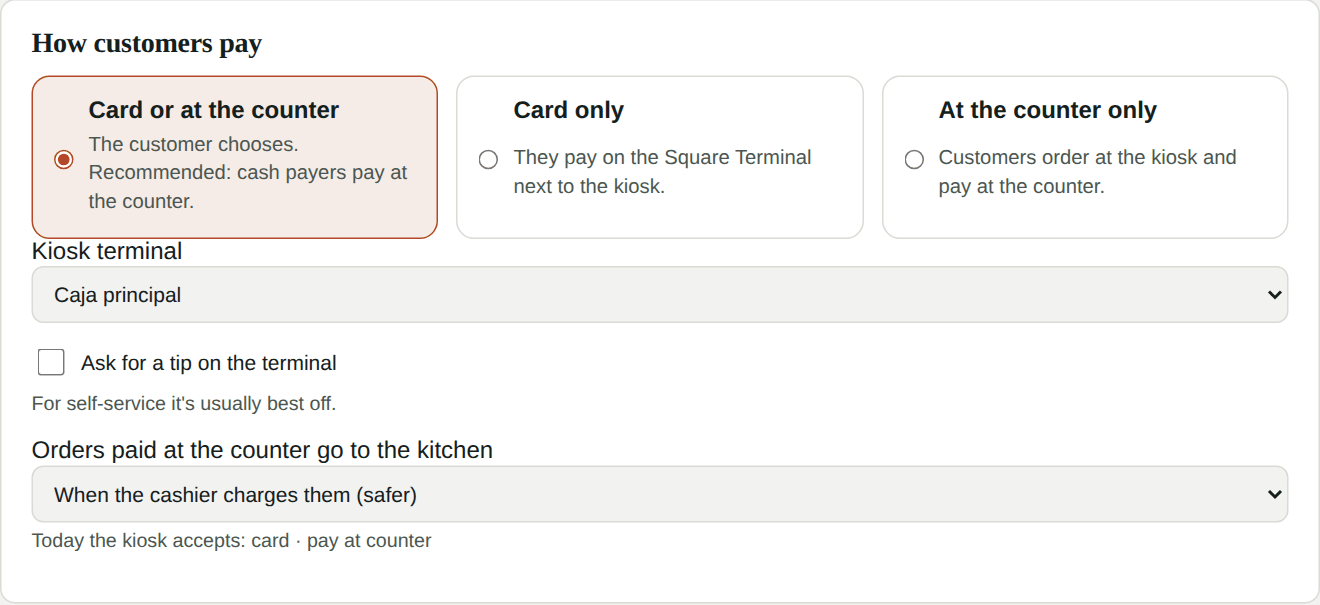
- Choose how customers pay:
- Card or at the counter (recommended): the customer chooses; cash payers pay at the counter.
- Card only: they pay on the Square Terminal next to the kiosk.
- At the counter only: they order at the kiosk and pay at the counter.
- If they'll pay by card, pick the kiosk terminal. You pair the terminal in Settings → Integrations → Square Terminal (see Square). You can ask for a tip on the terminal, though for self-service it's usually best off.
- Decide when orders paid at the counter go to the kitchen:
- When the cashier charges them (safer: nothing is cooked before it's paid).
- As soon as the customer orders (faster at rush hour).
- Under Customer screen, choose whether to ask to go or dine in, whether to ask for a name to call them, the welcome message in Spanish and English, and how long without use before it resets.
- Under Items on the kiosk, hide anything you don't want to sell there (for example, slow dishes). Sold-out items hide automatically.
- Tap Save kiosk.
2. Turn on the tablet
- On the kiosk tablet open app.kitchfly.com (or the Kitchfly app) and sign in with your admin account.
- Go to Settings → Kiosk and tap Use this tablet as a kiosk.
- You're signed out on that tablet and the kiosk screen appears. Done.
Keep customers inside the kiosk
Lock the tablet to Kitchfly: on iPad use Guided Access (Settings → Accessibility); on Android use Screen pinning or the Kitchfly app's kiosk mode; on Windows, the desktop app's kiosk mode.
To exit kiosk mode: press and hold the logo (top left) for 3 seconds and enter your admin PIN. You can also remove the tablet under Settings → Kiosk → Kiosk tablets.
3. What the customer sees
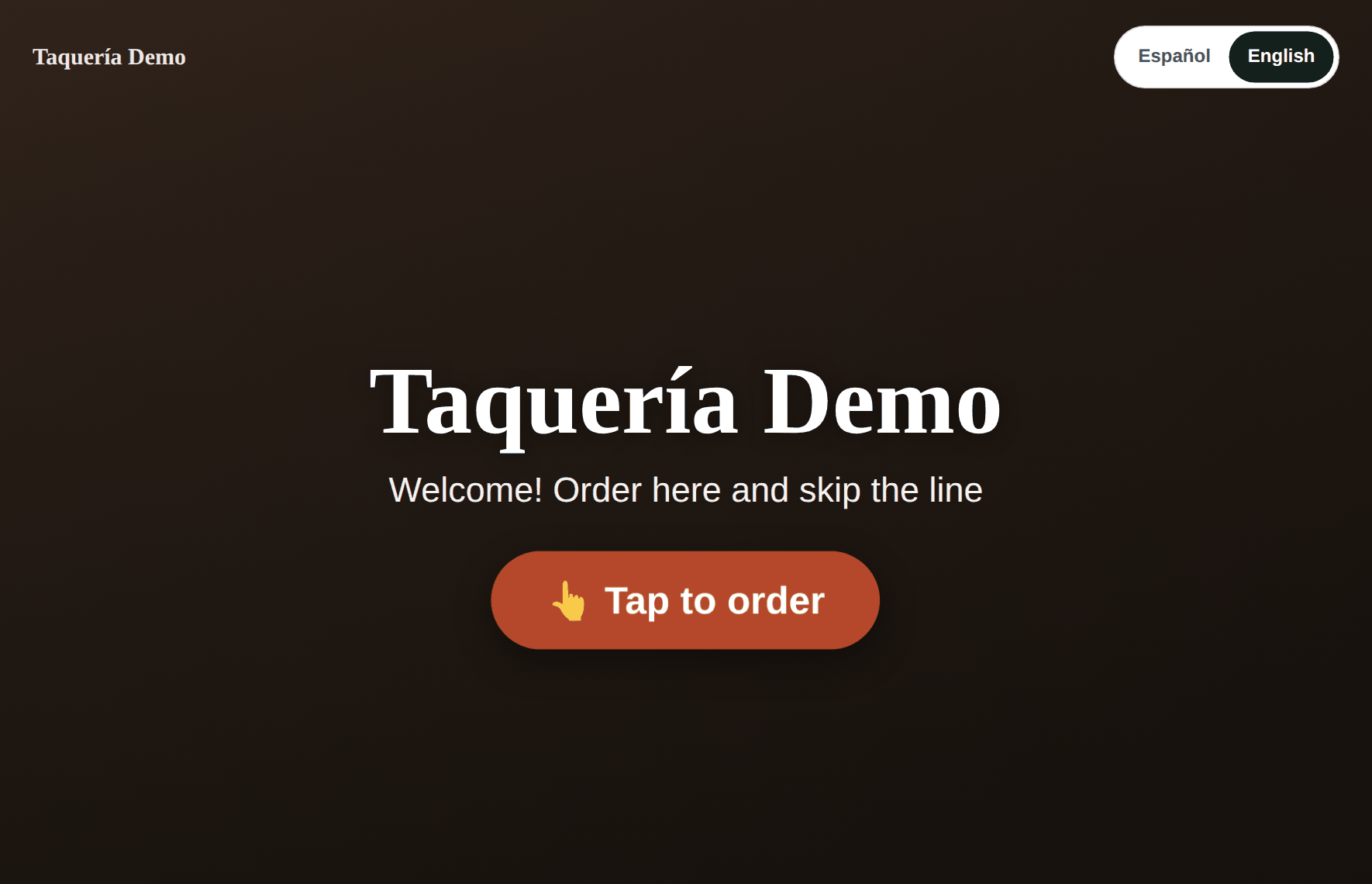
- They tap Tap to order and, if you set it up that way, choose To go or Dine in. They can switch between Español and English.
-
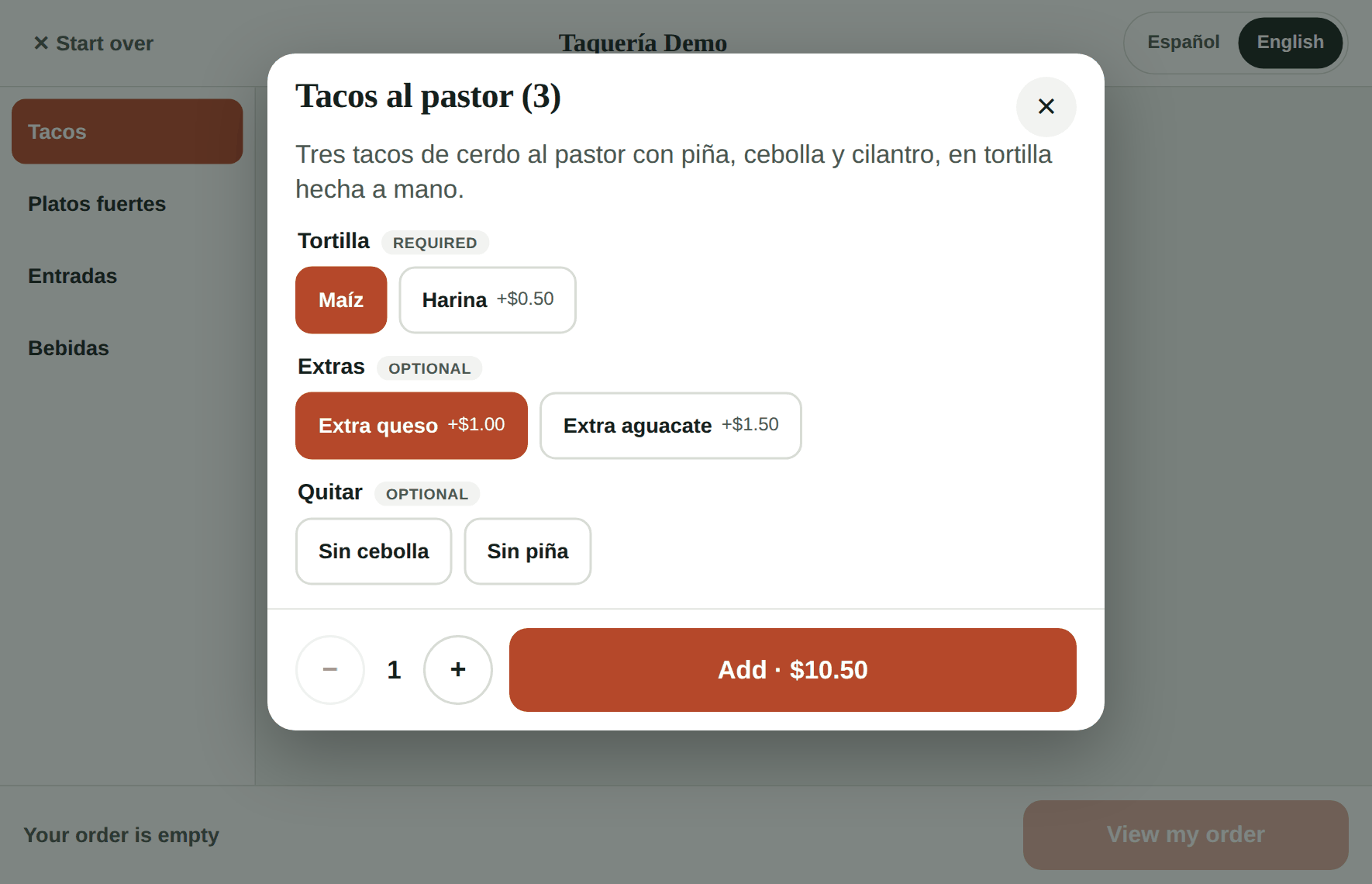
They pick items by category. If an item has options (tortilla, extras, "no onion"), they choose them in a window with big buttons. Required options are marked.
-
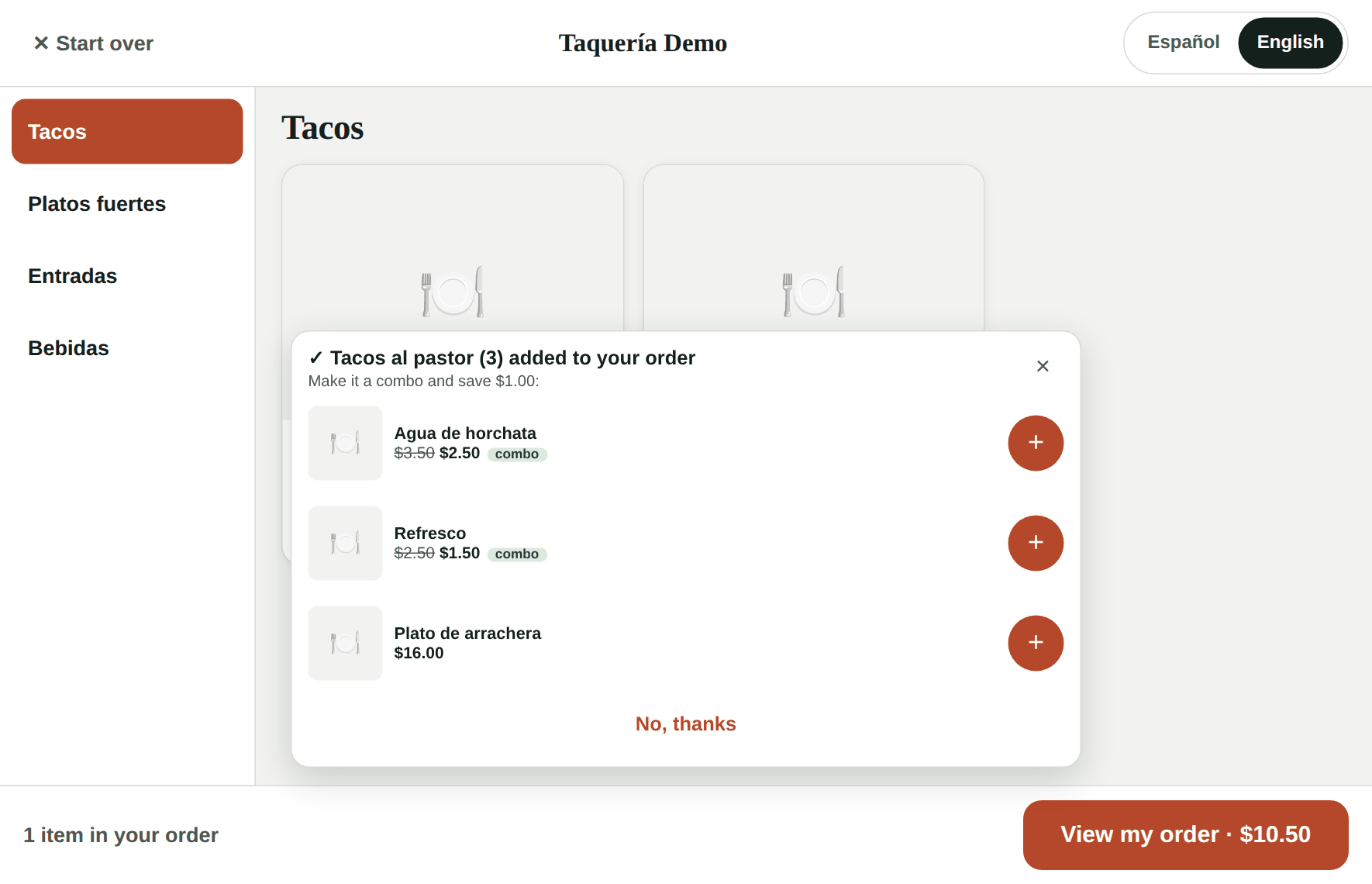
When they add something, the kiosk suggests what goes well with it (and combos), using your upsell suggestions.
-
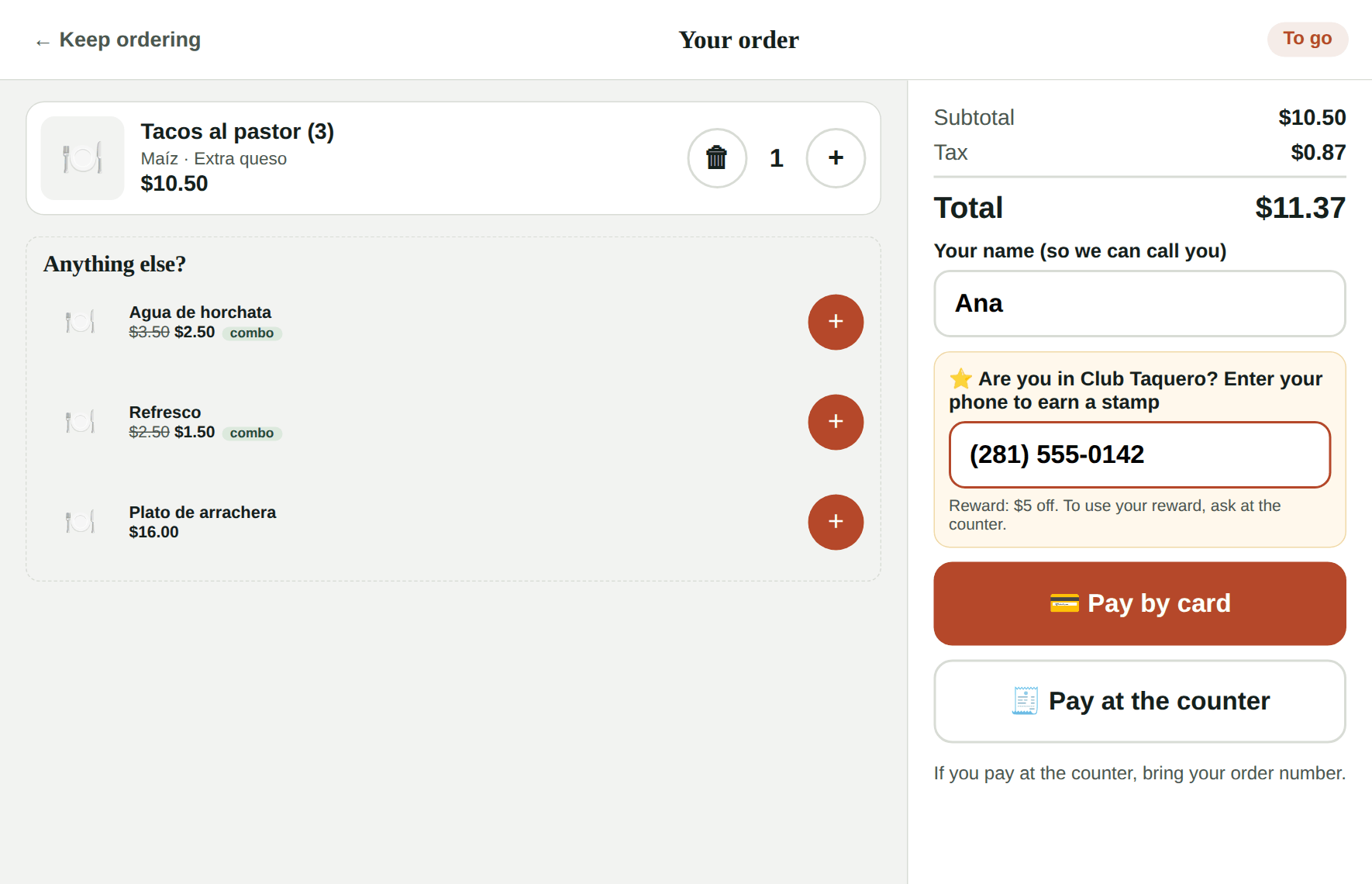
In Your order they review, change quantities, type their name and, if you have a loyalty program, enter their phone to earn. Then they choose Pay by card or Pay at the counter. Kitchfly always calculates the total (with combos and tax).
-
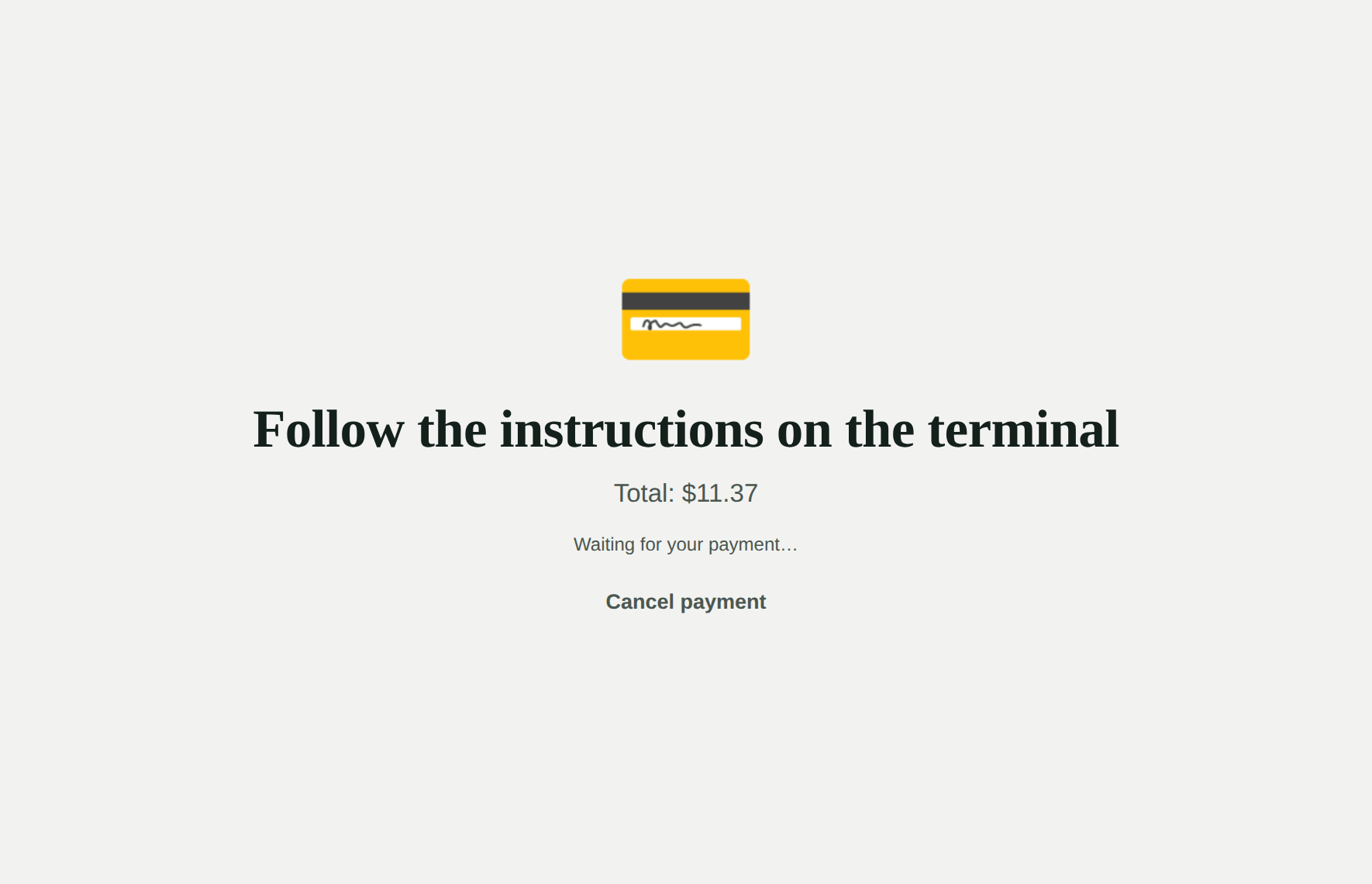
By card: the charge appears on the Square Terminal; they tap their card or phone. If they cancel or the card is declined, they can try again, switch to pay at the counter or cancel the order.
-
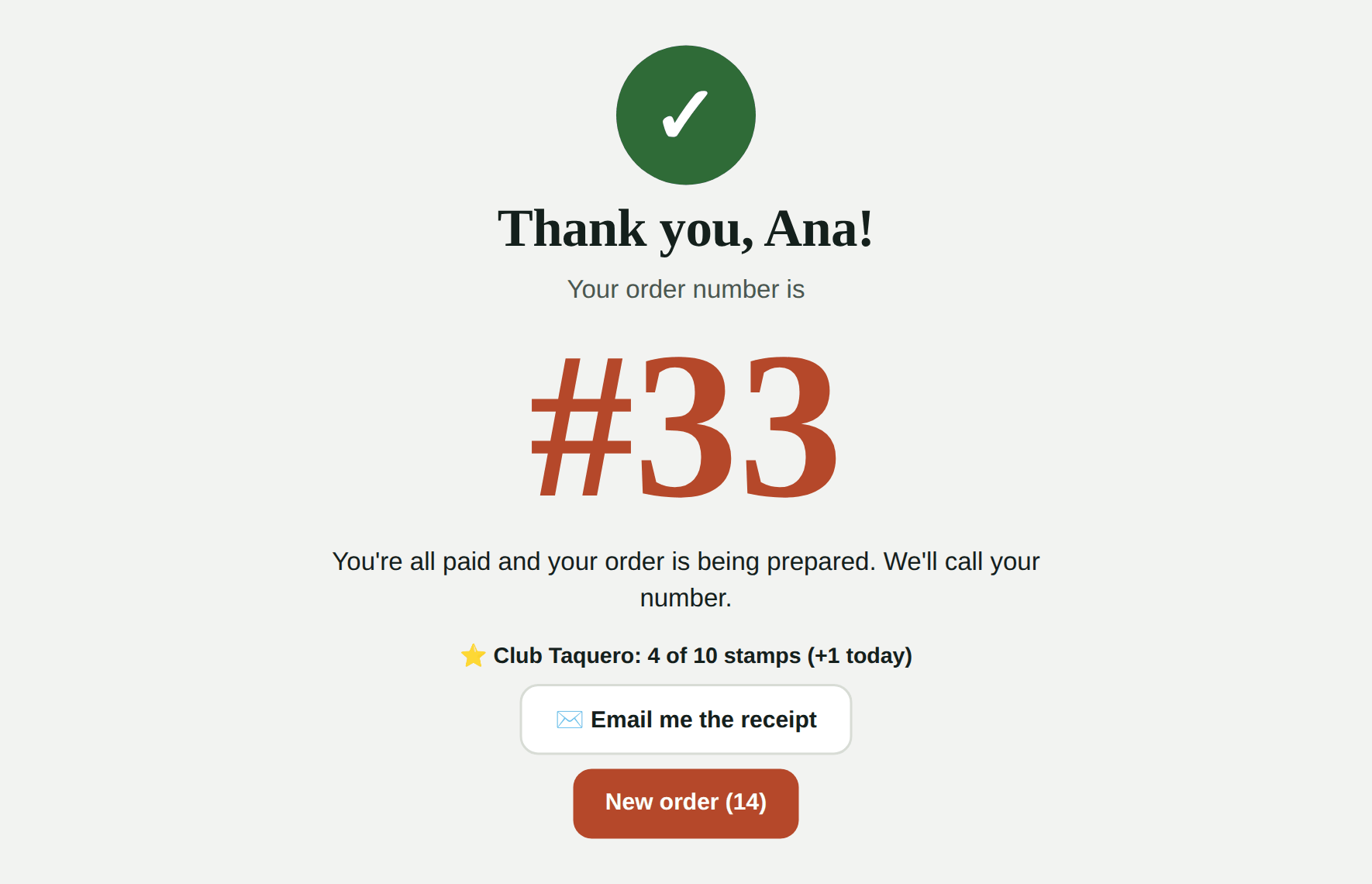
At the end they see their order number in big type and, if they gave their phone, their loyalty progress. Paid by card, the order is already in the kitchen and they can ask for an emailed receipt; paying at the counter, they're asked to bring their number to the register. After 15 seconds the kiosk returns to the start.
Loyalty at the kiosk
If your loyalty program is on and Kiosk is checked under "Where it works", the kiosk asks for the customer's phone in Your order:
- If they're already a customer, the order is linked to their card; if they're new, it's created with the name and phone they typed.
- Stamps or points are added when the order is paid: right away by card, or when the cashier charges it at the counter.
- Rewards are used at the counter. The kiosk doesn't apply rewards (with just a phone number, anyone could use someone else's reward). If the customer has a reward, they pay at the counter and the cashier applies it on the ticket as usual.
Emailed receipt
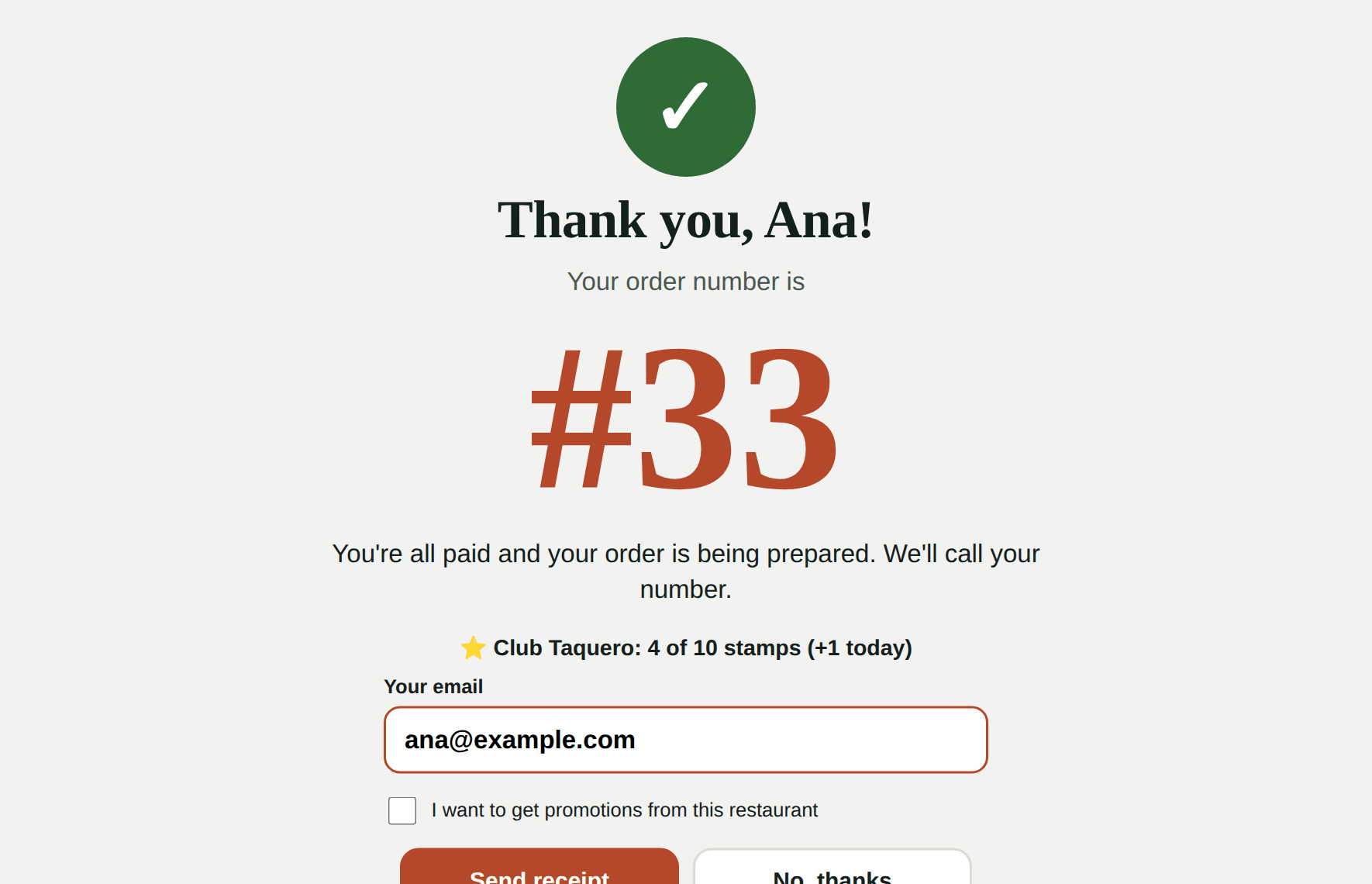
When the order was paid by card at the kiosk, the customer can tap Email me the receipt and type their email. They get a receipt with their order number, what they ordered, the total and their loyalty progress. They can check that they want your promotions; if they do, they're added to your customer list with permission for promotions.
Orders paid at the counter get their ticket at the register.
If nobody touches the screen, the kiosk asks Are you still there? and, with no answer, clears the order and returns to the start.
4. Charging kiosk orders at the counter
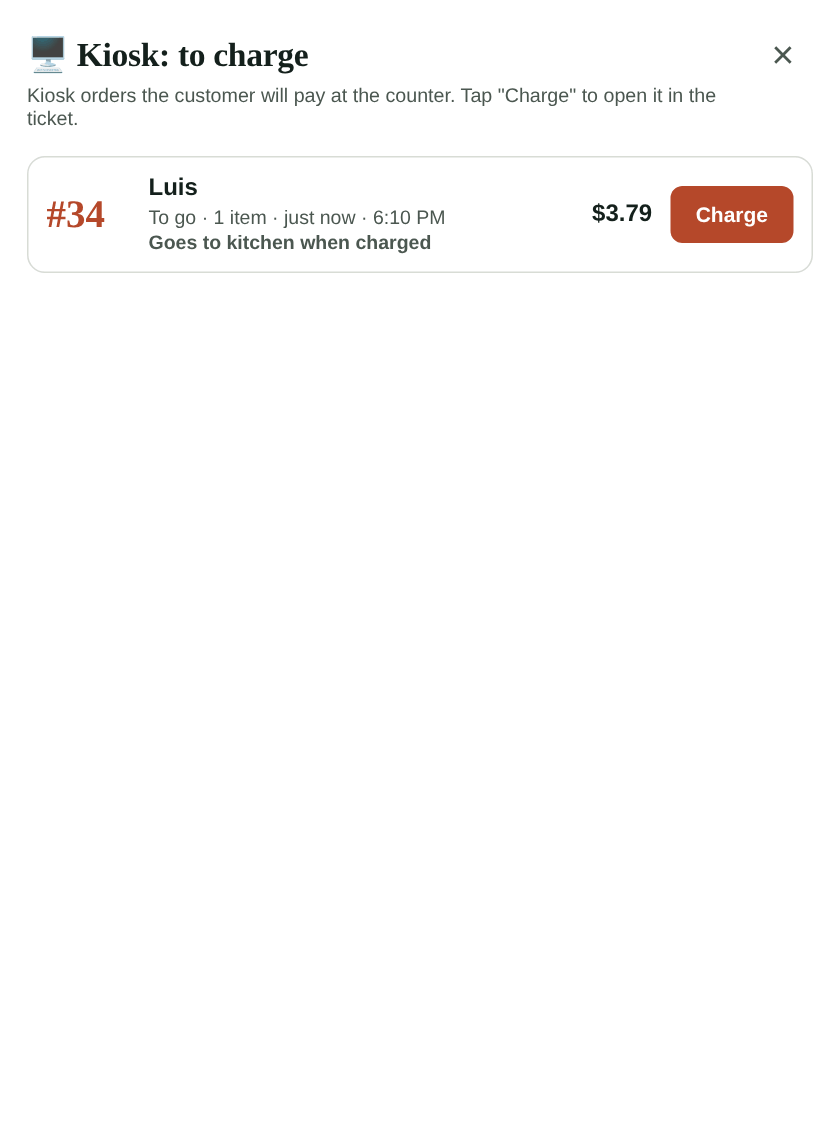
In the POS you'll see a 🖥️ Kiosk button with the number of orders waiting to be paid at the counter. Tap it to see the list (number, name, total and whether it's already in the kitchen) and tap Charge: the order opens in the ticket and you charge it like any other.
Where you see kiosk sales
- On the kitchen display, orders carry a 🖥️ Kiosk tag.
- In Reports → Sales by channel, Kiosk appears next to In store, Online and Table QR, so you can compare its average ticket.
- In Upsell suggestions you can see Kiosk results and choose which combos apply there.
FAQ
What happens if the internet goes down? The kiosk shows "Please order at the counter" until the connection is back.
Can customers pay cash at the kiosk? No: the kiosk doesn't take cash. That's why Card or at the counter is recommended.
What if a customer walks away mid-payment? If nobody finishes, the kiosk cancels the charge on the terminal and the order, and returns to the start.
Can I have several kiosks? Yes, turn on each tablet from Settings → Kiosk. For now card payments use a single terminal: with two kiosks, a second customer paying by card at the same time will need to wait or pay at the counter.