Customer list
Daily operations → Customers keeps your customers in one place: who comes in, how often, how much they spend, what they order and what you should know about them (allergies, notes, preferences). It's included in every plan.
How it fills up
On its own, from what already happens at your restaurant. A customer is recognized by their email or phone, so if they order online and later book with the same phone number, it's the same record:
- Online orders: name, phone and email; the order is linked to the customer.
- Reservations: name, phone and email. When you seat them and open the order at their table (or it was already open), the order is linked to that customer.
- Table QR: the email they leave to get their receipt, and whether they agreed to receive marketing.
The first time you open Customers, Kitchfly builds the list from your history (past online orders, reservations and receipts). You can also:
- Add customers by hand with + New customer.
- Import from Excel or CSV (from another app, a notebook or Square): download the template or use your own file with headers in the first row. We recognize name, phone, email, birthday (month/day), allergies, notes, tags and “accepts marketing”. If the customer already exists, only their missing details are filled in.
The list
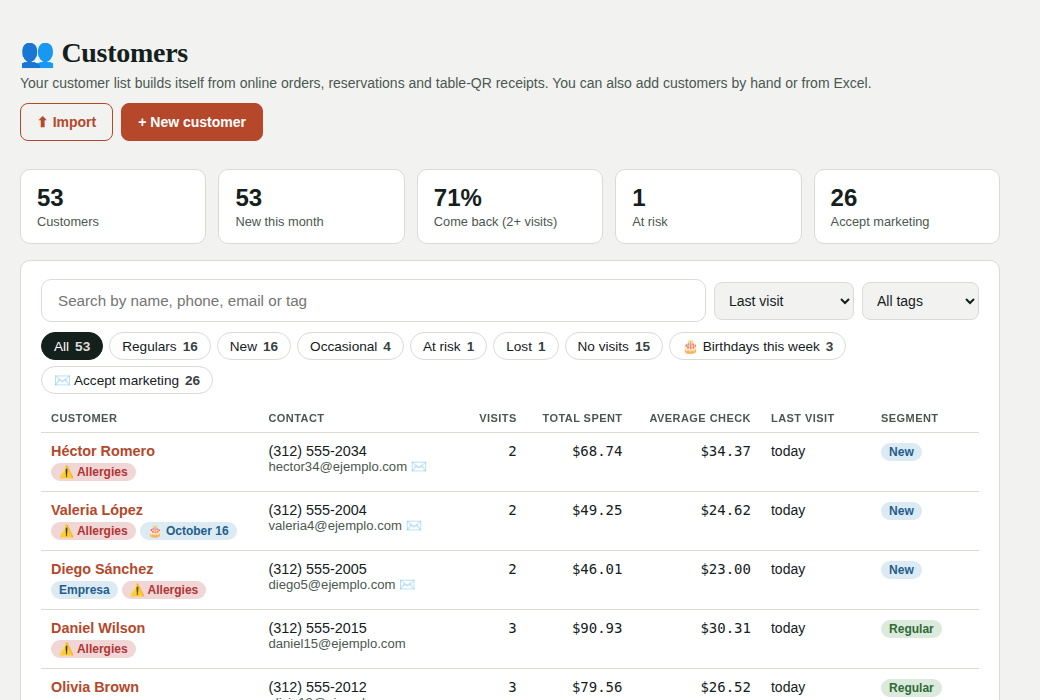
At the top you see how many customers you have, how many were added this month, what percentage come back (2 or more visits), how many are at risk and how many accept marketing. Search by name, phone, email or tag, sort by last visit, spend or visits, and filter by:
| Segment | Who they are |
|---|---|
| Regulars | 3 or more visits in the last 90 days |
| New | Their first visit was in the last 30 days |
| Occasional | They come now and then |
| At risk | They used to come (2+ visits) and haven't been back in 45 days or more |
| Lost | They haven't been back in 120 days or more |
| No visits | They booked or signed up but don't have a paid order linked yet |
You can change the numbers (visits for “regular”, days for “at risk” and “lost”) under Segments, below the list. There are also filters for birthdays this week and for customers who accept marketing.
A visit is a paid order linked to the customer; spend is the total of those orders.
The customer record
Tap a name to open their record:
- Visits, total spent, average check, last visit, segment and where they came from.
- What they order most and their order history.
- Their reservations, including no-shows.
- Details you can edit: contact info, birthday, allergies, notes and tags (VIP, Vegetarian, Corporate… or your own).
- Agrees to receive marketing: check it only if the customer gave you permission. Kitchfly records when and where they agreed.
Alerts for your team
When an order is linked to a customer, your team sees what matters without seeing their phone or email:
- POS: the ticket shows the customer with their visits, tags, allergies and notes.
- Kitchen: if the customer has allergies, the ticket shows “Customer allergy” in red.
- Reservations: next to each reservation, their visits, tags and allergies.
Allergies
Allergies on the record are a reminder. Keep using the POS allergy alert on each dish, which checks the ingredients.
Duplicate records
If one person ended up in two records (for example, they booked with one phone and ordered online with another), open one, find the other under Same person as another record? and tap Merge here. History, reservations, tags and notes are combined.
Export
Under Export you download the list as Excel or CSV with your current filters, to use it in Mailchimp or another tool. By default it only includes customers who agreed to receive marketing.
Delete a customer's data
If a customer asks you to delete their data, open their record and tap Delete customer. The record and their marketing permission are deleted; their orders stay in your sales, but without their name linked. If they order or book again, a new record is created.