Barcodes
Scan what your suppliers deliver and what's on your shelves. Kitchfly recognizes each code, knows how much it holds (a can, a pack, a case of 24) and adds it to the right ingredient. Less typing, fewer mistakes.
It's included in both plans, for admins and the kitchen.
What you need
- A USB or Bluetooth scanner (most work like a keyboard). Plug it into the computer or tablet and you're set: nothing to install or configure.
- Or the camera on a phone or tablet. The Camera button shows up in browsers that can read barcodes (Chrome on Android, for example). If you don't see it, type the code in the box.
No need to tap the box
With a scanner, just scan. Kitchfly catches the scan even while you're typing in another box, and leaves that box alone.
Link a code to an ingredient
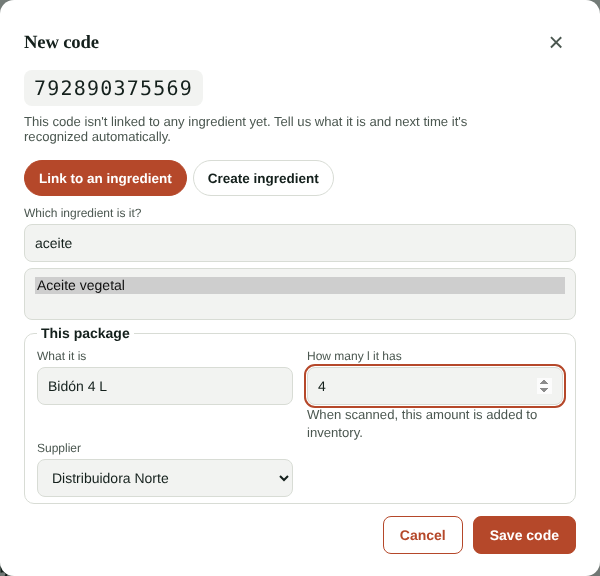
The first time you scan a code, Kitchfly doesn't know it yet and opens New code:
- Choose Link to an ingredient and search for it (for example Vegetable oil). If it doesn't exist yet, choose Create ingredient (admins only).
- Under This package, fill in What it is (for example 4 L jug) and How many it has, in the ingredient's purchase unit.
- Pick the supplier if you like and tap Save code.
Next time it's recognized automatically.
Kitchfly suggests the name
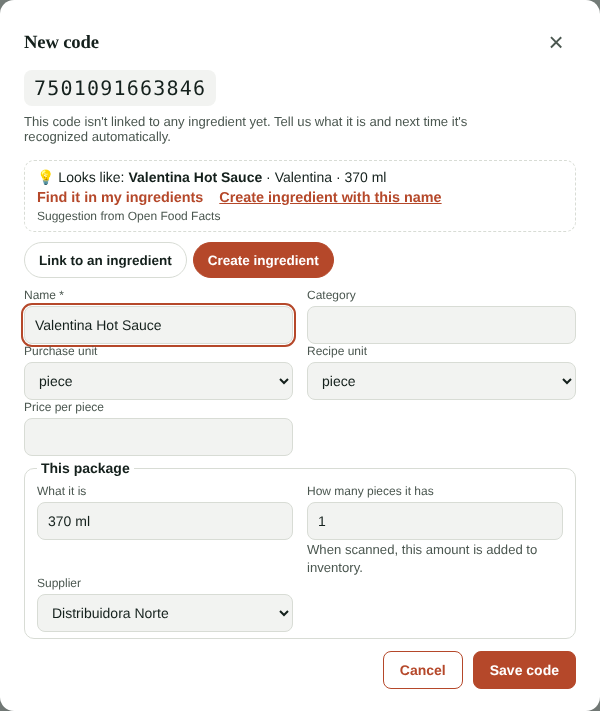
If it's a grocery-store product (sodas, sauces, canned goods), Kitchfly looks it up in Open Food Facts, a free, open database, and shows Looks like: … with the name, brand and size. Tap Find it in my ingredients or Create ingredient with this name. It's only a suggestion: you decide. Only the barcode number is sent, nothing about your restaurant.
One ingredient, several codes
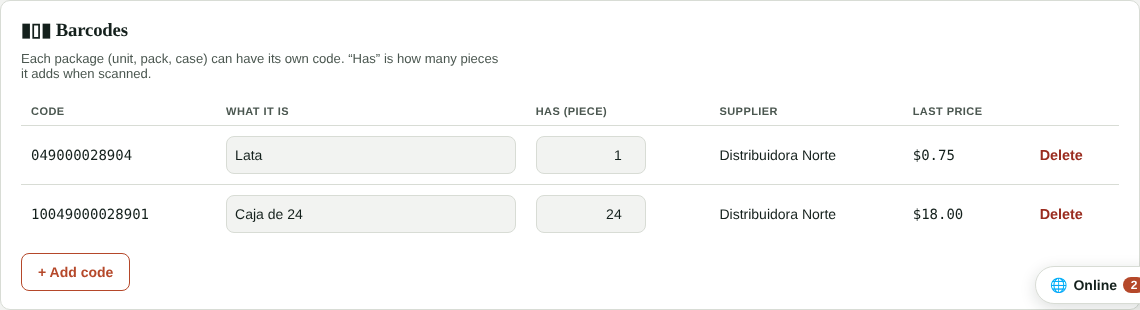
A single can and a case of 24 have different codes. Link both to the same ingredient: the can has 1, the case has 24. Scanning the case adds 24.
To see or change an ingredient's codes, open it in Ingredients. In the Barcodes card you can edit What it is and Has, see the Last price you paid for that package, Delete a code, or tap + Add code and scan it.
Receive a delivery by scanning
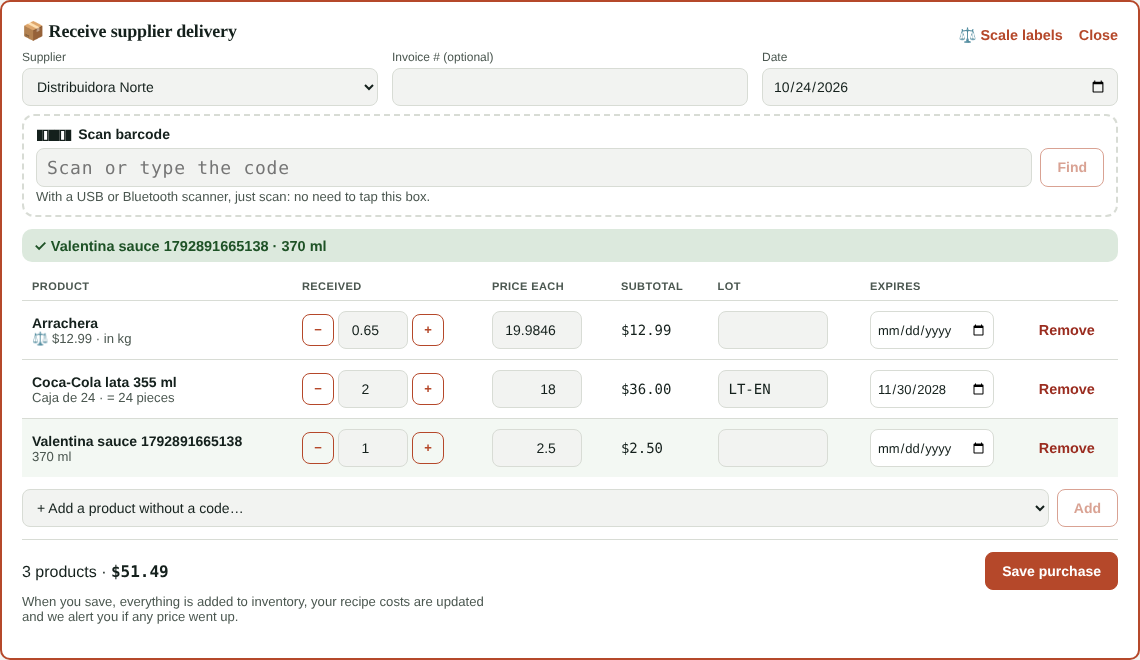
- Go to Purchases and tap 📦 Receive with scanner.
- Pick the supplier and enter the Invoice # if you have it.
- Scan each case or pack. Scanning the same code again adds one more to that line. You can also use − and +.
- If the label has a lot and expiration date (GS1 labels, see below), they fill in on their own. Otherwise you can type the Lot.
- Check the price each. Kitchfly fills in what you last paid for that package; if it changed, type the new one and you'll see was $… next to it.
- Something arrived without a code? Use + Add a product without a code….
- Tap Save purchase.
Everything goes into inventory in one step, your recipe costs update, and you're alerted if a price went up, just like Record purchases.
Scale labels (meat, cheese, seafood)
Anything sold by weight comes with a scale label: it starts with 2 and has the price or weight of that piece built in. To have Kitchfly read them:
- In Purchases → 📦 Receive with scanner, tap ⚖️ Scale labels.
- Turn on Read scale labels.
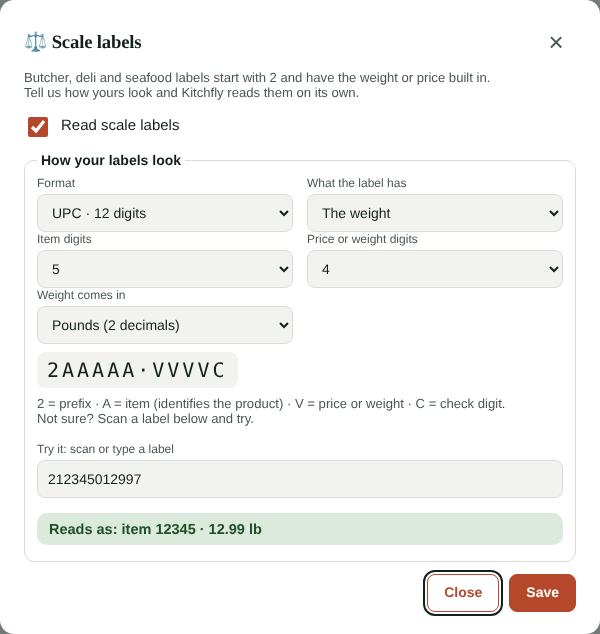
- Pick the Format (in the US it's almost always UPC · 12 digits), What the label has (The price or The weight) and, for weight, which unit.
- Scan a label under Try it. Kitchfly shows how it reads it (Reads as: item 12345 · $12.99). If the price or weight doesn't match what's printed, change the digits until it does.
- Tap Save.
The first time you scan a product's label, link it to the ingredient (for example Skirt steak). Kitchfly stores only the item number, so every new label for that product is recognized even though the weight and price change. On the ingredient's card it shows the ⚖️ scale tag.
When receiving, each label is its own line with its weight. If the label has the price, Kitchfly works out the weight using the ingredient's price per kg.
The ingredient has to be bought by weight
To add up weight, the ingredient's purchase (or use) unit must be kg or g. Otherwise Kitchfly tells you and you type the quantity.
GS1 labels: lot and expiration
Many distributors put a long label on their cases (GS1-128 or a square code) that has the lot, the expiration date and sometimes the net weight besides the product. Scan it like any other: Kitchfly recognizes the product and fills in the lot, the expiration and, if present, the weight.
If you scan two cases of the same product with different lots, they stay on separate lines.
Find a lot (product recall)
If a supplier or a health agency announces a recall:
- Go to Purchases and tap 🔎 Find a lot.
- Type the lot or scan the case label.
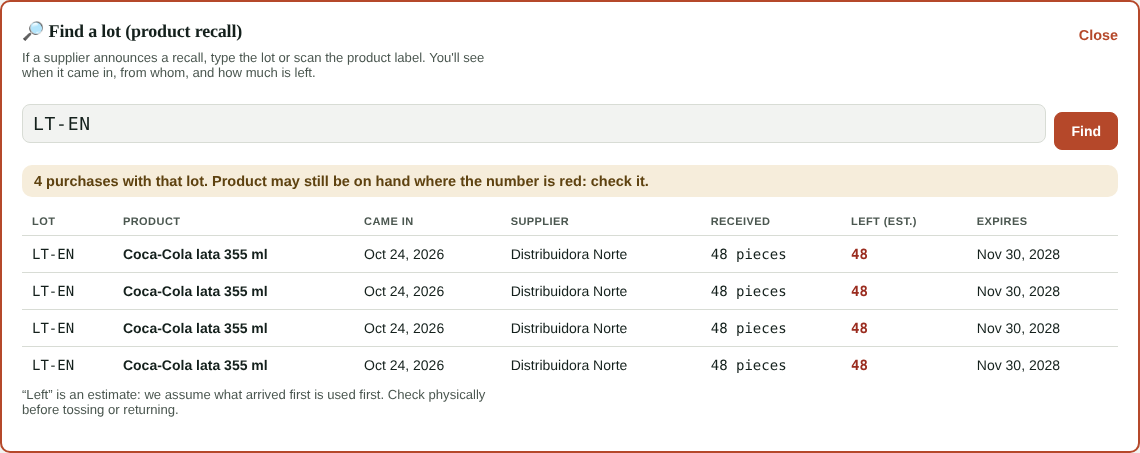
- You'll see every purchase with that lot: when it came in, from which supplier, how much was received and how much is left (est.).
Purchases where product may still be on hand show in red. Left is an estimate: Kitchfly assumes what arrived first is used first. Check physically before tossing or returning, and record what you toss as a loss.
Record losses by scanning
- Go to Losses and tap 🗑️ Record losses by scanning.
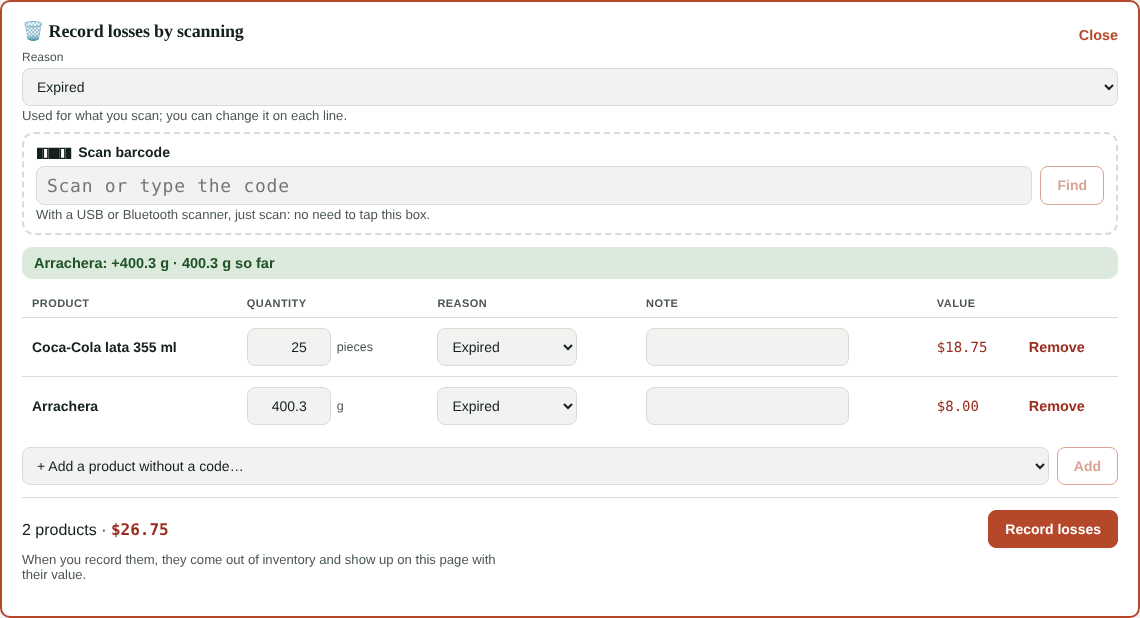
- Pick the Reason (Expired, Dropped/spilled, Burnt or Other). It's used for everything you scan, and you can change it on each line.
- Scan what's being thrown out. Each unit or case adds up; scale labels add their weight.
- Add a Note if you like and tap Record losses.
It comes out of inventory and shows up on the same page with its value. See Record losses.
Send to another location by scanning
In Transfers → Send, scan each case you're sending. The ingredient is added, or added to the line that's already there. See Transfers.
Count inventory by scanning
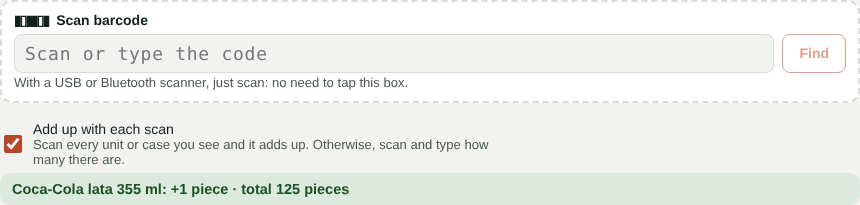
In a full count, the sheet shows Scan barcode while the count is open. Two ways to use it:
- Add up with each scan (on): scan every unit or case you see and it adds up. Scan a case of 24 and then a loose can, and the ingredient is at 25.
- Off: scan once, Kitchfly jumps to that ingredient's line, and you type how many there are.
If the ingredient wasn't on the sheet (say you're only counting the walk-in), it's added automatically.
FAQ
Same product as UPC and EAN? It's the same code. Kitchfly recognizes it whether it comes with 12 or 13 digits.
Do long supplier labels (GS1-128) work? Yes. Kitchfly reads the product, lot, expiration and weight inside the label.
My scanner doesn't read GS1 labels right. Some scanners need the GS separator (sometimes called FNC1) turned on. Check your scanner's manual. If the lot is at the end of the label, it reads fine even without the separator.
Does Open Food Facts know everything? Grocery products, almost always. Foodservice distributor products, sometimes not; then you type the name as usual.
Can the kitchen see prices? No. Cooks can scan and link codes, but only admins see prices and can delete codes.