Restaurant website
Kitchfly builds you your own website with your menu, photos, hours and location, at an address like your-restaurant.kitchfly.com. You don't need a web designer or another website service.
Best of all, it's always up to date. Change a price, add a dish or run out of something, and the website updates itself.
It's included in both the Basic and Pro plans. Only an admin can set it up, and each location has its own website.
What your website has
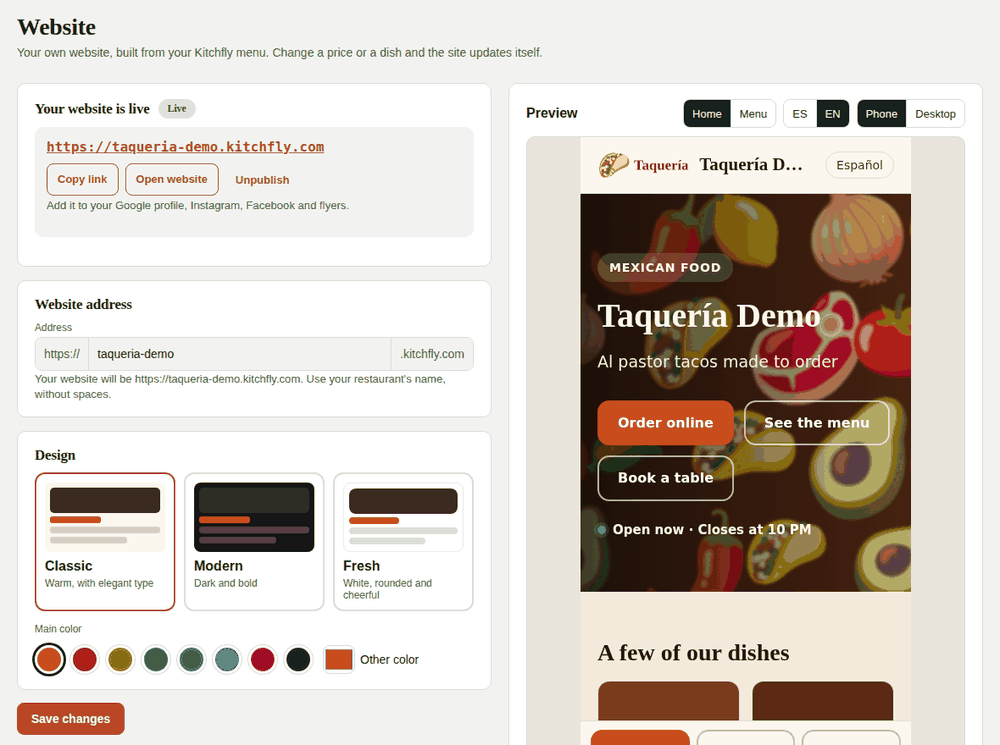
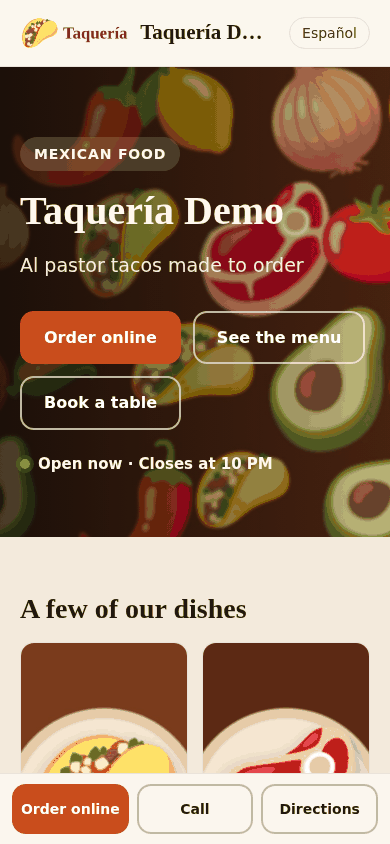
- Home: your cover photo, name, a tagline and the Order online, See the menu and Book a table buttons. It shows whether you're open now based on your hours.
- Featured dishes: up to 6, those with photos first.
- About us: your restaurant's story, if you write one.
- Location & hours: address with a map, a Directions button, a phone number to Call and your weekly hours.
- Full menu: by category, with photos, descriptions and prices.
- Loyalty program: if you have one turned on, the website explains it and customers can check their progress.
- Catering: if you take catering requests, a button to request a quote.
Everything comes in English and Spanish: customers switch languages with a button. On phones, Order, Call and Directions always show at the bottom.
The order, reservation and catering buttons go to your online ordering, reservations and catering pages. If one of them isn't turned on, its button doesn't show.
Set it up
Go to Daily operations → Website. On the right you'll see a preview that changes as you edit, even before you save. You can view Home or Menu, in ES or EN, on Phone or Desktop.
- Website address: your restaurant's name without spaces, for example
taqueria-demo. Your website will behttps://taqueria-demo.kitchfly.com. - Design: choose Classic (warm, elegant type), Modern (dark and bold) or Fresh (white and rounded), plus your main color. Kitchfly adjusts the shade if needed so text stays easy to read.
- Logo and cover photo:
- Logo: in color, ideally a PNG with a transparent background.
- Cover: a landscape photo of your food or your place, at least 1600 px wide. It's the first thing your customers see.
- Text:
- Main language: the one people see first.
- Tagline and type of food, in Spanish and English. If you leave a language empty, the other one's text is used.
- About us (optional): 2 or 3 lines about your restaurant.
- Contact and social media: the phone number and address come from your restaurant. Only fill them in if you want the website to show something different. Add your Facebook, Instagram, TikTok, Yelp or Google profile links.
- Hours: use your online ordering hours or set separate hours for the website.
- Menu: choose whether to show prices, featured dishes and the loyalty program. If you take online orders, you can show only the dishes you sell online.
- Tap Save changes.
Dish photos and descriptions come from Dishes and Settings → Online orders.
Publish it
When you like the preview, tap Publish website. From then on, anyone can open it.
If Kitchfly notices something important is missing (address, phone, hours, cover photo or dishes), it tells you at the top. You can publish anyway and finish it later.
To take it offline, tap Unpublish. Your settings are kept.
Share it
- Google Business Profile: add your website address under Website. It's what helps people find you the most.
- Instagram, Facebook and TikTok: in your profile link.
- Flyers, printed menus and your window.
Google takes from a few days to a few weeks to show a new website in its results. Your website already includes your menu, hours and address in the format Google understands for restaurants.
Website summary
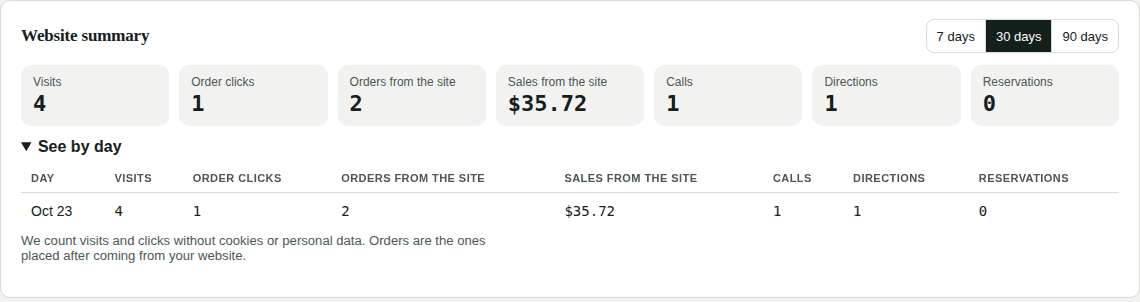
At the top of the screen you see how many people visit your website and what they do there, over the last 7, 30 or 90 days:
- Visits to your website.
- Order clicks, Calls, Directions and Reservations.
- Orders and sales from the site: online orders placed by customers who came from your website. In the online orders inbox, those orders are tagged From your website.
Tap See by day for the details. Kitchfly counts visits without cookies and without storing anyone's personal data.
Loyalty program on the website
If your loyalty program is on, the website shows a section with its name, how customers earn stamps or points, and the reward. If the program is on for online orders, customers can enter their email and phone to check their progress.
To hide the section, uncheck Show the loyalty program under Menu.
Your own domain (Pro plan)
With the Pro plan you can use your own domain, for example www.myrestaurant.com, instead of your-restaurant.kitchfly.com. Kitchfly adds the security certificate (https) at no cost.
- Buy the domain wherever you like (GoDaddy, Namecheap, Squarespace, Cloudflare…), if you don't have one yet.
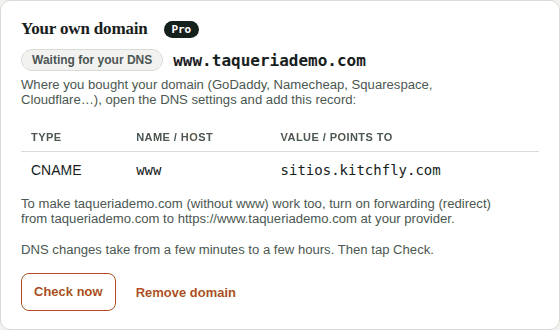
- In Website → Your own domain, type your domain with www (for example
www.myrestaurant.com) and tap Connect domain. - Kitchfly shows you a CNAME record. Add it exactly as shown in your provider's DNS settings:
- Type: CNAME
- Name / Host:
www - Value / Points to:
sitios.kitchfly.com
- To make the domain without www (myrestaurant.com) work too, turn on forwarding (redirect) to
https://www.myrestaurant.comat your provider. - Wait a few minutes (sometimes a few hours) and tap Check now. When it says Active, your website opens on your domain.
Once the domain is active, your Kitchfly address sends visitors to your domain automatically, so Google sees a single address.
FAQ
Does it cost extra? No. It's included in your plan.
Can I use my own domain (for example, myrestaurant.com)? Yes, with the Pro plan. See Your own domain.
If I switch to the Basic plan, what happens to my domain? Your website stays on your Kitchfly address; your own domain stops opening it until you switch back to Pro.
I have several locations. How does that work? Each location has its own website, with its own menu, hours and address. Switch locations at the top left to set up each one.
Are sold-out dishes shown? No. When you mark a dish as sold out, it disappears from the website until you turn it back on.
Can I change the website address later? Yes, but the old address stops working. Update it on Google and your social media.