Tip pooling
Kitchfly splits each day's tips among your team using time clock hours, and helps you keep track of what you've already paid in cash or through payroll.
You'll find it in Admin & settings → Tip pooling. Only admins see it.
1. Set it up once
In the Settings tab:
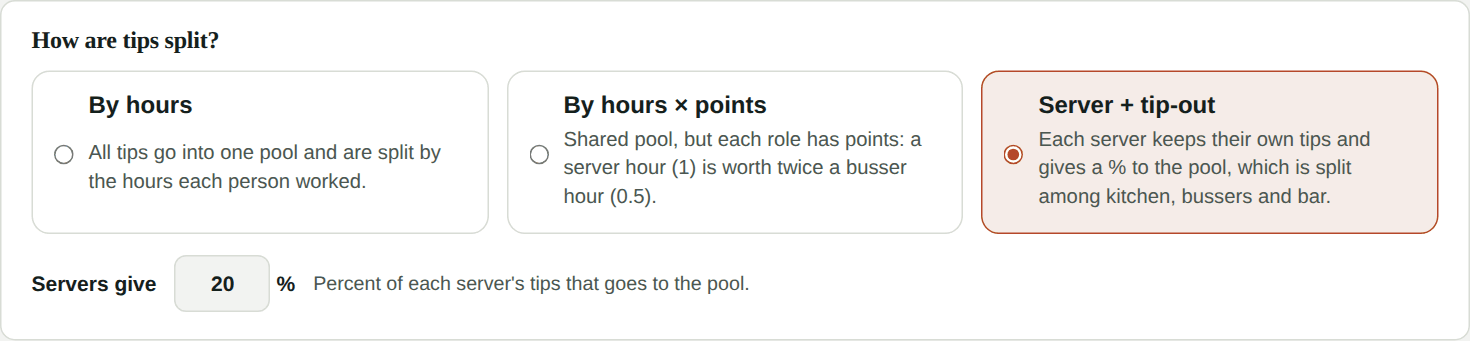
Choose how tips are split:
| Method | How it works | Example |
|---|---|---|
| By hours | All tips go into one pool and are split by each person's hours. | Ana worked 8 h and Luis 4 h: Ana gets twice as much as Luis. |
| By hours × points | Shared pool, but each role has points. Weight = hours × points. | Server 1 point, busser 0.5: a server hour is worth twice as much. |
| Server + tip-out | Each server keeps the tips from their own orders and gives a % to the pool. The pool is split among receiving roles (kitchen, bussers, bar) by hours × points. | With a 20% tip-out, a server with $100 in tips keeps $80 and gives $20. |
Roles: Server, Bar, Busser, Kitchen and Host come ready. Rename them, change points or add your own. With Server + tip-out, mark which roles give (servers) and which receive.
Who takes part: pick each employee's role. Anyone left as Not in pool doesn't receive tips from the pool. Admins can't take part.
Card fee (optional): when turned on, Kitchfly deducts that % only from the part of the tips paid by card, before splitting.
Check your state's rules
In the US, owners, managers and supervisors can't keep tips from an employee tip pool. Some states also have rules about who can take part and whether the card fee can be deducted. Kitchfly does the math; confirm the rules with your accountant.
2. Split each day
In Daily split, pick the date (it starts on yesterday). You'll see:
- The day's tips, split into cash and card.
- The card fee, if you turned it on.
- To split and a table with what each person gets.
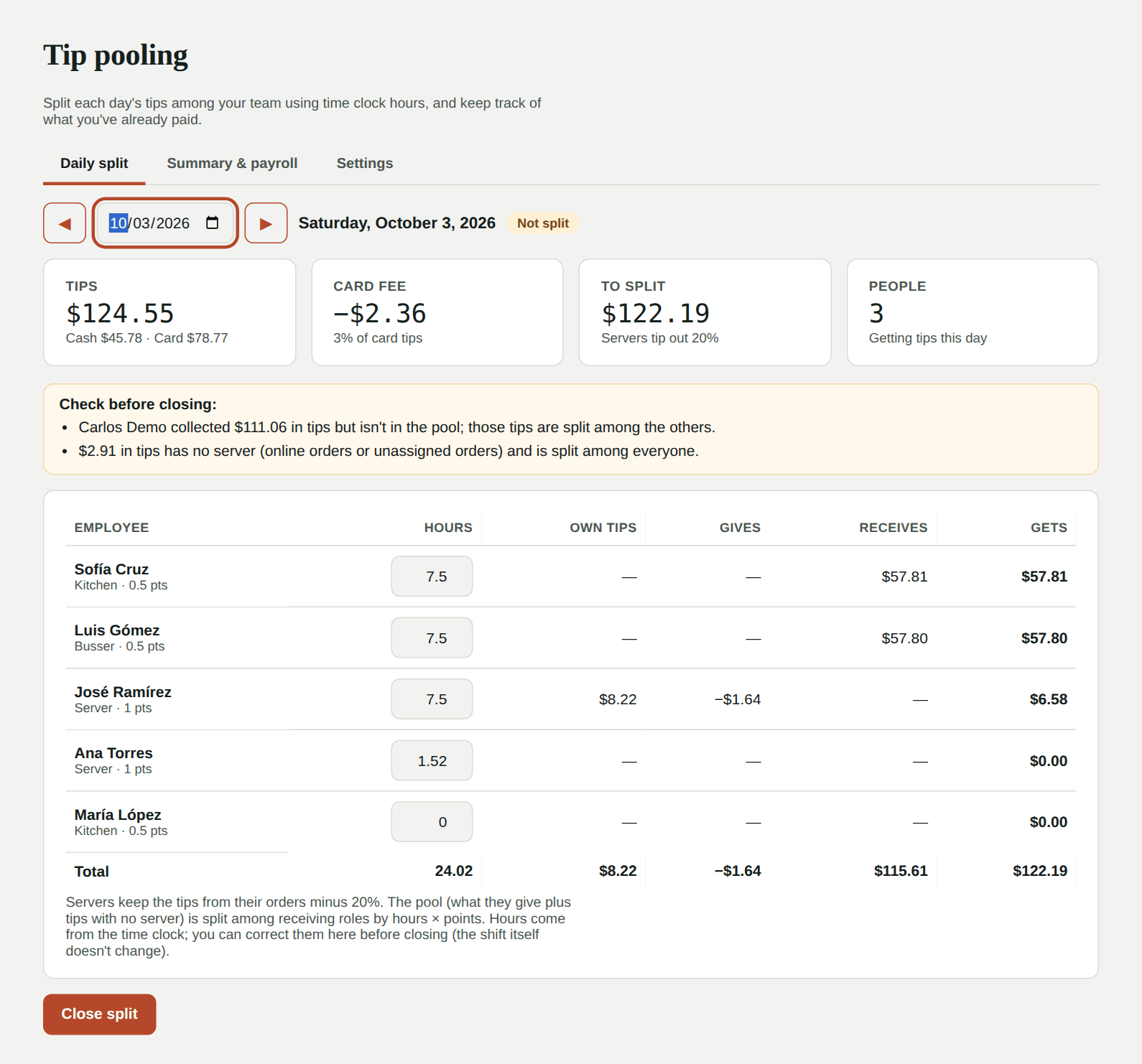
The day's tips are those from orders closed that day, minus tips returned in refunds made that day.
Fix hours if needed. Hours come from the time clock. If someone forgot to clock in, type their hours in the table: the split updates right away and the clock hours show underneath. This doesn't change the shift; to fix the shift use Hours & labor → Shifts.
Check the warnings before closing. Kitchfly tells you, for example, if someone collected tips but isn't in the pool, if a server didn't clock in, or if someone is still on shift.
When it looks right, tap Close split and confirm. The split is saved exactly as shown.
3. Mark payments
With the split closed, mark how you paid each person:
- Pay in cash: you handed it over at the end of the shift.
- Add to payroll: you'll pay it with their wages.
Or use All paid in cash / All to payroll. If you make a mistake, tap ↺ to remove the payment.
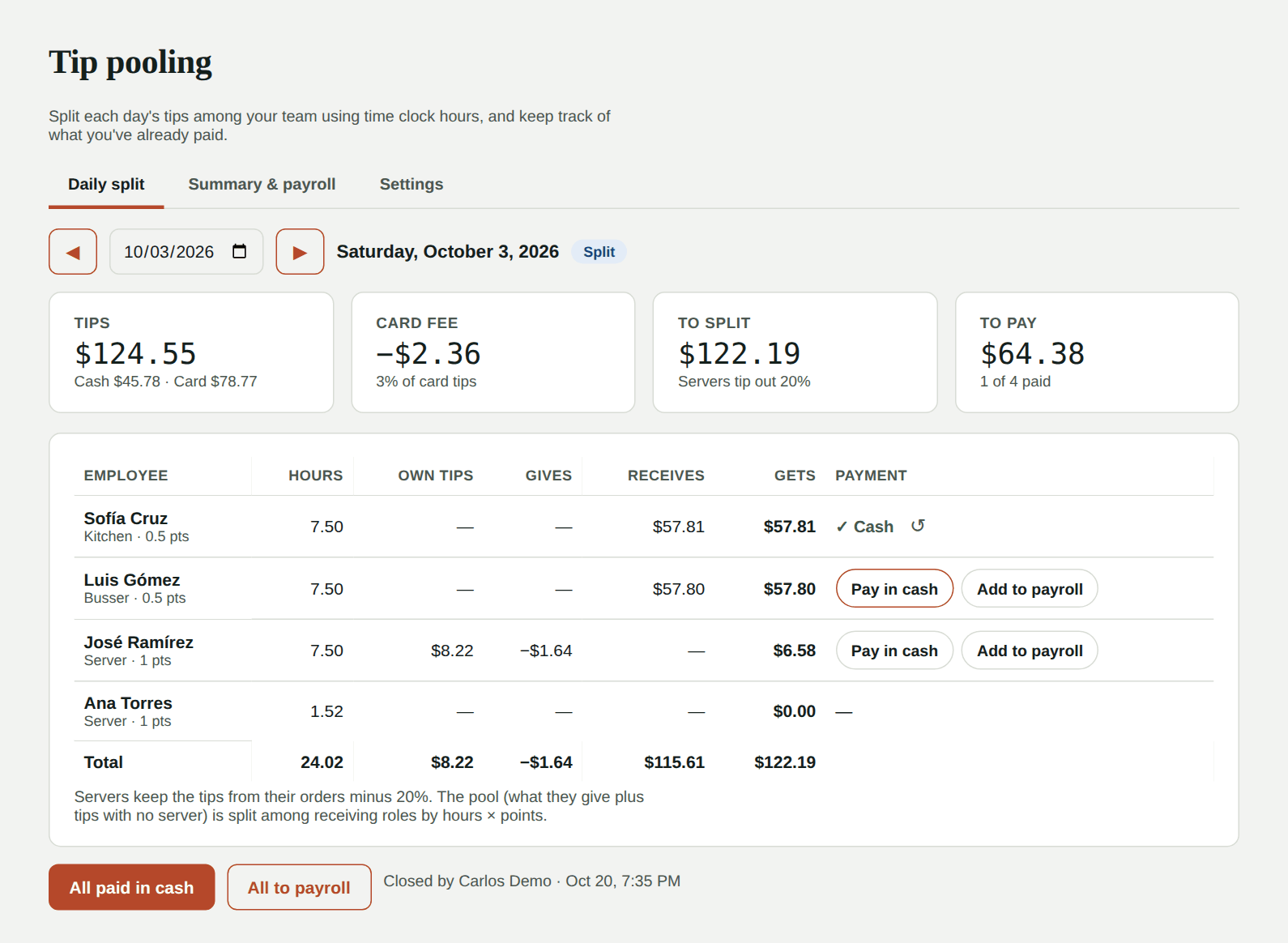
Did another tip come in for that day after closing? Tap Reopen (only possible before marking payments) and close it again.
4. Summary & payroll
In Summary & payroll, pick a period (this week, last week, this month…) and see:
- Days not split, so none slips through.
- Per employee: hours, total tips, tips per hour, what's on payroll and what's still to pay.
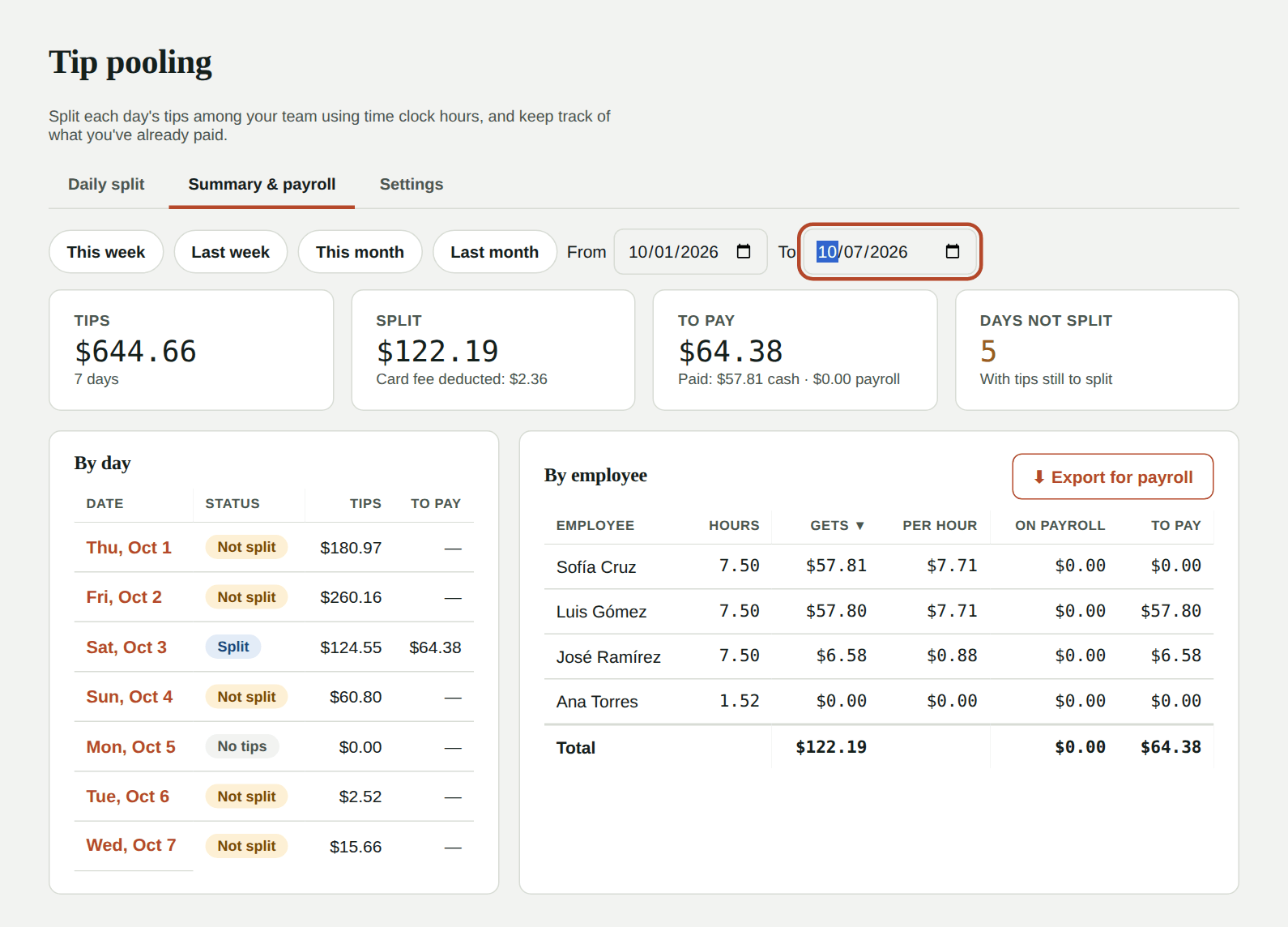
Tap Export for payroll to download a CSV with the detail per employee. Tap a date to go to that day.
When you use tip pooling, the Tips column in the labor report and its payroll export show what each person got on the days you split.
FAQ
What about tips from online orders or orders with no server? They're split among everyone in the pool (with Server + tip-out, they go to the pool).
What if a server who collected tips isn't in the pool? Their tips are split among the others and you'll see a warning. If they should take part, give them a role in Settings.
Why does someone get $0? They have no hours that day (they didn't clock in). Type their hours in the table before closing.
Do the cents add up? Yes. Kitchfly calculates in cents and the leftover cent from rounding goes to the largest share, so the total always matches.