Print receipts and kitchen tickets
Kitchfly prints from the browser, so it works with any printer installed on the tablet or computer: an 80 mm or 58 mm thermal printer (USB, network or Bluetooth) or a regular printer.
Set it up
As the admin, go to Settings → Printing:
| Setting | What it does |
|---|---|
| Phone on the receipt | It appears under your restaurant name, along with the address, which you change in Settings → General. |
| Paper width | 80 mm (most common) or 58 mm. |
| Receipt logo | It's converted to black and white so it prints sharp on thermal paper. |
| Receipt footer message | Up to 300 characters, on several lines, at the end of the customer receipt. E.g. Thanks for visiting!, the WiFi password or your Instagram. |
| Print your online ordering page QR code | The end of the receipt shows the QR code with “Order online”, so customers order direct next time. Requires online orders to be on. |
| Print the receipt automatically when an order is closed | The receipt prints as soon as the order is paid. |
| Print the kitchen ticket automatically when sending to the kitchen | Only the new dishes are printed, in large type, with modifiers, notes and allergies. |
Click Save changes, then Test print.
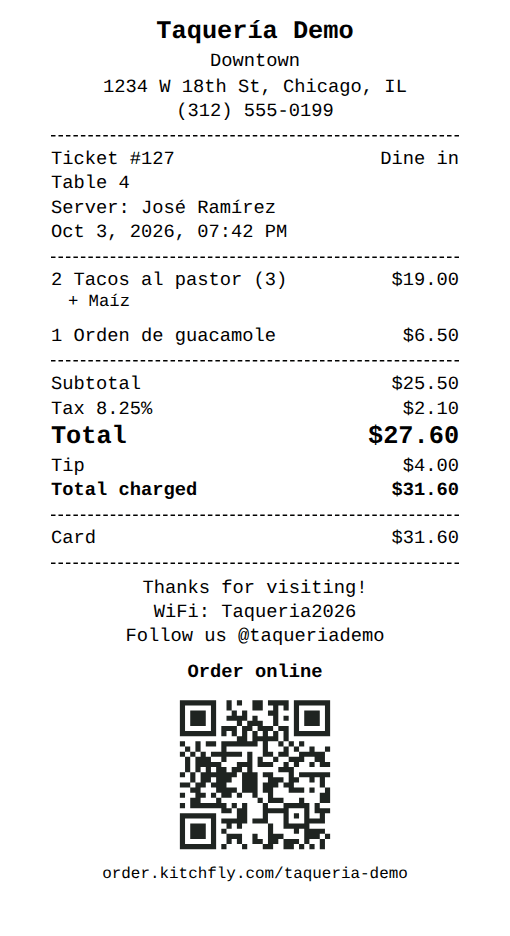
Print by hand
- After closing an order, the message at the bottom has a Print receipt button.
- After sending to the kitchen, the ticket panel shows Reprint kitchen ticket.
- The admin can reprint any receipt from Orders: open the order and click Reprint receipt.
Print without the dialog (recommended at the counter)
By default the browser shows a print dialog every time.
On Windows, the easiest way is the Kitchfly app for Windows: choose the receipt printer (and the kitchen one, if you have it) and everything prints straight away, with nothing else to set up.
On Android tablets, use the Kitchfly app for Android: it prints straight to Bluetooth or network thermal printers.
If you'd rather stay in the browser, on a computer with Google Chrome you can also skip the dialog:
- Make the thermal printer your computer's default printer. In the printer's preferences, set the paper to 80 mm (or 58 mm).
-
Create a shortcut to Chrome and add
--kiosk-printingat the end of its Target, followed by the Kitchfly address:"C:\Program Files\Google\Chrome\Application\chrome.exe" --kiosk-printing https://app.kitchfly.com -
Close every Chrome window and open Kitchfly from that shortcut. From now on it prints straight to the default printer.
First print
Before turning on --kiosk-printing, print once from the normal dialog and set Margins: None, Scale: 100% and turn off Headers and footers. Chrome remembers those settings.
iPad and Android tablets
They always show the system dialog (AirPrint or Mopria). Choose the printer once and it stays selected.
Common problems
- The receipt comes out tiny or with wide margins: set the paper size to 80 mm in the printer preferences and margins to None.
- The allergy box prints white: turn on Background graphics in the print dialog.
- Nothing prints automatically: check that the options are on in Settings → Printing and reload the POS.