Own delivery
Deliver with your own drivers, without paying app commissions. Customers choose Delivery on your ordering page, enter their address, see the delivery fee for their ZIP code and pay by card or, if you allow it, cash on delivery.
It's included in both plans. Find it in Daily operations → Own delivery (admin only).
Before you start
You need Online ordering turned on: delivery is one more option on your ordering page.
1. Set up your delivery zones
Each zone is a group of ZIP codes with:
- Delivery fee: what the customer pays for delivery.
- Minimum order: if it's higher than your online ordering minimum, the zone's minimum applies.
- Free delivery over (optional): for example, free on orders of $80 or more.
- Travel minutes: added to prep time to give the customer an estimated arrival time.
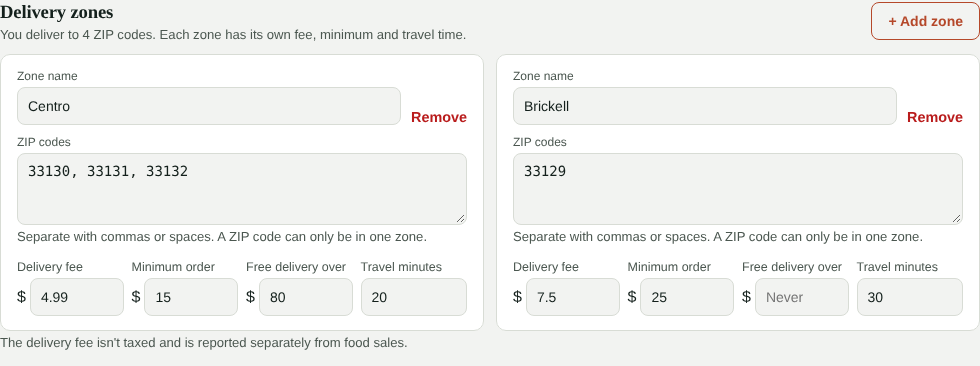
A ZIP code can only be in one zone. If a customer enters a ZIP code outside your zones, they're told you don't deliver there and can choose Pickup.
Zones by distance
For example: "Nearby" with the ZIP codes around the restaurant at $3.99, and "Farther" with the next ones at $6.99 and a higher minimum.
2. General settings
- Deliver from / until (optional): if delivery ends earlier than online ordering (for example, delivery until 9:00 PM).
- Driver tip: on delivery orders, the tip is 100% the driver's.
- Cash on delivery: the customer pays when the order arrives. Set a max cash order to protect your drivers; above it, customers pay by card.
- Message for customers (Spanish and English).
- ⏸ Pause delivery: if you run out of drivers, pause delivery with one tap. Customers can still order for pickup.
What customers see
On your ordering page the customer chooses 🛍️ Pickup or 🛵 Delivery. They enter their address, apartment and ZIP code, and instantly see whether you deliver to their area and the fee. They can leave instructions for the driver ("Black gate, ring the bell").
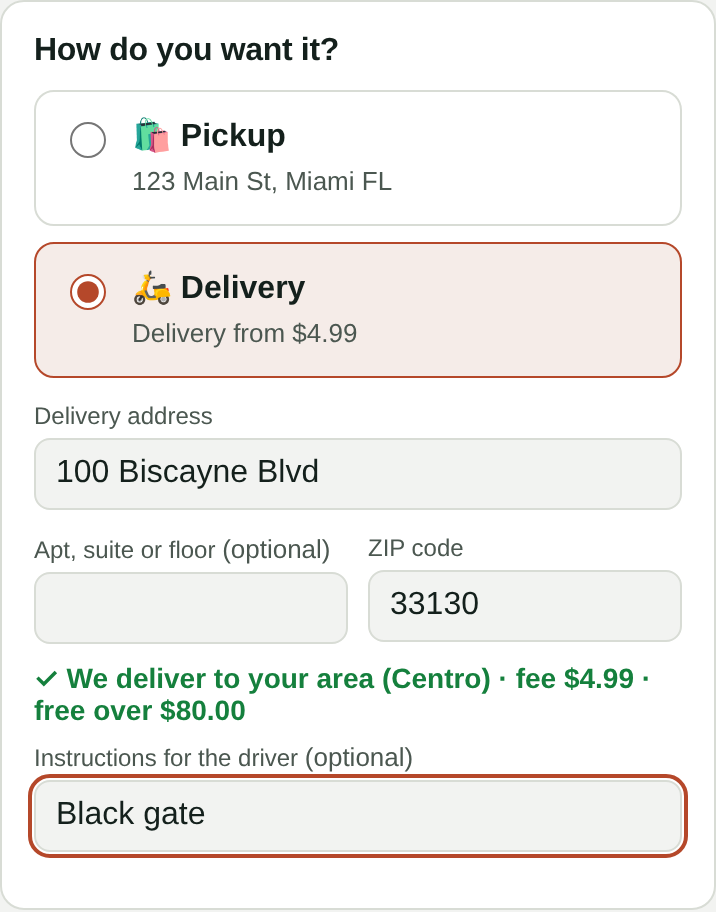
When choosing the time they see the estimated arrival (prep + their zone's travel minutes). The summary shows the delivery fee and driver tip. Their order page shows progress: Received → Preparing → On the way → Delivered.
When a delivery order comes in
In the Online orders inbox, the order shows 🛵 Delivery, the zone, the address and instructions. If it's cash, you'll see 💵 Collect $XX cash.
- Accept it like any online order. The kitchen gets it as Delivery, with the address in the note.
- Card: charged when you accept, as always (including the fee and tip).
- Cash: the order stays open until it's delivered. When you tap Delivered the payment is recorded: if a driver took it, the cash goes into the drawer at their cash-out; otherwise into your open drawer. You can also close it from the POS when the driver comes back with the money.
Dispatch: who takes what
In Own delivery → Dispatch you see all of today's delivery orders in columns: In the kitchen, Ready to go, On the way and Delivered today. At the top are your drivers, with a green dot if they clocked in on the time clock, and how many orders they have.
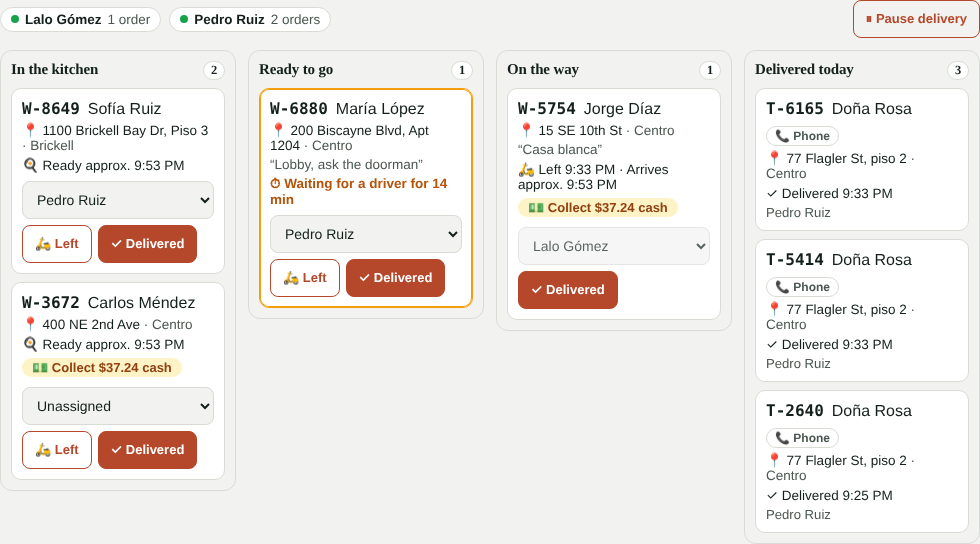
- Assign a driver with each order's list. You can also let drivers take orders from their app.
- An order that's been ready for 10 minutes or more without leaving is highlighted in orange.
- If a driver doesn't use the app, you can tap Left and Delivered.
- Cashiers have the same dispatch in the POS with the 🛵 Dispatch button (showing how many orders are ready to go).
The driver app
- In Team, add each driver with the Driver role.
- The driver signs in at app.kitchfly.com on their phone with their email and password. They only see their app: they can't open the POS or the admin.
- They clock in with the time clock (top of their screen).
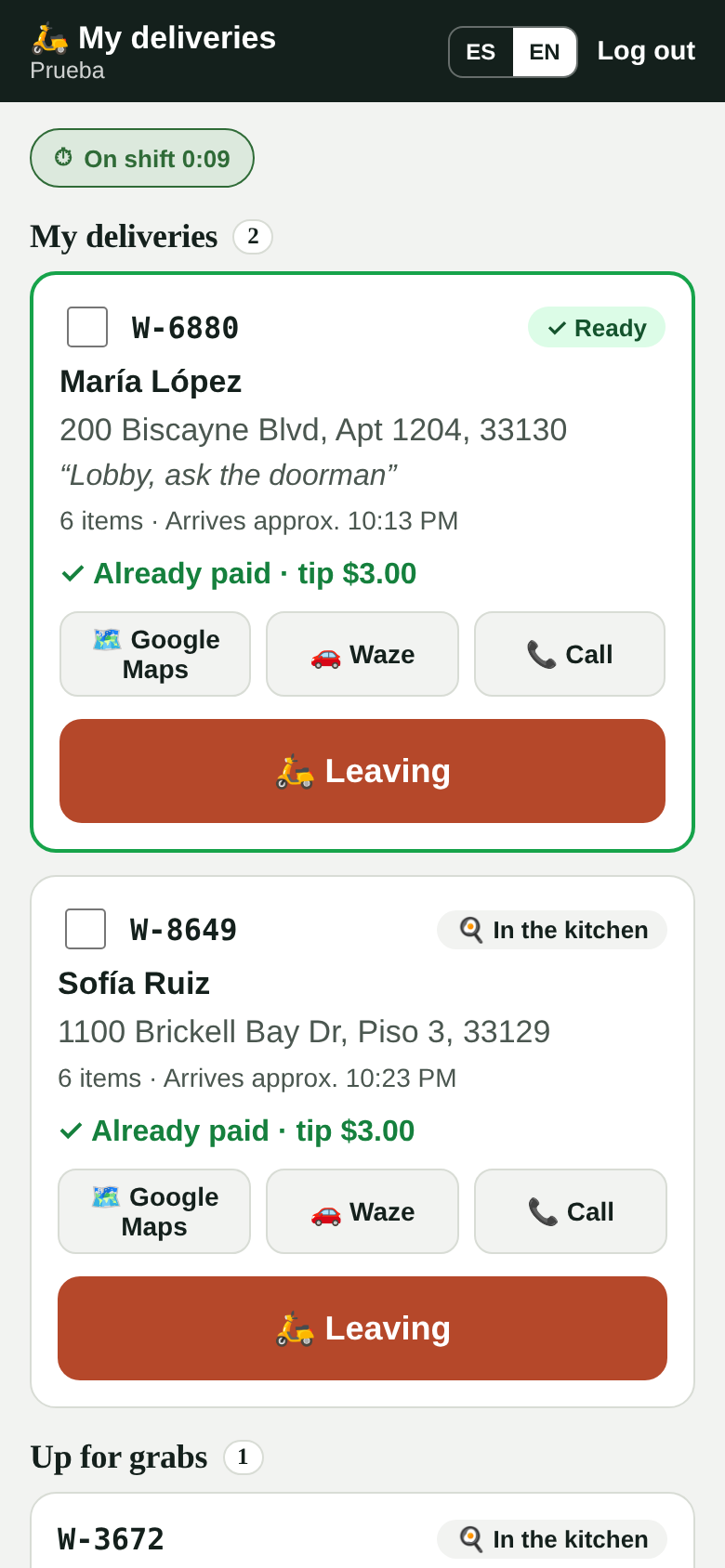
For each delivery they see the customer's name, address, instructions, the Google Maps, Waze and Call buttons, and whether to collect cash (or that it's already paid and the tip left).
- Leaving: the customer gets an email "Your order is on the way" with the driver's name and estimated arrival. If they carry several orders in one trip, they select them and tap Leaving with 2 orders.
- Delivered: if it was cash, the payment is recorded under the driver's name.
- Up for grabs: unassigned orders they can take themselves.
- Today: their deliveries, cash collected and tips.
Phone delivery orders
When a customer calls:
- In the POS, choose Delivery as the service type and add the items.
- Tap 🛵 Add delivery details: name, phone, address and ZIP code. The fee is calculated from the zone.
- Send the order to the kitchen as usual.
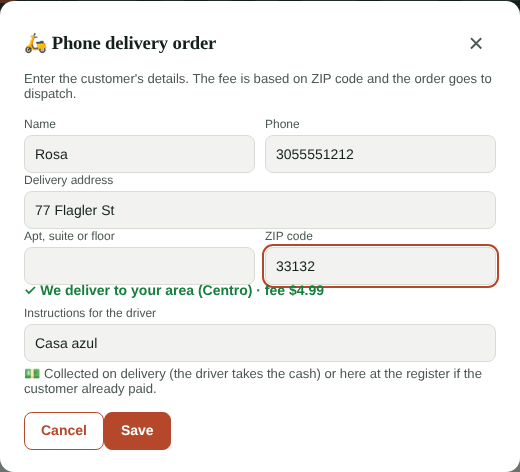
The order shows up in dispatch tagged 📞 Phone. The driver collects cash on delivery; if the customer paid at the register, charge it in the POS and the driver will see Already paid.
Driver cash-out
When a driver collects cash, they carry it: it doesn't go into your drawer until their cash-out. That way your drawer count doesn't expect money that's still on the road.
In Own delivery → Cash-outs (or in the POS: 🛵 Dispatch → Cash-outs) you see each driver with pending deliveries:
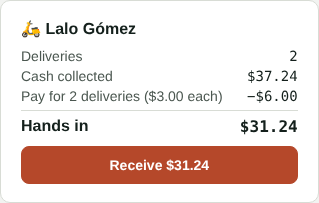
- Cash collected on their deliveries.
- Their tips: on delivery orders the tip belongs to the driver. Cash tips they already have; card tips can be paid at cash-out.
- Delivery pay: if you set a pay per delivery in Settings (for example $3).
- Hands in: what they leave in the drawer. Tap Receive, enter what they handed in, and you're done: any shortage or overage is recorded.
When you record the cash-out, the cash goes into the open drawer and what the driver keeps goes out as a pay-out with their name, so your drawer count balances. If their tips and pay are more than the cash they collected, the drawer pays them the difference.
In Settings you choose how card tips and per-delivery pay are paid:
- In cash at their cash-out (deducted from the cash they hand in).
- Through payroll: at cash-out they only keep their cash tips; the rest shows in the report so you pay it on their check.
Driver tips don't go into the front-of-house tip pool and appear in the payroll export under their name.
Delivery report
In Own delivery → Report pick the dates and you'll see:

- Orders delivered (and how many by phone), food sales, delivery fees, driver tips and average delivery time (kitchen and road).
- By zone, by driver (deliveries, time on the road, cash, tips and estimated pay) and by day.
- Searched outside your zones: ZIP codes customers entered where you don't deliver. If one keeps coming up, it may be worth adding to a zone.
Money and reports
- The delivery fee isn't taxed and isn't added to food sales: it's stored separately on each order.
- The tip on delivery orders belongs to the driver.
- In the drawer count, delivery fees show separately from food sales.
- In QuickBooks Online you can pick an income account for delivery fees (optional).
FAQ
Does Kitchfly charge a commission on delivery orders? No. You only pay the Kitchfly Pay fee for card payments.
Can I deliver by distance in miles instead of ZIP code? For now, zones are by ZIP code.
Can customers schedule a delivery order? Yes, just like pickup orders. The time they see is the estimated arrival.
Can a gift card be used on a delivery order? Yes, with card payment. Cash can't be combined with a gift card.