PIN sign-in on the register and kitchen
Activate the register or the kitchen tablet once and from then on everyone signs in with their own 4–6 digit PIN — no email or password. Every order, tip, sold-out item or log entry is recorded under the person who did it, even when everyone shares the same device. It's included in all plans.
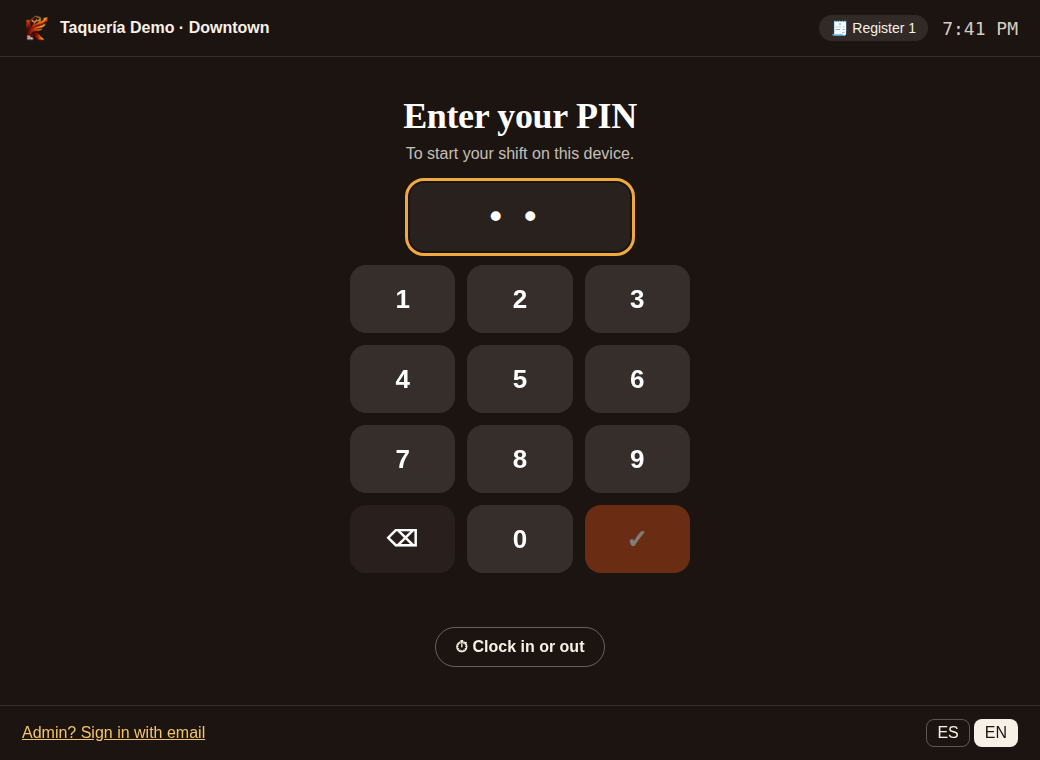
1. Give everyone a PIN
- In Team, in the PIN column, tap Set PIN, enter 4 to 6 digits and Save.
- Or each person sets their own in My account → My sign-in PIN (it asks for their password).
Easy PINs (1234, 1111…) aren't allowed, and two people can't share a PIN. Nobody can see a PIN — only change or remove it.
2. Activate the device
Do this from the device you want to activate (the register or the kitchen tablet):
- Sign in with your admin email and go to Team → PIN sign-in on your restaurant's devices.
- Give it a name (e.g. Register 1, Kitchen) and choose Point of sale or Kitchen display.
- For a register, choose when it auto-locks if nobody uses it (for example 2 minutes).
- Tap Activate this device and sign out. The PIN screen appears.
PINs only work on devices you activate: knowing someone's PIN is useless from home or from another browser.
On the register
- Each server enters their PIN and goes straight to the POS.
- 🔢 Switch user leaves the register ready for the next person.
- If nobody touches it for the time you chose, it goes back to the PIN screen.
- If an admin enters their PIN on the register, they get the POS, not the admin panel. To manage, tap Admin? Sign in with email.
In the kitchen
The kitchen display stays open for everyone. A PIN is only asked for things that must be recorded:
- marking or restoring a sold-out item,
- filling in the food safety log,
- logging something thrown out in Expiring,
- clocking in, out or on break.
After entering a PIN, that person's next actions within one minute don't ask again.
Clock in and out
On the PIN screen, tap ⏱ Clock in or out, enter your PIN and choose Clock in, Start break, End break or Clock out. No need to sign in.
Without internet
If the internet goes down, people who already signed in on that register can sign in again with their PIN. Orders they take are uploaded under their name when the connection is back. Clocking in or out needs internet.
Security
- 5 wrong PINs in a row lock that device for 5 minutes and you get an alert in the bell.
- In Team you see activated devices and when they were last used. Remove turns one off right away and ends its sessions (for example, if a tablet goes missing).
- The activity log shows who signed in and on which device.
Authorization PIN
The admin authorization PIN for discounts and voids (in My account) is separate and works the same as before.