Discounts, comps and voids
These actions lower what the customer pays, so they need an admin's authorization PIN. Everything is recorded: who requested it, who authorized it and why.
Before you start: the admin PIN
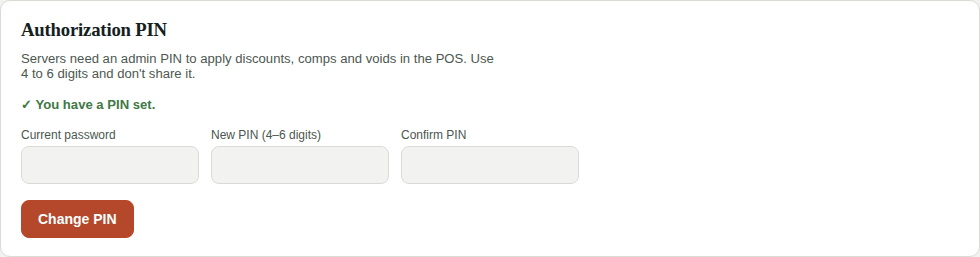
Each admin creates their PIN in My Account → Authorization PIN (4 to 6 digits). They'll need their current password.
Keep it private
Anyone with the PIN can authorize discounts. After 5 wrong attempts, the PIN is blocked for 10 minutes.
Preset discounts
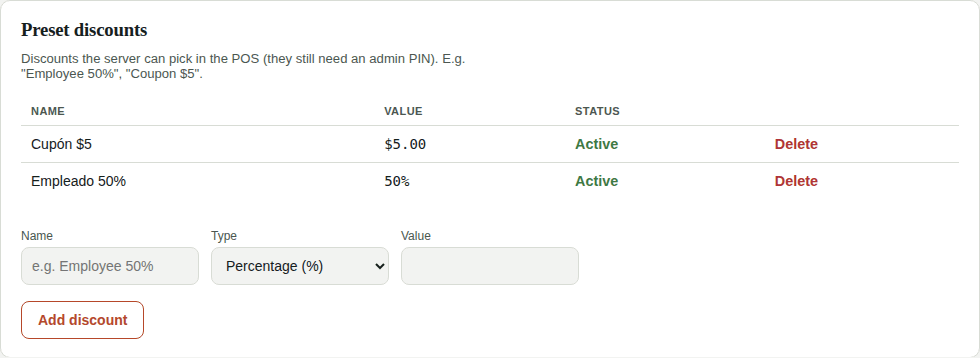
In Settings → Sales & costs → Preset discounts, create the ones you use often: Employee 50%, Coupon $5… Servers pick them with one tap. You can turn one off without deleting it.
Discount on the whole order
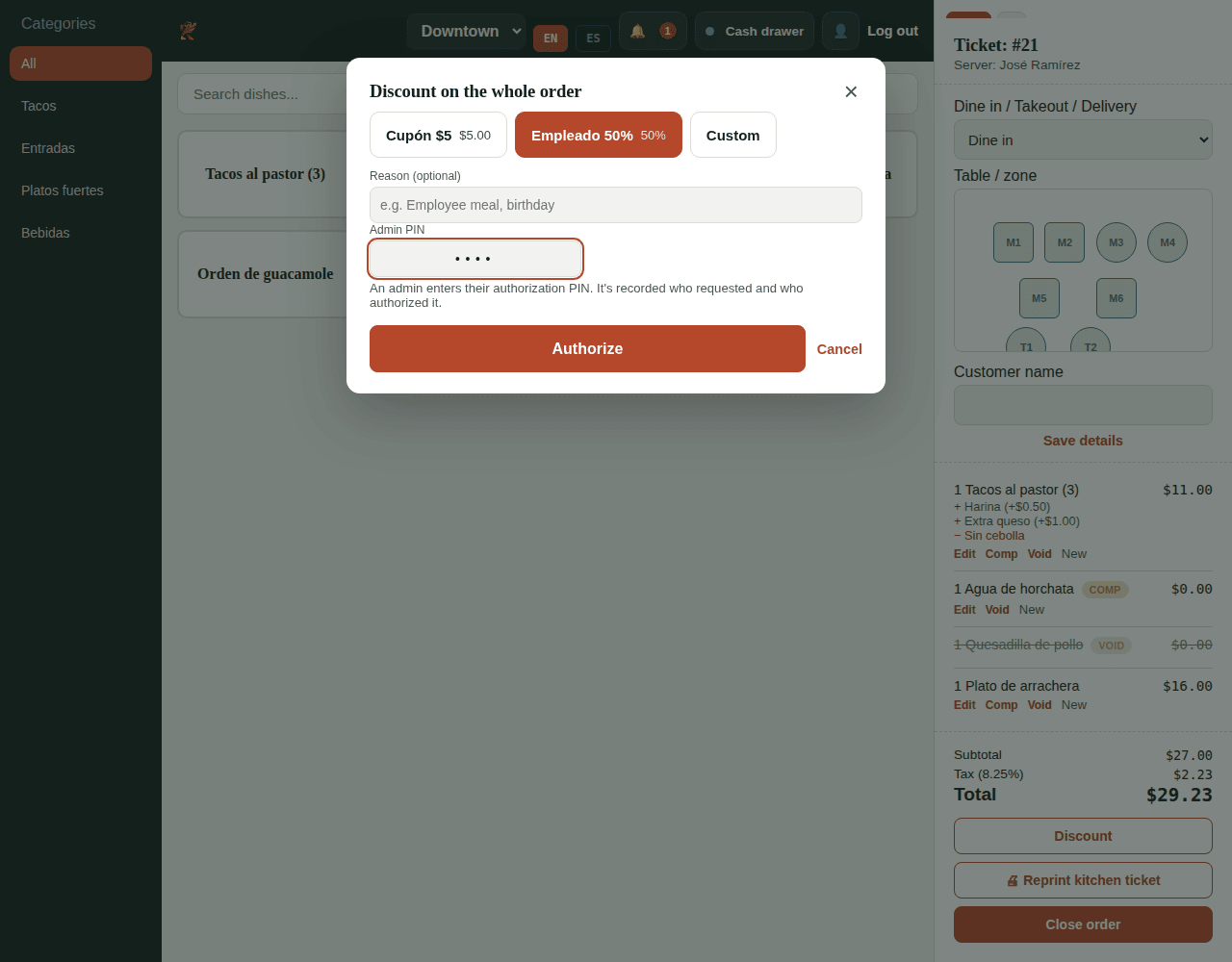
- In the POS ticket, tap Discount.
- Pick a preset discount, or Custom to type a % or $ amount (custom discounts need a reason).
- The admin types their PIN and taps Authorize.
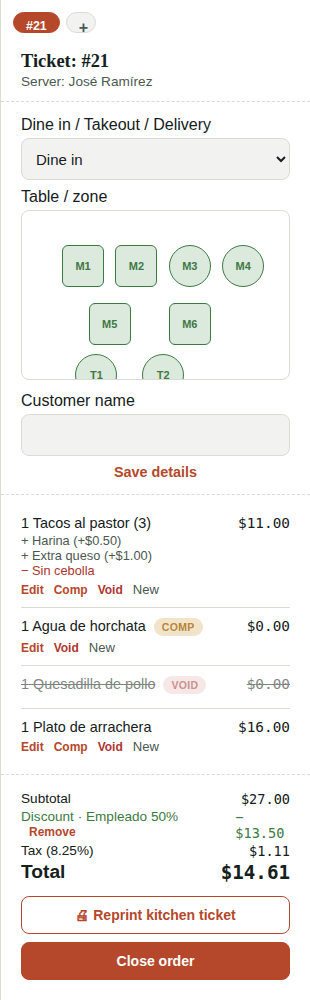
The discount shows in the ticket totals. Tax is calculated after the discount. Tap Remove next to it to take it off.
Comp a dish
Tap Comp under the dish, write the reason and have the admin enter their PIN. The dish is charged $0, but its ingredients are discounted from inventory, so your food cost stays accurate.
Void a dish already sent to the kitchen
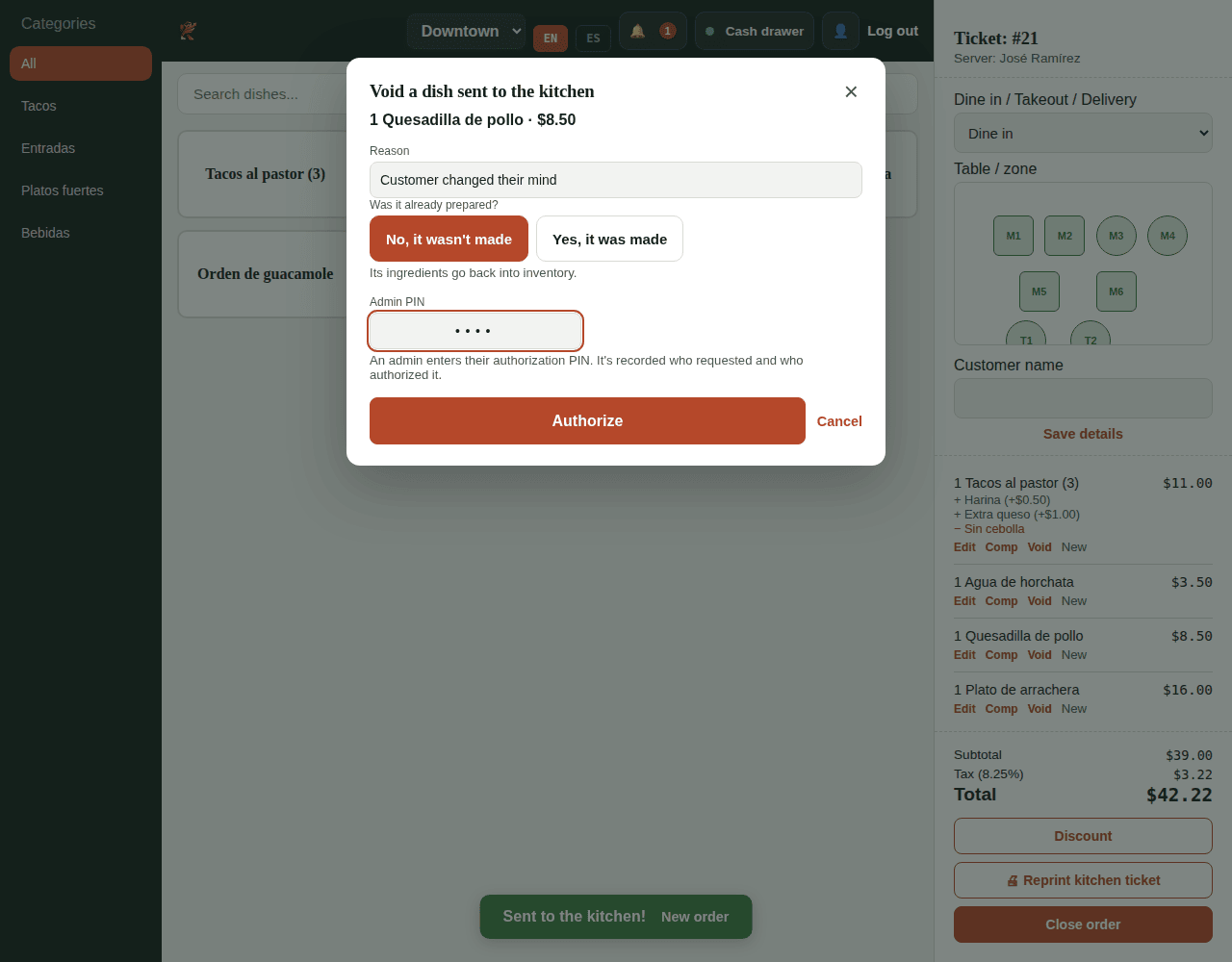
Dishes that haven't been sent can be taken off with Remove. Once sent, use Void:
- Write the reason.
- Answer Was it already prepared?
- No, it wasn't made: its ingredients go back to inventory.
- Yes, it was made: ingredients stay deducted and are recorded in Losses as Void (order).
- Admin PIN and Authorize.
The dish disappears from the kitchen display.
Once someone has paid
If part of the bill has already been paid, the order can't be changed anymore (no new dishes, discounts, comps or voids).
Review them
The admin sees every discount, comp, void and refund in Orders → Adjustments log. See Orders and refunds.