Vehicles
Keep your food truck, restaurant vans and your drivers' cars in one place: documents and expirations, maintenance by miles or date, fuel and expenses, who has each vehicle, and cost per mile.
Find it in Daily operations → Vehicles (admin only). It's included in both plans.
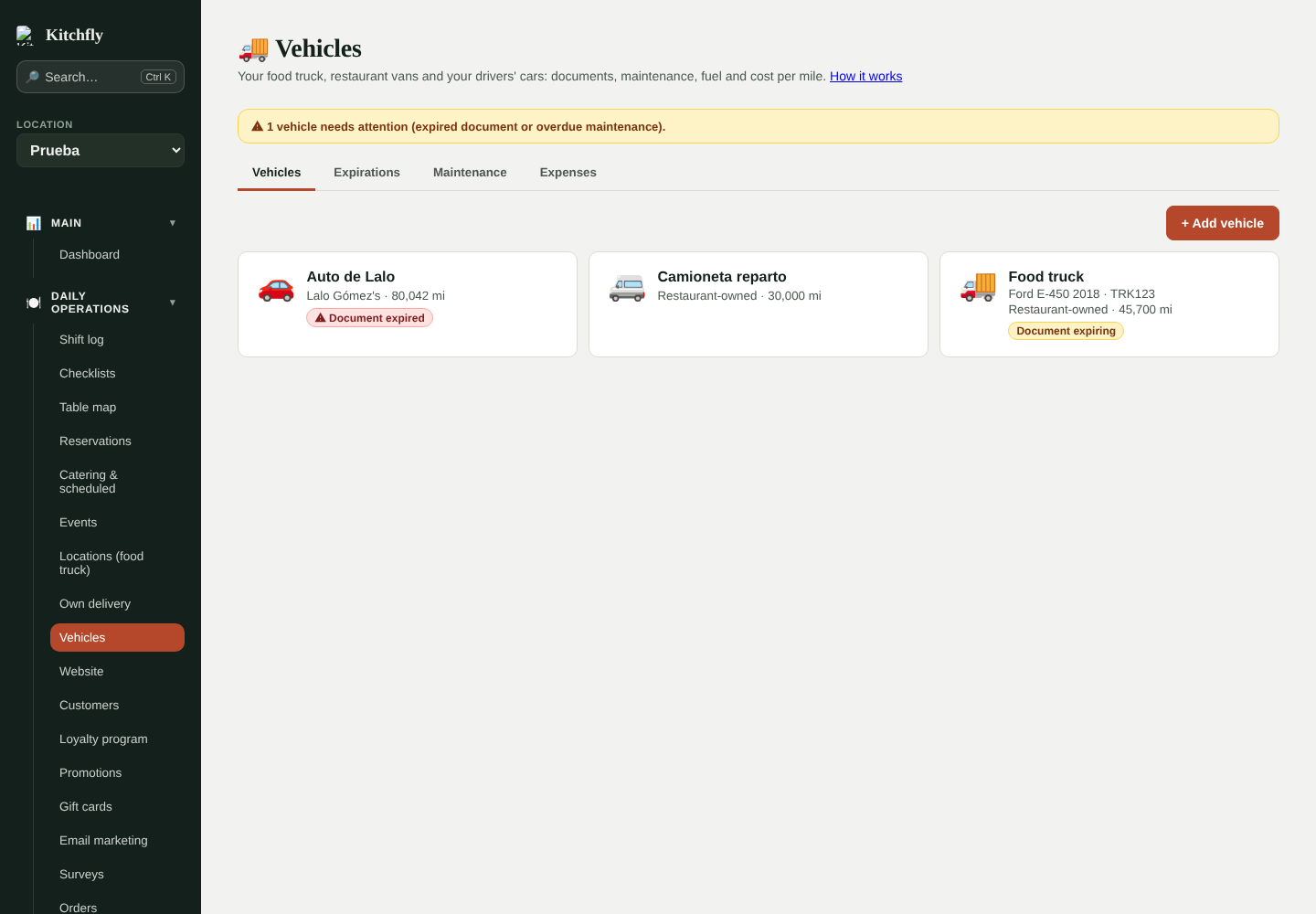
1. Add your vehicles
Tap + Add vehicle and enter the name (for example "Food truck" or "White van"), type, make, model, year, plate and today's odometer.
Under Who owns it? choose:
- Restaurant-owned: the food truck or a delivery van. Its expenses go to your P&L.
- Driver-owned: a driver's own car. Pick which driver it belongs to. You don't pay its expenses: the driver gets mileage reimbursement for each delivery (see Own delivery).
2. Documents and expirations
Tap a vehicle to open its page and add its documents: registration, insurance, inspection, health permit, fire permit, city permit. You can also track each driver's driver's license.
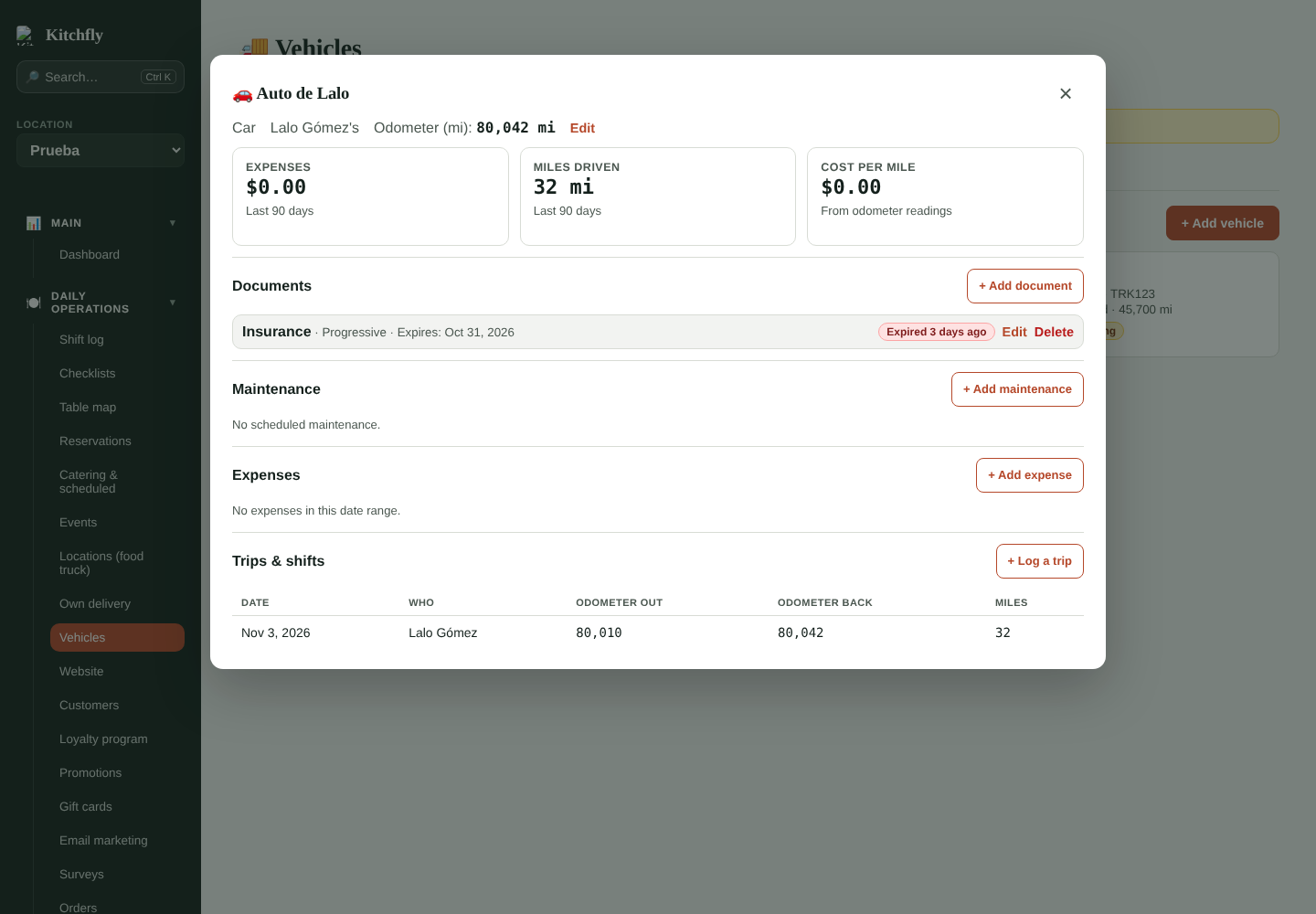
For each document enter the expiration date and how many days ahead you want a reminder (30 by default). We remind you in the bell and in the daily alerts email. The Expirations tab shows them all, expired first.
Just the date
Kitchfly stores the document type, the insurer or policy number, and the date. Don't upload copies of licenses or Social Security numbers.
3. Maintenance
Add what's due periodically: oil change, tires, brakes, the truck's generator. For each one enter every how many miles, every how many months, or both (whichever comes first).
At 300 miles or 14 days out it shows Due soon; once past, Overdue. When it's done, tap ✓ Done, enter the cost and odometer: the expense is recorded and the next one is calculated automatically.
4. Expenses and fuel
On the vehicle page or the Expenses tab, record fuel (with gallons), propane, repairs, tires, insurance, tolls, parking and car washes.
- Expenses for restaurant-owned vehicles show up automatically on your P&L, under Vehicles.
- From odometer readings we calculate miles driven, cost per mile and miles per gallon.
5. Who has each vehicle
- Drivers: in their app, under My vehicle, they pick which vehicle they're delivering with and enter the odometer when they start and finish. With a restaurant van they can log ⛽ I got gas.
- Food truck: in Locations → Settings pick which vehicle is your truck. When tapping 🚚 We're here on the POS, staff can enter the odometer.
- One-off trips: on the vehicle page, + Log a trip (for example, a supply run or an event).
Contractor drivers (1099)
If a driver isn't an employee but an independent contractor, mark them in Team: tap Employee next to their role, check Is a contractor (1099) and enter their legal name and address.
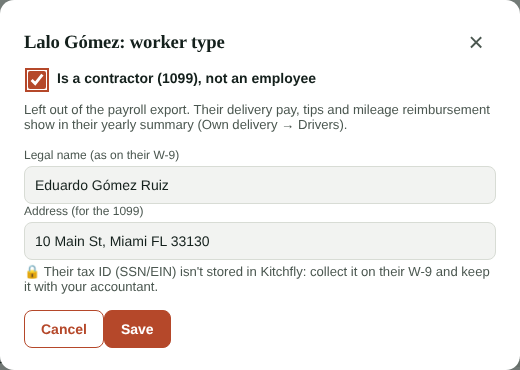
- They're left out of the payroll export.
- In Own delivery → Drivers you see the yearly summary: deliveries, delivery pay, tips and mileage reimbursement. Download the CSV for your accountant.
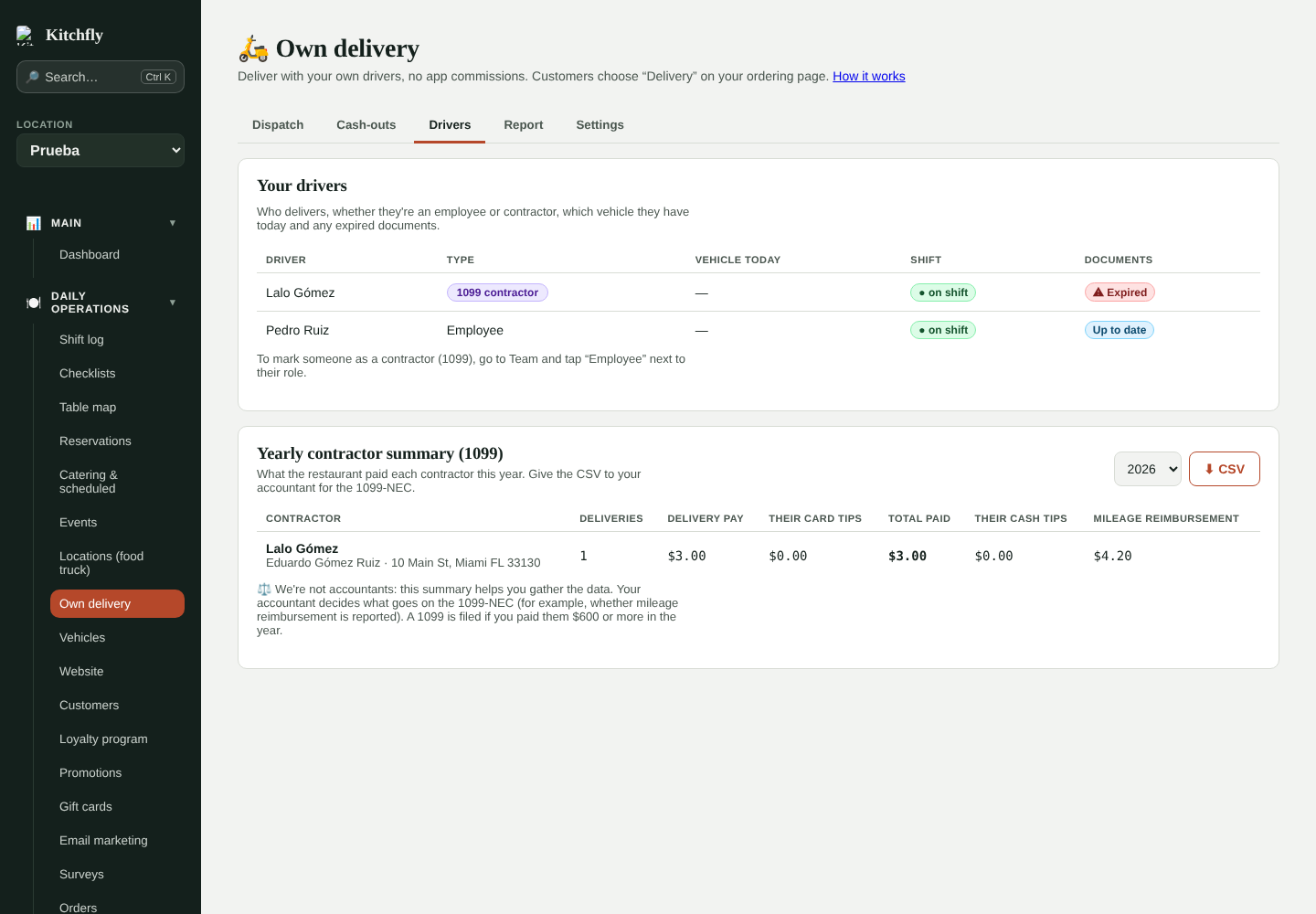
Tax ID
Kitchfly doesn't store SSNs or EINs. Collect it on the driver's W-9 form and keep it with your accountant.
We're not accountants
The summary helps you gather the data. Your accountant decides what goes on the 1099-NEC and whether someone is a contractor or employee under IRS and state rules.
FAQ
Can I use Vehicles without a food truck or delivery? Yes. It works for any business vehicle.
What happens if I deactivate a vehicle? It stops showing in the driver app and alerts, but its expenses and history are kept.
Can the odometer go down? No. A number lower than the last reading is rejected so cost per mile stays accurate.