Gift cards
Sell gift cards from the POS, digital (sent by email) or physical (cards you had printed), and let your customers pay with them at any location. Kitchfly tracks each card's balance, promotional bonuses and the money your customers still have to spend.
Selling a gift card isn't a sale
Gift card money is a balance you owe the customer: it has no tax and doesn't show in your sales. The sale counts when the customer uses the card to pay for food.
Sell a card at the POS
- At the POS tap 🎁 Gift card → Sell.
- Choose Digital (Kitchfly creates the number) or Physical (scan the pre-printed card).
- Choose the amount ($25, $50, $100 or other, up to $2,000).
- For digital cards, enter the recipient's name, email and a message (optional).
- Tap Add to the order. The card shows on the ticket and is charged with the food (or alone).
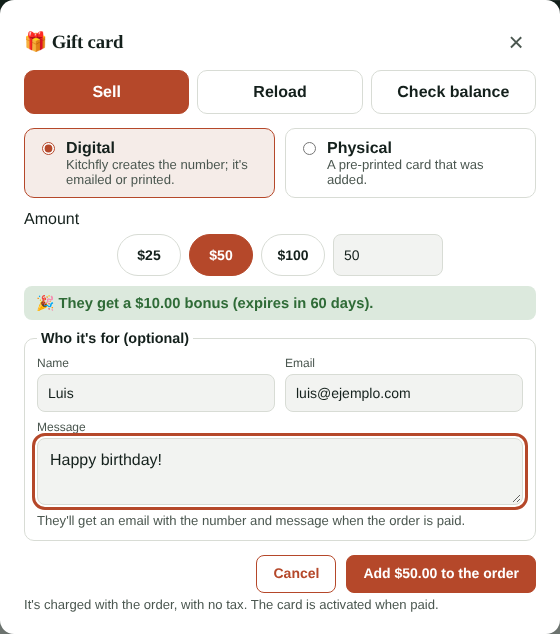
When the order is paid, the card is activated:
- With an email: the recipient gets an email with the number, balance and message.
- Without an email: the POS shows the number so you can print it or give it to the customer.
If the order is canceled before it's paid, the card isn't activated (and a physical card goes back to not sold).
Reload and check balance
In 🎁 Gift card you can also:
- Reload: scan or type the number of an active card and add the amount. It's charged just like a sale.
- Check balance: scan the card and see what's left.
Pay with a gift card
- When closing the order, in Payment method choose 🎁 Gift card.
- Scan or type the number and tap Check.
- If the balance covers it, it pays everything. If not, it pays what it has and the rest is charged with another method (cash, card…).
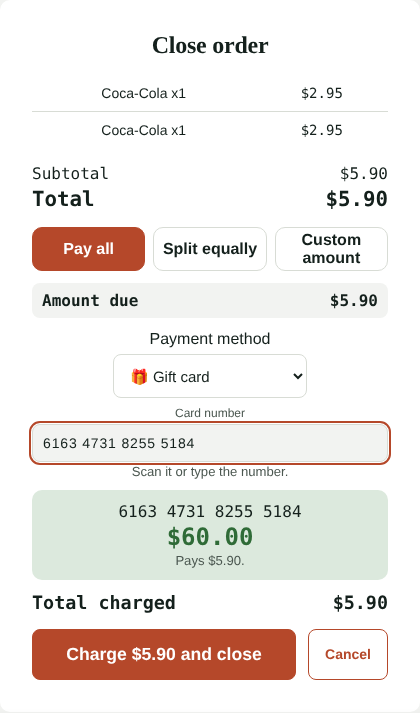
- The bonus is used first (it expires), then the paid balance (it never expires).
- The card pays for food and tax, not tips or another gift card being sold in the same order.
- If you refund a payment made with a gift card, the money goes back to the card.
- Cards belong to the whole company: a card sold at one location can be used at any other.
The Gift cards screen
The admin finds it in Daily operations → Gift cards (or by typing gift in the search).
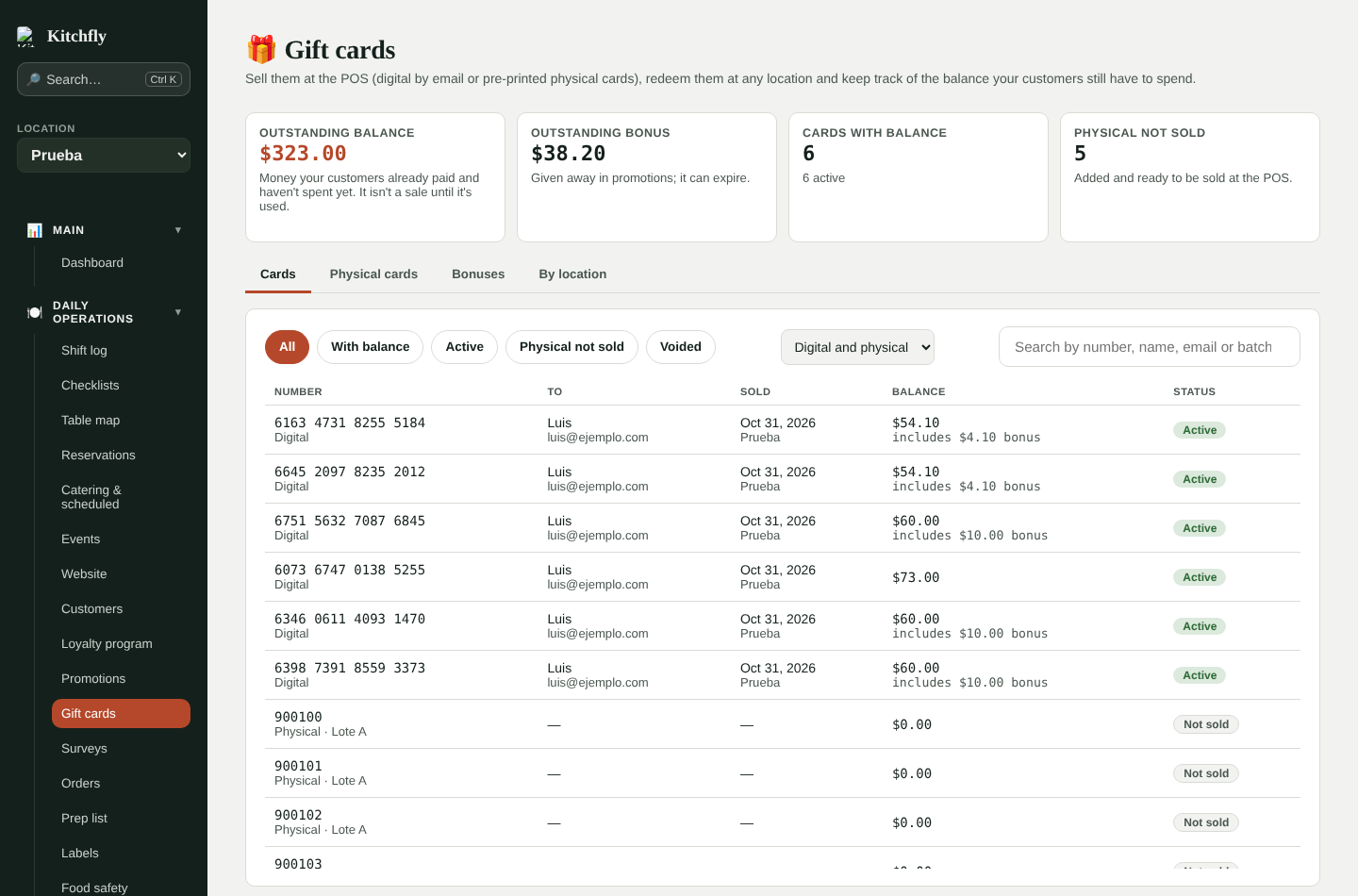
- Outstanding balance: money your customers already paid and haven't spent.
- Outstanding bonus: promotional money that can still be used.
- Filter the list (with balance, active, physical not sold, voided) and search by number, name, email or batch.
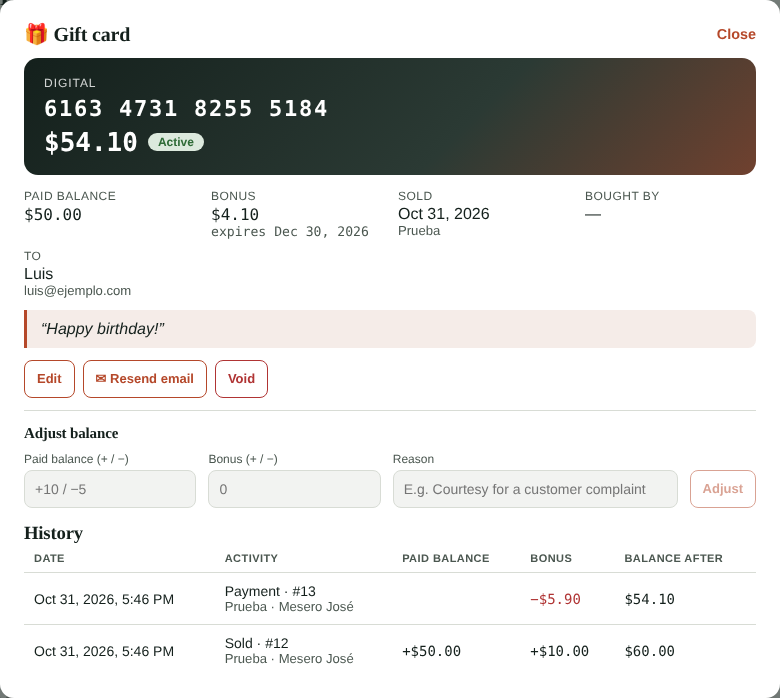
Tap a card to see its history (sale, payments, reloads, adjustments) and to:
- Resend the email to the recipient.
- Adjust the balance (for example, a courtesy), always with a reason.
- Void a stolen card or one sold by mistake: the balance goes to $0.
Physical cards
If you have cards printed with their number and barcode:
- Go to Gift cards → Physical cards.
- Add them by scanning (one per line) or by range if the numbers are consecutive. Give them a batch name if you like (e.g. Holidays 2026).
- They start with no balance as Not sold. They're activated when sold at the POS.
Use numbers with at least 6 digits that nobody can easily guess.
Promotional bonuses
In Gift cards → Bonuses create promotions like “Buy $50, get $10 extra”:
- Minimum purchase and bonus.
- Days until the bonus expires (the paid balance never expires).
- Whether it applies to sales, reloads or both, plus optional dates.
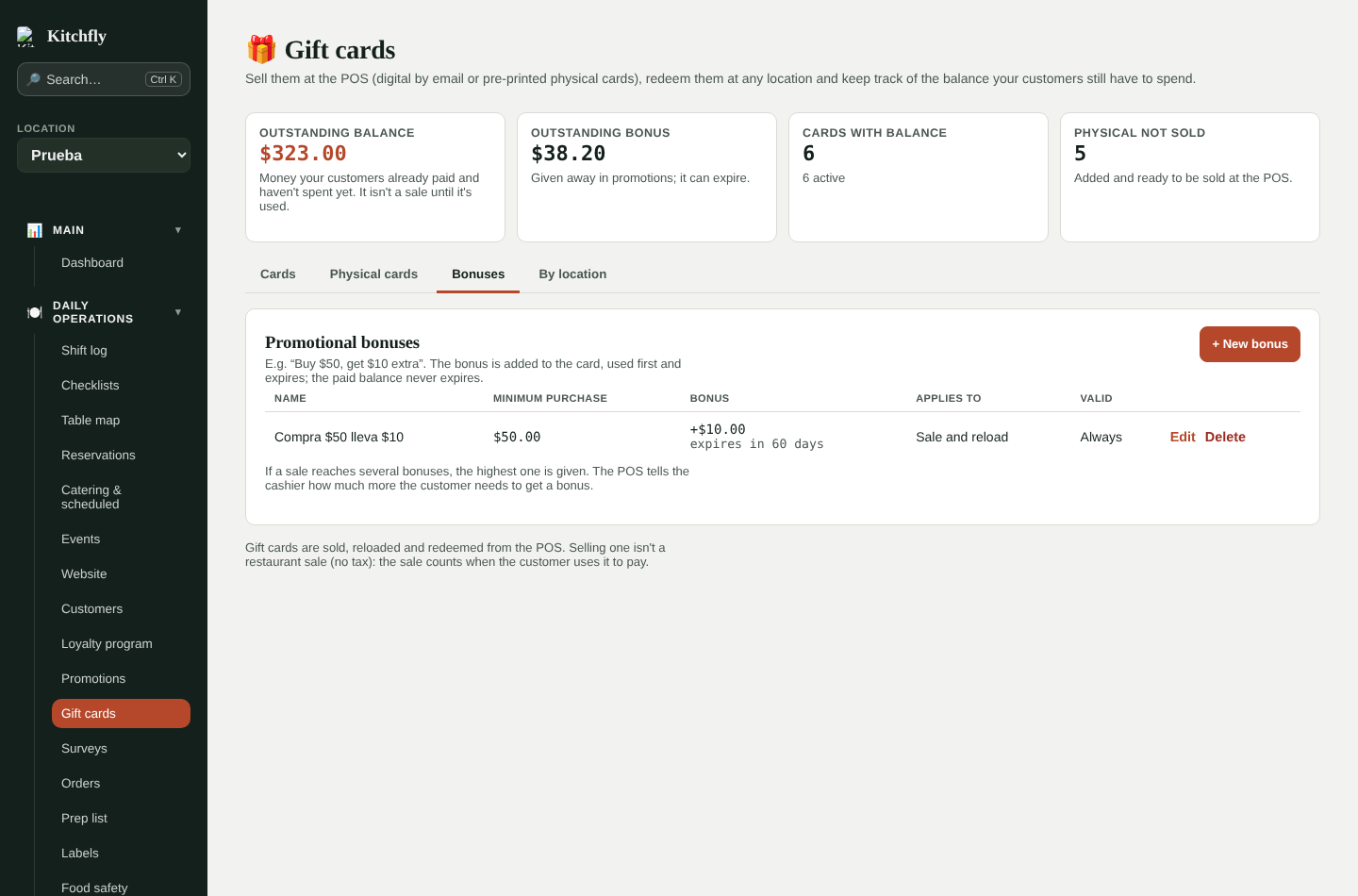
If a sale reaches several bonuses, the highest one is given, and the POS tells the cashier how much more the customer needs to get one.
Sell cards online
In Gift cards → Online sales, turn on Sell gift cards online. You need Kitchfly Pay turned on and your online ordering page address.
- Quick amounts: up to 6 buttons (for example 25, 50 and 100).
- Minimum and maximum, and whether customers can type another amount.
- Active bonuses for sales also apply online: customers see them before paying.
Customers buy at order.kitchfly.com/your-restaurant/tarjeta-regalo (the link shows on your ordering page and your website):
- They pick the amount.
- They choose whether it's for someone else (name, email and a message) or for themselves.
- They choose to send it now or on a date (a birthday, for example). Scheduled cards arrive that day from 8 a.m.
- They pay by card. The gift card is active right away and the buyer gets a receipt by email.
You get an alert for each online sale. In the card list they show 🌐 Online, and the ones waiting for their date show ⏰.
Did they buy by mistake?
Open the card and tap Refund purchase: the money goes back to the buyer's credit card and the gift card is voided. Only possible if the card hasn't been used or reloaded.
Use it in online ordering, kiosk and table QR
With Accept gift cards in online ordering, kiosk and table QR on (it is by default), customers see Have a gift card? when paying:
- The gift card pays for the food (with tax), up to its balance. The bonus is used first.
- The tip and anything left are paid by credit card. If the gift card covers everything and there's no tip, no credit card is needed.
- Online ordering: the balance is set aside when the order is placed. If you reject the order or it expires, it goes back to the card.
- Kiosk: if the card isn't enough, the rest is paid by card at the terminal or at the counter. The POS To collect list shows only what's left.
- Table QR: works for the full check or their share.
The minimum credit card charge is $0.50: if what's left is less, the customer needs to raise or remove the tip.
Online balance check
Your customers can check their balance at order.kitchfly.com/your-restaurant/tarjeta-regalo. The link shows at the bottom of your online ordering page and in the Check my balance button in the email.
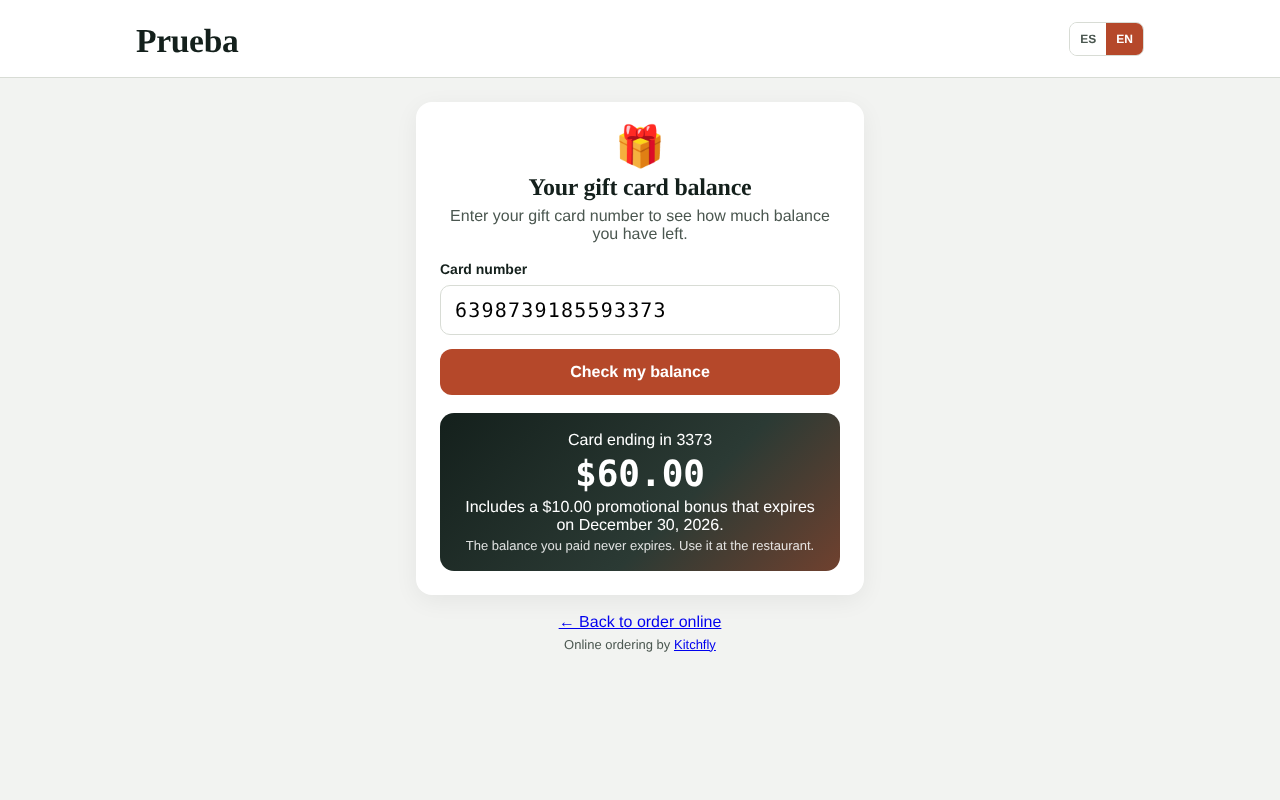
For security, the number of lookups per person is limited.
Cash drawer, reports and QuickBooks
- In the cash drawer summary you'll see gift cards sold (money that came in but isn't a sale) and what was paid with gift cards. Expected cash includes the cash from gift cards sold.
- In Gift cards → By location you see how much money each location received for cards and how much food it served paid with them, to reconcile between locations.
- In QuickBooks choose the Gift cards outstanding account (a liability): cards sold (at the POS or online) increase it and payments with them decrease it. Online sales are recorded as card payments on the day of purchase.