Food truck: where's the truck today?
If you run a food truck, customers always ask the same thing: where will you be today? With Locations you build your stop schedule, which shows on your website and your ordering page, and customers can follow the truck to get an email when you arrive at a place.
It's included in both plans. Find it in Daily operations → Locations (food truck) (admin only). The 🚚 We're here button is in the POS for the whole team.
Before you start
Your page needs an address: choose it in Online ordering → Settings (for example order.kitchfly.com/tacos-lupita). Your schedule lives at order.kitchfly.com/tacos-lupita/ubicaciones.
1. Save your places
In the Places tab, add each place where your truck parks: a park, an office building, a brewery.
- Name: what customers call it ("Bayfront Park").
- Address: used for the map and the Get directions button.
- Directions (optional): "Next to the fountain", "Enter on 8th St". You can write them in Spanish and English.
- Exact location (optional): if the place has no address (a parking lot, an event), paste the latitude and longitude from Google Maps.
2. Build your weekly schedule
In Weekly schedule you add the stops that repeat every week. Pick the place, tap the days (you can pick several at once), and the start and end time. If you finish after midnight (6:00 PM to 1:00 AM), Kitchfly knows it ends the next day.
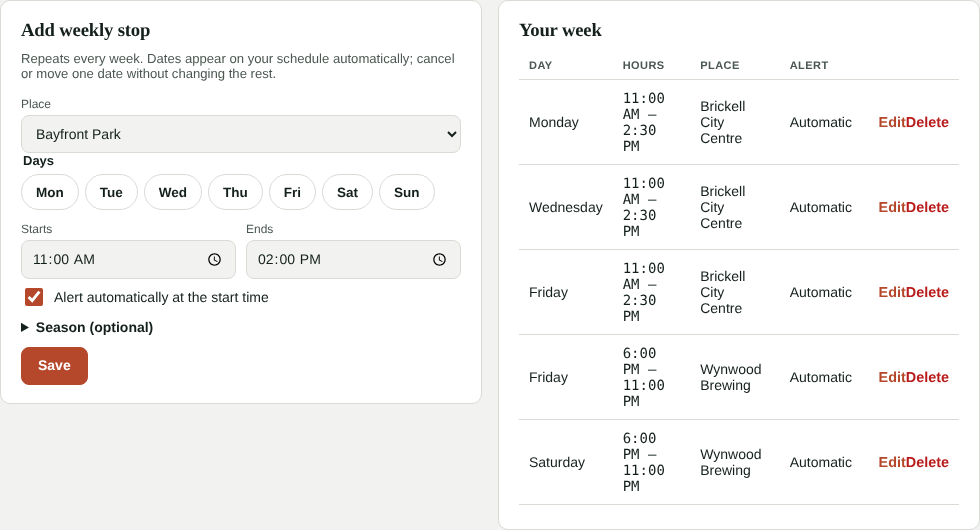
- Alert automatically at the start time: if checked, followers get the email when the stop starts, even if nobody taps "We're here".
- Season (optional): for stops that only run certain months.
The coming weeks appear on your calendar automatically.
3. The week: one-day stops, move and cancel
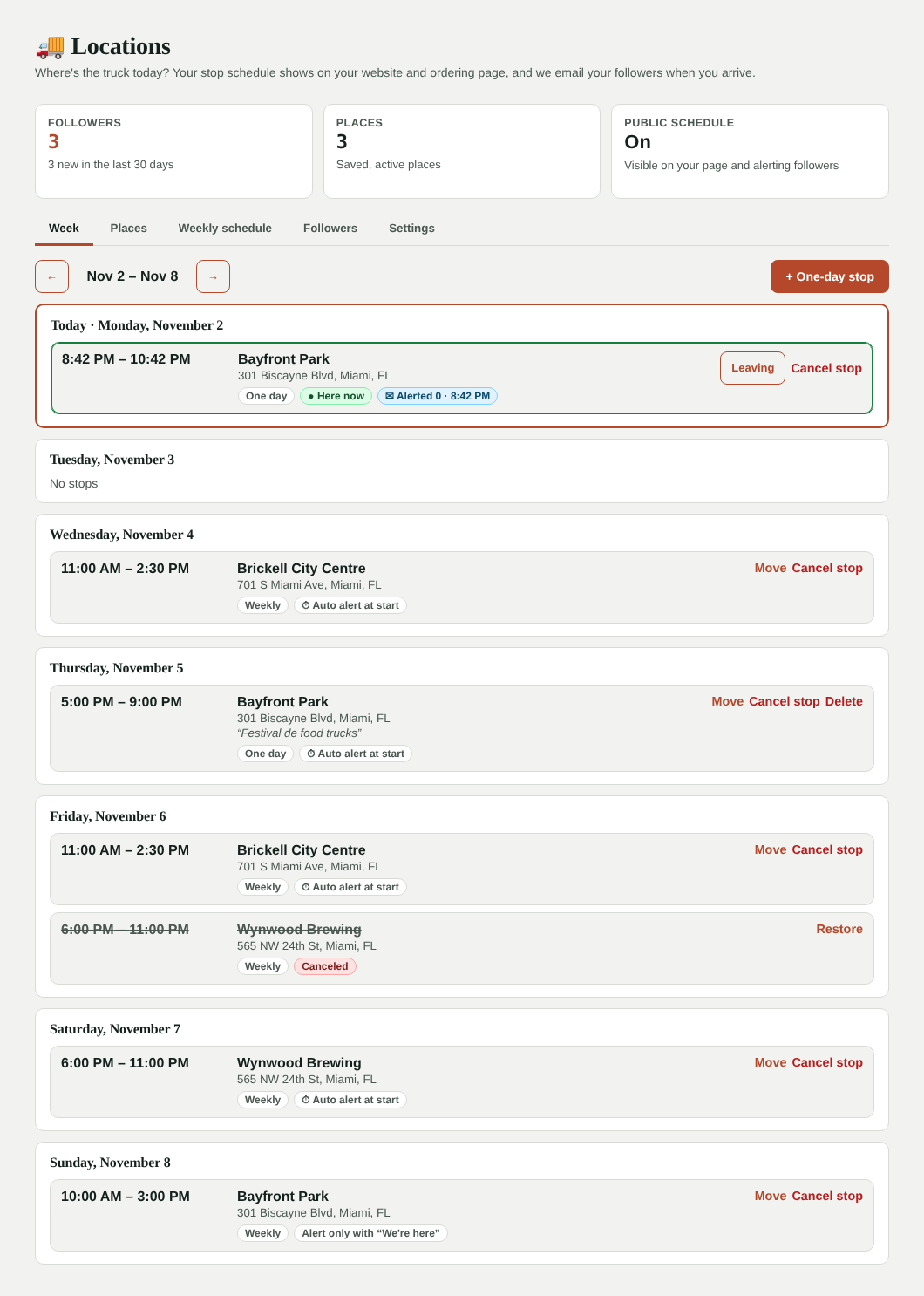
Week shows the next 7 days (use the arrows to change weeks).
- + One-day stop: a festival, a private event, a new spot. You can add a note ("Birria tacos today!").
- Move: change the time or place of one date only. If it's a weekly stop, your weekly schedule doesn't change.
- Cancel stop: it shows crossed out as Canceled on your page. You can email the people who follow that place. If it was a mistake, tap Restore.
Changing the weekly schedule
If you change a weekly stop (say it now starts at 10:00), future dates update automatically. Dates you moved or canceled by hand are kept.
4. "We're here"
When you arrive, tap 🚚 We're here in the POS (or on the tablet). Right then:
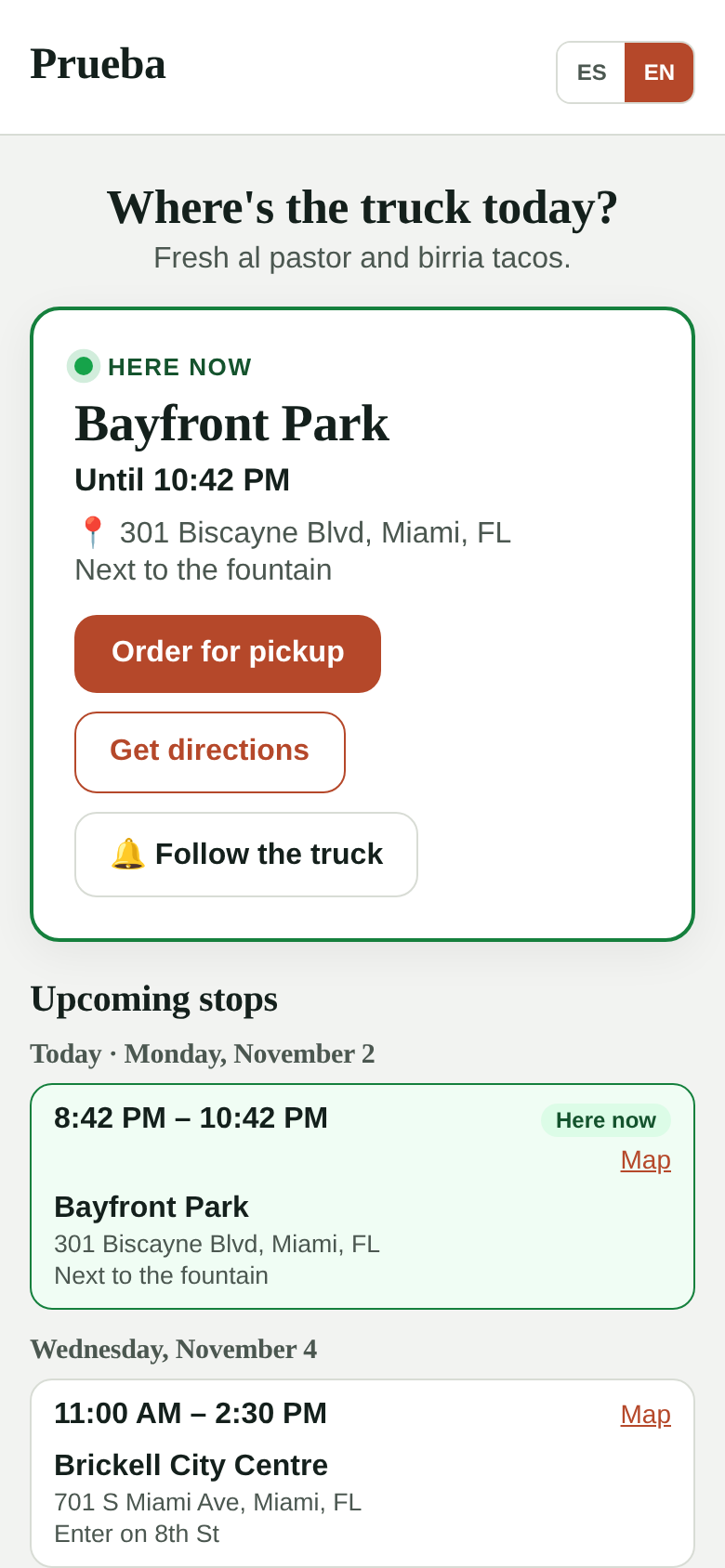
- Your page says Here now with a green dot, the map and the Order for pickup button.
- Followers of that place get an email: "🚚 Your business is at Bayfront Park now, until 2:30 PM", with a button to order and Get directions.
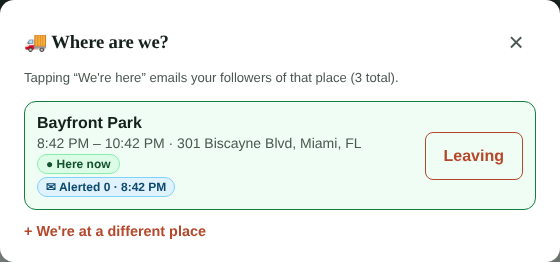
Arrived somewhere that wasn't on the schedule? Tap + We're at a different place, pick the place and how long you're staying.
When you leave, tap Leaving: the stop is marked as ended.
Each stop alerts only once. If you tap "We're here" before the start time, the email goes out then and the automatic alert isn't repeated. If a stop has the automatic alert off, the email only goes out with "We're here".
What customers see
At order.kitchfly.com/your-business/ubicaciones, customers see where you are now (or your next stop) with a map, and your schedule for the next two weeks.
It also shows:
- On your ordering page, a banner above the menu: "Here now: Bayfront Park".
- On your website, the Where are we today? section with your current stop, upcoming stops and the map.
You can turn either one off in Settings.
Followers
On your page, the customer taps Follow the truck, types their email and chooses alerts for all stops or only some places (for example, only when you're near their office). They get an email to confirm (double opt-in): we don't add them until they click.
- Following the truck does not subscribe them to your promotions: they only get location alerts. For promotions, use Email marketing.
- Location alerts don't count toward your email marketing limit.
- Every alert has Choose which stops and one-click Unfollow.
The Followers tab shows who follows you, for which places, and when they got their last alert.
Settings and QR poster
In Settings:
- Check Location schedule on. While it's off, your page isn't published and no alerts go out.
- Write a message for your page (Spanish and English).
- Choose whether it shows on your ordering page and website, and whether canceling a stop alerts followers by default.
- Tap 🖨 Print QR poster and stick it on the truck window: customers scan and follow you.
FAQ
Do customers need an app? No. Everything works by email and in the browser.
Can alerts go out by text message? For now, alerts are email only.
What if the system misses the start time? The automatic alert goes out within the first minute of the stop. If it's ever delayed more than 90 minutes, it's skipped (so nobody gets an alert when you're about to leave).
Can servers tap "We're here"? Yes, anyone on the team from the POS. Only the admin builds the schedule.
Can I delete a place? If it never had stops, it's deleted. If it did, it's deactivated (history is kept) and its future stops are removed.