Kitchfly for Windows
The Kitchfly app for Windows opens your account in its own window, without the browser bar, and adds what a browser can't do on its own:
- Direct printing: receipts and kitchen tickets go to the printer you choose (USB or network), with no print dialog.
- Kiosk mode: full screen with a PIN to exit, for the register or a server tablet.
- Updates itself: install once and improvements arrive on their own.
It runs on Windows 10 and 11 (64-bit) and is free with your account. Everything else works just like in the browser, including the POS offline mode.
Install it
- On the computer, go to kitchfly.com/descargas and click Download for Windows.
- Open the installer and follow the steps. When it finishes, Kitchfly opens and there's an icon on the desktop and in the Start menu.
- Log in as usual.
If you see “Windows protected your PC”
Click More info and then Run anyway. Windows shows that warning for new apps it doesn't know yet; the app is from Kitchfly and it's safe.
Choose the printer
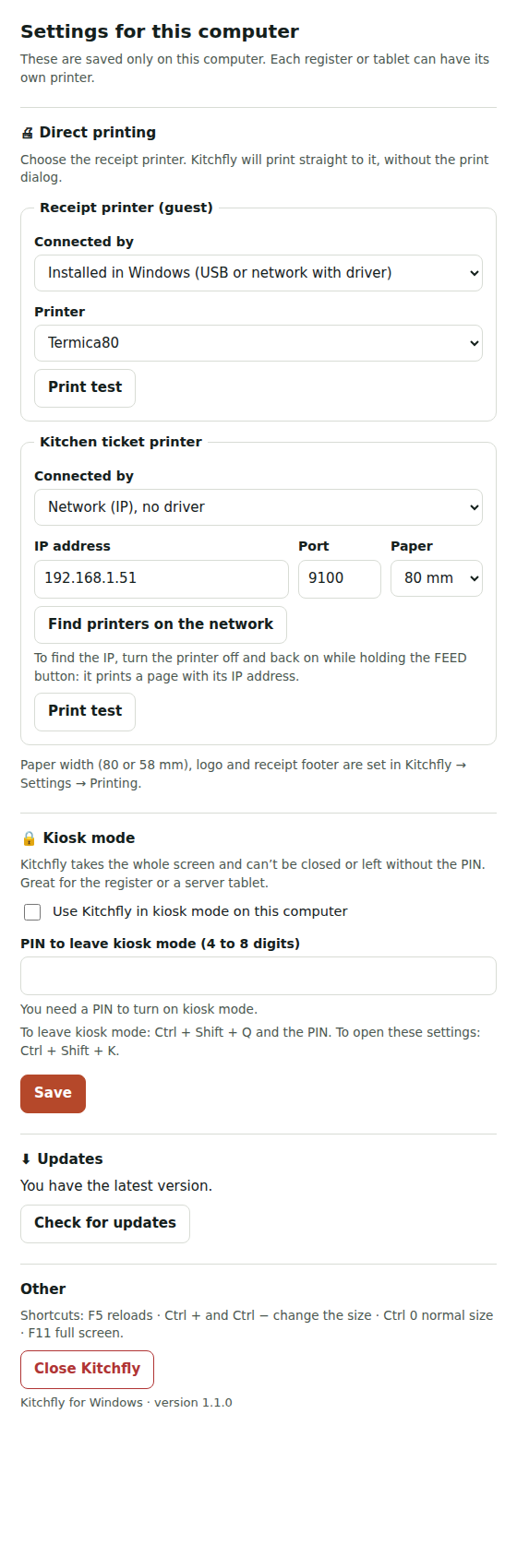
- In Kitchfly go to Settings → Printing. At the bottom you'll see Printers on this computer; click Choose printers. (You can also open it with Ctrl + Shift + K or right-click → Settings for this computer.)
- In Receipt printer, under Connected by choose Installed in Windows and then your thermal printer. (If it's a network printer with no driver, see Network printers).
- In Kitchen ticket printer, leave Same as receipts, or choose another one, Windows or network, if you have a kitchen printer.
- Click Print test and then Save.
From then on, everything Kitchfly prints (the receipt when you charge, the kitchen ticket when you send to the kitchen, Reprint and automatic printing) goes straight to that printer.

Each computer keeps its own printers: the register can print to one and the bar computer to another. Paper width, logo and receipt message are still set in Settings → Printing and apply to all of them.
The printer has to be installed in Windows
Kitchfly uses the printers you see in Windows Settings → Printers & scanners. If your thermal printer isn't there, install the manufacturer's driver first. In its preferences, the paper should be 80 mm (or 58 mm).
If you choose None, Kitchfly shows the usual print dialog.
Network printers (IP)
If your thermal printer is connected by network cable or WiFi (for example, one in the kitchen), Kitchfly can print straight to its IP address, without installing any driver in Windows. It works with thermal printers that use ESC/POS, which is nearly all of them: Epson TM, Star, Bixolon, Xprinter and similar.
- In the settings (Ctrl + Shift + K), under Connected by choose Network (IP), no driver.
- Click Find printers on the network and tap the one that shows up, or type its IP address. The port is almost always 9100.
- Choose that printer's paper (80 or 58 mm).
- Click Print test and then Save.
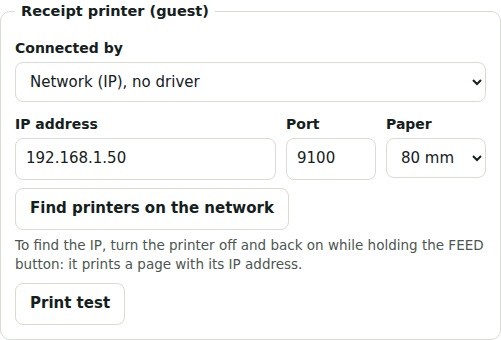
You can mix them: for example, a USB receipt printer at the register and a network kitchen printer. The logo and QR print just like on a USB printer, and the paper is cut at the end if the printer has a cutter.
What's my printer's IP?
Turn the printer off and back on while holding the FEED button: it prints a configuration page with its IP address. So it doesn't change, ask whoever manages your internet to give it a fixed IP (reserved in the router).
If it can't print, Kitchfly tells you why: if the printer doesn't answer, make sure it's on and on the same network as the computer; if it refuses the connection, check the port.
Kiosk mode
In kiosk mode Kitchfly takes the whole screen and can't be closed or minimized without the PIN, so nobody uses the register computer for something else.
- Open the settings with Ctrl + Shift + K.
- Check Use Kitchfly in kiosk mode on this computer.
- Type a PIN of 4 to 8 digits and click Save.
To leave kiosk mode press Ctrl + Shift + Q and type the PIN. While kiosk mode is on, opening the settings also asks for the PIN.
Updates
The app checks for a new version every few hours, downloads it in the background and installs it the next time you close Kitchfly. In the settings you can see your version, Check for updates and, if one is ready, Restart and update.
Kitchfly changes (new screens, reports, etc.) don't need an app update: they show up right away, just like in the browser.
Shortcuts
| Keys | What it does |
|---|---|
| Ctrl + Shift + K | Opens this computer's settings (printers, kiosk). Also with right-click → Settings for this computer. |
| Ctrl + Shift + Q | Leaves kiosk mode (asks for the PIN). |
| F5 | Reloads the screen. |
| Ctrl + / Ctrl − / Ctrl 0 | Makes it bigger, smaller or back to normal. It's remembered. |
| F11 | Full screen (without kiosk mode). |
If there's no internet when you open it
If Kitchfly has opened on that computer before, the POS opens anyway and keeps working offline. If it's the first time, you'll see No internet connection and it connects on its own as soon as the connection is back.
Uninstall it
In Windows Settings → Apps, find Kitchfly and choose Uninstall. Your account and data aren't deleted: they live in Kitchfly, not on the computer.