Delivery apps with Deliverect
If you sell on Uber Eats, DoorDash, Grubhub or other apps, you no longer need a tablet for each app or to re-enter orders. With Deliverect, every order comes straight into Kitchfly: it goes to the kitchen display, deducts inventory and is marked paid in your reports. Your menu, prices and sold-out items stay up to date on every app.
It's included in both plans. You need a Deliverect account with your apps connected; you pay your Deliverect subscription directly to them.
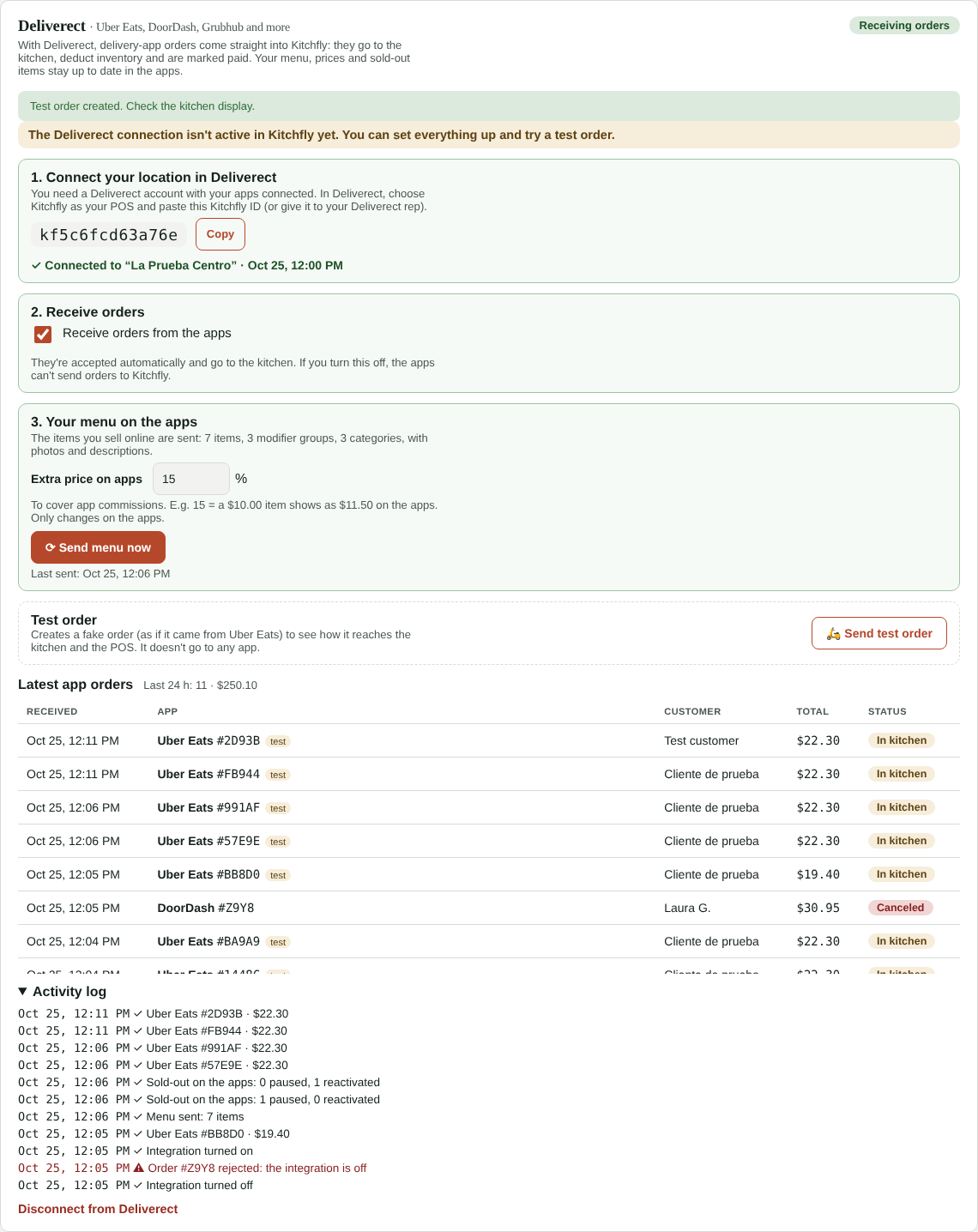
Connect your location
- In Kitchfly go to Settings → Integrations → Deliverect (or type deliverect in search).
- Copy your Kitchfly ID (it starts with kf).
- In Deliverect, choose Kitchfly as your POS and paste that ID, or give it to your Deliverect rep.
- Once Deliverect connects the location you'll see ✓ Connected to “your location”, and Kitchfly sends your menu.
- Keep Receive orders from the apps checked.
Your menu on the apps
The items you sell online are sent, with their categories, modifiers, photos and descriptions.
- Extra price on apps: a percentage added only on the apps to cover their commissions. With 15, a $10.00 item shows as $11.50 on Uber Eats or DoorDash. In your restaurant it's still $10.00.
- Send menu now: do it when you change prices or add items. Deliverect can also request the menu from its dashboard.
- Sold out: when you mark an item sold out (86) on the POS or in the kitchen, it's paused on the apps right away. Reactivate it and it comes back. Today only items reactivate on their own at 4:00 a.m.
What happens with each order
- It arrives and is accepted automatically. The apps expect an answer within seconds; Kitchfly accepts for you.
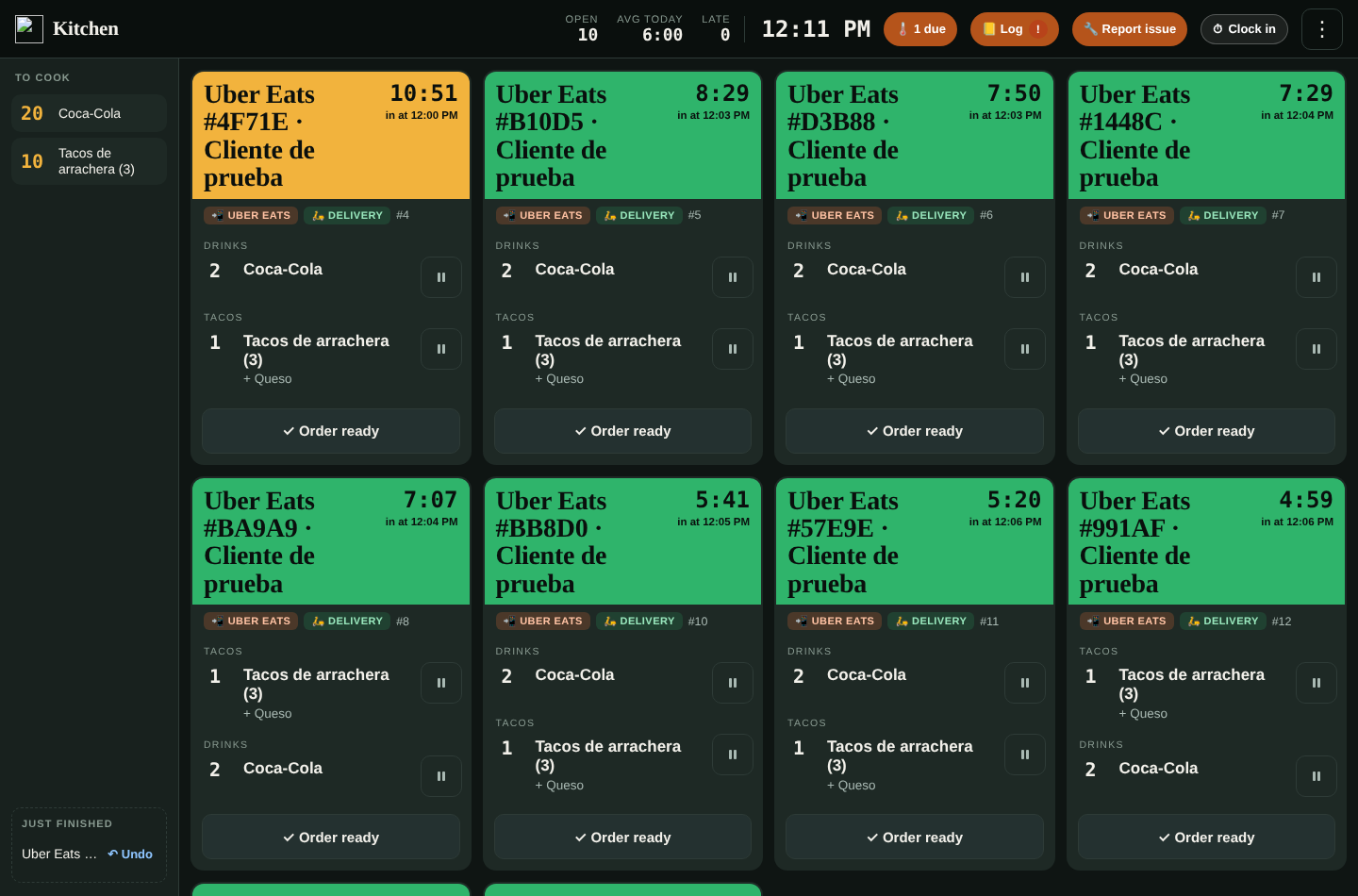
- It goes to the kitchen with the app's tag (📲 Uber Eats, 📲 DoorDash…), the order number, the customer's name, the pickup time and notes.
- It deducts inventory just like a POS sale, modifiers included.
- It's marked paid with the Delivery app method. It doesn't go into your cash drawer count, because the app deposits that money.
- The app is told every step: when the kitchen starts, when the order is ready and when you hand it off on the order board.
Taxes and tips
Kitchfly records what the app charged. If the app remits sales tax for you (marketplace facilitator, the norm in the US), that tax isn't added to what you owe. The driver's tip isn't yours and isn't recorded; a tip for the restaurant, if any, is.
Cancellations
If the app cancels an order, Kitchfly voids it in the kitchen and alerts you in the bell. If the kitchen hadn't started, the ingredients go back into inventory; if it was already being made, they're recorded as a loss.
Items Kitchfly doesn't recognize
If something arrives that isn't on your Kitchfly menu (say, an item you deleted), the order still comes in with a ⚠ Not recognized note for the kitchen, and we alert you. Tap Send menu now so the apps are up to date.
Test order
Tap Send test order to create a fake order, as if it came from Uber Eats, and see how it reaches the kitchen and the POS. It doesn't go to any app and is tagged test.
Reports
In Reports → Payments & tips you'll see Delivery apps as a channel, the Delivery app payment method, and the By delivery app breakdown (Uber Eats, DoorDash…).
Activity log
Below the Deliverect card are the latest app orders with their status and the activity log: connections, menus sent, paused sold-out items, cancellations and any errors.
An app isn't getting through?
Check that Receive orders from the apps is checked and your Kitchfly subscription is active. If the integration is off, Kitchfly rejects the orders so the app doesn't treat them as accepted.