House accounts
For trusted customers who eat now and pay later: the office that orders all week and pays on Friday, the catering client on Net 15 or the neighbor who settles at the end of the month. Find them in Daily operations → House accounts (admin only). They're included in both plans.
1. Open the account
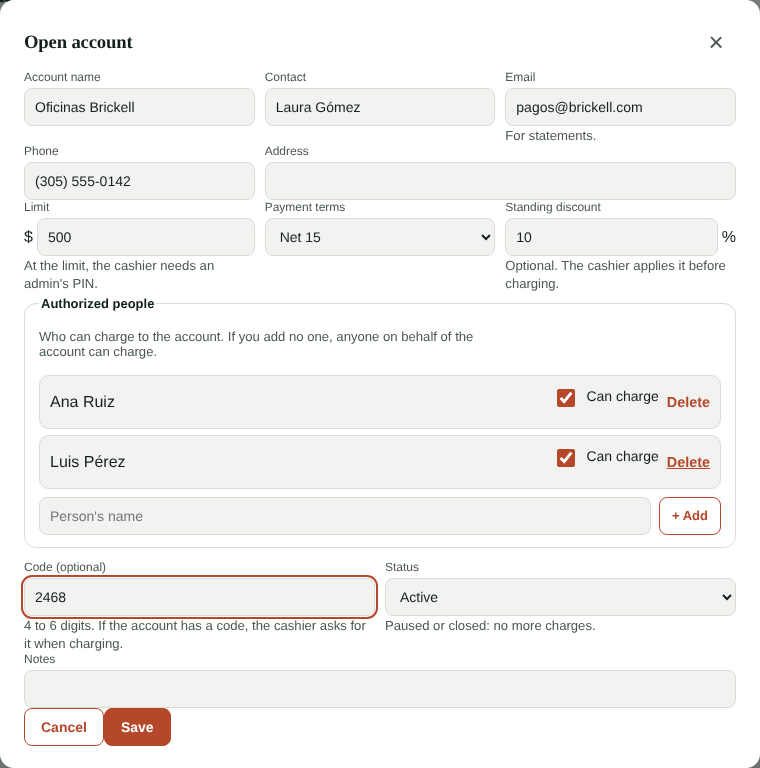
Tap + Open account and fill in:
- Name (for example "Brickell Offices"), contact, email (for statements), phone and address.
- Limit: the most they can owe. At the limit, the cashier needs an admin's PIN to charge more. Leave it empty for no limit.
- Payment terms: Net 7, 15, 30… Each charge is due that many days later.
- Standing discount (optional): for example 10% for that company.
- Authorized people: who can charge to the account. You can turn someone off without deleting them.
- Code (optional, 4 to 6 digits): if set, the cashier asks for it on every charge. After 5 wrong codes the account locks for 15 minutes.
- Status: active, paused or closed (paused or closed accounts don't accept charges).
2. Charge on the POS
At checkout, under Payment method choose 🏢 On account:
- Choose the account (you see its balance, its limit and whether anything is overdue).
- Choose who authorizes and enter the code if the account has one.
- If the account has a discount, tap Apply the account discount before charging.
- Tap Charge. The tip can be charged to the account too.
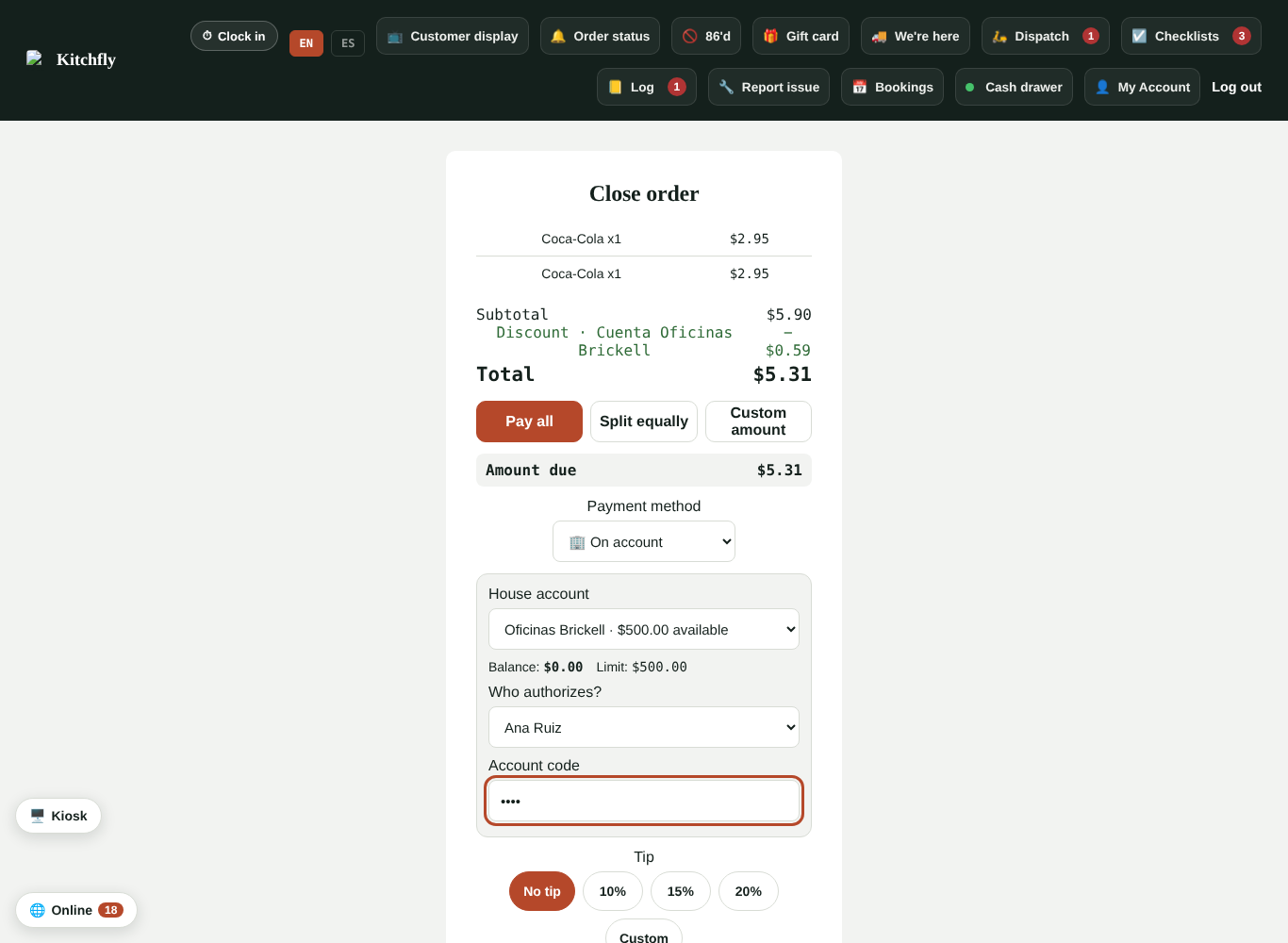
- You can pay part in cash or card and the rest on account.
- If the charge goes over the limit, an admin enters their PIN and the charge is marked "approved over limit".
- The receipt says "Charged to: …", who authorized it and a signature line.
3. The drawer count
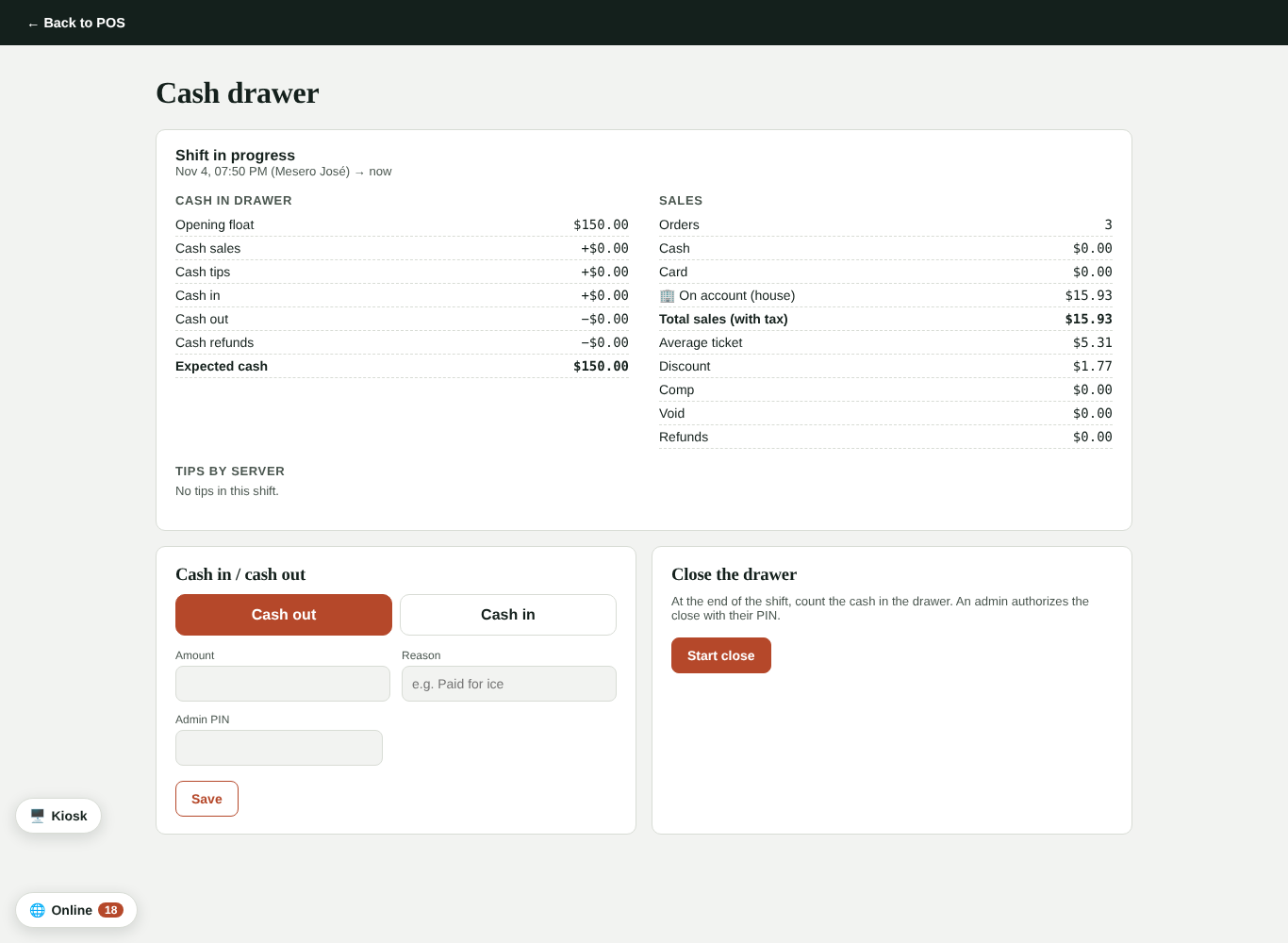
Charges on account are sales for the day (P&L, inventory, loyalty), but don't go into the cash drawer: the drawer count shows them separately as On account (house), so expected cash balances. A tip charged to an account is paid to the server like a card tip.
4. Balances and activity
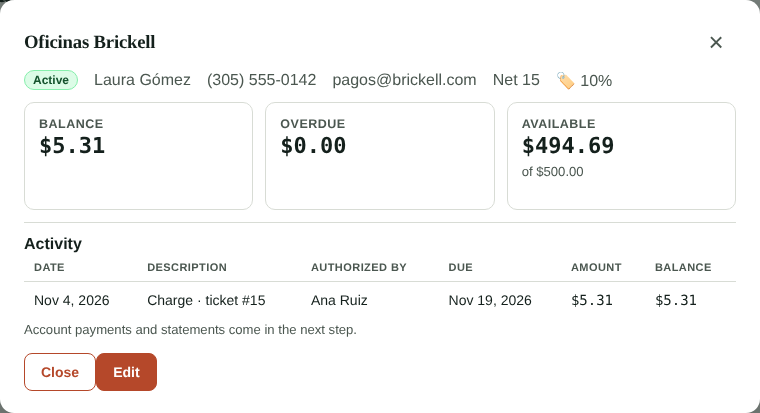
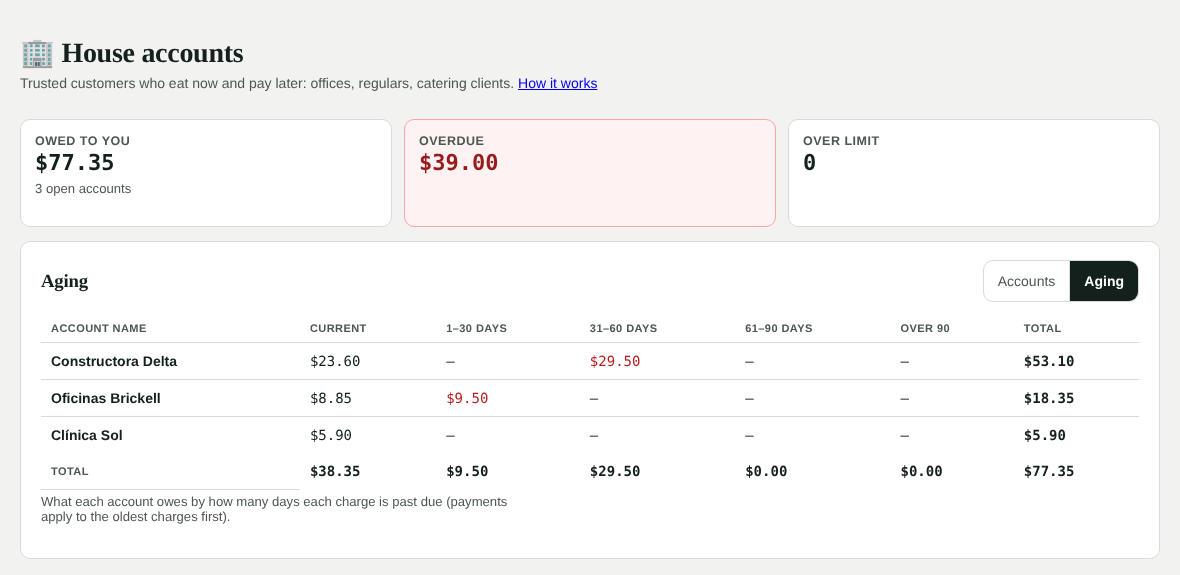
The list shows each account's balance, what's overdue, its limit and what's available. At the top you see the total owed to you, how much is overdue and how many accounts are over their limit. Tap an account to see each charge with its ticket, who authorized it and when it's due.
If you refund a payment made on account (in Orders), no money goes out: the account balance goes down.
5. Record payments
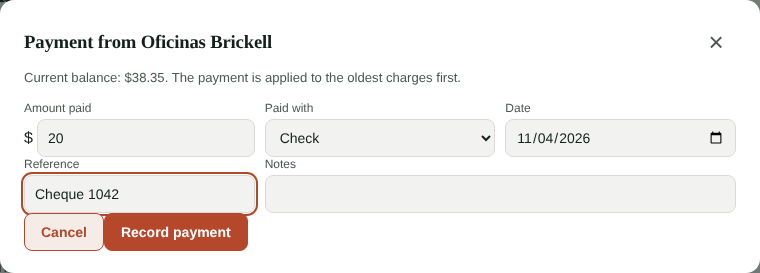
When the customer pays, open the account and tap 💵 Record payment. Enter the amount (it can be partial), how they paid and, if you like, the check or transfer number.
- The payment is applied to the oldest charges first, so the overdue amount goes down first.
- Cash (into the drawer) goes into the open drawer as a cash-in and counts in the drawer close. Other methods (check, bank transfer, card, cash outside the drawer) can be recorded with an earlier date.
- You can't record more than the balance.
At the point of sale, the cashier can collect too: tap 🏢 Collect account in the top bar (it only shows when an account has a balance), choose the account and the cash received. It goes into the open drawer.
Adjustments: with ± Adjustment you raise or lower the balance without an order (a comp, a mistake, or an amount you won't collect). A reason is always required.
Void: if you entered a payment or adjustment by mistake, tap Void on that entry. If it was drawer cash, it's also removed from the drawer (while it's still open). Charges can't be voided: refund the order instead.
6. Statements
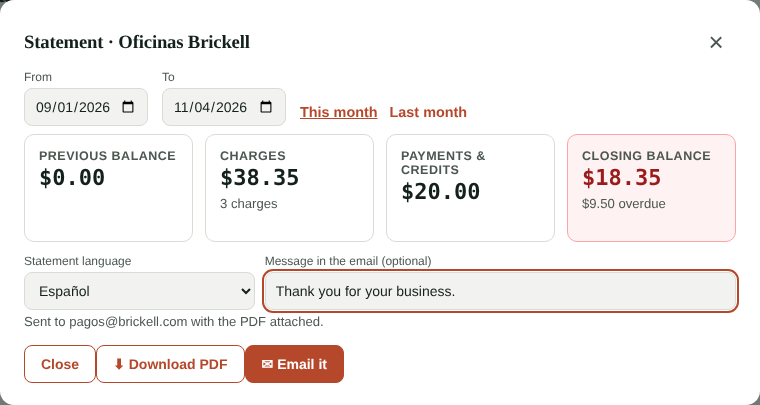
Tap 📄 Statement, choose the dates (or This month / Last month) and you'll see the previous balance, charges, payments and the closing balance.
- Download PDF: with your logo, each charge with its order number, who authorized it, what was ordered and when it's due.
- Email it: goes to the account's email with the PDF attached and your message (optional). If the customer replies, it comes to you.
- The statement uses the account's language (English or Spanish); change it under Edit or right there.
7. Aging
Above the list, switch to Aging to see what each account owes current and 1–30, 31–60, 61–90 and over 90 days past due.
Card payment link
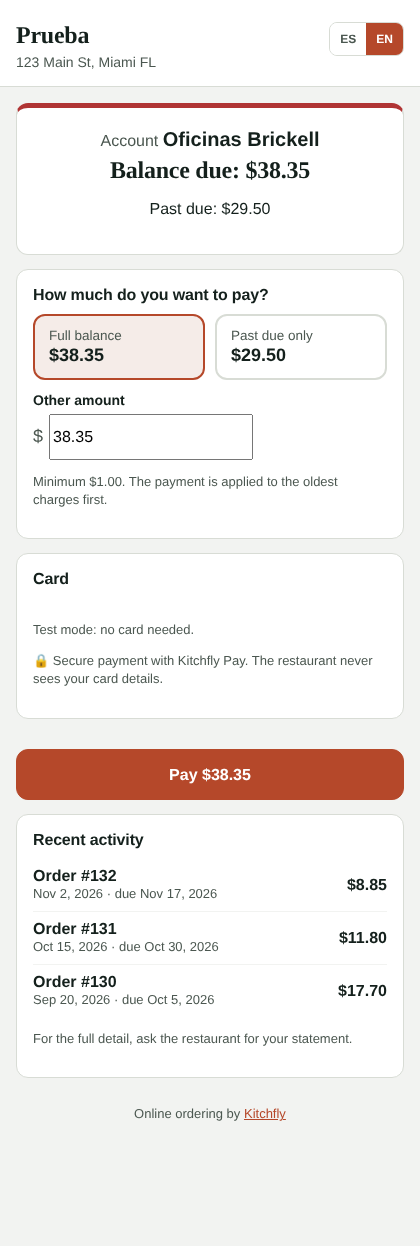
If you use Kitchfly Pay, each account can have its own payment link. Open the account and tap Create payment link: copy it and send it by text or WhatsApp. The customer sees their balance, what's past due and recent activity, and pays by card the full balance, only the past-due amount, or another amount (minimum $1). The payment is recorded on the account automatically and you get an alert.
- The link is also a Pay online button in the statement email and in the PDF.
- Change link creates a new one and the old one stops working.
- An online card payment can't be voided from the account: if needed, refund it from Kitchfly Pay.
Automatic statements
Below the list, under 📬 Automatic statements → Change, turn them on and pick the day of the month (1 to 28). On that day, every account with an email and a balance or activity last month gets last month's statement, with the PDF, your message (in English or Spanish) and the pay button. To skip an account, uncheck Email the statement automatically every month under Edit.
Phone orders
When an account orders by phone, choose To go (or delivery) at the point of sale and tap 📞 Order on account. Search the account by name, contact or phone, choose who authorizes it and enter the code. The order is marked On account (with its discount, if it has one).
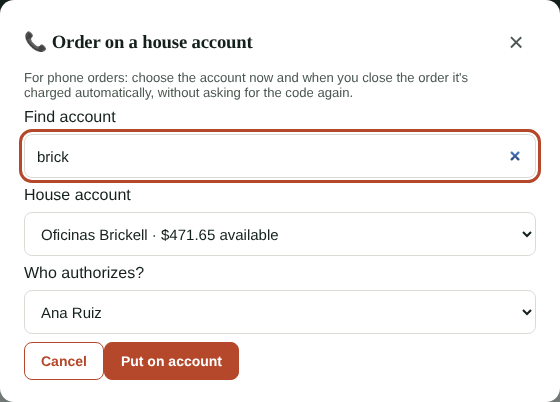
When you close the order, checkout already shows On account with that account and doesn't ask for the code again. If it goes over the limit, an admin enters their PIN as usual.
Catering
In the catering quote, pick the customer's house account: the deposit or balance can be recorded On account, and when you complete the event whatever is left is charged automatically. Each charge shows on the statement as "Catering" with the event code.
Reports
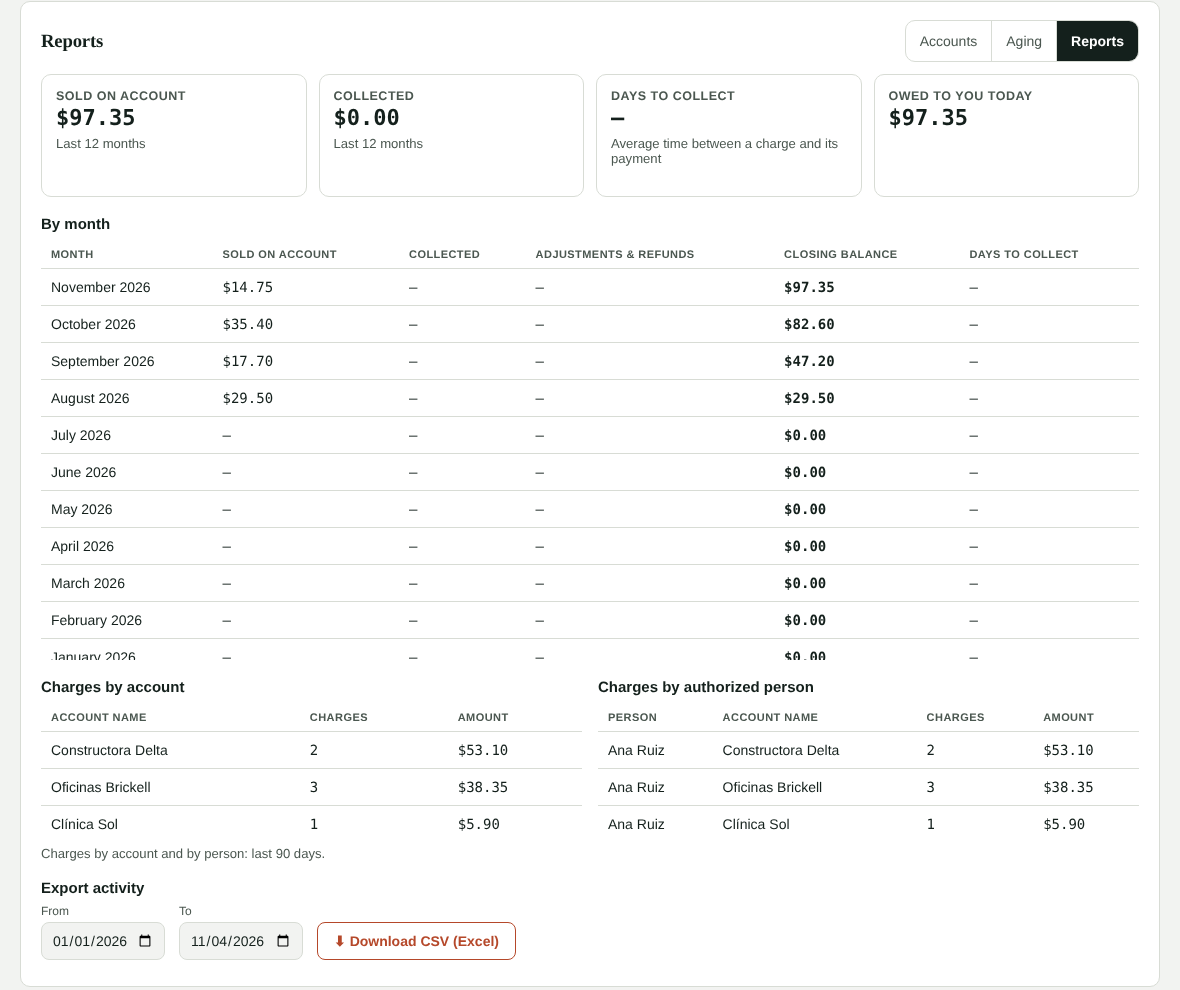
Switch to Reports to see, by month, what was sold on account, collected, adjustments, the closing balance and the days to collect (how long customers take to pay you, on average). Also charges for the last 90 days by account and by authorized person, and Download CSV with all activity for a period, for Excel or your accountant.
Alerts
Every morning, if an account has a past-due balance or is near (90%) or over its limit, you get an alert in the bell and in the daily summary.
Cash flow
Sales on account aren't money in the bank yet: in Cash flow they're subtracted from the month's sales and shown separately; account payments come in as Account collections. In the projection, open balances are expected when each charge is due (past-due ones, in the current week).
QuickBooks
If you use QuickBooks Online, in Settings → Integrations choose the House accounts receivable account (type Other Current Asset). Charges on account go there instead of cash or card, and account payments move from there into cash (or into the card/bank account when paid by check, transfer or card).