Time clock and labor
With the time clock your team clocks in, takes breaks and clocks out in Kitchfly, and you see how many hours each person worked, what your staff costs and what percentage of your sales goes to labor.
It's included in both the Basic and Pro plans.
For your team: clock in and out
The ⏱ button is on the top bar of the POS, the kitchen display and the admin menu.

- When they arrive, tap ⏱ Clock in → Clock in. The button turns green and shows time on shift.
- To eat or rest, tap the button → Start break. When back, End break.
- When leaving, tap the button → Clock out and confirm.
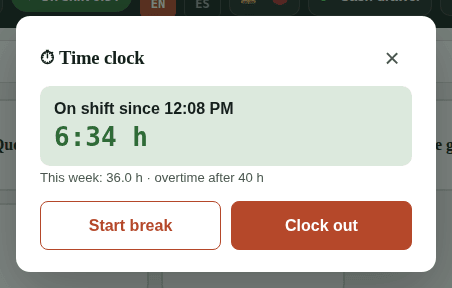
Logging out does not clock out: the shift stays open until they clock out. The same button shows each person their hours this week, a heads-up when they're close to overtime and, once the admin publishes the schedule, My shifts: today's shift and the next few days.
For the admin: Hours & labor
It's in the menu under Admin & settings → Hours & labor.
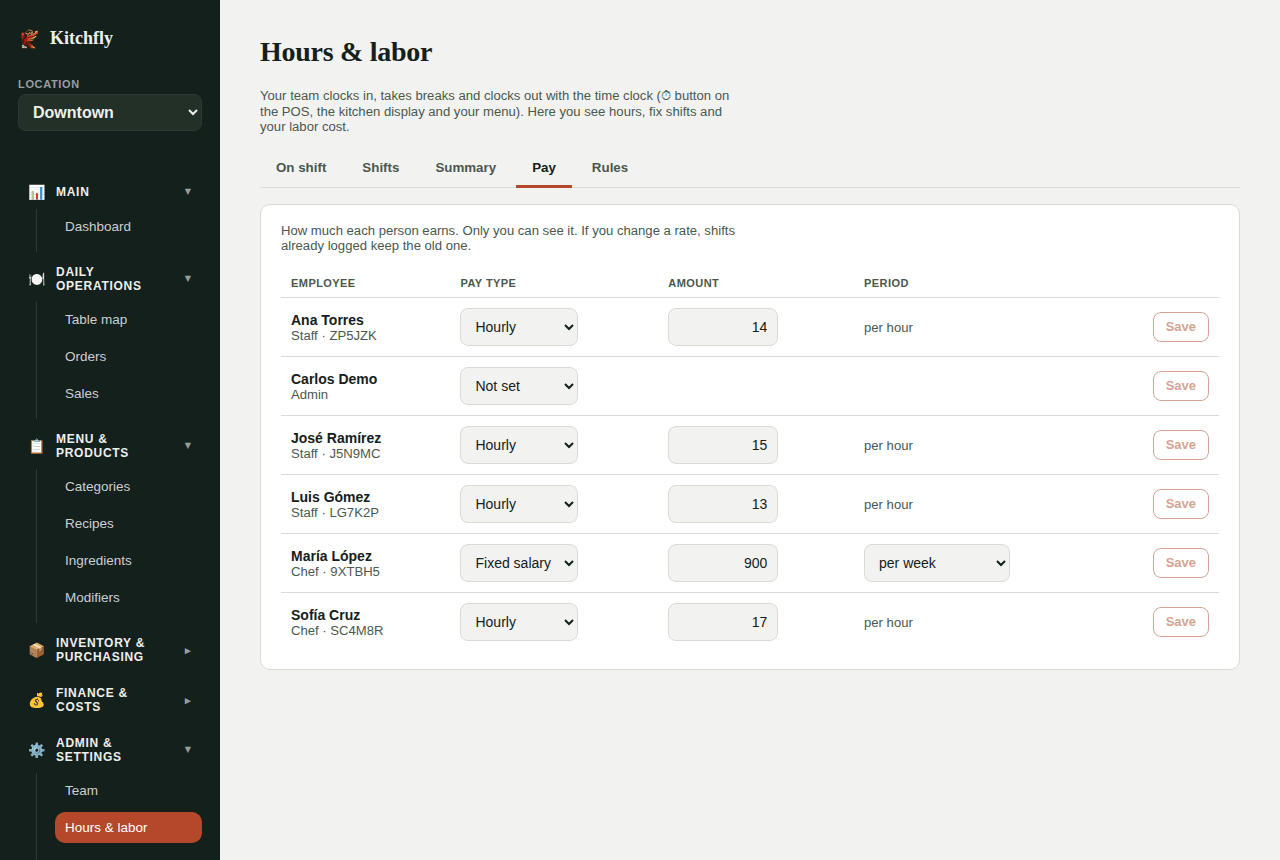
1. Set how much each person earns (Pay tab)
- Hourly: enter the rate (e.g. $15). Typical for servers and kitchen staff.
- Fixed salary: enter the amount and whether it's per week, every two weeks or per month. It's spread per day for reports.
Only the admin sees pay. If you change a rate, shifts already logged keep the old one.
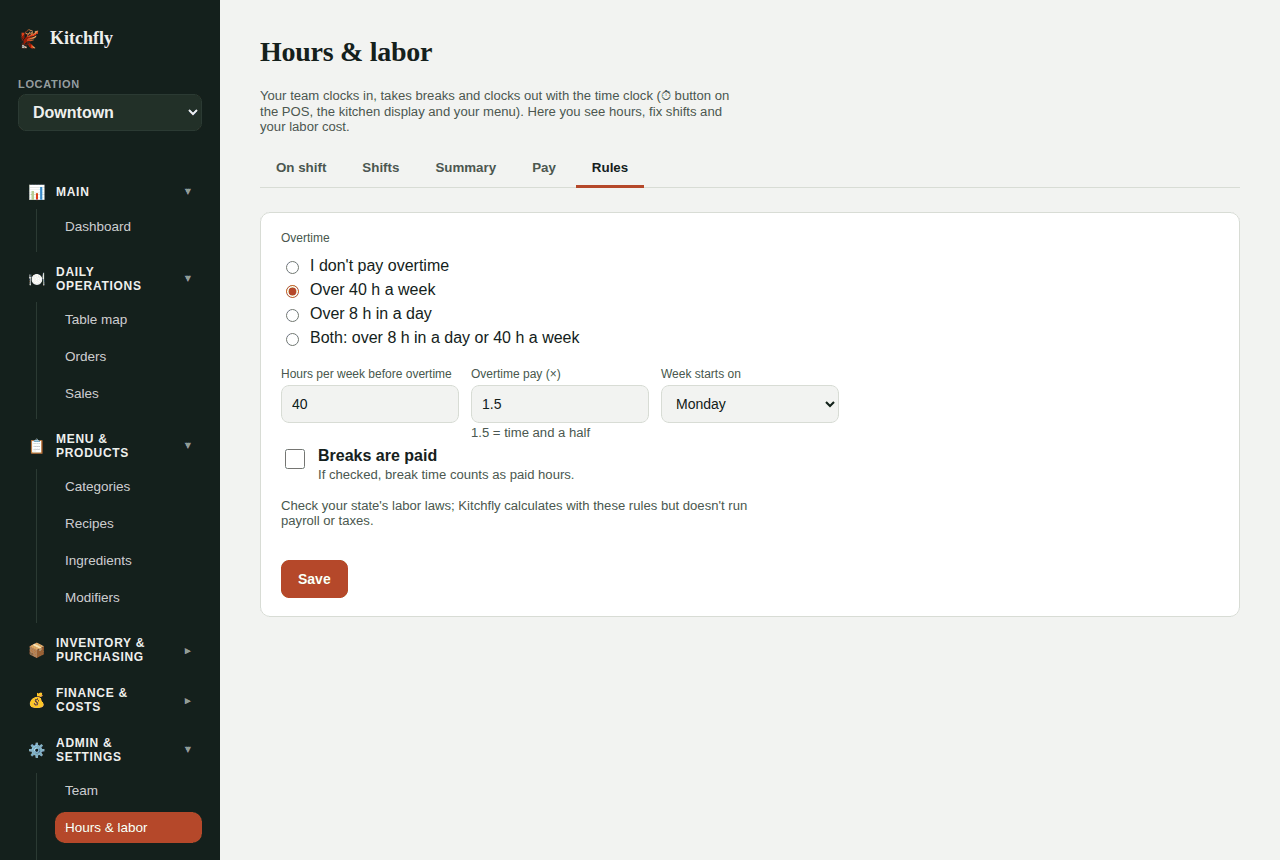
2. Set your rules (Rules tab)
- Overtime: no overtime, over a number of hours per week (e.g. 40), over a number of hours per day (e.g. 8), or both.
- Overtime pay: 1.5 = time and a half.
- Week starts on: the day you use to count the work week.
- Breaks are paid: if checked, break time counts as paid hours.
- Late grace period: arriving up to this many minutes after the shift starts doesn't count as late (5 minutes unless you change it).
You decide the rules
Labor laws vary by state. Check which apply to your restaurant. Kitchfly calculates hours and cost, but doesn't run payroll or taxes.
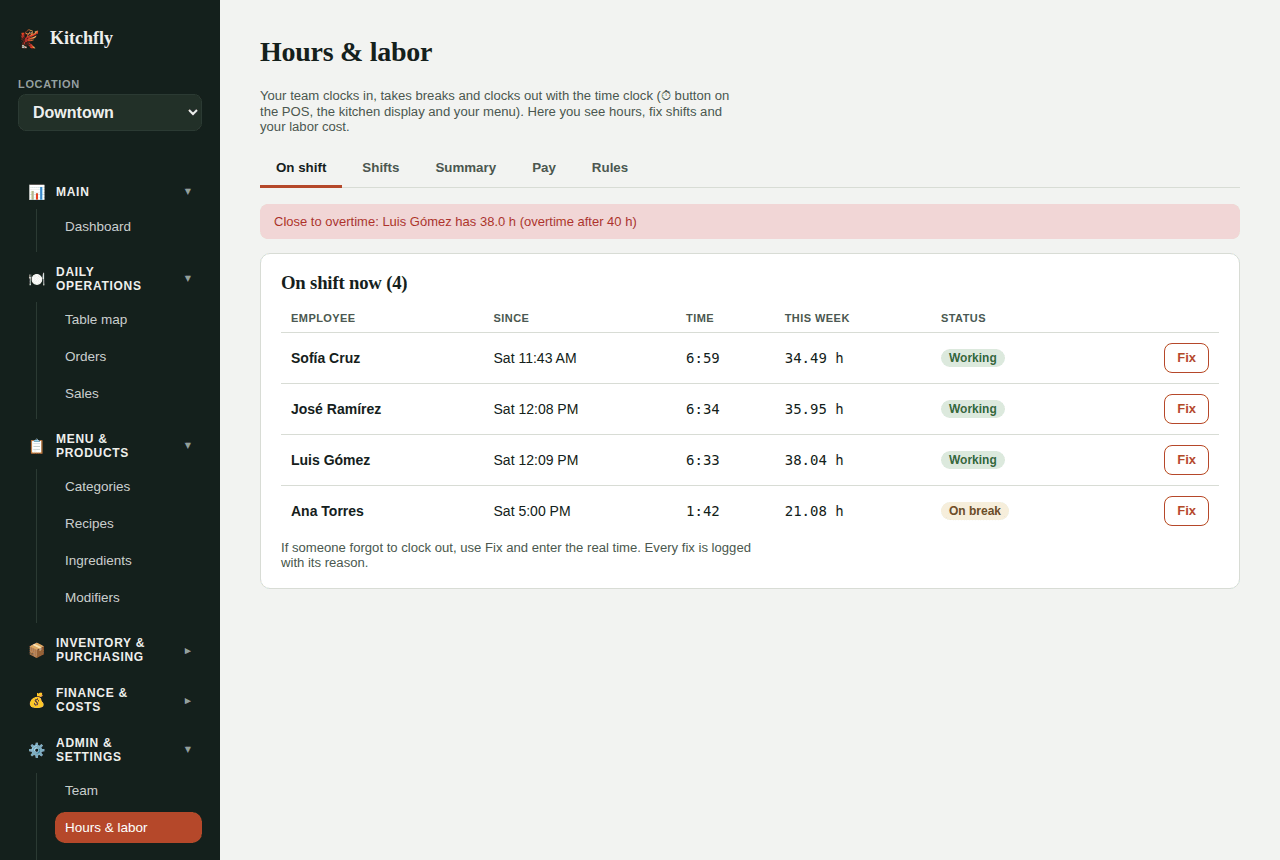
3. Who's on shift (On shift tab)
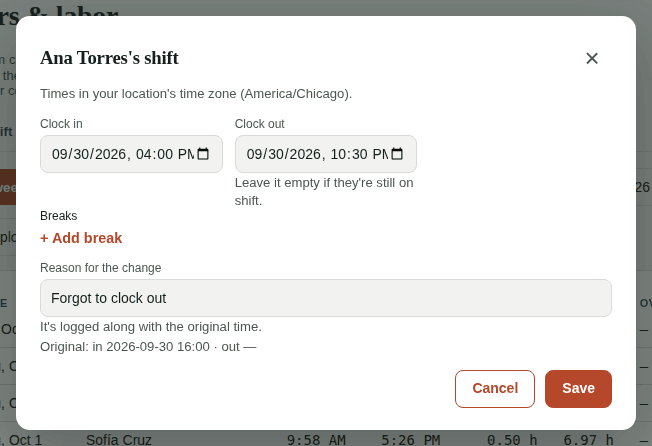
See who's working or on break, since when and how many hours they have this week. A notice appears if someone is within 3 hours of overtime. If someone has been "in" for more than 14 hours, you'll see Forgot to clock out?. Use Fix to correct their shift right there.
If you published a schedule, the top of the page shows who should be on shift and hasn't clocked in.
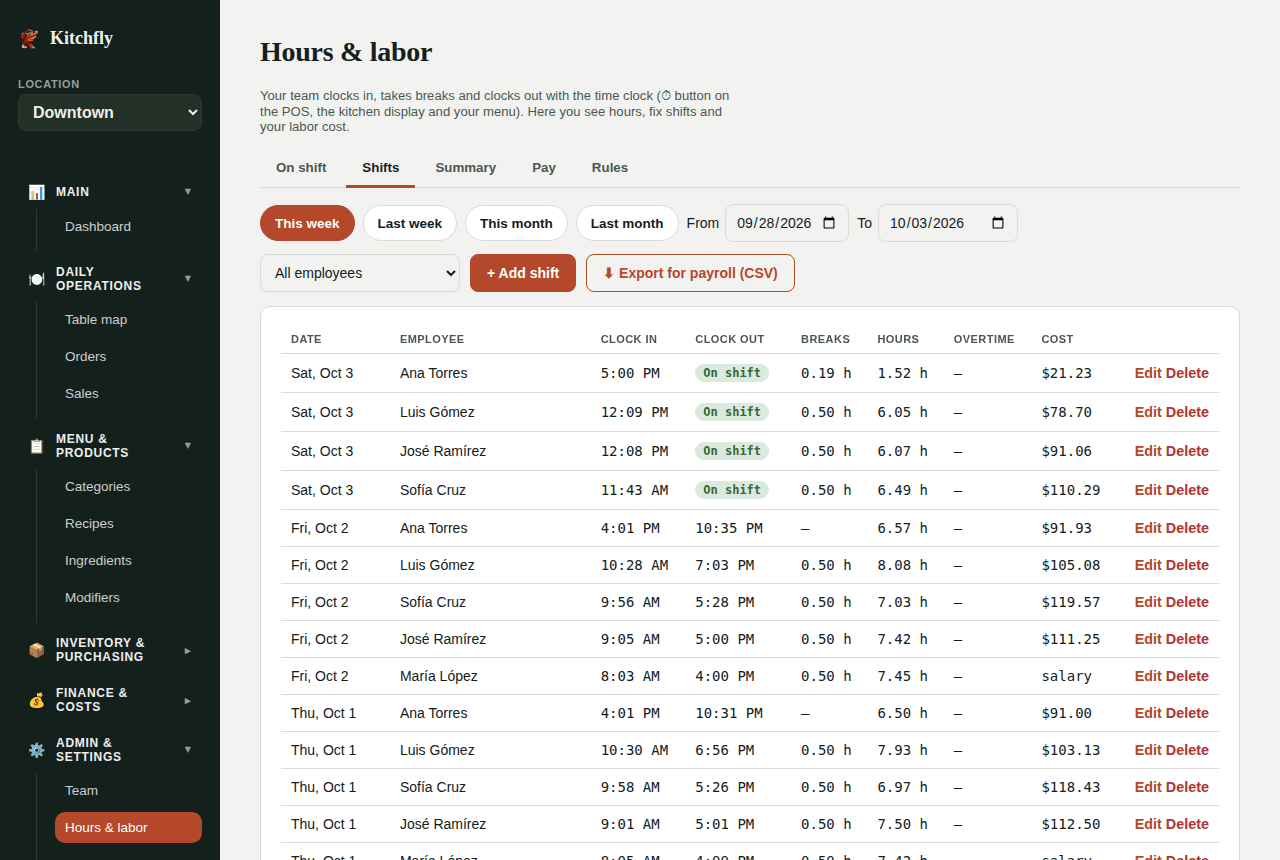
4. Fix or add shifts (Shifts tab)
- Edit: fix clock-in, clock-out or breaks. Enter the reason (e.g. "Forgot to clock out"). Who changed it and the original time are logged.
- Add shift: for someone who didn't clock in that day.
- Export for payroll (CSV): a file with regular hours, overtime, breaks and tips per employee, ready for your payroll service (Gusto, ADP, QuickBooks Payroll, etc.).
5. Summary
Pick a period and you'll see:
- Labor cost (hours + salaries).
- Labor %: labor cost ÷ net sales. Restaurants usually land between 25% and 35%.
- Prime cost: food cost + labor, as a % of sales. 60%–65% or less is the usual goal.
- Overtime and sales per labor hour.
- Tables by employee and by day, plus a chart of sales per labor hour for each hour of the day: where it's low you're overstaffed, where it's very high you may be short.
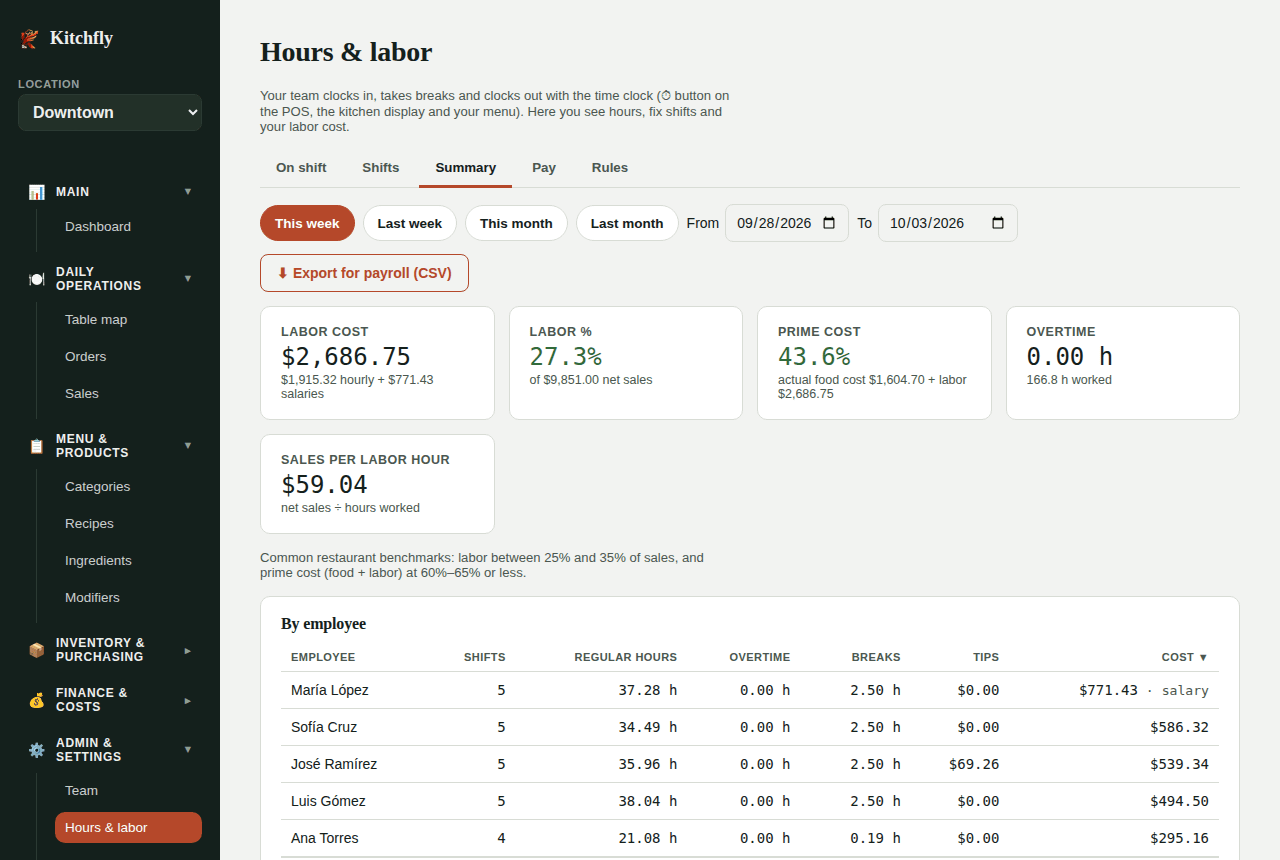
The same appears in Reports → Labor, and the Dashboard shows this month's labor % and prime cost.
Weekly schedule
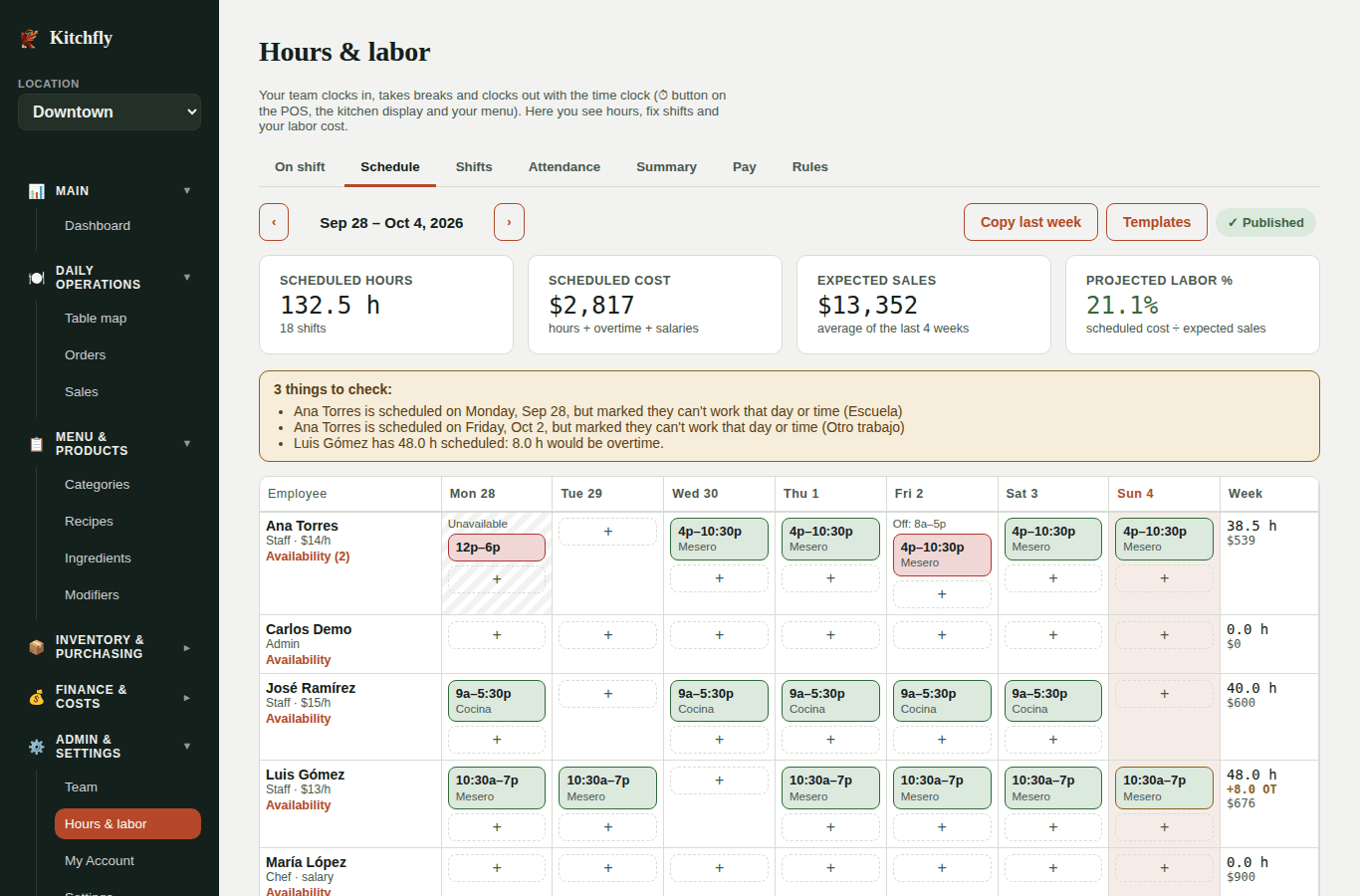
On the Schedule tab you set who works each day and when. Kitchfly shows what that schedule will cost and what share of your expected sales it is, before the week starts.
Build the week
- Use ‹ › to pick the week.
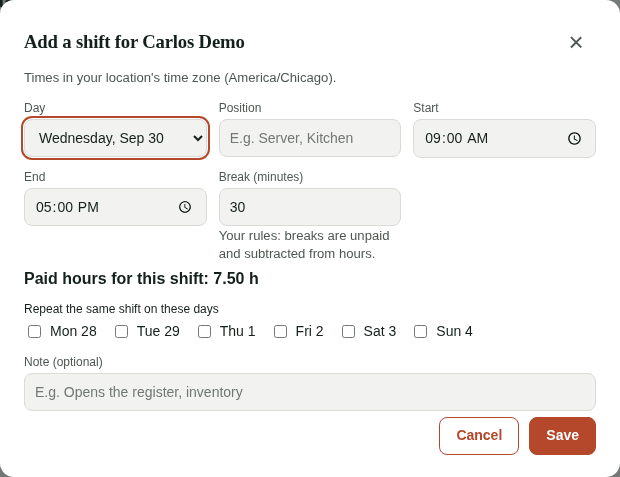
- Click + on each employee's day. Set the start, end, position (server, kitchen, cashier) and break. If the end is earlier than the start, the shift ends the next day.
- To put the same shift on several days, check them under Repeat the same shift on these days.
- To change or delete a shift, click it.
So you don't start from scratch every week:
- Copy last week adds last week's shifts. If the week already has shifts, it asks whether to replace them.
- Templates saves a week with a name (e.g. "Regular week", "Busy weekend") to put on another week in one click.
What you see while you build it
- Scheduled hours and cost per employee, per day and for the week. The cost uses each person's pay and your overtime rules; salaries are spread per day.
- Expected sales: the average of what you sold on the same weekday over the last 4 weeks.
- Projected labor %: scheduled cost ÷ expected sales, in green, yellow or red.
- Things to check: someone would go into overtime, has two overlapping shifts, or is scheduled when they said they can't work.
Availability
Under each employee's name, Availability opens the days or hours they can't work (school, another job). Those days show striped on the schedule, and if you schedule them then, it warns you.
Publish
New shifts start not published (dashed border): your team can't see them yet. When the week is ready, click Publish. Everyone sees their shifts on the ⏱ button → My shifts. If you change a published shift, the employee sees it marked Changed.
Attendance: schedule vs. time clock
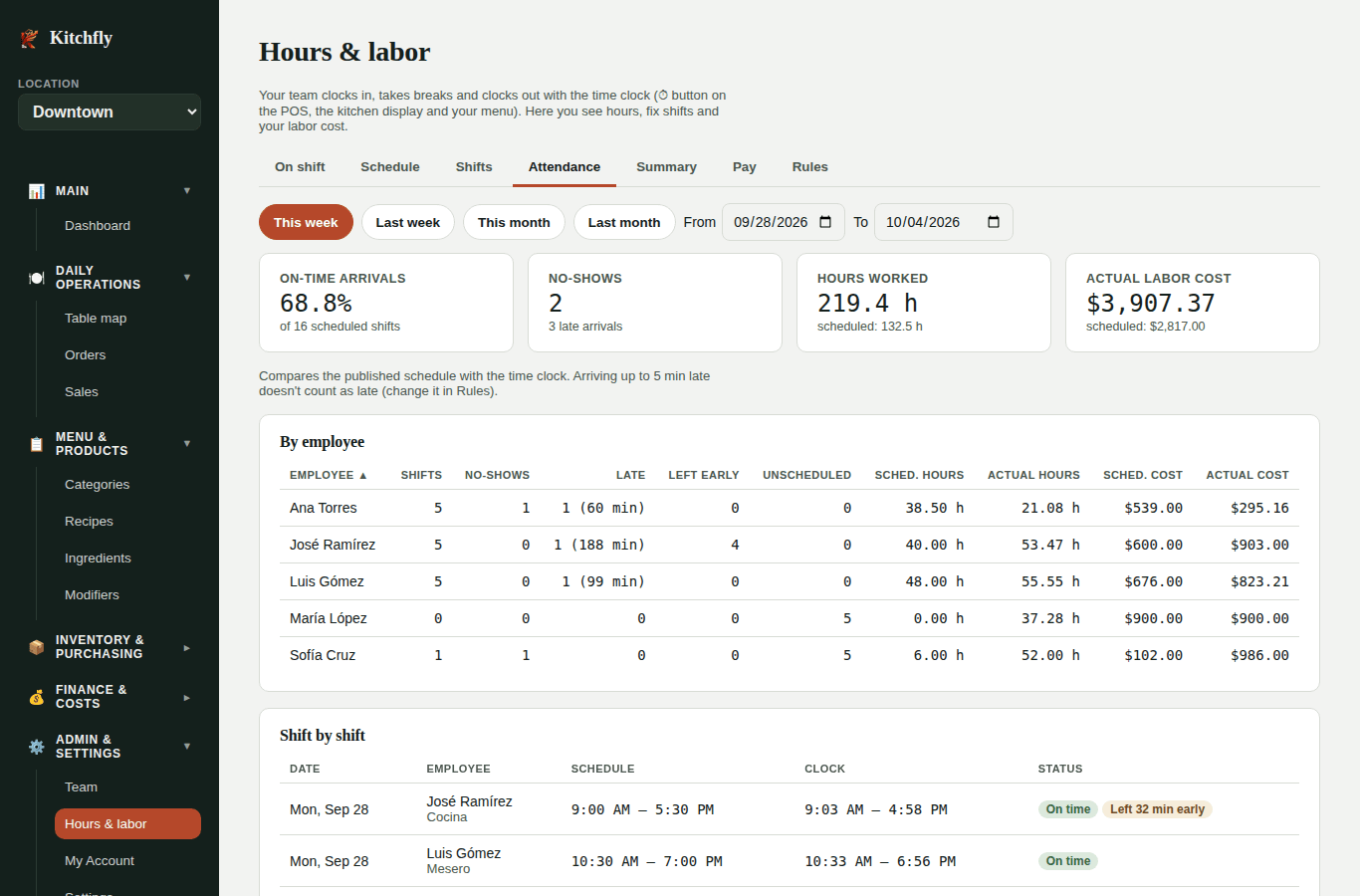
The Attendance tab compares the published schedule with time clock punches:
- On time, Late (with minutes), No-show and Left early.
- Shifts someone worked without being on the schedule.
- Per employee: scheduled vs. actual hours and cost.
On the Dashboard, the labor card shows what you've spent this week against what the schedule said.
FAQ
Which day does a shift past midnight count toward? The day it started.
What if someone works at two locations? Each shift counts toward the location where they clocked in. Overtime is calculated per location.
Does the schedule change what gets paid? No. Actual cost and payroll always come from the time clock; the schedule is the plan you compare against.
Does my team get an email with their schedule? No. They see it on the ⏱ button → My shifts, on the POS or kitchen display.
Do salaried employees need to clock in? It's optional, but it tells you their hours. Their cost comes from the salary, not the hours.