Kitchfly for Android
The Kitchfly app for Android is for the server's tablet or a tablet register. It opens your account full screen and adds what a browser can't do on its own:
- Direct printing: receipts and kitchen tickets go to a Bluetooth or network (Wi-Fi or cable) thermal printer, with no print dialog.
- Kiosk mode: Kitchfly stays pinned to the screen; staff can't leave it or open other apps.
- Screen always on: the tablet doesn't go to sleep in the middle of an order.
It works on Android 7 or newer and is free with your account. Everything else works just like in the browser, including the POS offline mode.
Install it
- On the tablet, open kitchfly.com/descargas and tap Download for Android.
- Open the downloaded file (Kitchfly-….apk). If Android says your browser isn't allowed to install apps, tap Settings, turn on Allow from this source and go back.
- Tap Install, then Open. Log in as usual.
If “Play Protect” appears
Tap More details → Install anyway. Android shows that notice for apps that don't come from Google Play; the app is published by Kitchfly and it's safe.
Choose the printer
Each tablet keeps its own printer. Open the settings from My account → This tablet → Open tablet settings (or, as an admin, from Settings → Printing → Choose printers for this tablet).
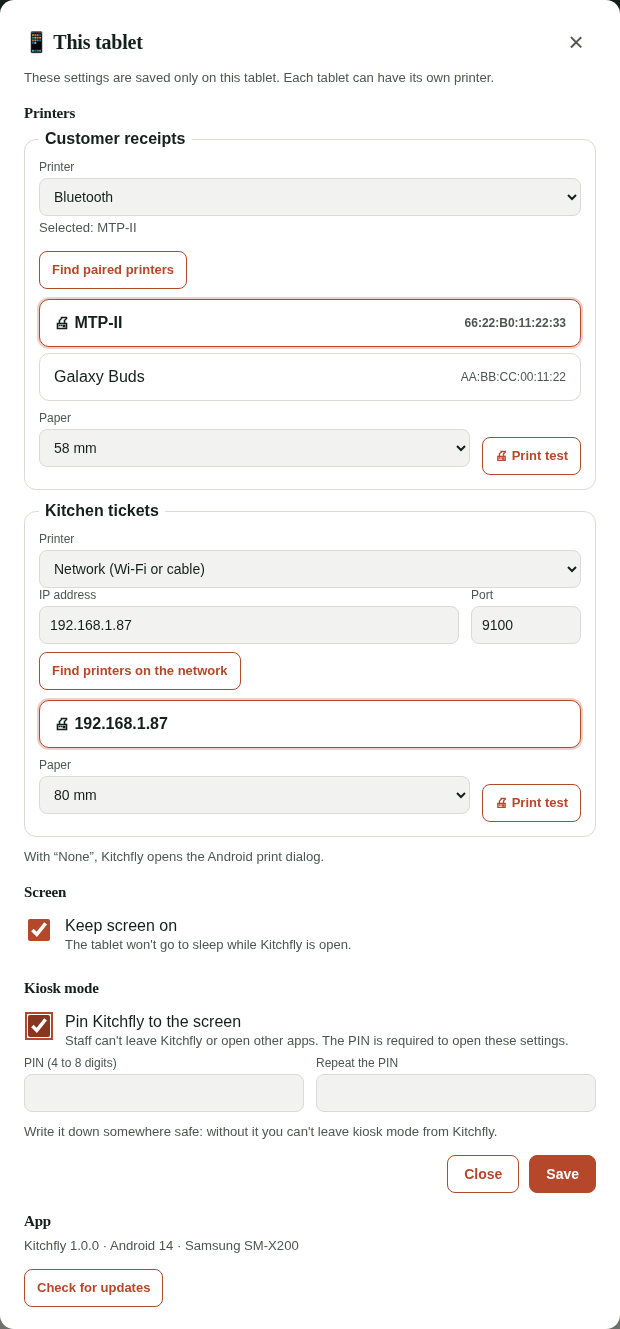
Bluetooth printer
- First pair the printer in Android Settings → Bluetooth (the code is usually 0000 or 1234).
- In Kitchfly, under Customer receipts → Printer, choose Bluetooth and tap Find paired printers. The first time, Android asks for the Nearby devices permission: tap Allow.
- Tap your printer in the list and choose the paper (80 or 58 mm; portable printers are almost always 58 mm).
- Tap Print test, then Save.
Network (IP) printer
- Under Printer, choose Network (Wi-Fi or cable).
- Tap Find printers on the network and tap the one that shows up, or type its IP address. The port is almost always 9100. The tablet must be on the same Wi-Fi as the printer.
- Choose the paper, tap Print test, then Save.
Under Kitchen tickets, leave Same as receipts, or choose another one (for example, the kitchen's network printer). From then on, everything Kitchfly prints on that tablet (the receipt when you charge, the kitchen ticket when you send to the kitchen, Reprint and auto-print) goes straight to the printer. The logo and QR print just like on a computer.
If you choose None, Kitchfly opens the Android print dialog.
What's my printer's IP?
Turn the printer off and turn it back on while holding the FEED button: it prints a page with its IP address. To keep it from changing, ask for a fixed IP (reserved in the router).
If it can't print, Kitchfly tells you why: Bluetooth off, printer off or out of range, wrong IP, and so on.
Screen always on
It's on by default: while Kitchfly is open, the tablet won't go to sleep. You can turn it off under This tablet → Screen. Keep the tablet on its charger if you use it the whole shift.
Kiosk mode
In kiosk mode Kitchfly stays pinned to the screen: no going to the home screen, switching apps or seeing notifications.
- In This tablet, check Pin Kitchfly to the screen.
- Enter a PIN of 4 to 8 digits, repeat it and tap Save.
- Android asks whether to pin the app: tap Got it (or Pin).
While kiosk mode is on, opening This tablet asks for the PIN. To leave kiosk mode, enter the PIN, uncheck Pin Kitchfly to the screen and tap Save.
So nobody unpins it without permission
Android also lets you unpin an app by holding Back and Overview. To make that ask for the tablet's PIN, go to Android Settings → Security → App pinning (or Screen pinning) and turn on Ask for PIN before unpinning. The name varies a little by brand.
Updates
Under This tablet → App you see your version. Tap Check for updates; if there's a new one, tap Download, open the file and tap Update. Your settings (printers, kiosk) are kept.
Kitchfly changes (screens, reports, etc.) don't require updating the app: they arrive right away, just like in the browser.
No internet when you open it
If Kitchfly was already opened on that tablet, the POS opens anyway and keeps working offline. If it's the first time, you'll see No internet connection with a button to try again.
Uninstall it
Press and hold the Kitchfly icon and choose Uninstall (if kiosk mode is on, turn it off first). Your account and data aren't deleted: they live in Kitchfly, not on the tablet.