Kitchen display
The Kitchen Display (KDS) replaces paper tickets. Anyone with the Chef role sees it as soon as they log in. Put it on a screen or tablet in the kitchen: it has a dark background and large text so it reads from across the line.
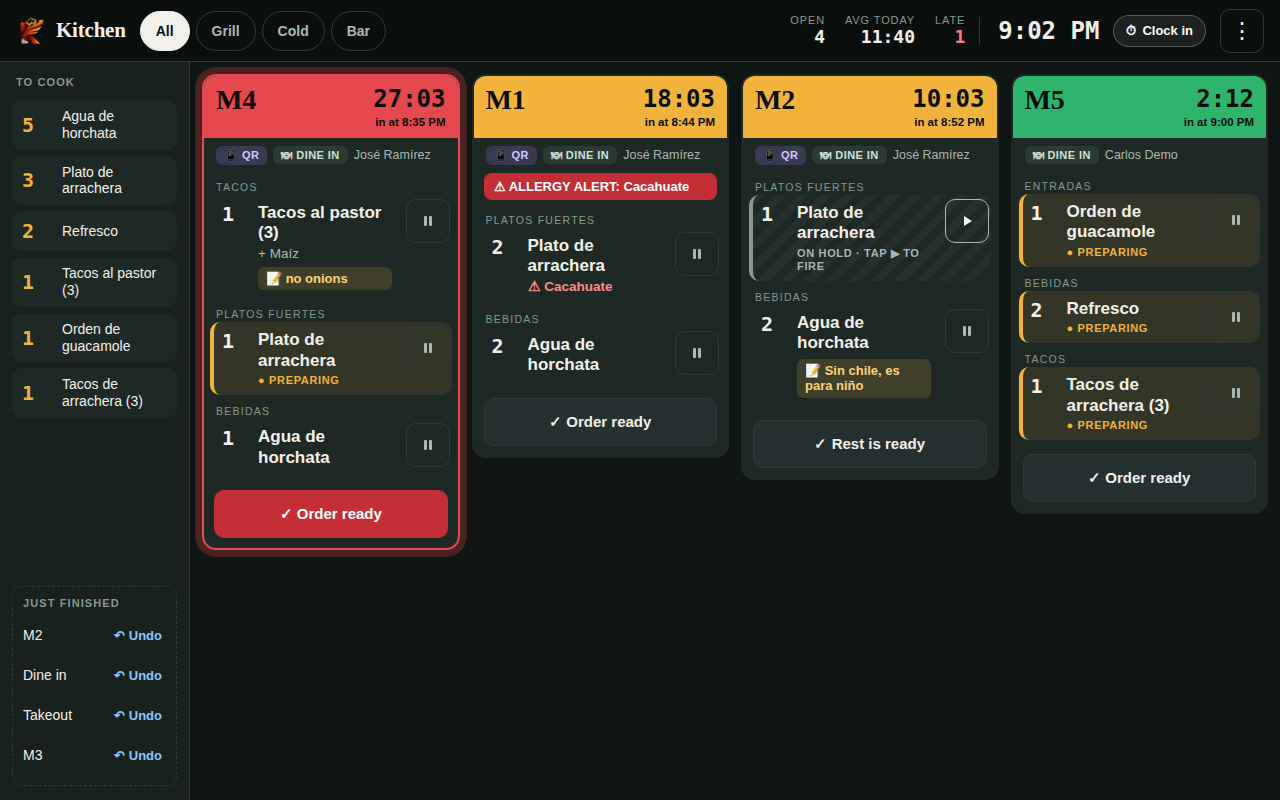
What you see
- One card per order, from the one waiting longest to the newest. At the top, in large type, the table or customer name and the time (minutes:seconds) since the oldest pending dish arrived, plus the time it came in.
- The card color shows urgency: green up to 9 min, yellow from 10 to 19 and red from 20 (a red card pulses gently so it doesn't slip by).
- New order: it arrives in blue with a NEW tag and a chime plays.
- Tags for the order type (Dine in, Takeout, Delivery, Online, QR) and the server.
- Dishes grouped by menu category, with their modifiers (+ Extra cheese, and in red NO onion) and the server's notes in a yellow box.
- A red ALLERGY ALERT band when the server entered an allergy. Double-check those plates.
- If a table orders another round while the previous one is still pending, the new dishes get a New round tag with their own minutes.
- To cook (on the left): the total of each dish across all orders, so the line knows what to fire.
- At the top: Open, Avg today (how long orders take to be ready today), Late (20 min or more) and the clock.
Work the orders
Tap the dish to move it forward:
- The first tap marks it Preparing (yellow stripe).
- The second marks it Ready (crossed out with a check).
If you marked it ready by mistake, tap it again and it goes back to preparing.
✓ Order ready marks everything left in that order at once. When everything is ready, the order leaves the screen and the server sees it as Ready for pickup in the POS.
Hold (the ⏸ button to the right of the dish): puts it on hold, for example a main course that should wait until the starters are out. It shows striped; tap ▶ to fire it and its time starts counting from then. If an order has held dishes, the button reads ✓ Rest is ready.
Stations
If you have more than one screen or tablet in the kitchen, each one can show only its own dishes: the grill sees mains and tacos, the bar sees drinks.
- Tap ⋮ → Stations.
- Type each station's name and check the menu categories it handles.
- Tap Save. The stations appear at the top: pick the one for that screen, or All.
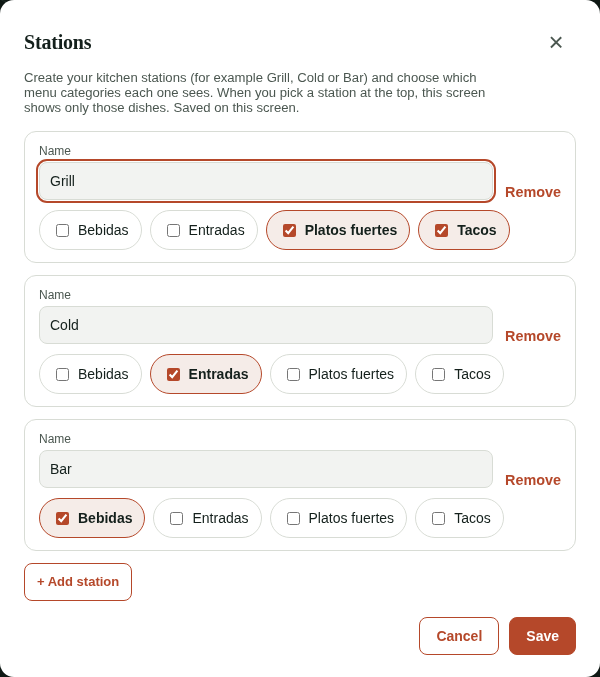
With a station selected, each card shows only that station's dishes and ✓ Order ready marks only those. Stations are saved on that screen.
⋮ menu
It has the location (if you have several), the language, the new-order sound (on/off), Stations, My Account and Log out. In a browser you can also go Full screen. Clock in (the time clock) stays visible next to the menu.
No chime?
Browsers don't play sound until you tap the screen once. Tap anywhere at the start of the shift. Also check that the tablet's volume is up and that sound is on in the ⋮ menu.
Made a mistake?
Just finished (bottom left) lists the orders you finished in the last 15 minutes. Tap Undo to bring one back to the screen.
Nothing on screen?
No active tickets. All caught up! means there's nothing pending. If you expected an order, check that the server tapped Send to kitchen. If a station is selected, tap All to see everything.