Take orders in the POS
The POS (point of sale) is where your servers and cashiers take orders. Anyone with the Staff role sees the POS as soon as they log in. See Invite your team to create their users.
Best device
The POS works in any browser. A tablet at the counter works great: install Kitchfly on the tablet and log in with the employee code for speed.
1. Start a ticket
Tap New ticket. The ticket number and the server's name appear at the top of the right panel. My tickets shows the tickets you have open.
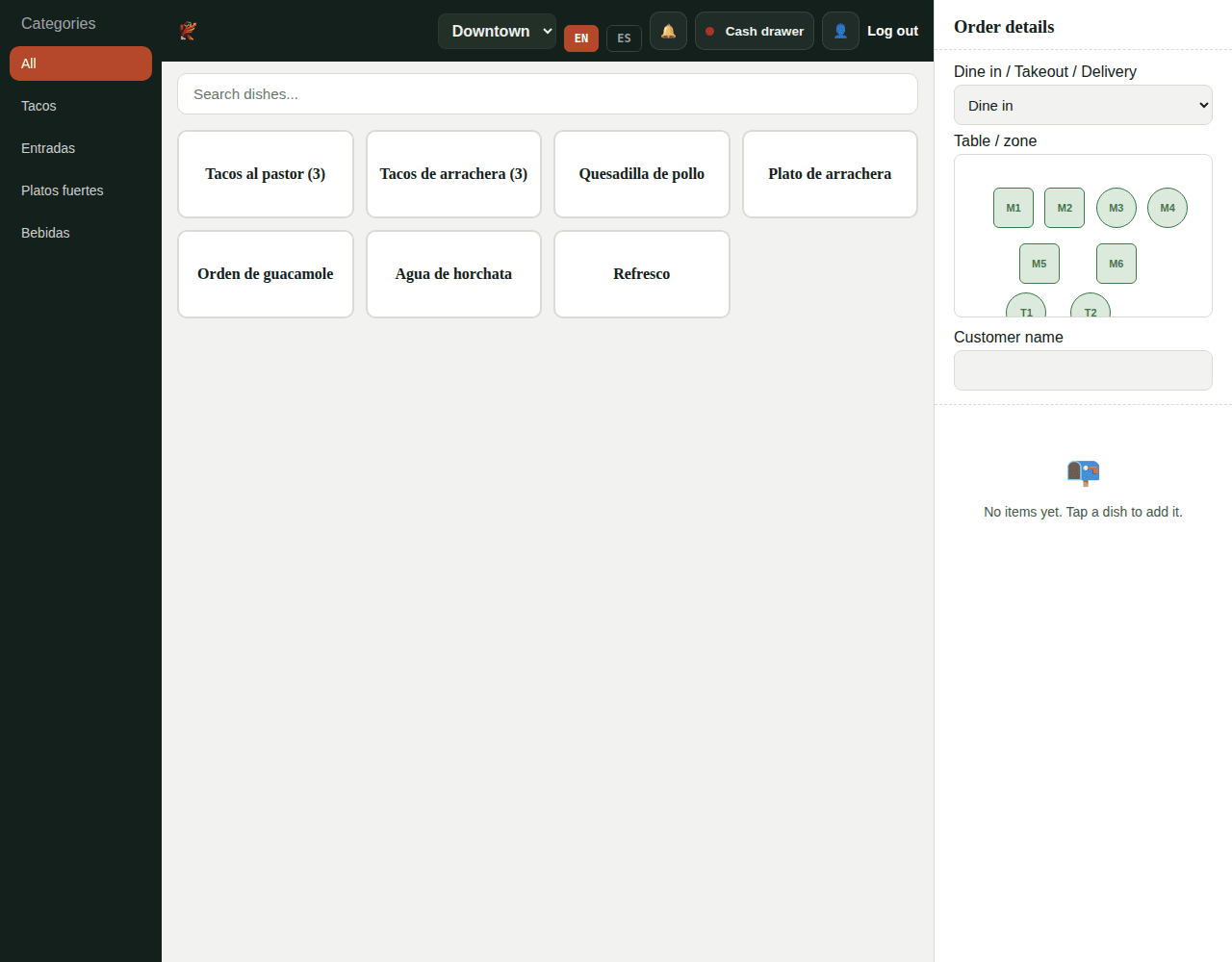
2. Add dishes
- Tap a dish to add it. Tap it again to add another one.
- If the dish has modifiers (size, extras, items to remove), a window opens to choose them. Required groups must be answered.
- Use the Categories on the left or Search dishes... to find it faster.
- Only published dishes appear here.
3. Order details
In the right panel:
- Dine in / Takeout / Delivery.
- Table / zone: tap a table on the mini map (Pro plan, using your Table map). Red tables are already busy.
- Customer name, useful for takeout.
Click Save details.
4. Notes and allergies
Tap Edit under an item to add:
- Notes (e.g. no onion). The kitchen sees them under the dish.
- Allergy warning (e.g. GLUTEN ALLERGY). The kitchen sees a red ALLERGY ALERT banner.
Remove takes an item off the ticket, only while it hasn't been sent to the kitchen.
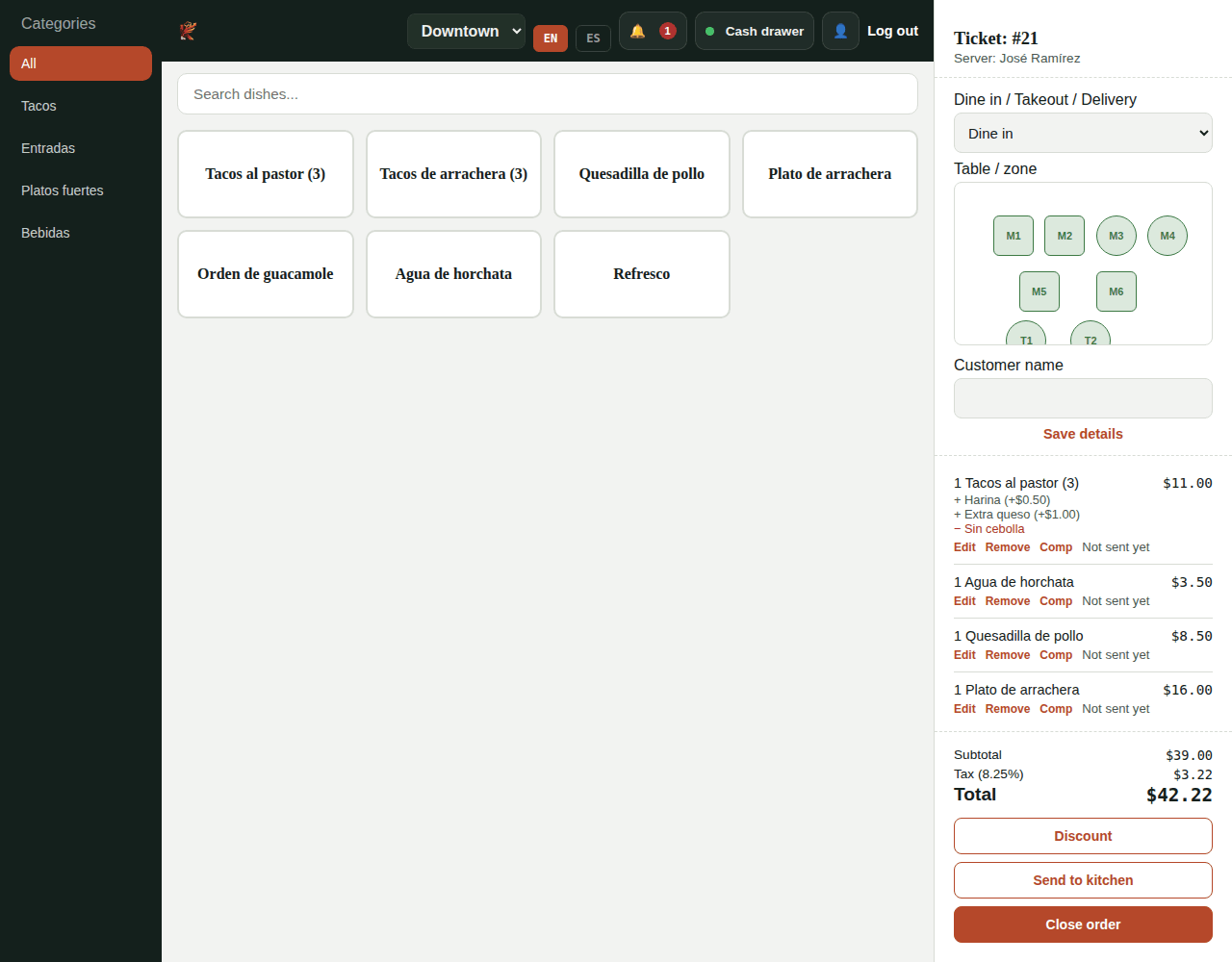
5. Send to the kitchen
Tap Send to kitchen. Items change from Not sent yet to Sent and appear on the Kitchen display. You can keep adding items and send them later; only the new ones go to the kitchen.
Inventory
When items are sent to the kitchen, Kitchfly discounts their ingredients from stock using each recipe.
6. Discounts, comps and voids
Under each dish you'll see Comp and, once it's been sent, Void. The Discount button applies a discount to the whole order. All three need an admin PIN. See Discounts, comps and voids.
7. Order status
Order status (top bar) shows which orders the kitchen marked as Ready for pickup.
When the customer is ready to pay, go to Close an order.
Cash drawer
The Cash drawer button in the top bar opens the drawer for the shift. It must be open to charge in cash. See Cash drawer.
Ran out of something?
Tap 🚫 86'd to 86 a dish: it stops selling on the POS, online and on the table QR right away. See 86'd dishes.