Email marketing
Send email campaigns to your customers: promotions with a coupon, new dishes, news or a “we miss you”. Kitchfly builds the email with your menu, sends it only to customers who agreed to get promotions and shows you who opened it, who clicked and how much you sold with the coupon.
The admin does it in Daily operations → Email marketing (or by typing campaign in the search).
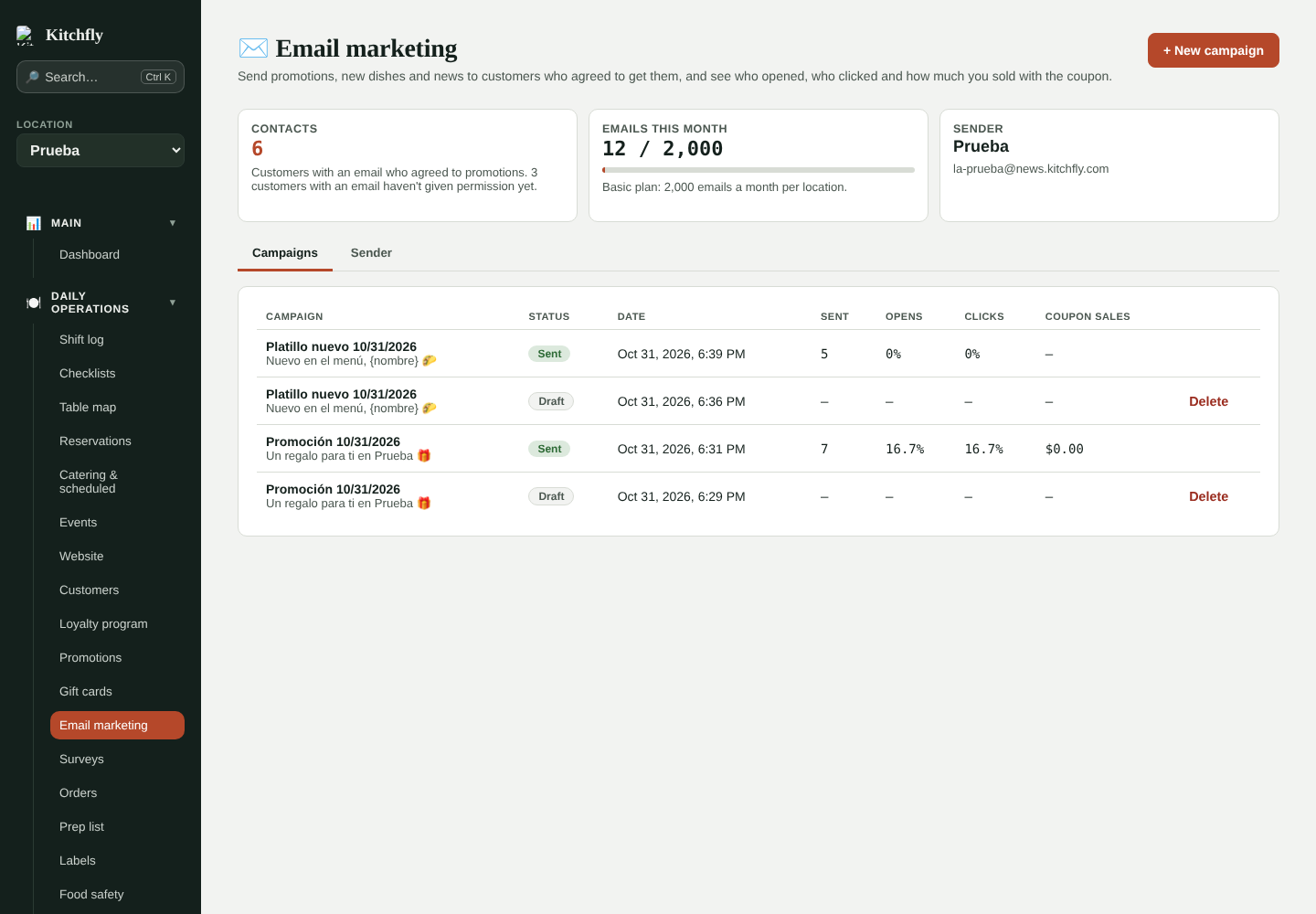
At the top you see:
- Contacts: customers with an email who agreed to promotions (everyone else doesn't get campaigns).
- Emails this month: how many you've used of your plan's limit (2,000 a month per location on Basic and 5,000 on Pro).
- Sender: how your customers will see you in their inbox.
1. Create the campaign
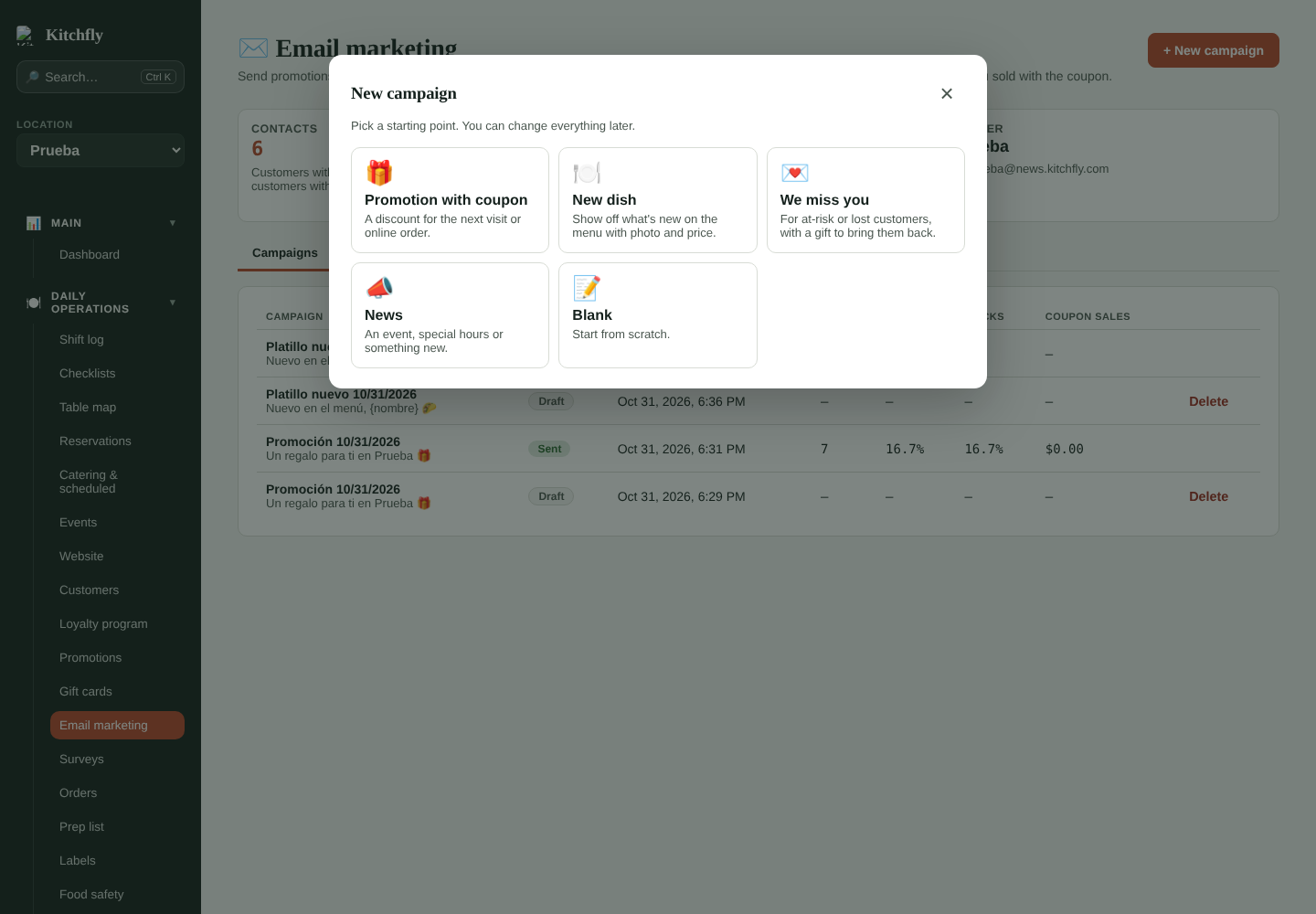
Tap + New campaign and pick a starting point: Promotion with coupon, New dish, We miss you, News or Blank.
2. Build the email
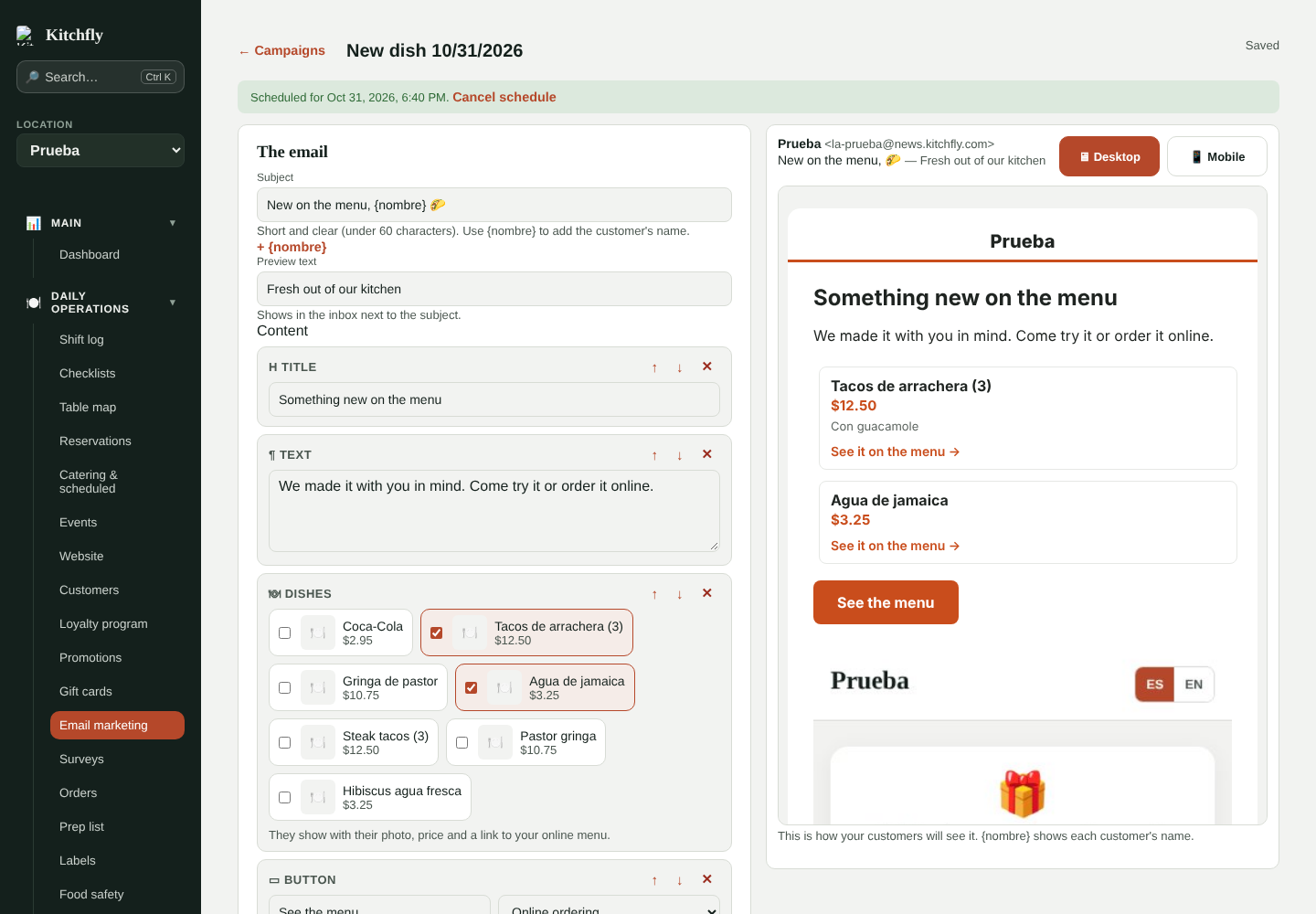
- Subject: short and clear (under 60 characters). Use {nombre} to add the customer's name.
- Preview text: the gray line shown next to the subject in the inbox.
- Content: add and order blocks:
- Title and Text.
- Image: upload it from your computer or phone.
- Dishes: up to 6 from your menu, with photo, price and a link to your online ordering.
- Coupon: a promotion with a code from Promotions. Kitchfly uses it to measure the campaign's sales.
- Button: to your online ordering, your website, booking a table or another address.
- Divider.
On the right you see the preview on desktop and mobile. Everything saves automatically.
3. Choose who gets it
In Recipients filter your customers and see right away how many will get it:
- Customer type: new, frequent, occasional, at risk, lost or no visits (see Customers).
- Haven't come in for X days, or came in the last X days.
- Minimum visits or minimum total spent.
- Birthday this month or next.
- Language, tags and loyalty members only.
With no filters, it goes to all your contacts.
4. Test and send
- Enter your email in Send a test to and check how it arrives (also on your phone and in the spam folder).
- Choose Now or Schedule for… a date and time.
- Tap Send now (or Schedule) and confirm.
A scheduled campaign can be edited or have its schedule canceled until it starts sending. Once sent it can't be changed: use Duplicate to make a similar one.
5. See the results
Tap a sent campaign to see:
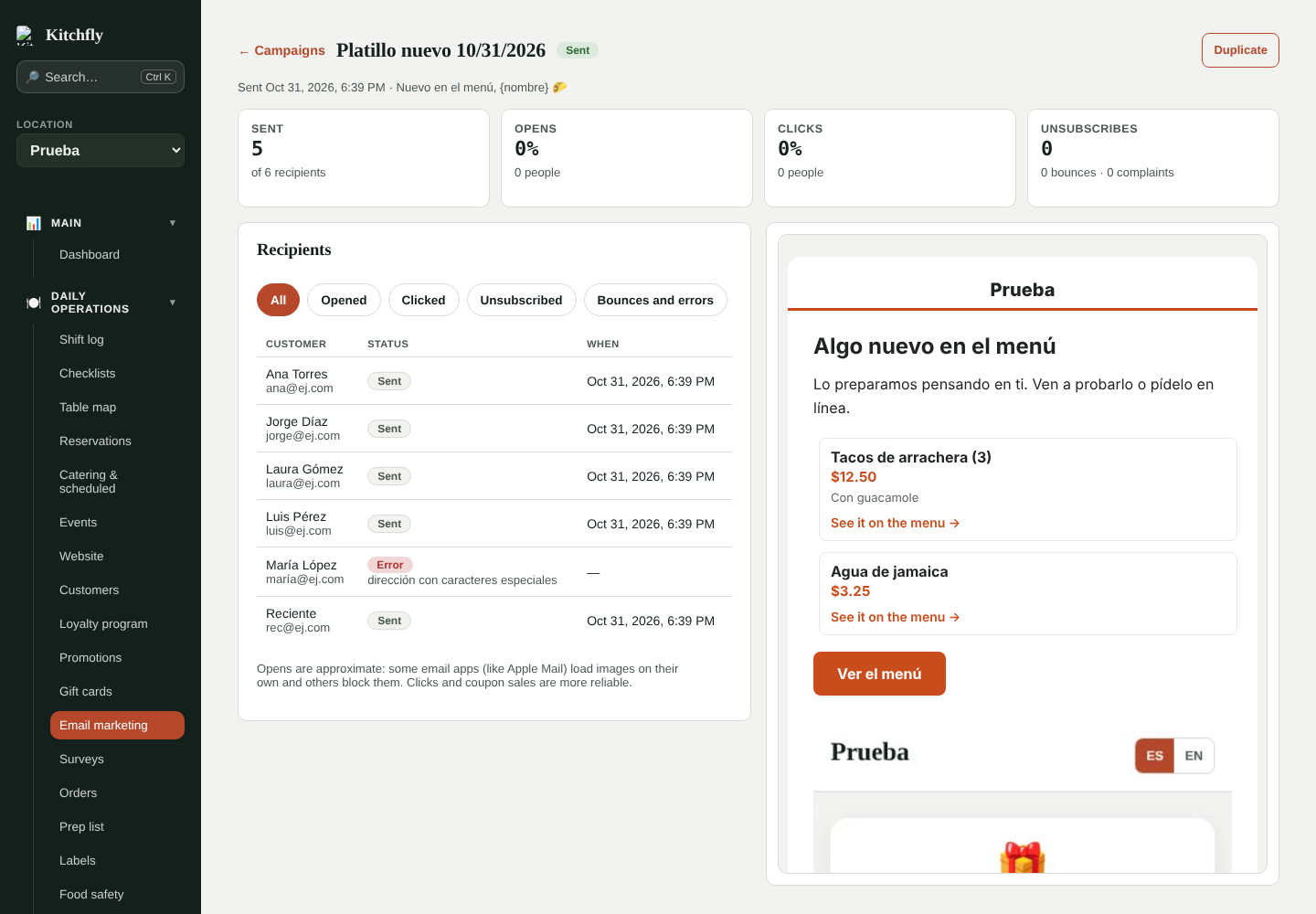
- Sent, opens, clicks and unsubscribes (plus bounces and complaints).
- Coupon sales: uses of the campaign's coupon since it was sent, and how much those orders sold.
- The recipient list, with filters: opened, clicked, unsubscribed, bounces and errors.
Opens are approximate
Some email apps (like Apple Mail) load images on their own and others block them. Clicks and coupon sales are more reliable.
Automations
The Automations tab has 4 emails that go out by themselves to each customer at the right moment. Turn on the ones you want with their switch.
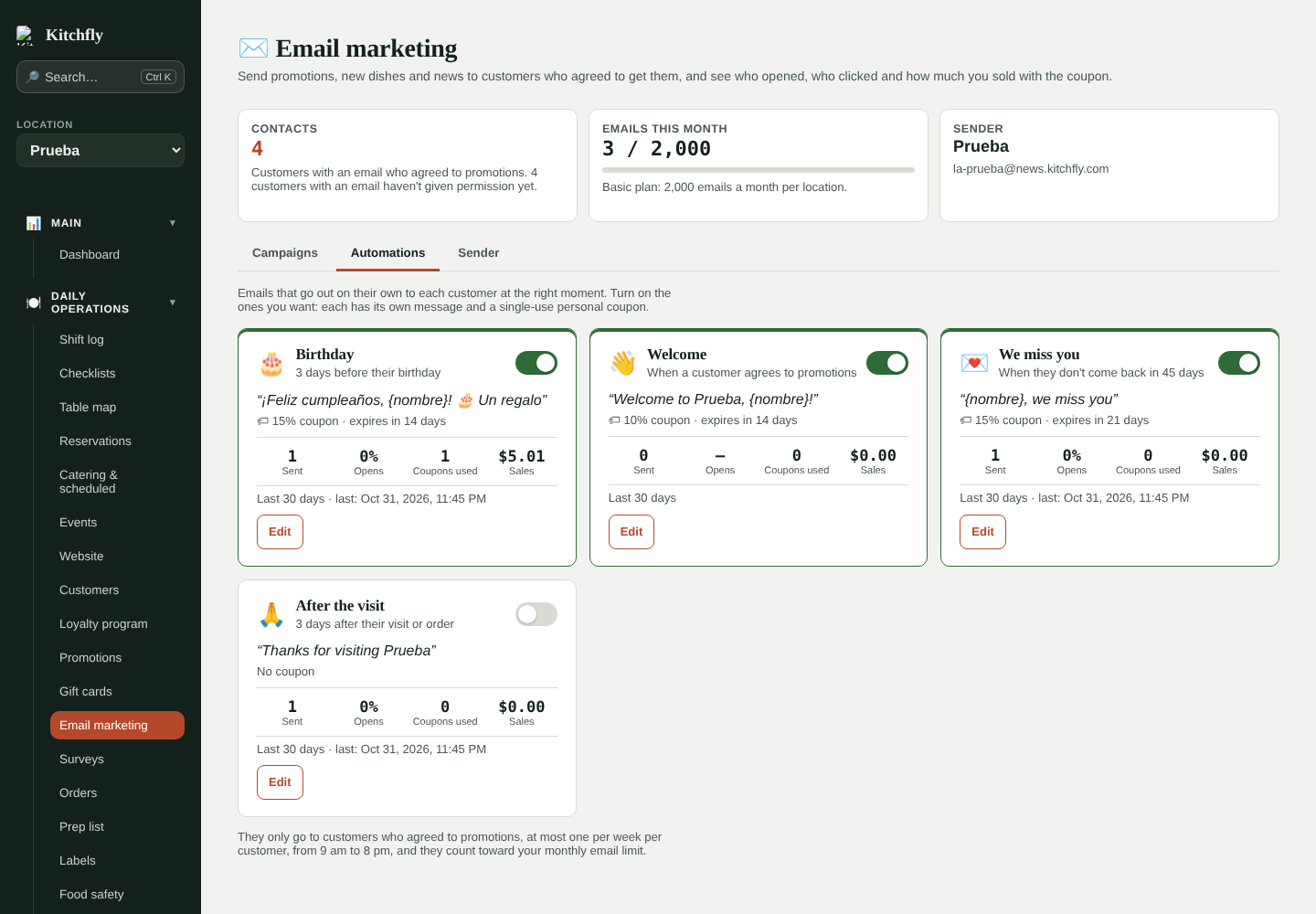
| Automation | When it's sent |
|---|---|
| Welcome | A few minutes after a customer agrees to promotions (only new ones from the moment you turn it on). |
| Birthday | X days before their birthday (if you have it saved). Once a year. |
| We miss you | When a customer who used to come (2+ visits) doesn't come back in X days. |
| After the visit | X days after a paid visit or order. Not sent if they already got the survey for that visit. |
Tap Edit to change when it's sent, the message (with the same blocks as a campaign) and the coupon. The preview is on the right and you can send yourself a test below.
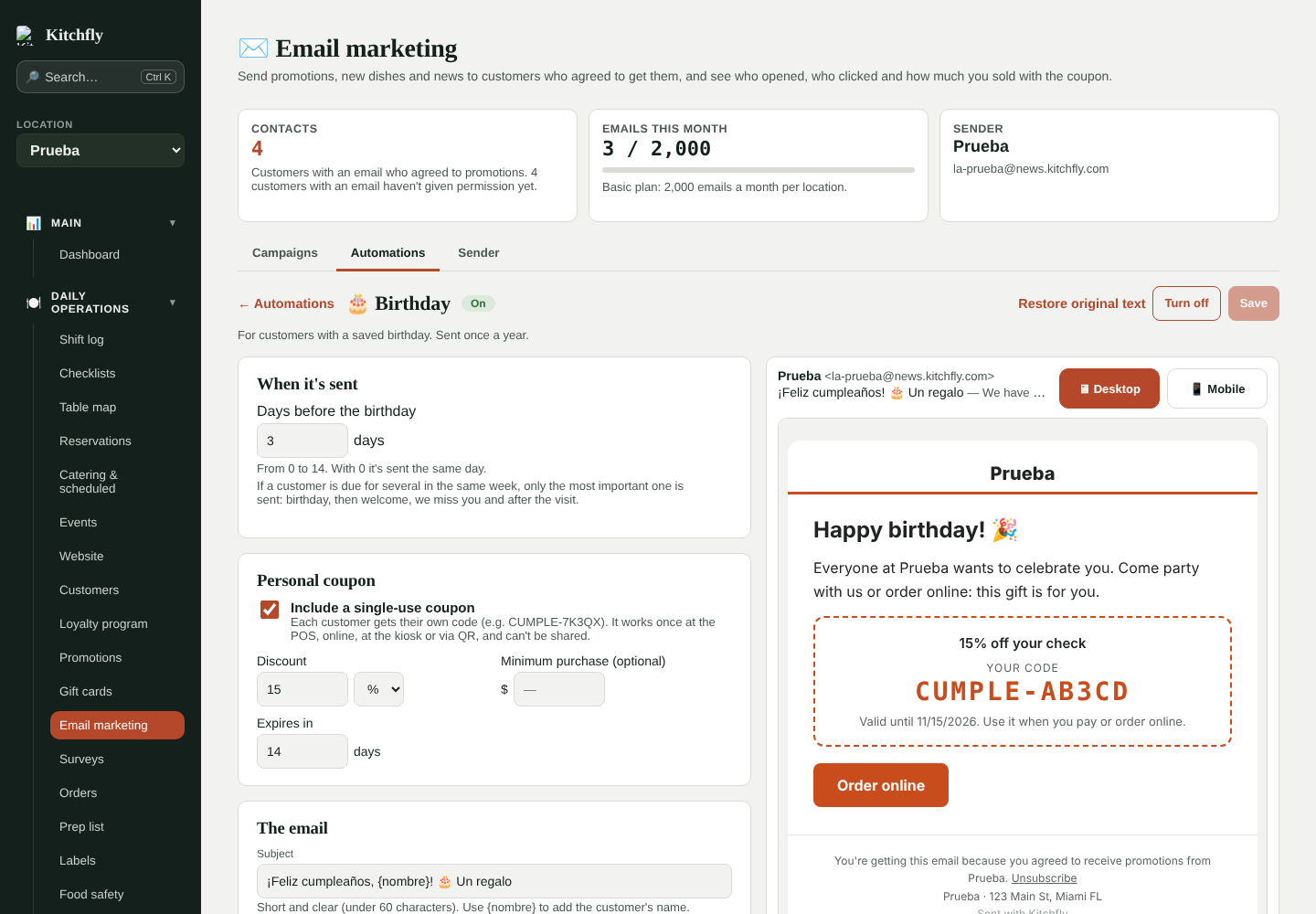
Single-use personal coupon
Each email can include a code unique to that customer (for example CUMPLE-7K3QX):
- You choose the discount (% or $), an optional minimum purchase and how many days until it expires.
- The code works only once at the POS, online, at the kiosk or via QR. It's entered like any coupon.
- It can't be shared on social media: if someone else tries it later, Kitchfly says it was already used.
- If another promotion gives a bigger discount on that check, the other one applies and the code stays valid for later.
These coupons don't show in Promotions and don't apply automatically.
Rules
- Only customers who agreed to promotions, with no unsubscribe or bounce (same as campaigns).
- At most one automation per week per customer. If several are due, the most important goes: birthday, welcome, we miss you and after the visit.
- They're sent from 9 am to 8 pm (welcome from 8 am to 9 pm), restaurant time.
- They count toward your monthly email limit. If it runs out, they stop until next month.
Each card shows the last 30 days: sent, opens, coupons used and the sales from those checks.
Get more subscribers
Where customers agree to promotions. There's an unchecked “I want to get promotions” box in:
- Online ordering checkout, online reservations and the catering request page.
- Pay from the table (QR) and the kiosk, when the customer asks for an email receipt.
- POS: after closing an order, tap ✉ Email receipt in the message at the bottom. Type the customer's email and check The customer wants to get promotions only if the customer said yes.
Subscribe without buying. In the Sign-ups tab:
- Sign-up page:
order.kitchfly.com/<your-address>/promos. Customers enter their email (name and birthday are optional) and get an email to confirm with one click. Nobody is subscribed until they click (double opt-in). Copy the link to share it on your social media. - QR poster and table tent: print them in Spanish, English or both. The table tent prints on a letter sheet; fold it along the dotted line.
- Website: if you publish your website, it shows a sign-up block. You can remove it in Website.
- Write a short message (for example, 10% off your next visit). To actually give a gift, turn on the Welcome automation: it goes out when the customer confirms.
- The table shows where your subscribers come from (poster, website, POS, online ordering…).
The page needs your online ordering address (Online ordering → Your page address); you don't have to take orders.
Sender
In the Sender tab you choose:
- The name your customers see (for example, La Cubana). The email comes from a Kitchfly address, like
[email protected]. - Where customer replies go (if empty, to the admin's email).
The address at the bottom of the email comes from Settings → Restaurant details. Without an address, campaigns can't be sent.
Rules Kitchfly follows for you
In the US the CAN-SPAM law, as well as Gmail and Yahoo, require this. Kitchfly handles it automatically:
- Emails only go to customers who agreed to promotions (a checkbox when ordering, booking or paying, the sign-up page with email confirmation, or their customer profile).
- Every email includes the restaurant's physical address and a one-click unsubscribe link. Unsubscribes take effect immediately and the customer loses promotion permission.
- Emails that bounce or that someone marks as spam never get campaigns again.
Don't upload purchased lists
Only email customers who gave you their address and agreed to get promotions. Purchased lists cause spam complaints and can block your sending.