Catering & scheduled orders
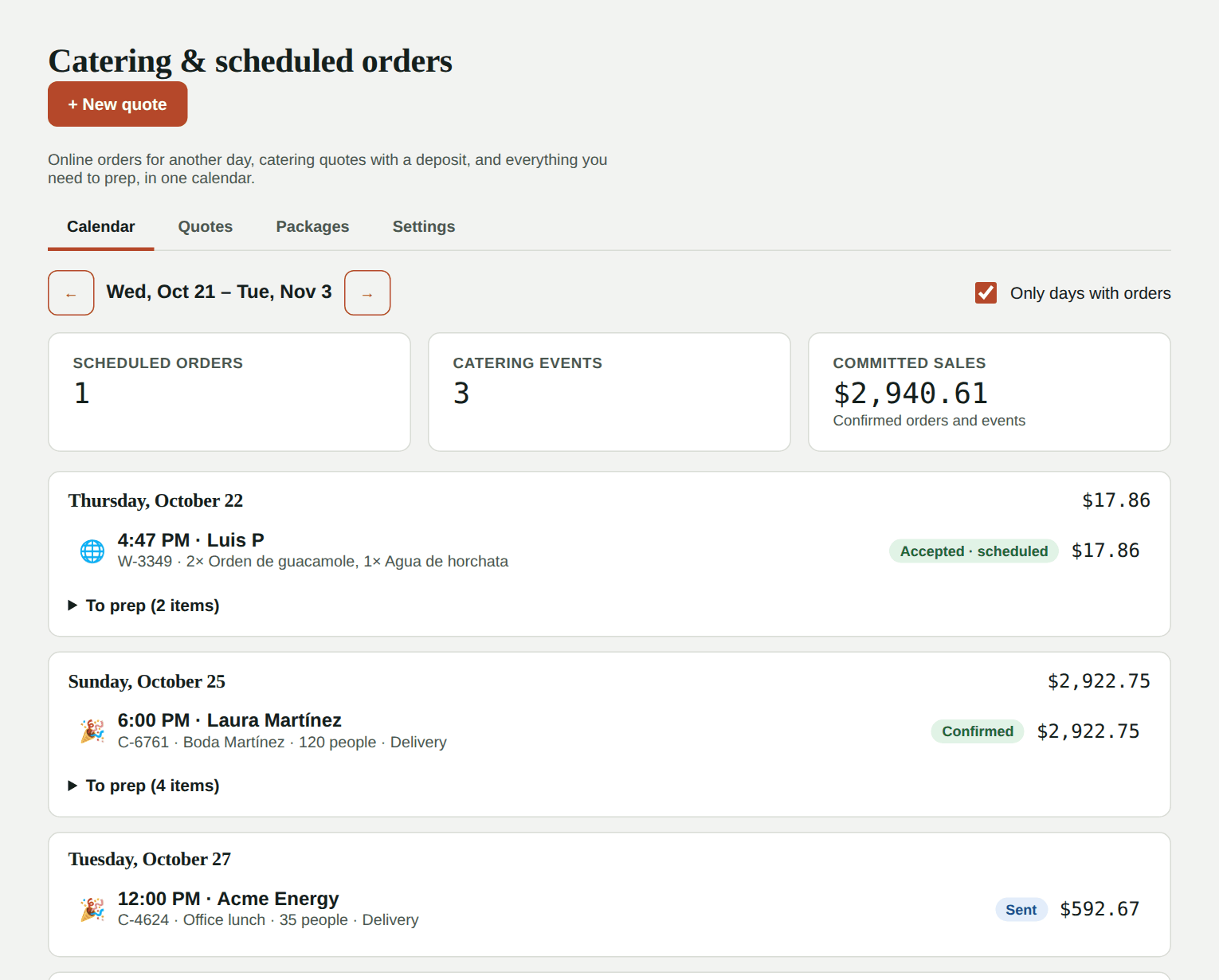
Two things that go together, on one screen (Daily operations → Catering & scheduled):
- Scheduled orders: customers order online for another day (for example, Saturday at 1:00 PM). You can mark items as pre-order only, like cakes or party trays, that need to be ordered ahead.
- Catering: you build a quote for an event (or the customer requests one from your page), email it, and the customer accepts it and pays the deposit online. You see what you'll make before you send it.
Everything already ordered shows up on a calendar and is added to that day's prep list. It's included in both the Basic and Pro plans.
Scheduled orders
Turn them on
- First turn on online ordering (Settings → Online ordering).
- Go to Catering & scheduled → Settings.
- Check Allow orders for another day and choose:
- Days ahead: how far ahead customers can order (for example, 14).
- Max orders per hour: so the kitchen doesn't get swamped. Full hours aren't offered. Leave 0 for no limit.
- Closed days: holidays or vacation days when you don't take scheduled orders.
- Reminder a day before: the customer gets an email so they don't forget.
- Tap Save settings.
The days and times offered come from your online ordering service hours.
Pre-order only items
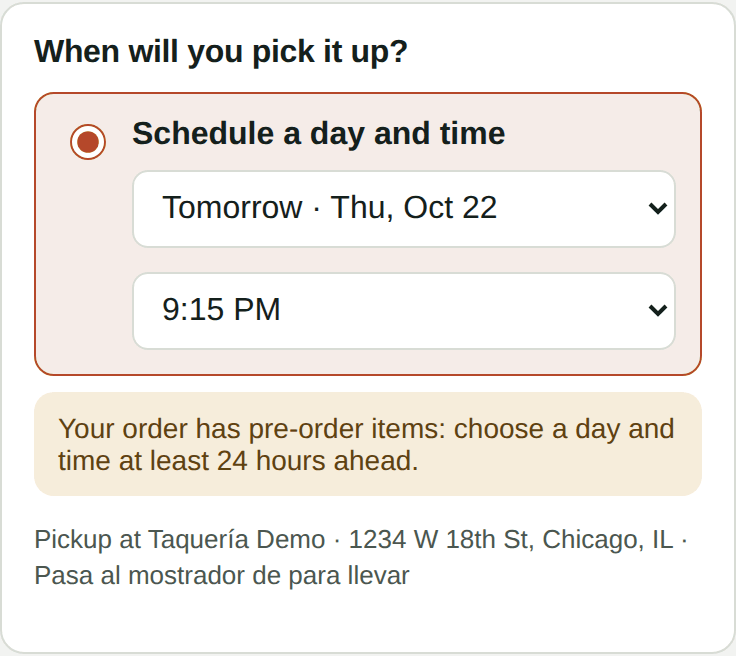
On the same screen, under Pre-order only items, check the items that need lead time (cakes, trays, soup by the quart…) and enter how many hours ahead you need (for example, 24).
- They show on your ordering page with a Pre-order label.
- If the cart has one, the customer can't choose "as soon as possible": only days and times with enough lead time.
- If scheduled orders are off, those items are hidden.
What happens to the order
- The customer picks a day and time, pays by card and gets a confirmation.
- You accept it in the online orders inbox like any other. The card is charged when you accept.
- Orders for another day sit in the inbox's Upcoming tab and don't count toward the pending-orders alert.
- On the day, the order goes to the kitchen on its own in time for pickup (pickup time minus your prep time). To start it early, use Send to kitchen now.
Accept quickly
Just like today's orders, you have 15 minutes to accept a scheduled order. If you don't, the customer's card is released and the order is cancelled.
Catering
1. Create your packages (optional, but saves time)
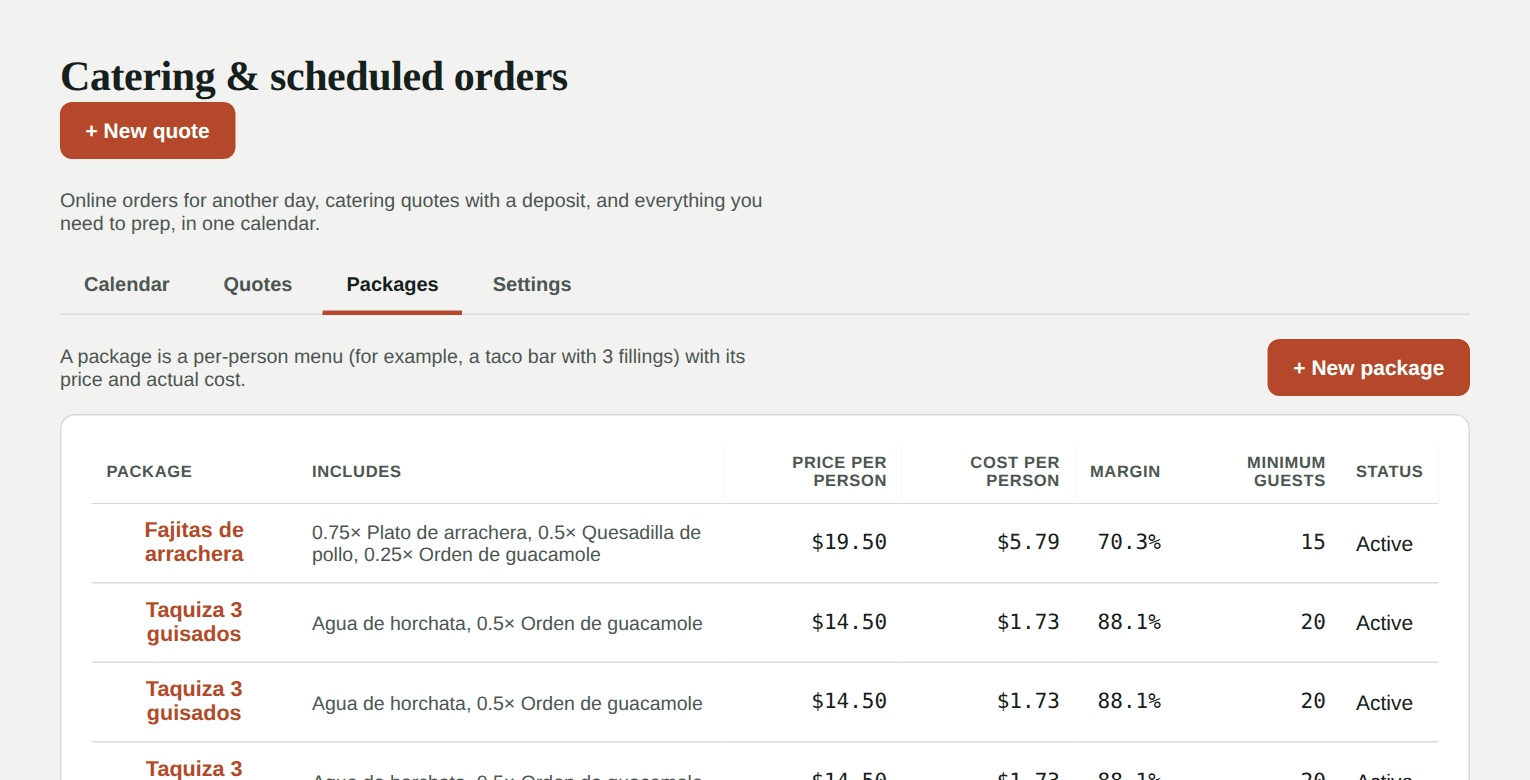
A package is a per-person menu. For example, Taco bar, 3 fillings at $14.50 per person, minimum 20 guests.
- Go to Catering & scheduled → Packages → New package.
- Enter a name, description, price per person and minimum guests.
- Add the items it includes and the portion per person (1 = one menu order per guest; 0.5 = half an order).
- Kitchfly shows the cost per person from your recipes' actual cost, and the margin.
Let customers request a quote (optional)
You can let customers request a quote from your page: they pick a package (or "something custom"), the date, the number of guests, and pickup or delivery.
- Go to Catering & scheduled → Settings → Online quote requests.
- Check Take requests from my page, set the minimum guests, the days ahead and, if you like, a message for customers.
- Tap Save settings and share the link (for example, order.kitchfly.com/your-restaurant/catering). A Catering button also shows on your ordering page.
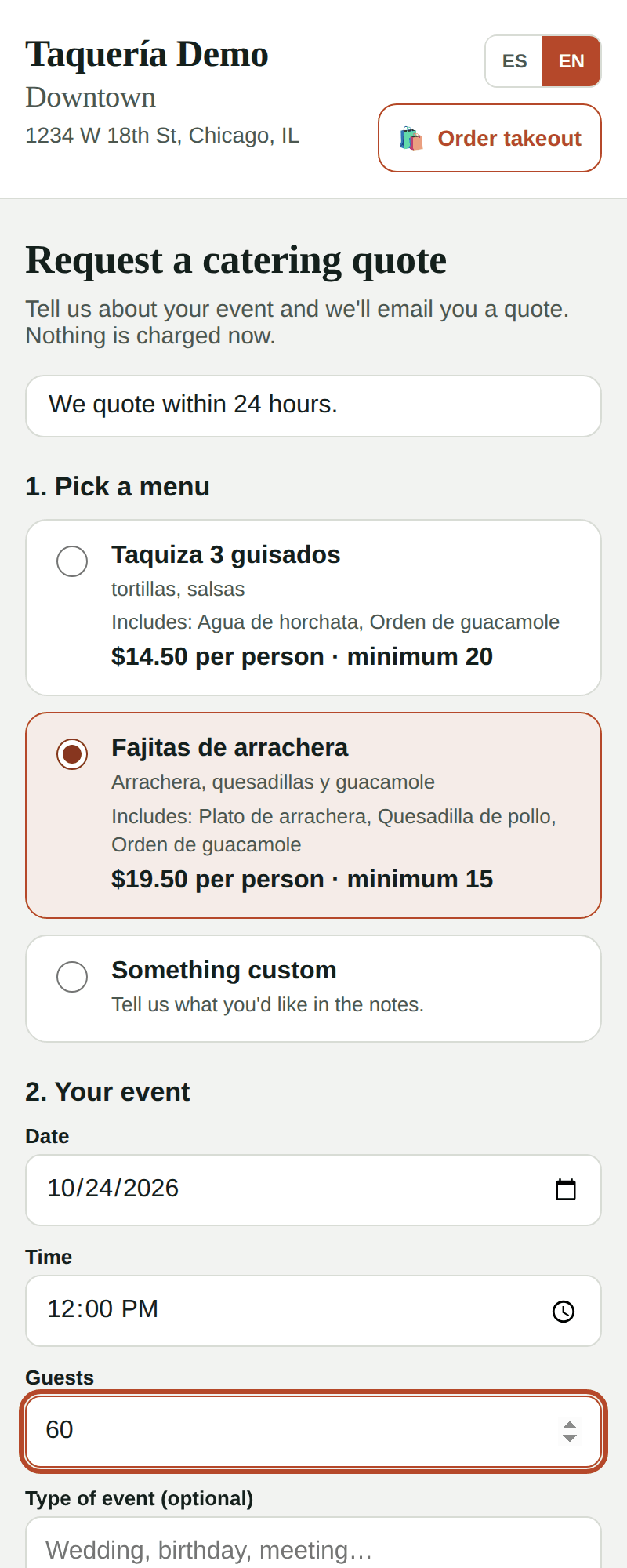
When a request comes in you get an alert (and an email) and it shows in Quotes with the Request status. If the customer picked a package, the quote is already built: review it, adjust anything, and tap Send to customer. If you can't take it, use Decline request and the customer gets a friendly email.
2. Build the quote
- Tap New quote.
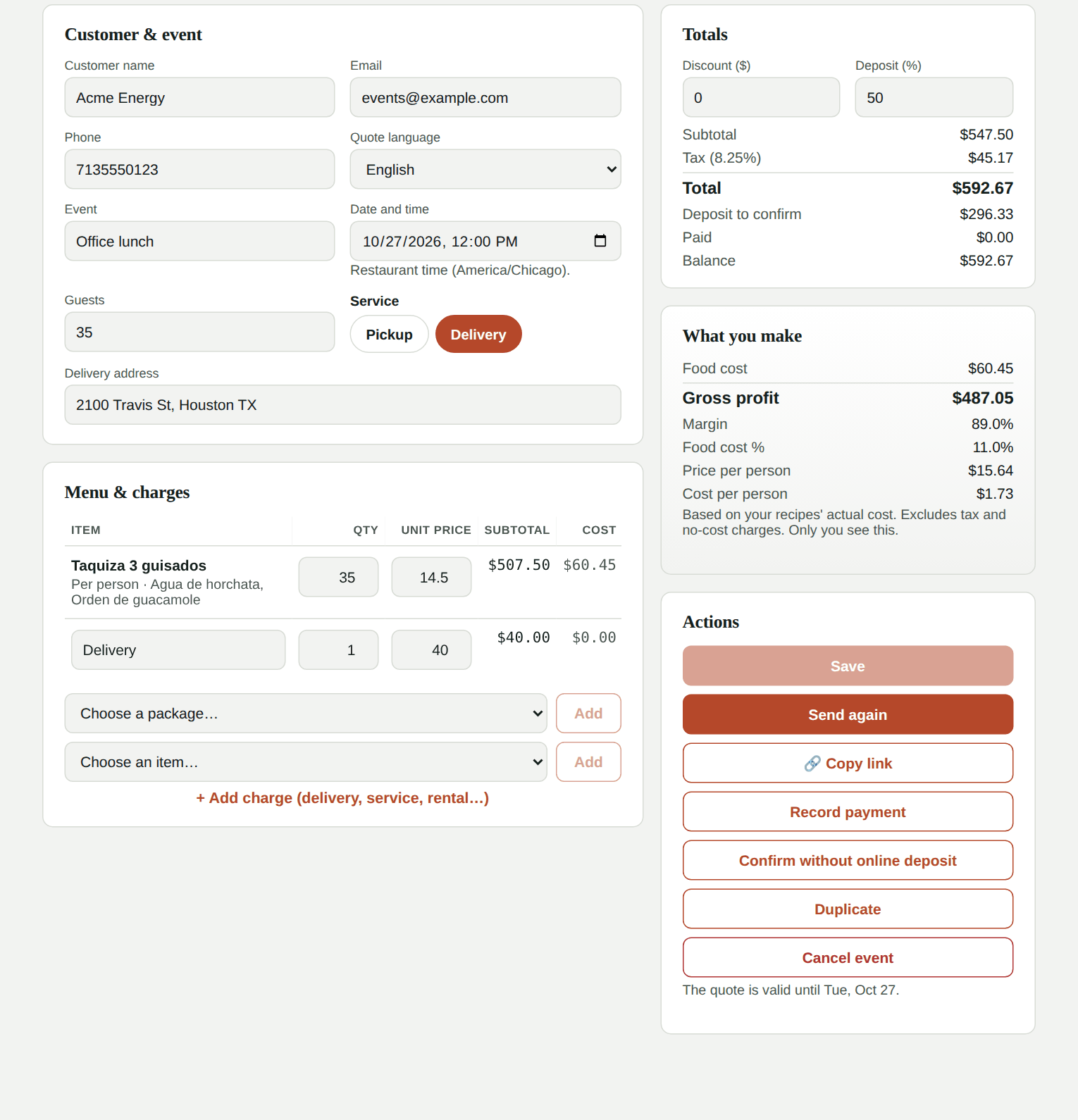
- Enter the customer's details (the email is where the quote goes), the event, the date and time, the number of guests, and whether it's pickup or delivery (with the address).
- Under Menu & charges, add packages, single items and charges like delivery, staff or equipment rental. You can change quantities and prices.
- On the right you see the total with tax, the deposit and what you make: food cost, gross profit, margin and food cost %. Only you see that part.
- Tap Save draft.
3. Send it to the customer
Tap Send to customer. They get an email with a button to see their quote. You can also Copy link and send it by text or WhatsApp.
The customer sees the menu, the total and your terms, checks I accept and pays the deposit by card. The quote becomes Confirmed, you get an alert and the customer gets a confirmation.
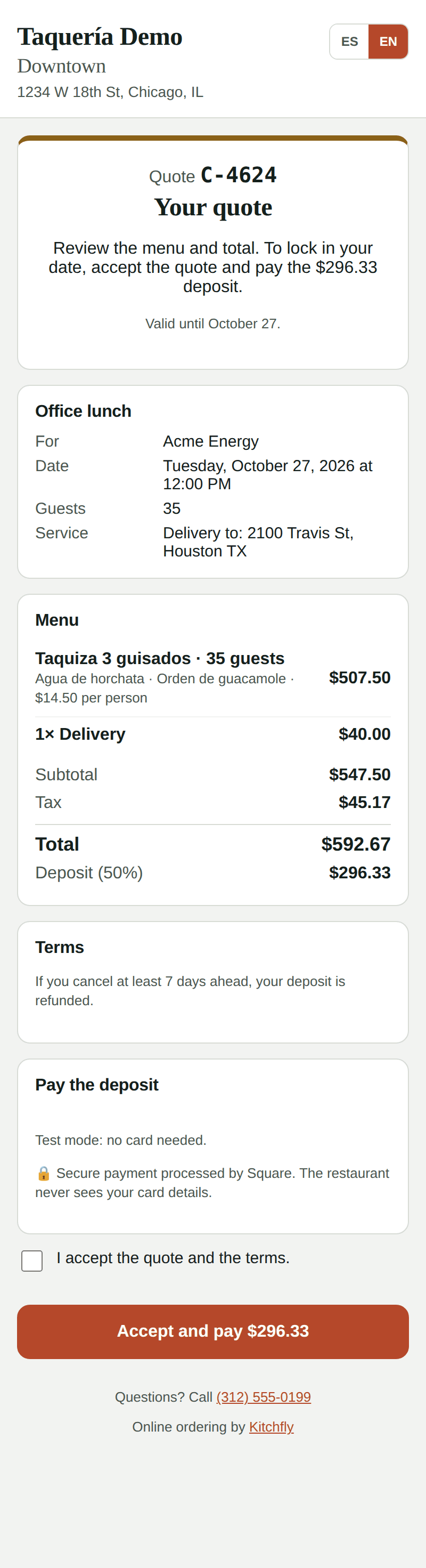
- The quote expires after the number of days you set. If it expires, send it again to extend it.
- If the customer accepted by phone or paid you in person, use Confirm without online deposit or Record payment.
4. On the day of the event
- Tap Send to kitchen: the order is created, shows on the kitchen display with a Catering label and inventory is deducted. The menu can't change after this.
- Collect the balance: the customer can pay from the same link, or you record it with Record payment (cash, card on your terminal, or other).
- Tap Complete. The sale counts in your reports under the Catering channel.
Cancel an event
Use Cancel event (before sending it to the kitchen). If the customer already paid, Kitchfly tells you whether your terms call for refunding the deposit (for example, if they cancel more than 7 days ahead). Card payments go back to their card automatically; you return any cash yourself.
Report
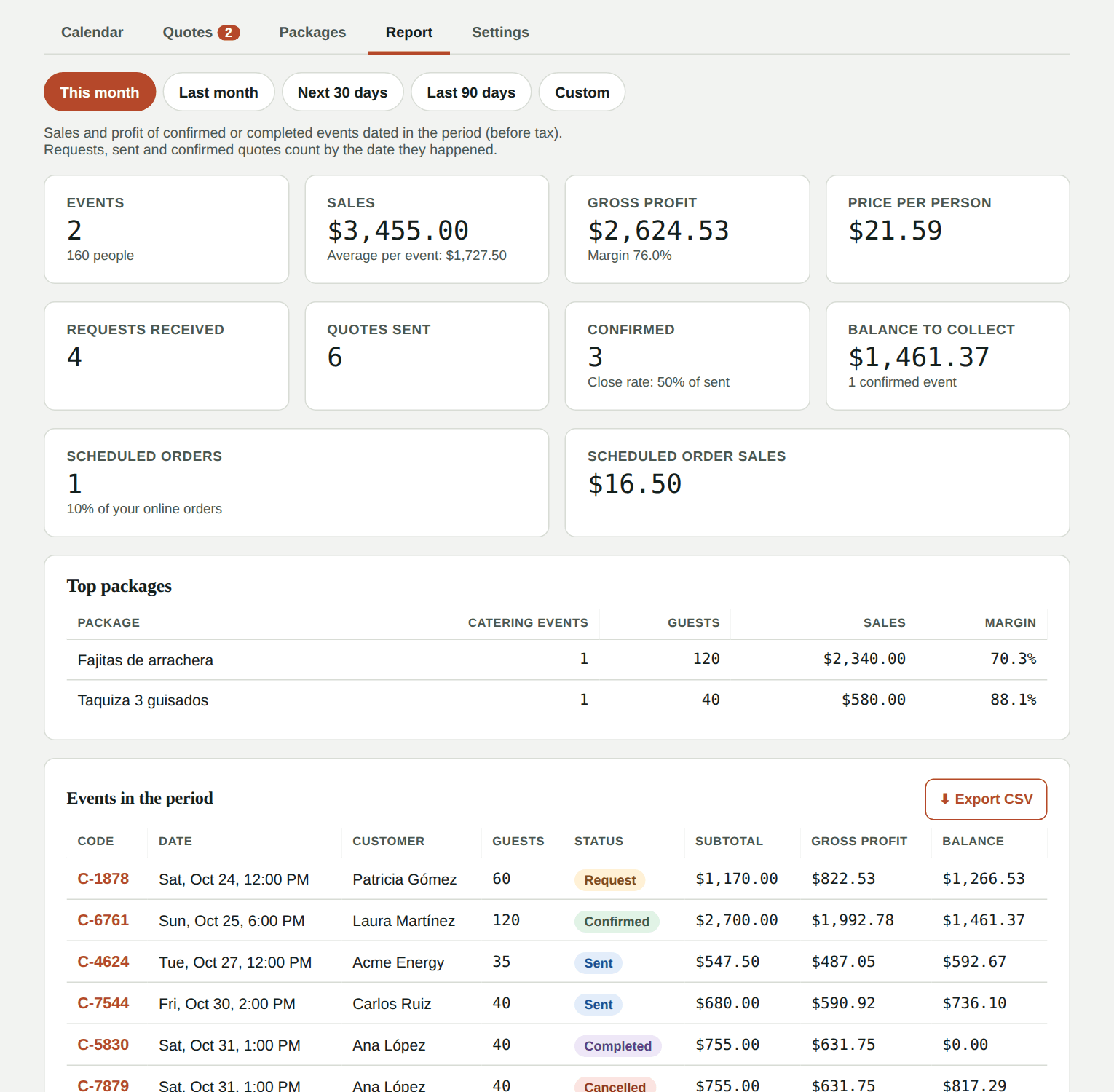
In Catering & scheduled → Report pick a period (this month, last month, the next 30 days…) and see:
- Events, sales, gross profit and margin for confirmed or completed events, plus the average price per guest.
- The funnel: requests received, quotes sent, confirmed, and your close rate.
- The balance to collect on confirmed events.
- How many scheduled orders you got and what they sold.
- Your top packages and the event list, which you can export to CSV.
Catering settings
In Catering & scheduled → Settings → Catering quotes:
| Option | What it does |
|---|---|
| Deposit (%) | What the customer pays online to confirm. 0 = they just accept the quote. |
| Days a quote is valid | After that, the customer can't accept it. |
| Days to cancel with refund | If they cancel earlier than this, refunding the deposit is suggested. |
| Terms (Spanish / English) | The text the customer accepts: what's included, when the final guest count is due, etc. |
| Online requests | Whether customers can request a quote from your page, with a minimum guest count and days ahead. |
To take payments online you need Square connected.
FAQ
Can I quote in Spanish? Yes. Choose the quote language: the email and the customer's page use that language.
What if I delete a package? Quotes that already use it don't change.
Is it counted twice on the prep list? No. An event counts as "to prep" until you send it to the kitchen; from then on it counts as an order.
Can the customer change the quote? Not from their link. If they ask for changes, edit it and send it again (before they pay the deposit).