Ticketed events
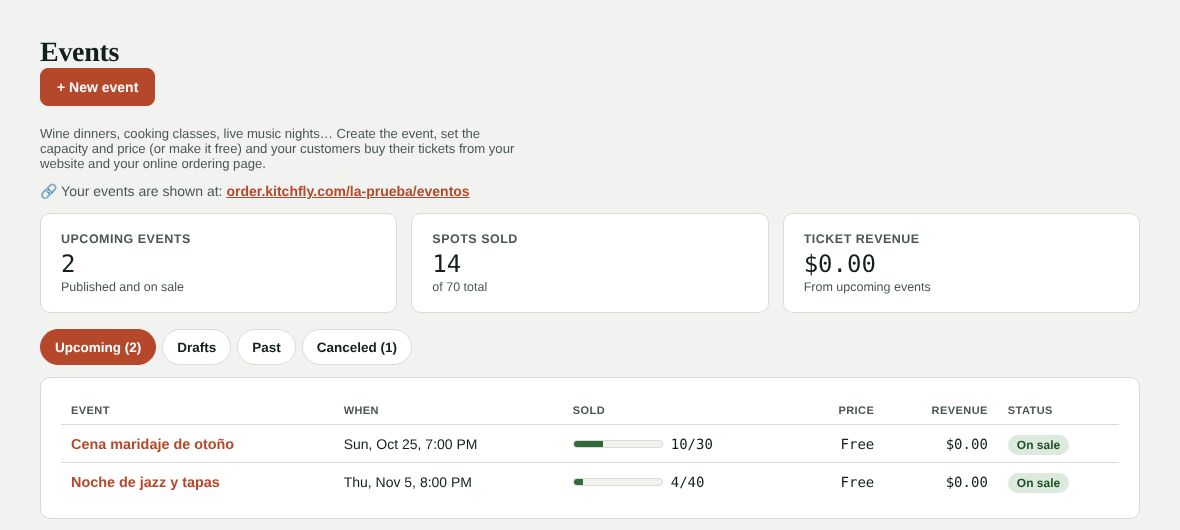
Wine dinners, cooking classes, live music nights, a holiday dinner… With Events you create the event, set the capacity and price (or make it free), and your customers buy a ticket or save their spot from your website and your online ordering page. On the day of the event you check people in with each ticket's QR code.
Included in both plans. You'll find it under Daily operations → Events (admins only).
Before you start
- Your page needs an address: choose it in Online orders → Settings (for example
order.kitchfly.com/tacos-lupita). That's where your events live. - To sell tickets online you need Square connected: the money goes to your Square account, just like your orders. Free events don't need Square.
Create an event
- Tap + New event.
- Enter the name and a description (what's included, menu, music, dress code). You can also add the name and description in Spanish.
- Choose when it starts and, optionally, when it ends.
- Set the capacity (how many spots) and the max tickets per purchase.
- Choose Paid with the price per person (the final price the customer pays) or Free (RSVP only).
- Leave location empty if it's at your restaurant.
- Tap Create event. It's saved as a draft: add a photo (landscape looks best) and review everything.
- Tap 🚀 Publish.
Once published, it shows on your website (Upcoming events section, with data so Google can show it), on your online ordering page (🎟️ Events button) and on its own page, which you can share with 🔗 Copy link on Facebook, Instagram or WhatsApp.
Recurring events
Trivia night every Thursday? Open the event and tap ⧉ Duplicate: a draft copy is created at the same time, one week later.
What customers see
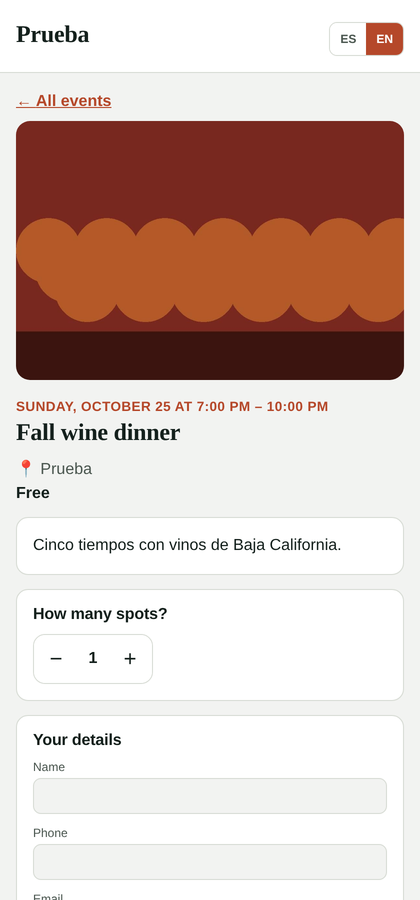
On the event page customers see the photo, date, location, price and how many spots are left. They choose how many tickets, enter their name, phone and email and pay by card (or just save their spot if it's free).
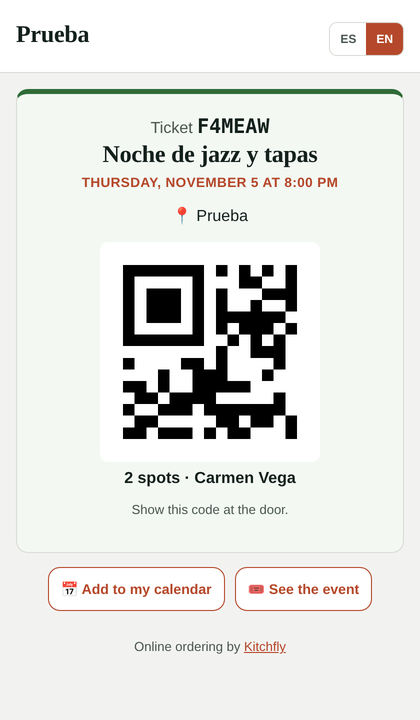
When they're done they see their ticket with a QR code, and it's also emailed to them with a button to add it to their calendar. One day before, they get a reminder.
Every purchase shows up as an alert in your alerts bell, and the customer is saved in Customers.
See who's coming and check people in
Tap the event name to open it. At the top you see spots sold, who has checked in and revenue.
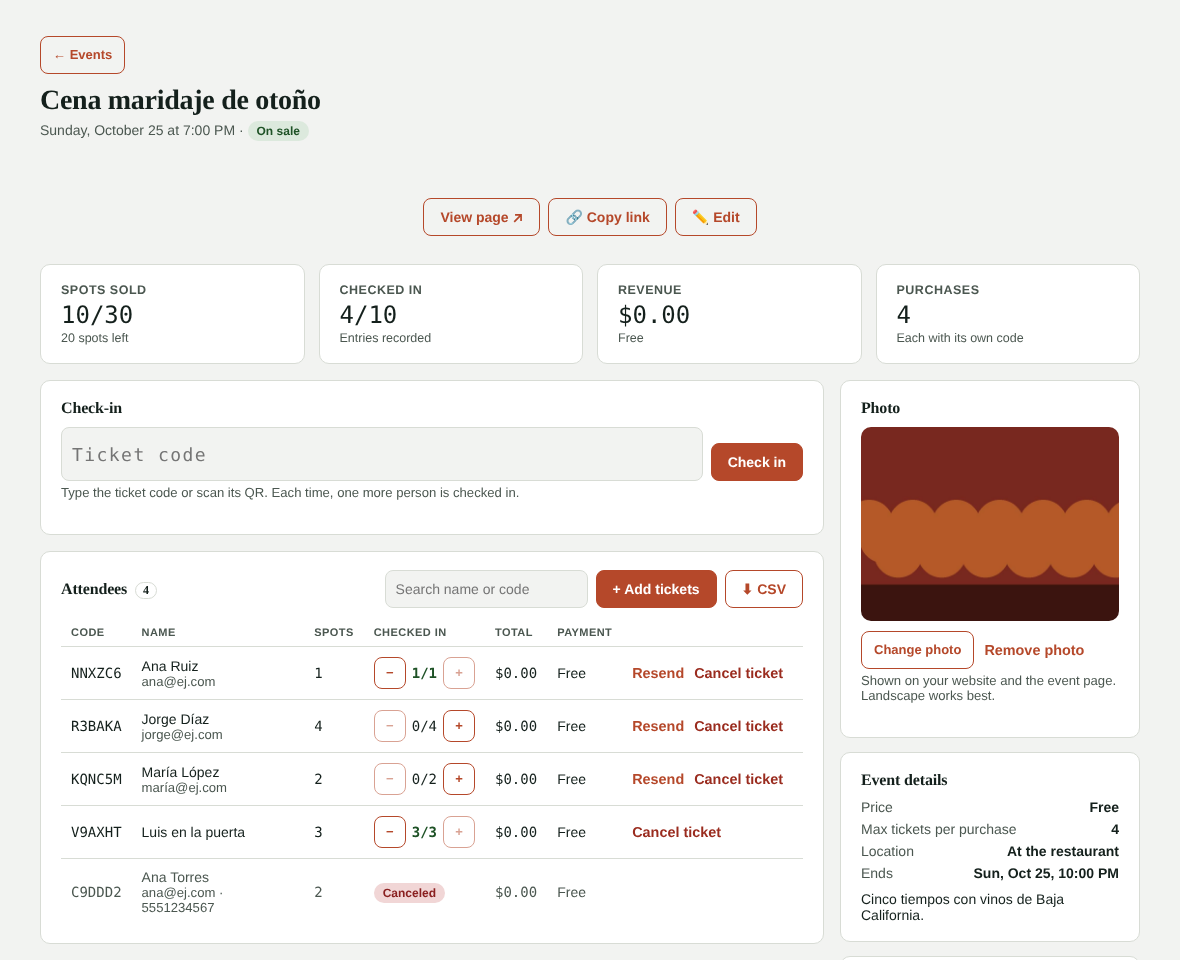
On the day of the event use the Check-in box:
- Type the ticket code and tap Check in, or
- Tap 📷 Scan QR and point the camera at the customer's code (works on Android tablets and phones with Chrome; if your device doesn't show the option, type the code).
Each time, one more person on that ticket is checked in (one ticket can cover several spots). If everyone already came in, Kitchfly lets you know. You can also use the − and + buttons in the attendee list.
Sell at the door, over the phone, or give comps
Tap + Add tickets: enter the name, how many spots and how they paid (cash, card on terminal or comp). If you enter their email, we'll send them their ticket. If they're already there, check They're here to check them in right away.
Cancel a ticket or the event
- Cancel ticket: the spot becomes available again. If they paid by card online, you can refund them automatically through Square. You refund cash or terminal payments yourself.
- Cancel event: all purchases are canceled, card payments are refunded (if you choose) and every customer gets an email. The event is removed from your website.
- An event with no tickets can be deleted; a published event with no sales can be taken off sale.
Use ⬇ CSV to download the attendee list.
FAQ
Does Kitchfly charge a fee per ticket? No. You only pay Square's normal fee on each card payment.
Can I change the price after publishing? Yes, as long as no tickets have been sold. You can raise or lower the capacity any time (never below what's sold).
Until when are tickets sold? Until the event start time, or until spots run out.
Do tickets count in my daily sales? They're not mixed with POS sales: you see each event's revenue on the Events screen. The day before, your daily summary tells you how many spots were sold for tomorrow's event.
Can servers or the kitchen check people in? For now only admins, from Events.