Send your sales and purchases to QuickBooks
Connect QuickBooks Online and Kitchfly will send your accounting automatically every night:
- Daily sales: one journal entry per day with cash, card, sales, tax and tips.
- Supplier purchases: one bill per supplier and invoice, with the ingredient lines.
Available on both plans. Your accountant can review everything in QuickBooks without typing it in.
1. Connect
- Go to Settings → Integrations and find QuickBooks Online.
- Click Connect to QuickBooks, log in to Intuit and choose your company.
- You'll return with QuickBooks connected. Now choose the accounts below and save.
2. Choose the accounts
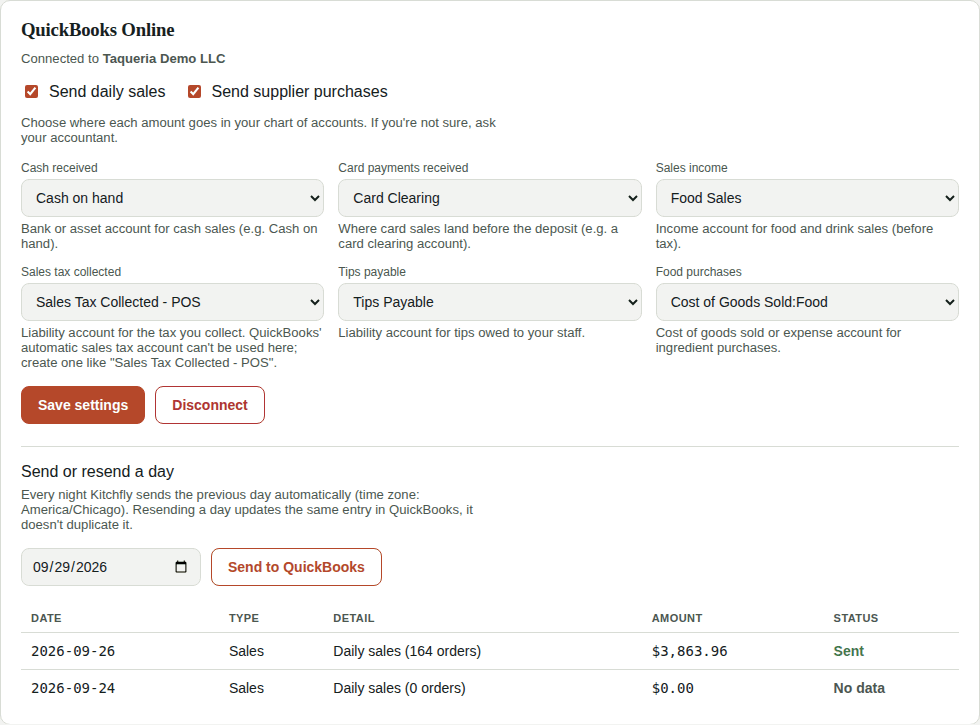
Tick Send daily sales and/or Send supplier purchases, then choose where each amount goes in your chart of accounts:
| Kitchfly field | Account type | Example |
|---|---|---|
| Cash received | Bank or other current asset | Cash on hand |
| Card payments received | Bank / clearing account | Card Clearing |
| Sales income | Income | Food Sales |
| Sales tax collected | Other current liability | Sales Tax Collected - POS |
| Tips payable | Other current liability | Tips Payable |
| Food purchases | Cost of goods sold or expense | Cost of Goods Sold: Food |
Click Save settings.
Sales tax account
QuickBooks' automatic sales tax account (the one it creates when you turn on Sales Tax) can't receive journal entries. Create a new liability account, for example Sales Tax Collected - POS, and choose that one.
Not sure which accounts?
Ask your accountant. The settings can be changed at any time; new entries will use the new accounts.
3. How it works day to day
- Every night Kitchfly sends the previous day, using your restaurant's time zone.
- The history at the bottom shows each record's Date, Type, Detail, Amount and Status: Sent, No data (nothing to send that day) or Error.
- Purchases are created as bills under each supplier; if the supplier doesn't exist in QuickBooks yet, Kitchfly creates it.
Send or resend a day
Did you fix an order or a purchase from a past day? Choose the date in Send or resend a day and click Send to QuickBooks. Resending updates the same entry in QuickBooks; it doesn't duplicate it.
Disconnect
Click Disconnect. What was already sent stays in QuickBooks. You can connect again anytime.
A record shows Error
The error message appears in red under Detail. The most common causes are an account that was deleted or made inactive in QuickBooks, or the automatic sales tax account (see above). Fix the account, Save settings and resend the day.