Add your ingredients
Ingredients are the base of everything in Kitchfly: recipe costs, food cost %, inventory and purchases all start here. Add at least the ingredients of your best-selling dishes first.
Add an ingredient
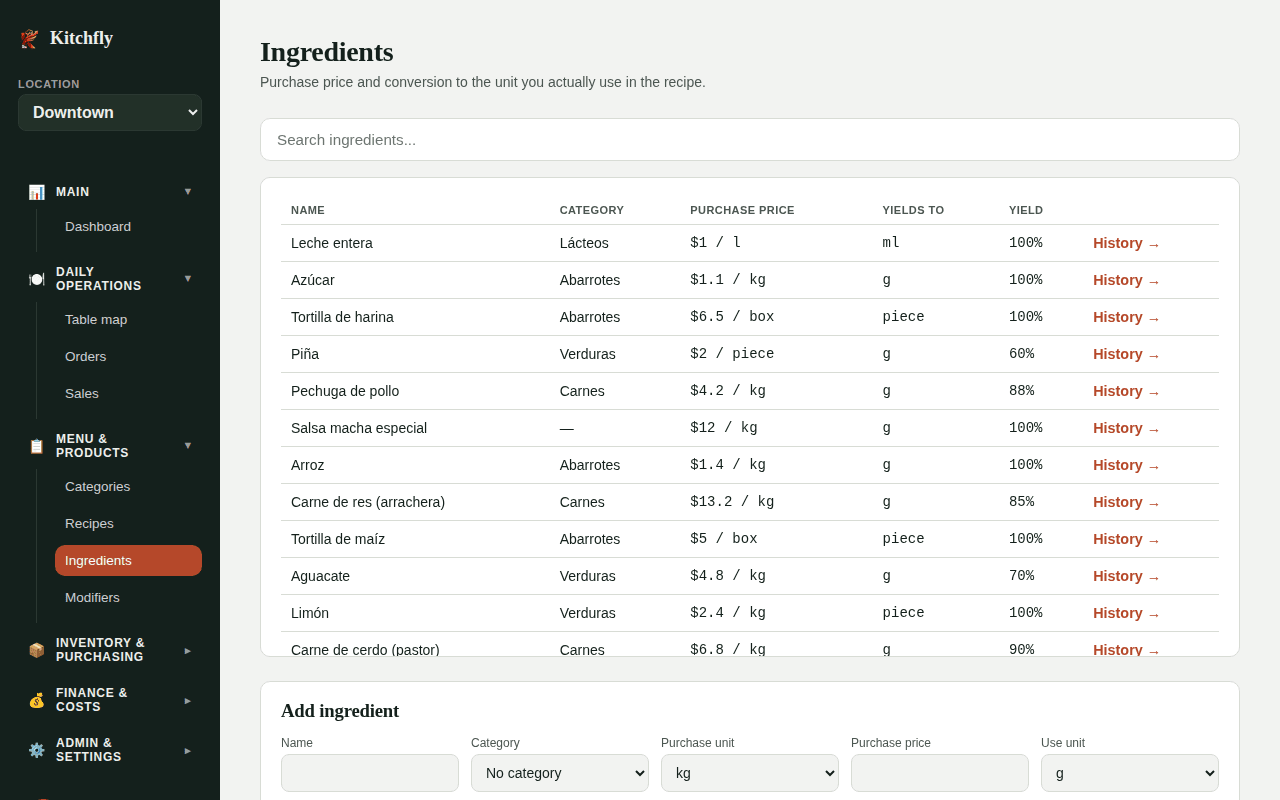
Go to Ingredients and use Add ingredient at the bottom of the page:
| Field | Example | What it means |
|---|---|---|
| Name | Avocado | How it shows in recipes and reports. |
| Category | Produce | Optional. Create categories in Categories. |
| Purchase unit | kg | How you buy it from your supplier (kg, g, l, ml, piece, box). |
| Purchase price | 4.50 | What you pay for one purchase unit. |
| Use unit | g | How you measure it in recipes. |
| Conversion factor | 1000 | How many use units are in one purchase unit (1 kg = 1000 g). |
| Default yield % | 70 | The usable part after cleaning or peeling. An avocado with 70% yield means 30% is skin and pit. |
Click Save ingredient.
Conversion factor examples
- Bought by kg, used in g → factor 1000
- Bought by l, used in ml → factor 1000
- A box of 30 eggs, used by piece → factor 30
- Bought and used in the same unit → factor 1
Get the conversion factor right
It's the most common setup mistake. A wrong factor makes every recipe that uses the ingredient cost too much or too little, and throws off stock.
Ingredient detail
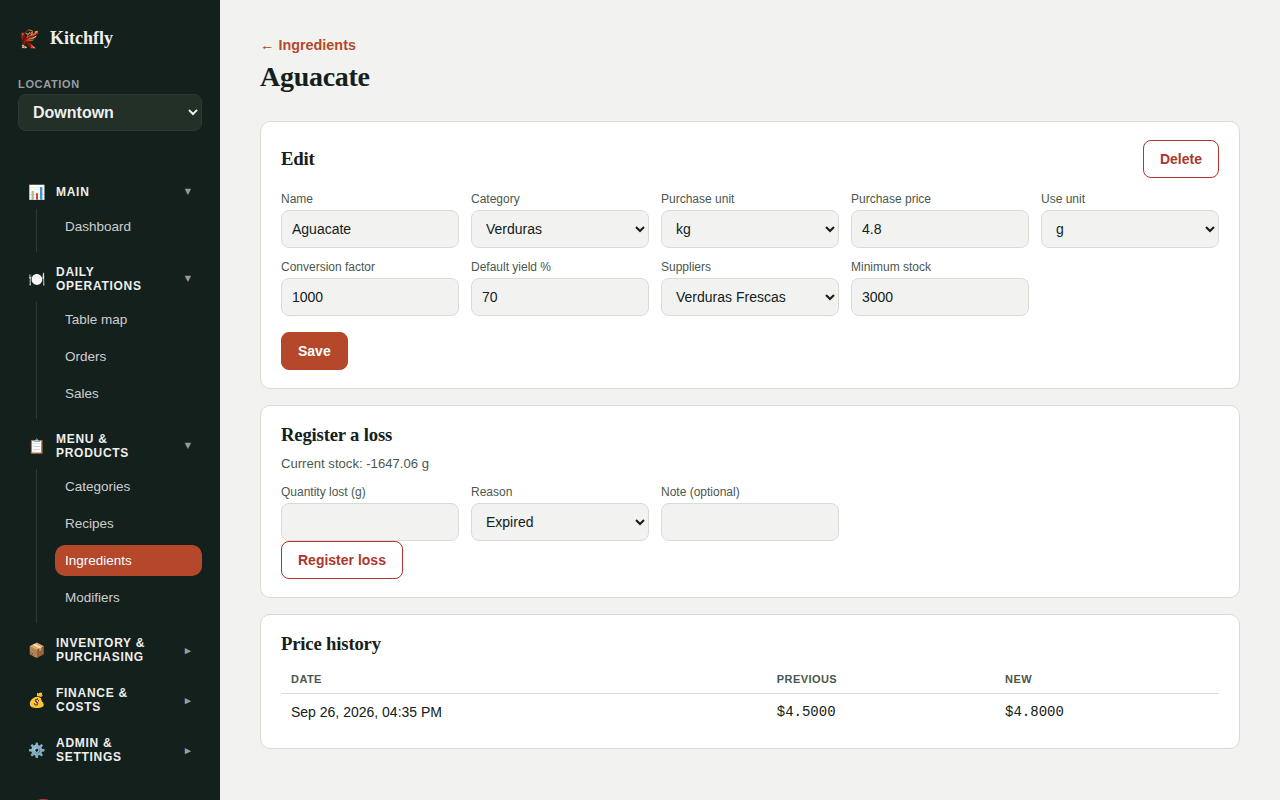
Click any ingredient to open its detail page. There you can:
- Edit its data and prices. Kitchfly keeps a Price history of every change.
- Set a Minimum stock. When stock drops below it, the ingredient shows under Low stock on the Dashboard and you get an alert.
- Register a loss (see Record losses).
Keep prices current without typing
When you record a purchase, Kitchfly updates the ingredient's price for you, and every recipe cost updates with it.
Next: Build your recipes →
Allergens
In the ingredient's Allergens section, mark the ones it has (or Has none). Dishes that use it inherit them automatically. See Allergens.