Import ingredients and suppliers
If your ingredients already live in another system, in Excel or in your distributor's price list, upload them as a .csv or .xlsx file instead of entering them one by one. Kitchfly creates the ingredients with their price, pack size, category and supplier. If the file has stock, it can also set it as your starting inventory.
The admin does it in Ingredients → ⬆ Import ingredients and Suppliers → ⬆ Import suppliers. You can also find it by typing import in the search.
Recommended order
- Import your suppliers (if you want to keep their contact, phone and email).
- Import your ingredients.
- Import your menu with its recipes: recipes use the ingredients that already exist.
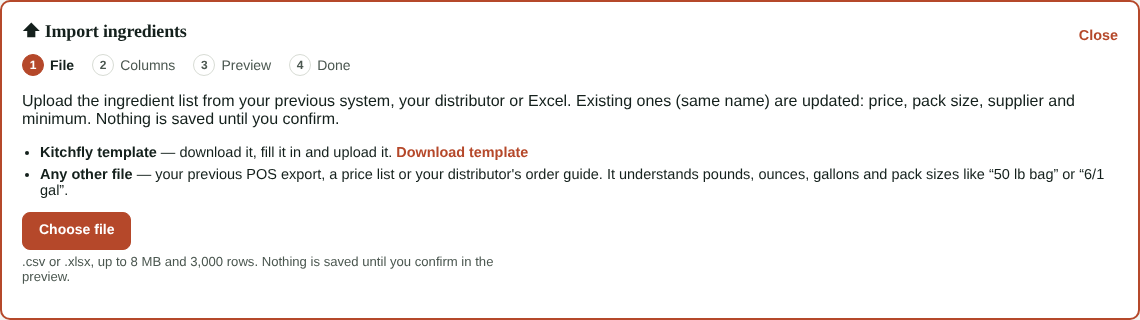
1. Choose your file
- Kitchfly template: tap Download template, fill it in and upload it.
- Any other file: your previous POS export, a price list or your distributor's order guide. In the next step you tell Kitchfly which column is which.
Up to 8 MB and 3000 rows. Nothing is saved until you confirm in the preview.
2. Check the columns
Only Name and Purchase price are required. Everything else is optional:
| Column | What to put |
|---|---|
| Category | Meat, Produce… Created if new. |
| Supplier | Who you buy it from. Created if new. |
| Purchase unit | kg, g, lb, oz, l, ml, gallon, each, case… If missing, kg is used. |
| Purchase price | What you pay for that purchase unit. |
| Use unit | How you measure it in recipes: g, ml or each. Inferred if missing. |
| Quantity per purchase unit | Only for cases or pieces: how many pieces (or g / ml) come in one case. |
| Waste % or Yield % | What's lost or what you actually use. 10, 0.9 or 90% all work. |
| Current stock and Minimum stock | In the purchase unit, or with its unit: 2500 g. |
| Area and Shelf life days | Where it's stored and how many days it lasts (1 to 730). |
Units and pack sizes
Kitchfly stores purchases in kg, l, piece or box, so it converts the rest for you:
- lb, oz → kg, and gallon, qt, fl oz → l. The price is converted too: $0.89 / lb becomes $1.96 / kg.
- Dozen → 12 pieces.
- Pack sizes like 50 lb bag, 6/1 gal, 12 x 1 l or case of 30 are saved as a box with its contents (for example, 1 box = 22,679.6 g).
- A case with no quantity (case) needs the Quantity per purchase unit column; if it's missing, the row isn't imported and it tells you what to add.
3. Preview
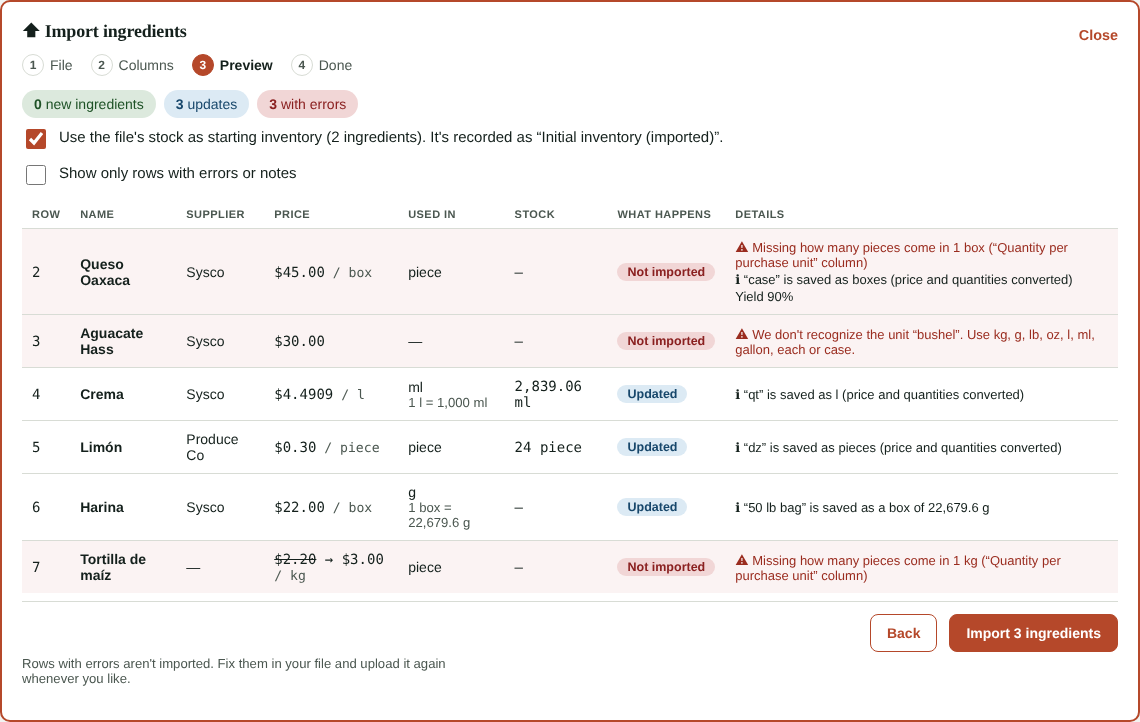
Row by row you see what will happen:
- New: the ingredient is created.
- Updated: an ingredient with that name already exists. Its price, pack size, category, supplier, minimum and anything else in the file are updated. The old price is crossed out so you can see the change.
- Not imported: the row has an error, like a unit we don't recognize or a case with no quantity. The rest are still imported.
At the top you see how many prices change and which new suppliers will be created.
Price changes
Every price change is saved in the ingredient's price history and your recipe costs update automatically. That's how you update prices in bulk with your distributor's new list.
The use unit doesn't change on its own
If an ingredient already exists in g and the file says each, that row isn't imported: your recipes use the current unit. If it really changed, edit it by hand.
Starting inventory
If the file has Current stock, check Use the file's stock as starting inventory. The stock is saved as a count with the note Initial inventory (imported) in each ingredient's history. If you leave it unchecked, stock isn't touched.
4. Import
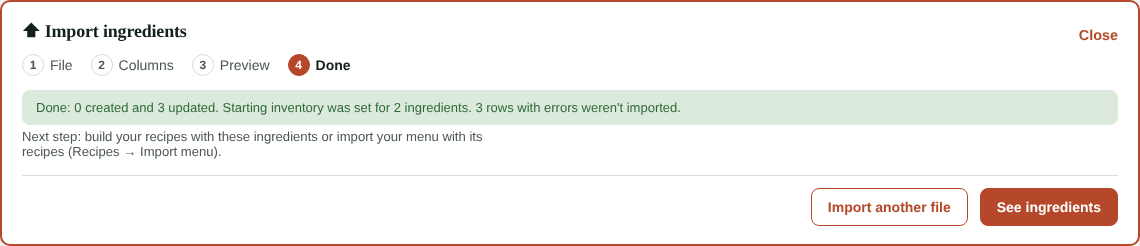
Tap Import N ingredients. When it's done you see how many were created and updated, how many suppliers and categories were added and how many got a starting inventory.
Import suppliers
In Suppliers → ⬆ Import suppliers, upload a file with the Name (required) and, if you have them, the Contact, Phone and Email.
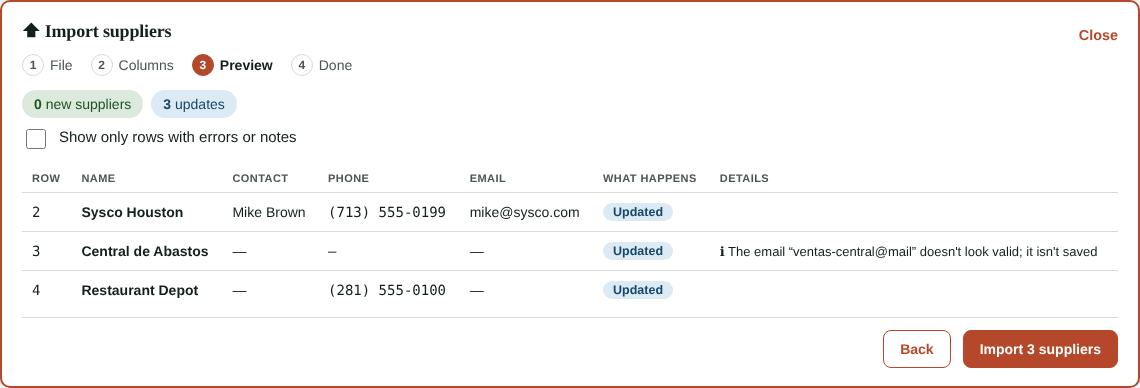
- If the supplier already exists (same name), only the fields in the file are changed; empty cells don't erase anything.
- An email that doesn't look valid isn't saved, and the preview tells you.
- Phone and email show in the supplier list (tap to call or write) and on your purchase orders.
Suppliers are shared across all your locations.