Import your menu from a file
If your menu is already in Excel, Google Sheets or another system, don't enter it item by item: upload it as a .csv (or .xlsx) file and Kitchfly creates the items with their category and price. If the file includes ingredients, it also builds the recipes and works out the cost. If it includes modifiers, it creates and links them.
Admins do it in Recipes → ⬆ Import menu. You can also type import in search.
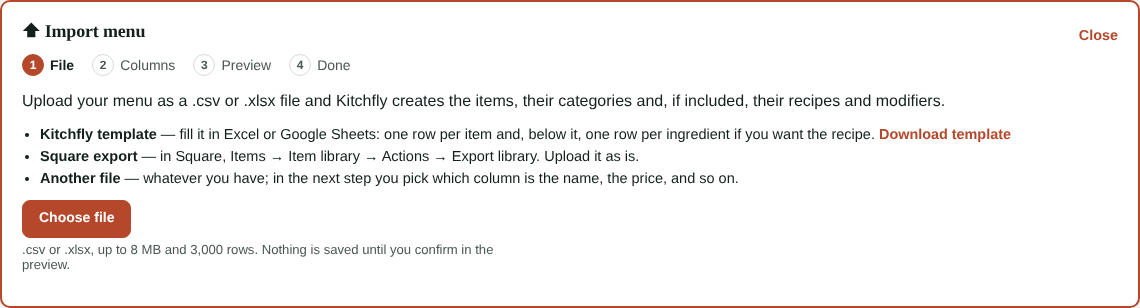
1. Choose your file
It works with three kinds of files:
- Kitchfly template: tap Download template, fill it in and upload it (see below).
- Square export: in Square go to Items → Item library → Actions → Export library and upload the file as is.
- Any other file: whatever you have. In the next step you tell Kitchfly which column is which.
Up to 8 MB and 3,000 rows. Nothing is saved until you confirm in the preview.
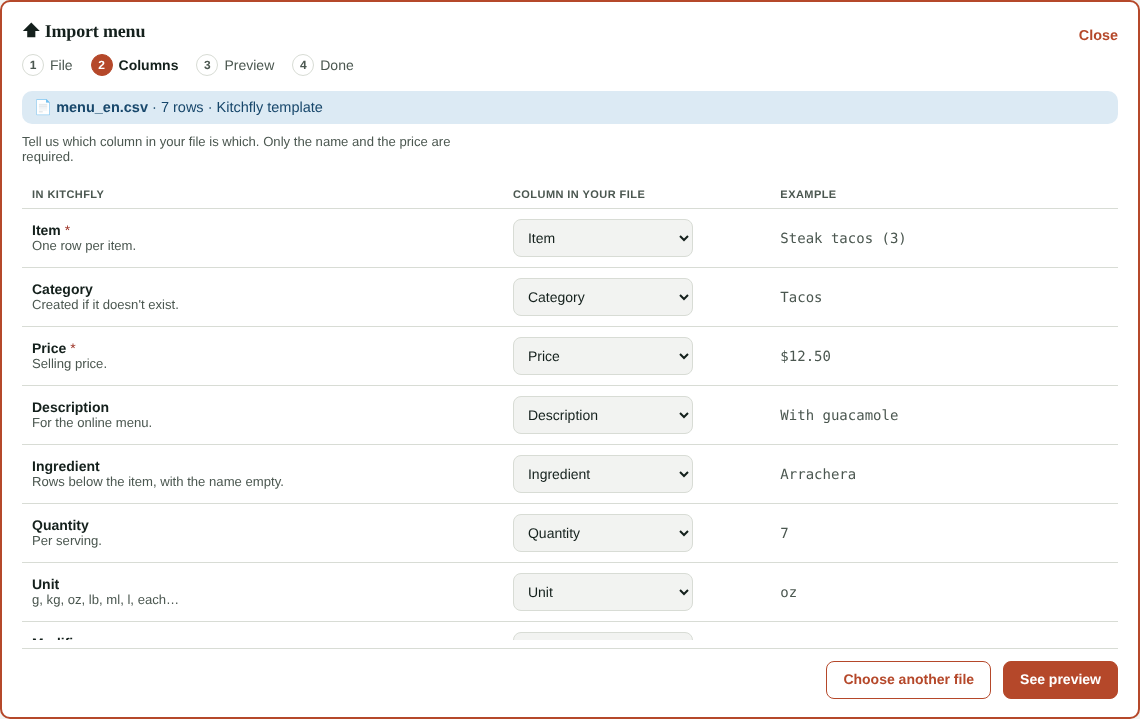
2. Check the columns
If Kitchfly recognizes the file (the template or Square), you'll see We recognized the columns. With another file, choose which column in your file is the Item and the Price (both required) and, if you have them, the Category, Description, Ingredient, Quantity, Unit and Modifiers. On the right you see an example of what each column holds.
3. Preview
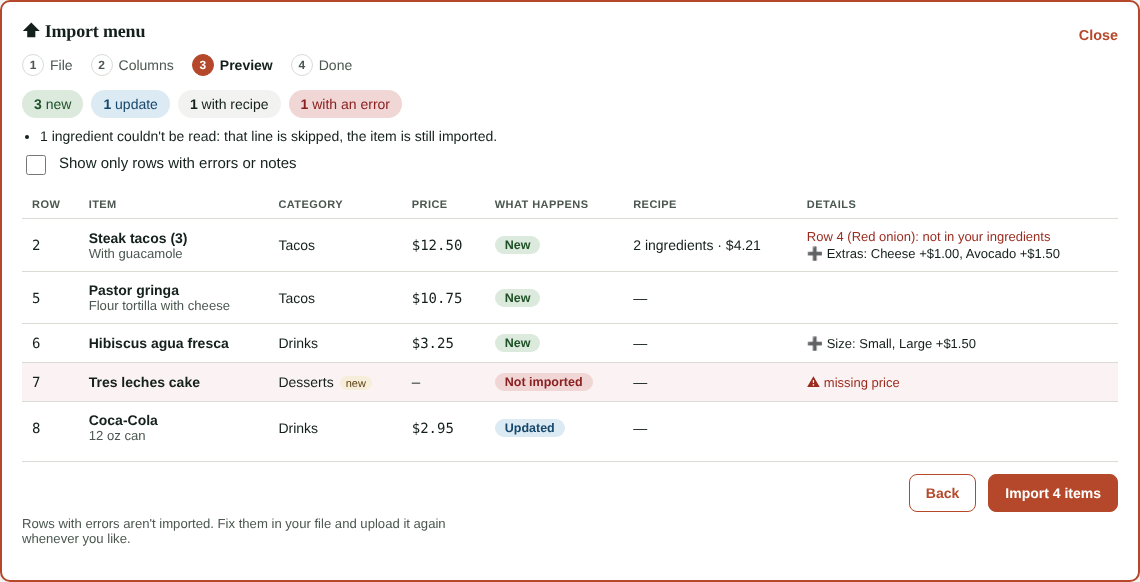
Before importing you see, row by row, what will happen:
- New: the item is created.
- Updated: there's already an item with that name. Its price, category and description change; its recipe isn't touched. That's how you update prices in bulk with a file.
- Not imported: the row has an error (for example, missing price). The rest are still imported.
You'll also see the categories and modifier groups that will be created and the ingredients that couldn't be read. Check Show only rows with errors or notes for a quick review.
4. Import
Tap Import N items. The items are on the POS right away. Open each recipe to finish its ingredients and see its cost.
How to fill in the template
| Item | Category | Price | Description | Ingredient | Quantity | Unit | Modifiers |
|---|---|---|---|---|---|---|---|
| Al pastor tacos (3) | Tacos | 9.50 | With pineapple and cilantro | Al pastor pork | 5 | oz | Extras: Cheese +1.00, Avocado +1.50 |
| Corn tortilla | 3 | each | |||||
| Horchata | Drinks | 3.50 | Size*: Small, Large +1.50 |
- One row per item. To build its recipe, add one row per ingredient below it with the item name empty.
- Ingredient: use the name exactly as it is in your Ingredients (or a sub-recipe's name). If it doesn't exist, that line is skipped; add it and finish the recipe later.
- Quantity and Unit: per serving. Kitchfly converts to the ingredient's use unit: g, kg, oz, lb, ml, l, each…
- Price: with or without $.
- Modifiers (optional):
Group: Option +price, Option; Another group*: …- ; separates groups, : separates the group from its options and , separates options.
- +1.50 is the extra price (nothing means the option is free).
- A * after the group name makes it required, with a single choice (like a size).
Modifier groups are shared
If two items use a group with the same name (for example Extras), it's the same group for both. If prices differ, give them different names (Taco extras, Drink extras).
From Square
- Each item becomes a menu item, with its category, description and price.
- If an item has several variations (Small, Large), it's created at the lowest price with a required modifier group for the others and their price difference.
- Archived items aren't imported, and variable-price items show as errors so you can set a price.
- If an item uses a modifier set that already exists in Kitchfly with the same name, it's linked. If it doesn't exist, we let you know so you can create it in Modifiers and import again.