Invite your team
Each person on your team gets their own login with a role. The role decides what they see.
| Role | What they see when they log in |
|---|---|
| Admin | The full system: costs, recipes, inventory, reports, team, settings and billing. |
| Chef | The Kitchen Display only. See Kitchen display. |
| Staff | The POS only, to take and close orders. See Take orders in the POS. |
Add a team member
- Go to Team and scroll to Add team member.
- Fill Name, Email, Password and Role.
- Click Add member.
Share the email and password with that person. They log in at app.kitchfly.com like you do.
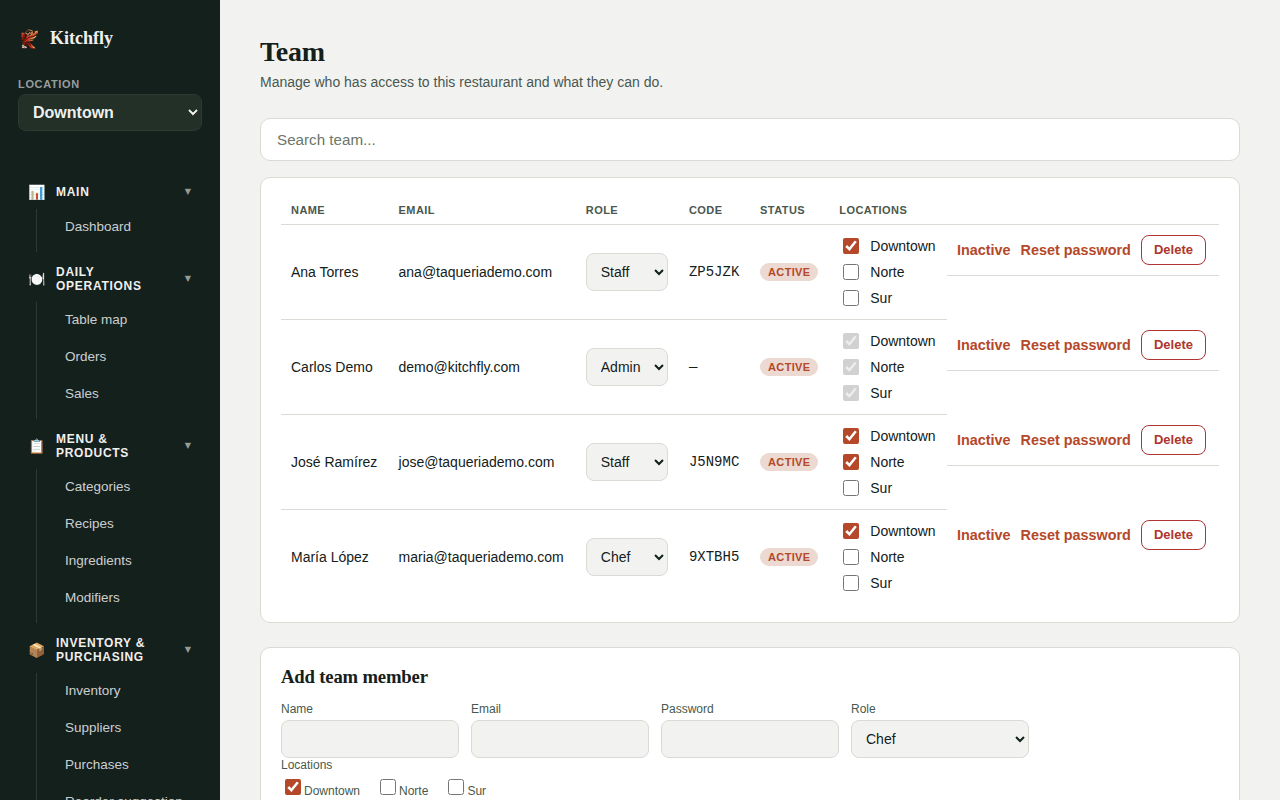
Employee code
Chef and Staff users get a short Code (shown in the list). On the login screen they can choose Log in with employee code and type only that code. It's faster on a shared tablet at the counter or in the kitchen.
Keep codes private
The code is enough to log in as that person. If someone leaves, mark them Inactive or Delete them.
PIN sign-in
On a shared register or kitchen tablet, it's best for everyone to sign in with their own PIN. See PIN sign-in on the register and kitchen.
Time clock and pay
Your team clocks in, takes breaks and clocks out with the ⏱ button in the POS or kitchen display. Set each person's hourly rate or salary in Hours & labor → Pay to see your labor cost. See Time clock and labor.
Manage members
From the list you can:
- Change the Role with the selector.
- Mark someone Inactive: they can't log in, but their history stays.
- Reset password if they forget it.
- Delete the user.
Next: Take orders in the POS →