Set up modifiers
Modifiers are the options a server picks when adding a dish in the POS: size, extras (extra cheese +$1.00) or items to remove (no onion). They change the price and, if you link an ingredient, the inventory and food cost too.
1. Create a group
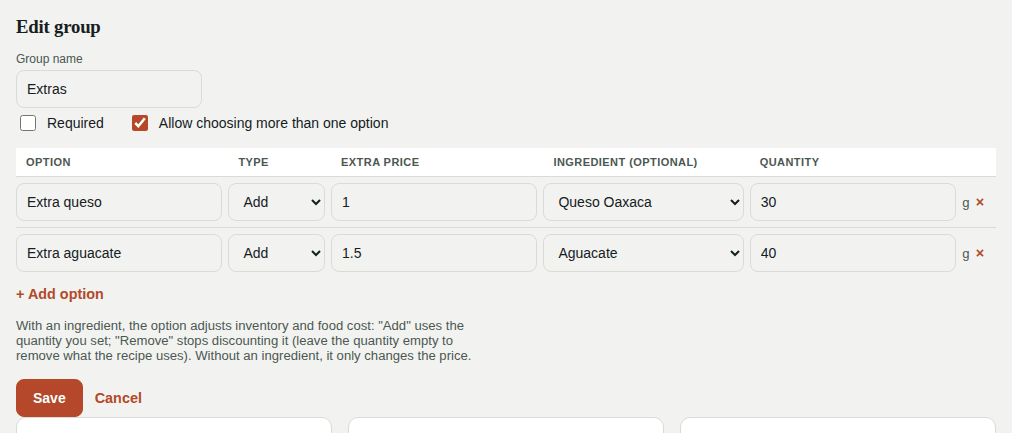
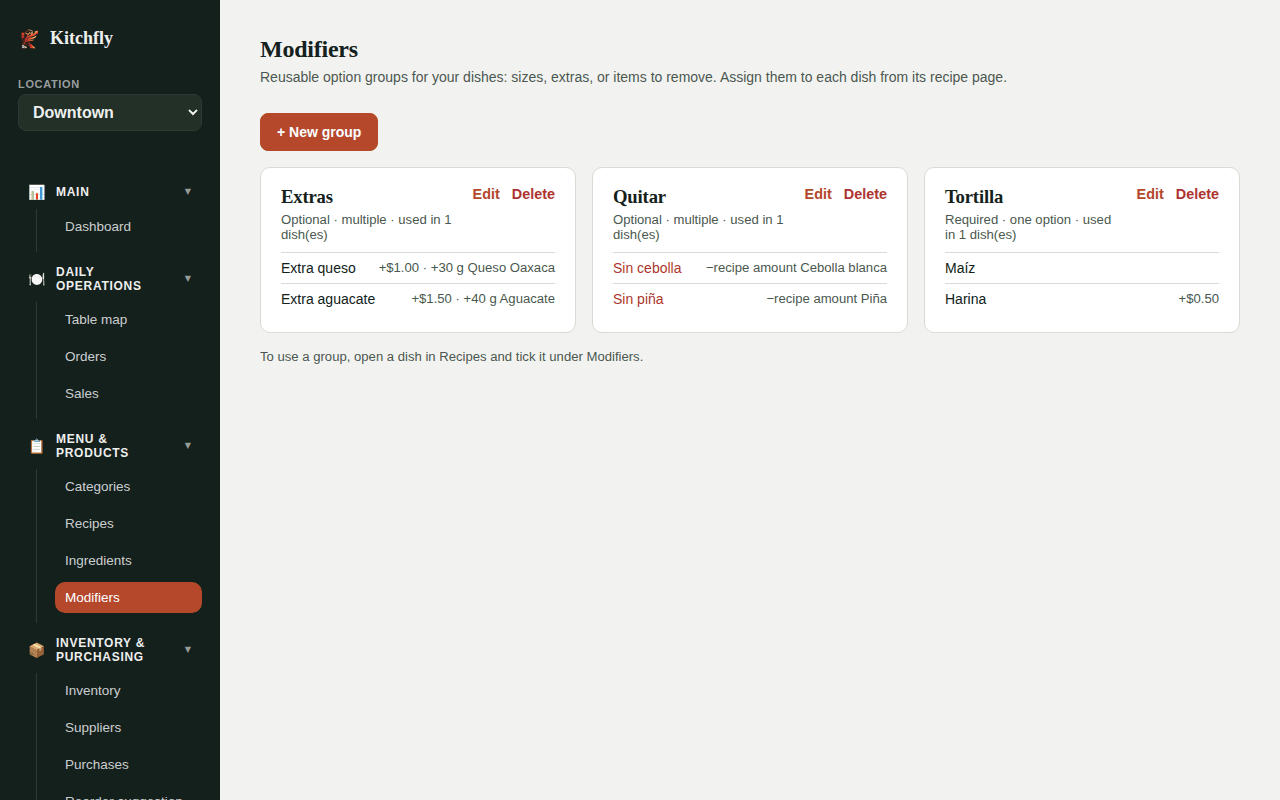
Go to Modifiers → + New group:
| Field | Example |
|---|---|
| Group name | Extras |
| Required | Tick it when the server must choose (e.g. Size or Tortilla). |
| Allow choosing more than one option | On for Extras, off for Size. |
Then add the options:
| Column | What it does |
|---|---|
| Option | The name the server sees: Extra cheese. |
| Type | Add or Remove. |
| Extra price | Added to the dish price. Leave it empty for $0. |
| Ingredient (optional) | Links the option to inventory. |
| Quantity | In the ingredient's use unit (e.g. 30 g). For Remove, leave it empty to remove what the recipe uses. |
Click Save.
How inventory is affected
- Extra cheese (Add, 30 g of cheese): each order discounts 30 g more cheese and its cost is added to the dish cost.
- No onion (Remove, onion, quantity empty): the raw onion from the recipe is no longer discounted. Onion that's inside a sub-recipe (like a salsa) is still discounted, because it's still used.
- An option without an ingredient only changes the price.
2. Assign groups to a dish
Groups are reusable: create Extras once and use it on many dishes.
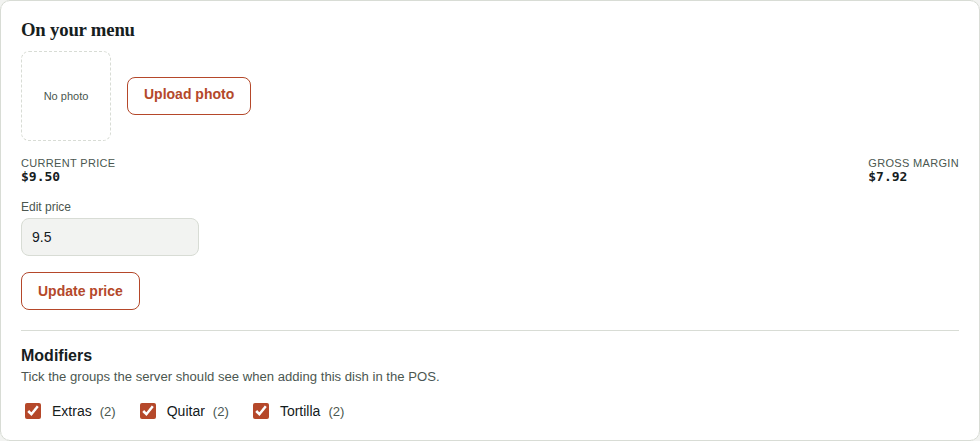
- Open the dish in Recipes (it must be published).
- In On your menu → Modifiers, tick the groups that apply. It saves automatically.
3. In the POS
When the server taps a dish with modifiers, a window opens with the options. Required groups must be answered before adding, and the price updates as options are selected.
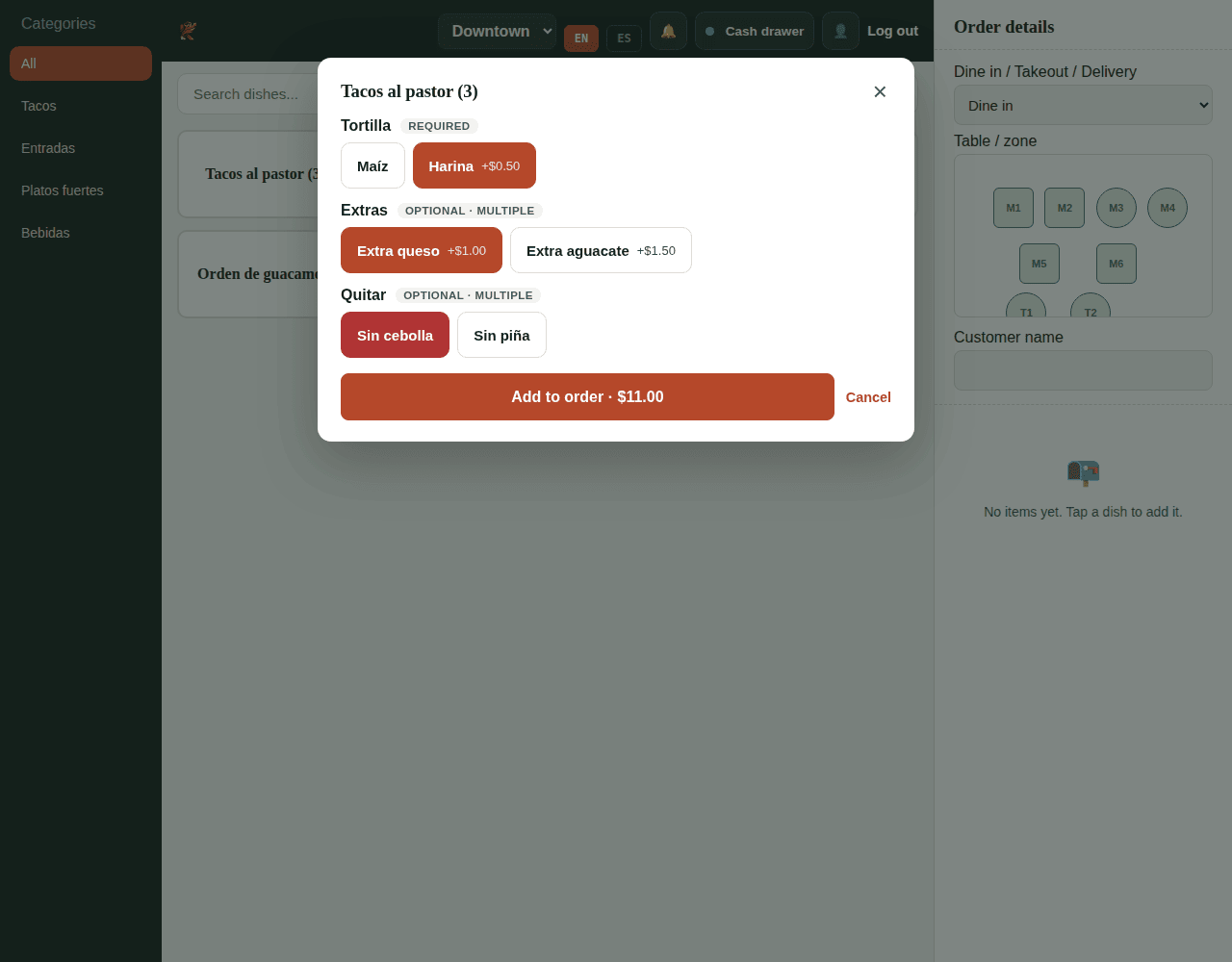
The kitchen sees the options under the dish: + Extra cheese, and in red ✕ No onion.
Changes don't affect past orders
Each order keeps the options exactly as they were when it was taken. You can edit prices or delete a group without changing old orders.