Prep list
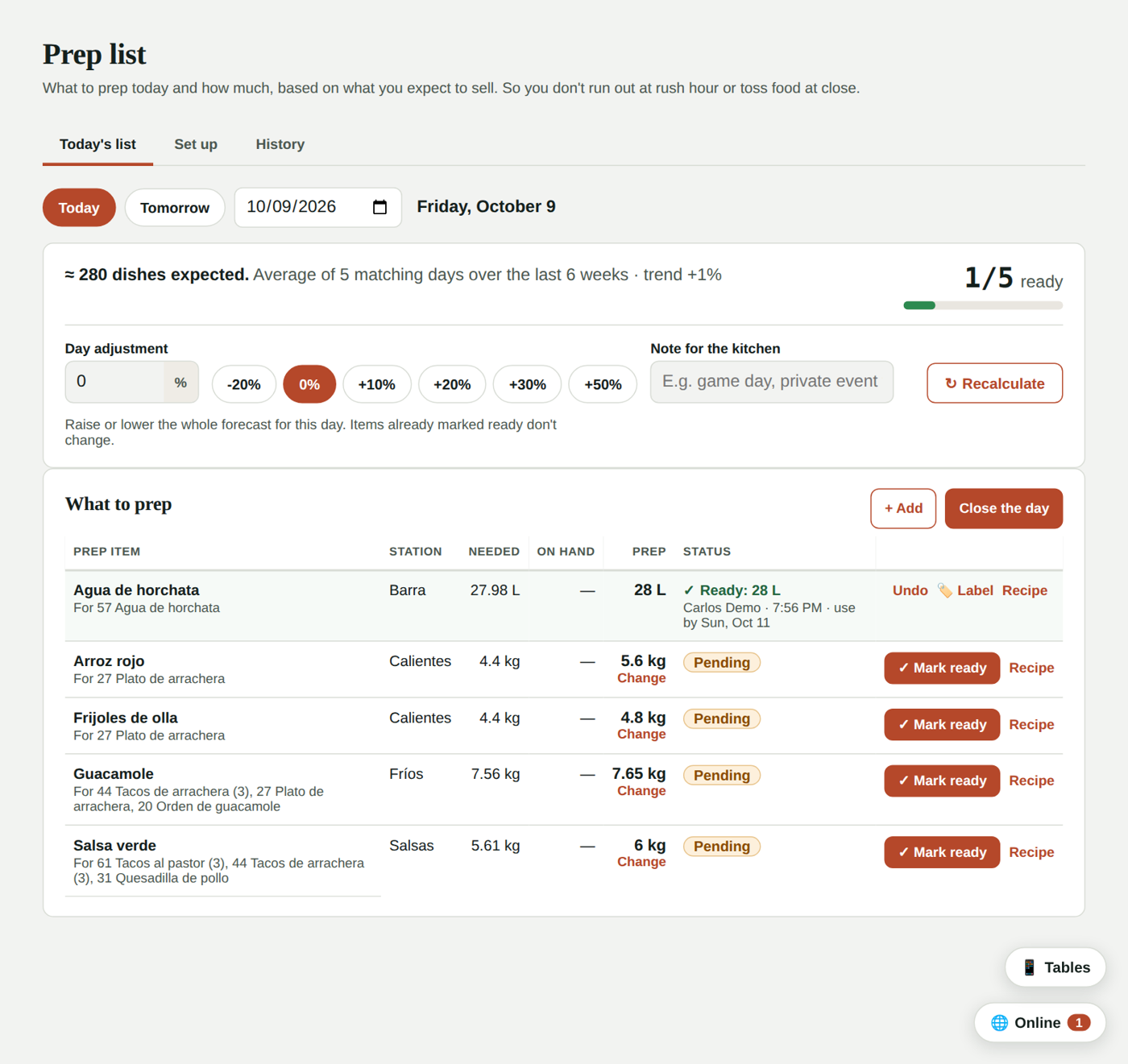
The prep list (Pro plan) tells you each day what to prep ahead and how much: salsas, guacamole, rice, beans, aguas frescas… It's based on what you expect to sell, so you don't run out at rush hour or toss food at close.
The admin sees it in Daily operations → Prep list. The kitchen sees it on the kitchen display with the 📋 Prep button (or ⋮ → Prep list).
1. Choose what gets prepped
The list comes from your sub-recipes. In Prep list → Set up:
- Turn on Prepped for the ones made ahead. The sub-recipe needs its total yield (for example, the salsa verde yields 900 g).
- Batch: prepped in multiples of this, like a 2 L pot. Empty = the exact amount.
- Minimum: always have at least this much, even if the forecast is low.
- Lasts: how many days it lasts once made. It's printed on the label, and expired leftovers don't count as on hand.
- Station: Salsas, Cold, Hot, Bar… Each cook filters their own.
- Prepped: Same day, or 1 day before (or 2 or 3) for marinades or soaking beans. See Prepping ahead.
- Adjustment: raise or lower just this item, for example −10% if there's always some left.
- Tap Save.
2. How it's calculated
For each dish, Kitchfly takes the average for the same weekday over the last 6 weeks (Tuesdays don't look like Saturdays) and adds:
- the trend of the last two weeks (capped so it doesn't overreact),
- that day's reservations above normal,
- what's already ordered for that day: scheduled orders and catering,
- the day adjustment you set.
Then it breaks each dish down through its recipe to the sub-recipes, adds a safety buffer (10%), respects the minimum, subtracts what was kept from yesterday and rounds up to the batch.
Above the list you'll see the explanation ("≈ 280 dishes expected…"), and on each prep item which dishes it's for.
In Set up → Calculation the admin can change the buffer, how many weeks are averaged and how many dishes each booked guest adds.
3. Adjust the day
Game day, an event, rain? In Day adjustment raise or lower the whole forecast (for example +20%), write a note for the kitchen and tap Recalculate. You can prepare tomorrow's list today.
You can also Change the amount for one prep item or Add something that isn't on the list.
4. In the kitchen
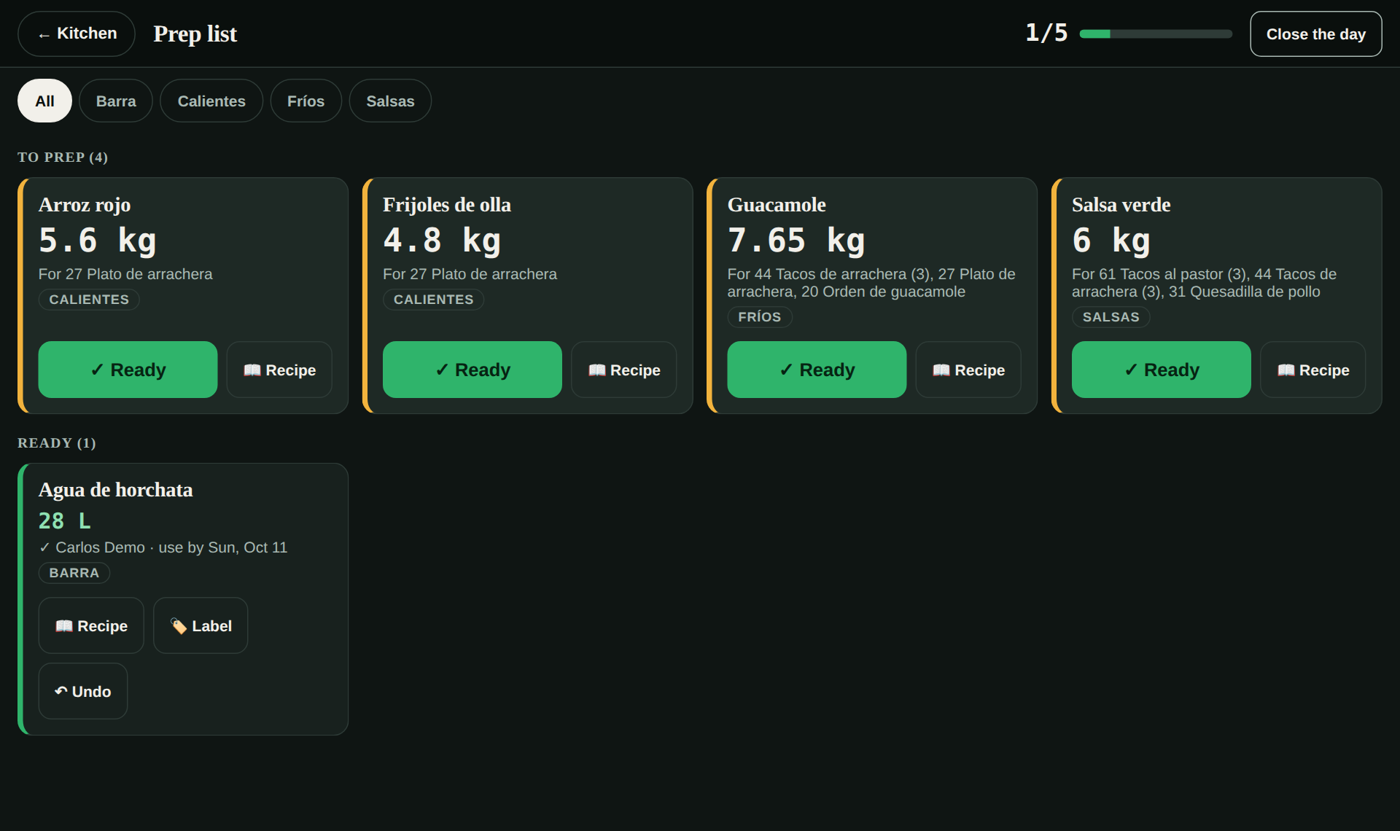
- Each cook picks their station.
- 📖 Recipe shows the ingredients scaled to today's amount.
- When it's done, tap ✓ Ready, enter how much you made and, if you like, print the label for the container: name, amount, who made it, date, use-by date and allergens. It prints on the kitchen printer.
- The admin sees progress live (3/5 ready).
5. Close the day
At close, tap Close the day and count what's left over of each prep item:
- Keep: counts toward tomorrow's list, if it hasn't expired.
- Toss: logged in Waste at the cost of its ingredients, so your inventory stays accurate.
Prepping ahead
If something is prepped the day before (marinated meat, soaking beans), set Prepped: 1 day before in Set up. It shows on today's list in its own section, Ahead of time, for tomorrow, with the amount sized from tomorrow's forecast (including its adjustment and reservations).
It won't show up again to prep the next day. When you close that day, its leftovers are counted.
Missing ingredients
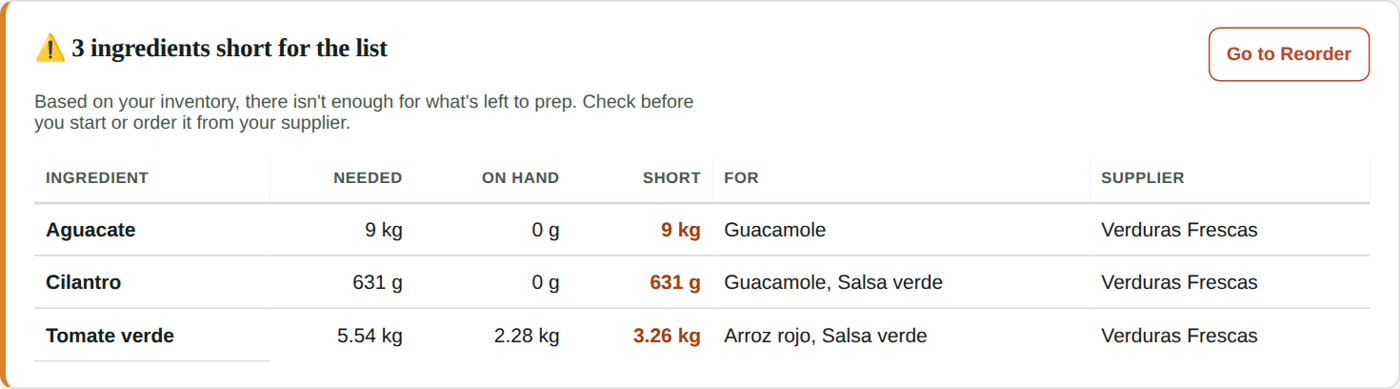
Before you start, Kitchfly checks whether your inventory covers what's left to prep. If not, above the list you'll see Ingredients short for the list: how much is needed, how much you have and how much is missing, which prep item it's for and your supplier. From there you can go to Reorder.
Accuracy and suggestions
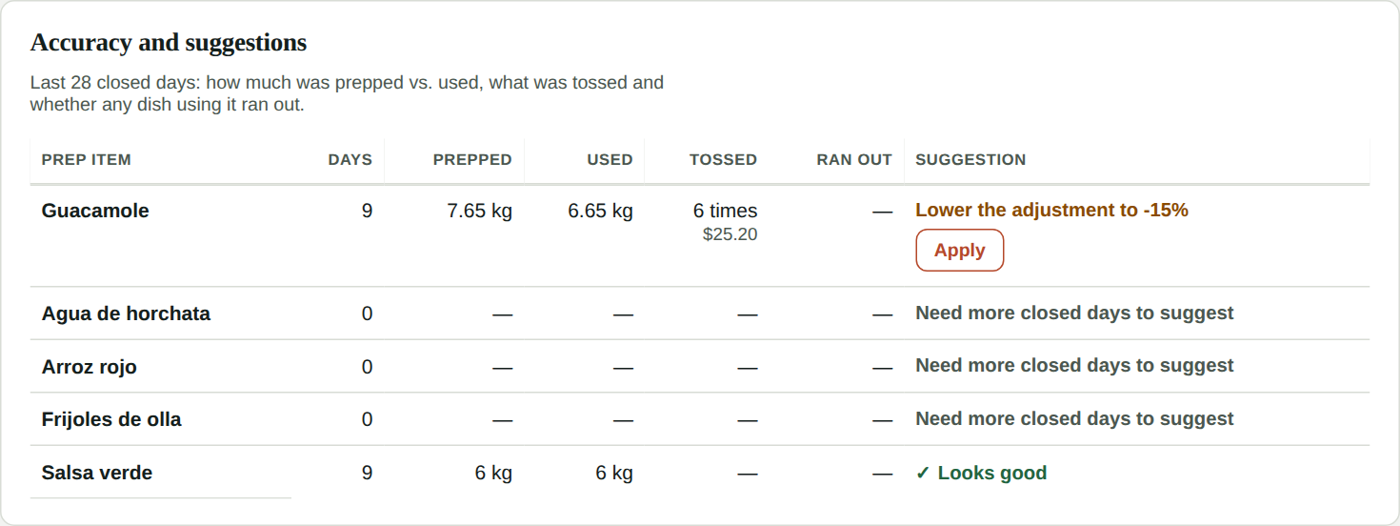
In History & accuracy you see, for the last 28 closed days, how much of each item is prepped vs. used, how many times it was tossed (and what it cost) and how many times a dish using it ran out (when it was marked 86'd).
From that Kitchfly suggests a specific change, for example Lower the adjustment to −15% or Raise the minimum to 4 kg. Tap Apply and it's used from the next calculation. It needs at least 3 closed days.
Prepped-item inventory (advanced)
By default your inventory is deducted when each dish is sold. In Set up → Prepped-item inventory the admin can have Kitchfly also track how much of each prep item there is:
- When you mark it Ready, the raw ingredients are deducted and the prepped item goes into its own inventory.
- When you sell, it comes out of the prepped item (the salsa on the taco), not its raw ingredients.
- The count at close adjusts prepped items to what's really there. What's tossed is logged in Waste without deducting the raw ingredients again.
Turn it on at the start of the day, before prepping: whatever was kept at the last close moves into prepped inventory. If you turn it off, whatever is there goes back to its raw ingredients. In History & accuracy you'll see how much of each item there is and its latest movements.
History
In Prep list → History & accuracy you also see the last 14 days: how many items were prepped, each day's adjustment and how much money was tossed, with what gets tossed most. If something keeps getting tossed, lower its minimum or batch.