Sales reports
Finance & Costs → Reports shows how your restaurant sold over any period: which hours and days sell the most, how much each server sold and earned in tips, how your guests pay, which dishes make you the most profit, and how much you lose to waste by comparing actual vs. theoretical food cost. Only the admin can see them.
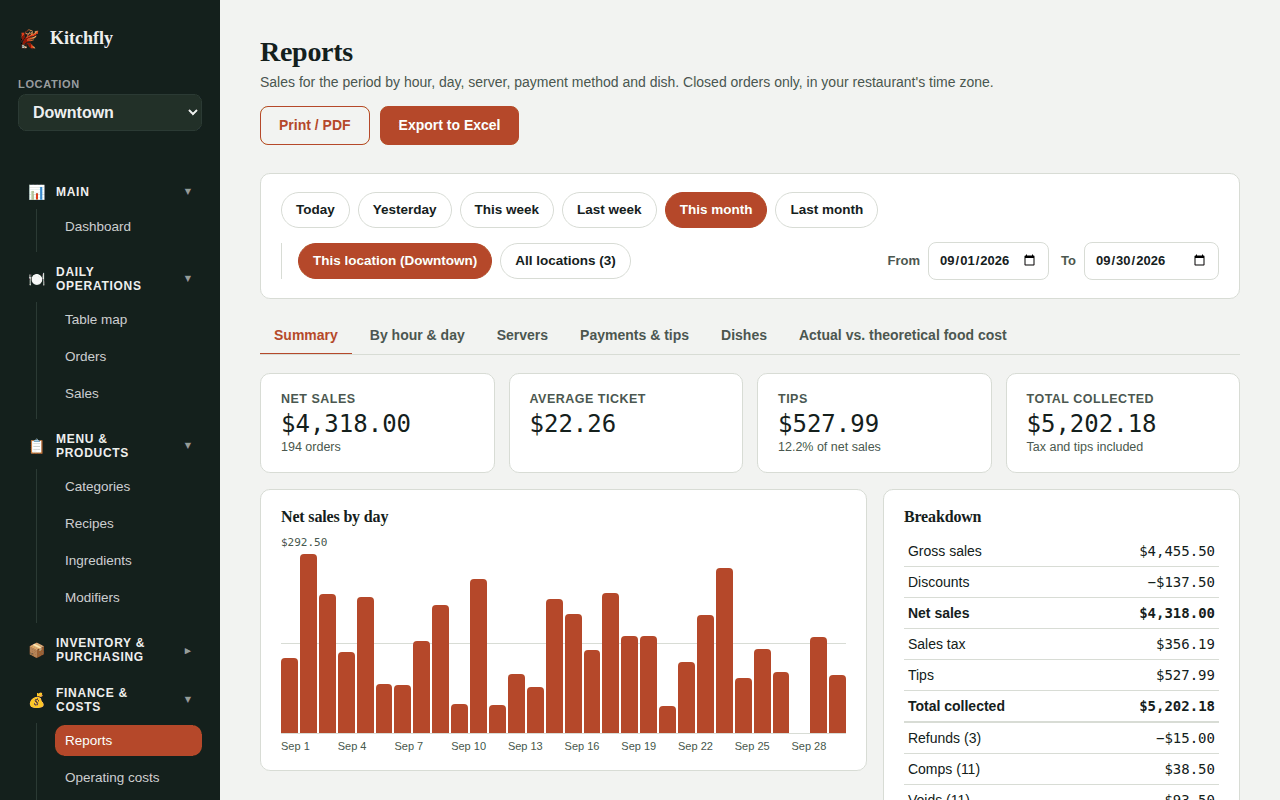
Pick the period
Use the Today, Yesterday, This week, Last week, This month or Last month shortcuts, or type dates in From and To. The report updates on its own. Weeks start on Monday. The longest period is 400 days.
What's counted
Only closed orders, by the date and time they were closed, in your restaurant's time zone (change it in Settings → General). Open and cancelled orders don't appear.
The tabs
Summary
The key figures for the period and a net-sales-by-day chart. Hover (or tap) any bar to see the amount and the number of orders.
| Figure | What it means |
|---|---|
| Gross sales | What the dishes added up to, before tax. Comps and voids count as $0. |
| Discounts | Discounts applied to orders. |
| Net sales | Gross sales minus discounts. No tax, no tips: what you actually sold. |
| Average ticket | Net sales divided by the number of orders. |
| Sales tax | Tax collected. |
| Tips | Tips for the period (not business revenue). |
| Total collected | What came in as cash and card: net sales + tax + tips. |
| Refunds | Money given back. Counted on the day the refund was made, not the order's day. |
| Comps / Voids | How many there were and their value at menu price. They don't add to sales. |
| Manually logged sales | Sales entered on the Sales screen, outside the POS (if you use it). |
By hour & day
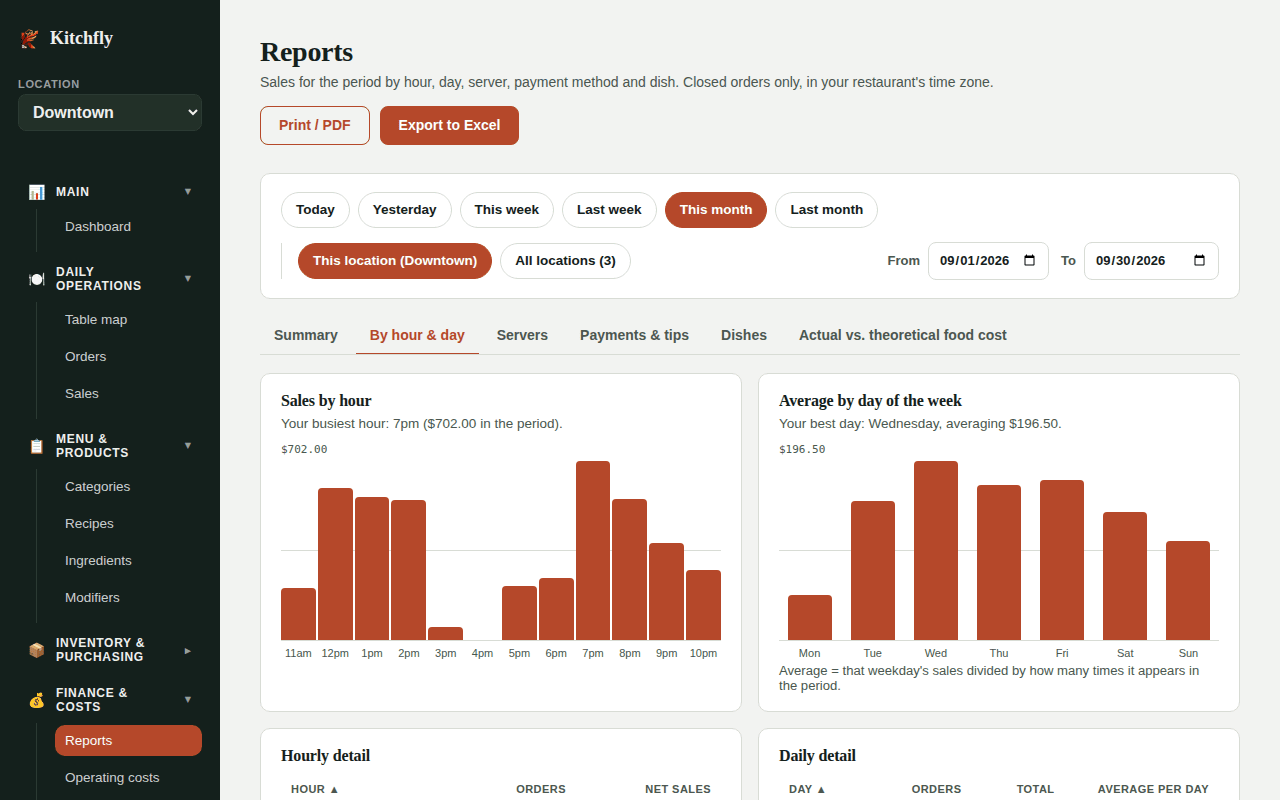
- Sales by hour: which hours close the most sales. Kitchfly calls out your busiest hour.
- Average by day of the week: how much you sell on an average Monday, Tuesday, and so on. It's a true average: if the period has 5 Fridays, Friday sales are divided by 5. That tells you your best day.
Use it to decide how many people to schedule on each shift and when to prep.
Servers
For each server: orders, net sales, average ticket, tips, discounts, comps and voids (value and count). Each order counts for the server who opened it. Click a column title to sort.
Payments & tips
- Sales by channel: how much you sold in store, through online ordering and with Table QR. It shows up when you use either one.
- By payment method: how much was collected in cash and by card (tax included, tips excluded), how many payments, and how much was refunded for each. If a bill was split, each payment counts under its own method.
- Tips by server, with the percentage of their sales.
- Discounts applied: which ones were used, how many times and for how much.
- Adjustments: totals for discounts, comps, voids and refunds. Full detail for each one (who requested and who approved it) is in Orders → Adjustments.
Dishes
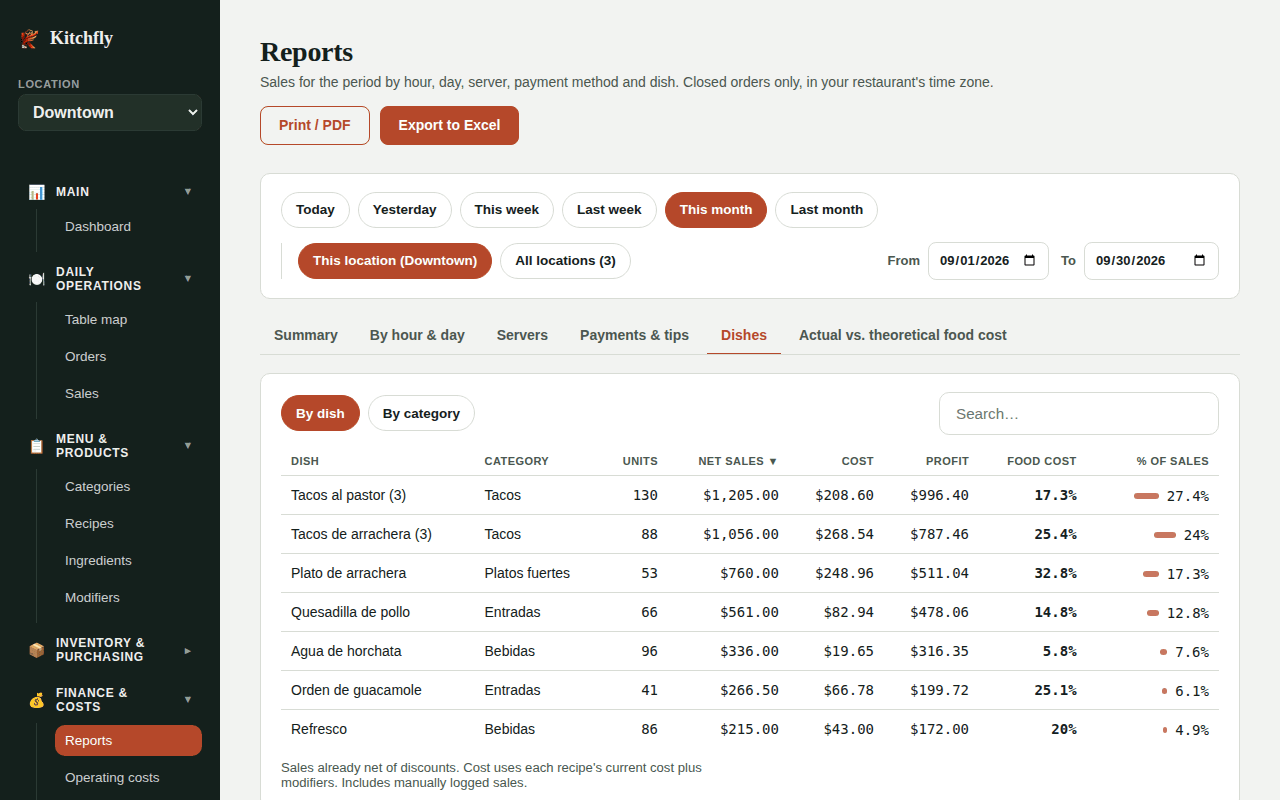
For each dish (or by category with By category): units, net sales, cost, profit, food cost and % of sales. Use the search box to find a dish.
- Sales already have the order's discounts spread across them.
- Cost uses each recipe's current cost, plus its modifiers. If you look at an older period and your purchase prices have changed since, cost is calculated with today's prices.
Actual vs. theoretical food cost
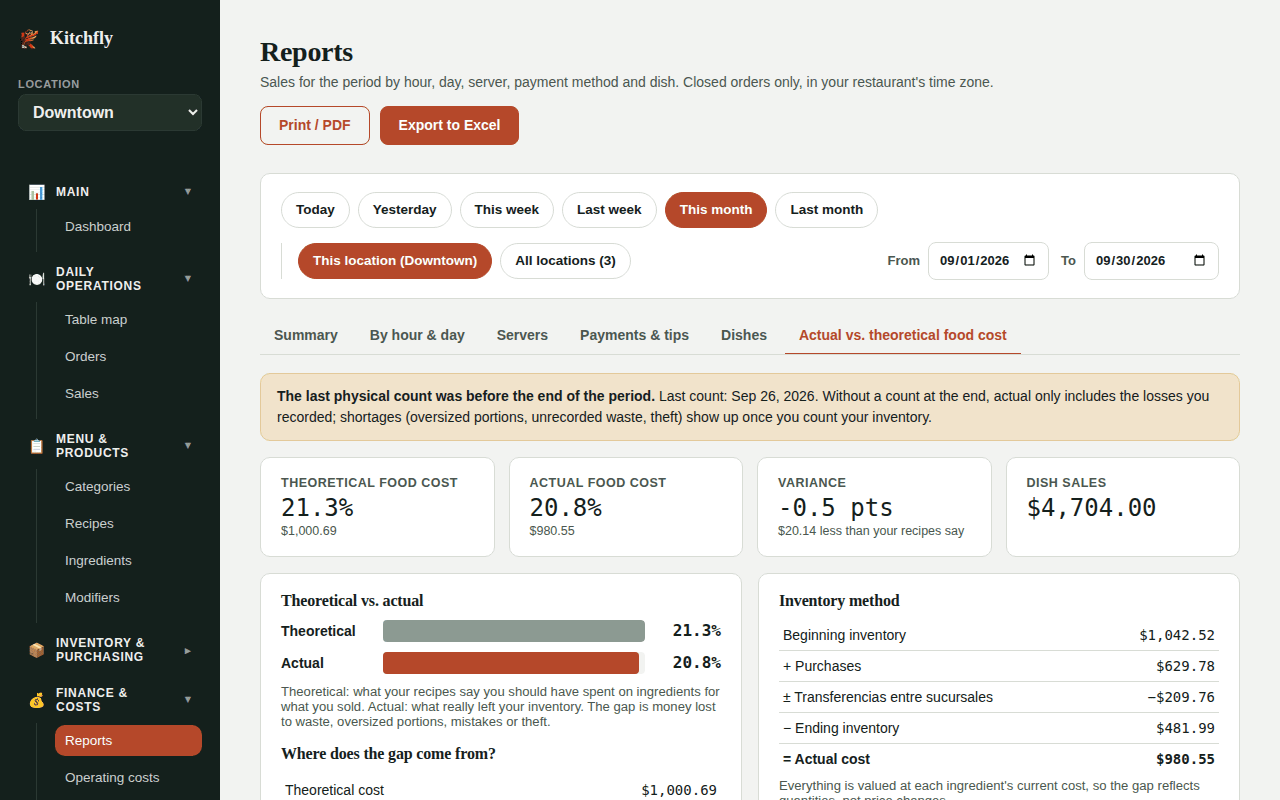
Compares what you should have spent on ingredients with what you actually spent:
- Theoretical: what your recipes say you should have used for what you sold (modifiers and comps included, since they're cooked too).
- Actual: what really left your inventory: beginning inventory + purchases − ending inventory.
- Variance: how many food cost points (and dollars) went over. That's money lost to waste, portions bigger than the recipe, kitchen mistakes or theft.
The tab shows:
- Where does the gap come from? Theoretical cost, plus the differences from your physical counts (what was short or extra when you counted), plus your recorded losses by reason. Voided dishes that had already been prepared count here as a loss.
- Inventory method: the same result calculated as beginning inventory + purchases − ending inventory.
- By ingredient: theoretical and actual usage of each ingredient, in its unit and in dollars, sorted by the largest variance. Start at the top of the list: that's where the money is.
Do a physical count at the end of the period
Kitchfly keeps your inventory up to date with every sale, purchase and loss, but only a physical count reveals what was lost without being recorded. If you didn't count at the end of the period, actual only includes the losses you recorded, and the tab warns you. Best practice: count your main ingredients every week or at month-end, and review this report for that same period.
How it's valued
Everything (theoretical, actual and inventories) is valued at each ingredient's current cost. That way the variance reflects quantities, not price increases. To see what you paid for purchases, use Purchases or QuickBooks.
If actual comes out lower than theoretical, it's usually because a recipe calls for more than you really use, a purchase was entered twice, or the count found more than expected. Check the recipes for ingredients with a negative variance.
Labor
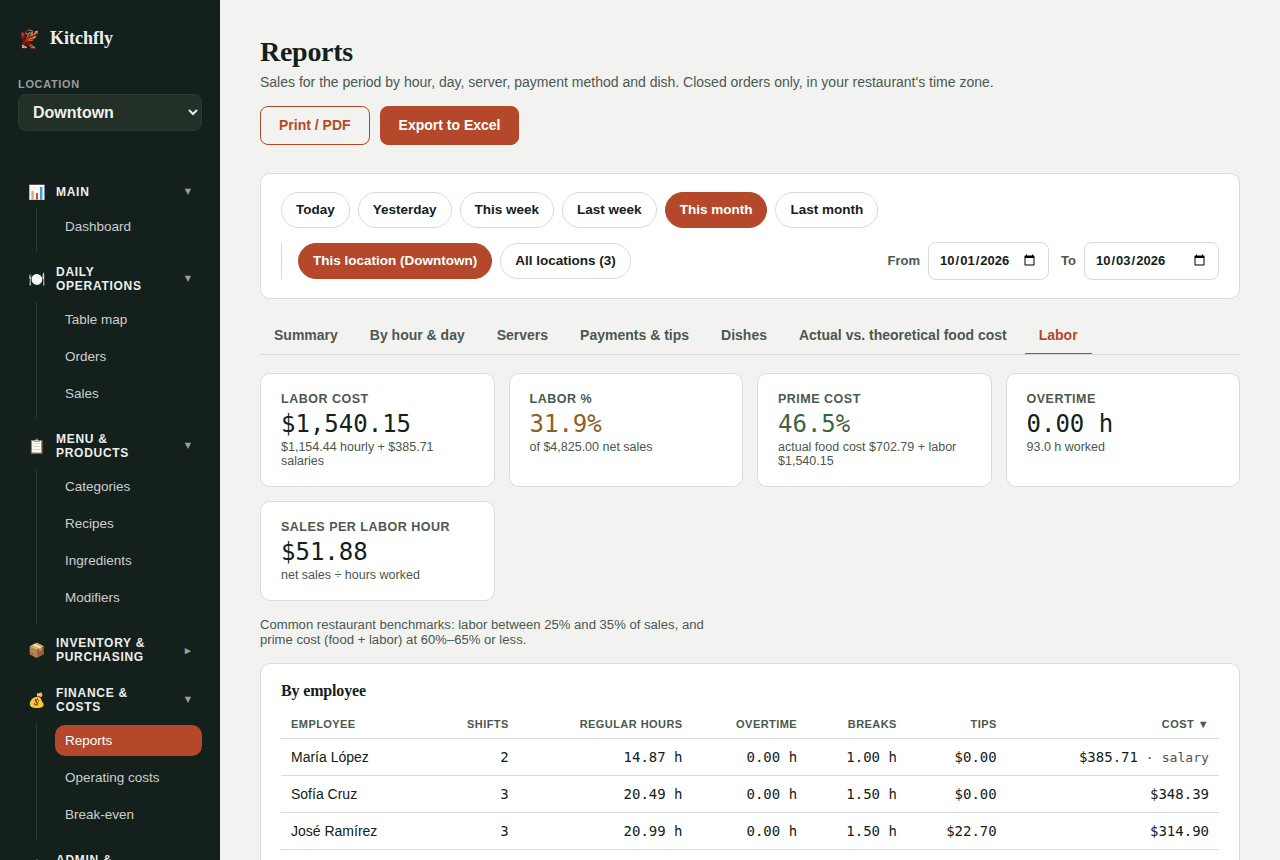
Your team's hours (from the time clock) against your sales for the period:
- Labor cost, labor % and prime cost (food cost + labor).
- Overtime and sales per labor hour.
- Tables by employee and by day, and the chart of sales per labor hour for each hour of the day.
To fix shifts or export for payroll, go to Hours & labor.
All locations
If you have several locations, This location and All locations buttons appear at the top right. With All locations you see the whole company for the period you pick:
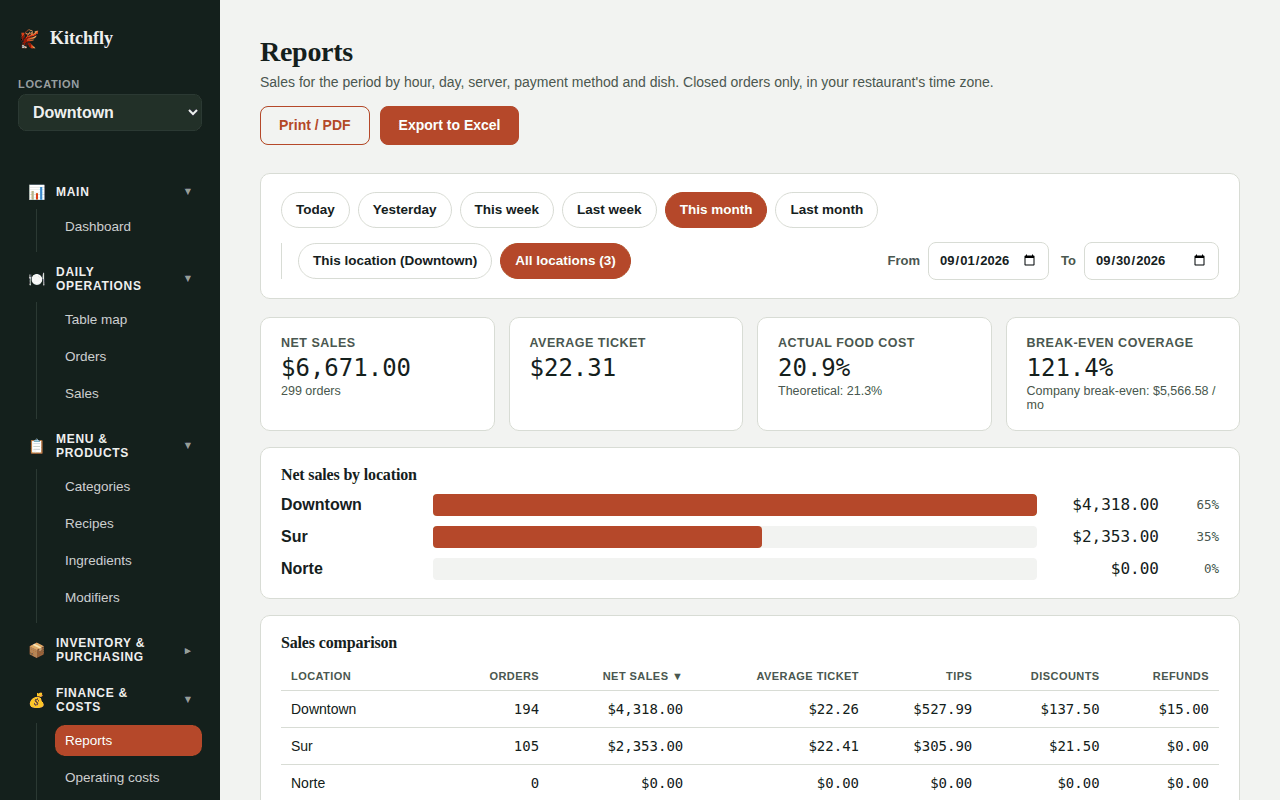
- Company totals: net sales, orders, average ticket, actual (and theoretical) food cost, and break-even coverage.
- Net sales by location, with each location's share.
- Sales comparison: orders, sales, average ticket, tips, discounts and refunds for each location, with the total.
- Actual vs. theoretical food cost by location, with shrinkage in dollars, so you can see which location loses the most.
- Break-even point by location: fixed costs, monthly break-even, monthly sales pace (period sales scaled to 30 days) and coverage (pace ÷ break-even). Above 100%, the location covers its fixed costs.
Export to Excel in this view downloads a Consolidated sheet with the comparison, plus a summary sheet for each location. Only the locations you have access to are included.
Export to Excel
Export to Excel downloads an .xlsx file with one sheet per report: Summary, By hour, By weekday, Daily, Servers, Payments, Dishes, Categories, Food cost and Food cost by ingredient. It comes in the language you use in the app, with currency formatting and total rows that recalculate if you edit the numbers. Open it in Excel, Google Sheets or Numbers, or send it to your accountant.
Print or save as PDF
Print / PDF prints all sections, one per page, without the sidebar. For a PDF, choose Save as PDF as the printer in your browser's print dialog.
Numbers don't match another screen?
- The Dashboard counts every sale in the calendar month; Reports count closed orders in the period you pick.
- The cash drawer report goes by shift, not by day.
- Check the time zone in Settings → General: an order closed at 11:30 pm can land on a different day if the time zone is wrong.