Create your account
Kitchfly includes a 14-day free trial, no card required. You only need an email and a few minutes.
1. Sign up
- Go to app.kitchfly.com and click New here? Create an account.
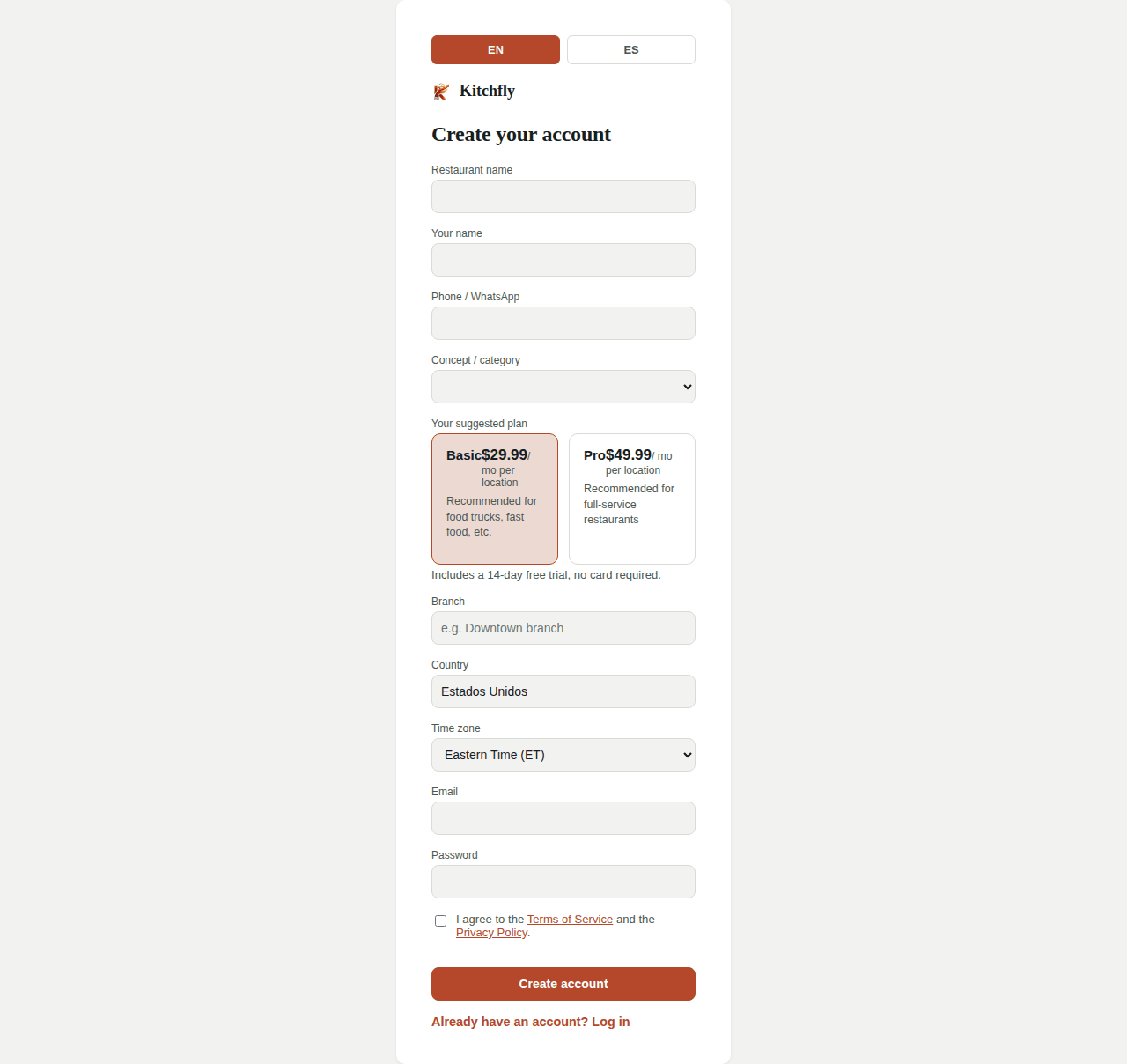
- Fill in the form:
- Restaurant name and Your name.
- Phone / WhatsApp — so we can reach you if something needs attention.
- Concept / category — café, food truck, casual restaurant, bar, fast food or other.
- Your suggested plan — Basic or Pro. You can change it later from My Account.
- Branch, Country and Time zone. The time zone decides when your "day" starts and ends in reports and in QuickBooks, so pick the one where the restaurant is.
- Email and Password — this becomes the Admin login.
- Accept the Terms of Service and the Privacy Policy and click Create account.
EN / ES
Every screen has EN / ES buttons. Each person on your team can choose their own language. Kitchfly emails reach them in that language.
2. Finish setting up
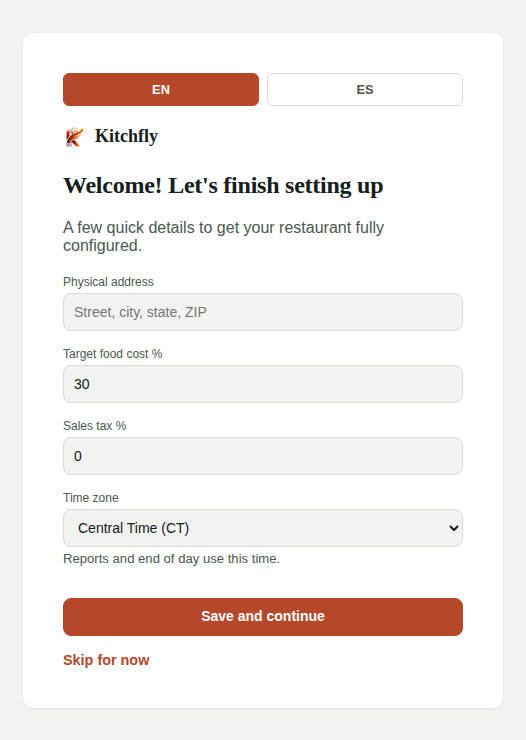
The first time you log in you'll see Welcome! Let's finish setting up:
| Field | What it's for |
|---|---|
| Physical address | Your restaurant's address. |
| Target food cost % | The food cost you aim for (30% is a common starting point). It drives the green / yellow / red indicator on each dish. |
| Sales tax % | Applied automatically to every order closed in the POS. |
| Time zone | Comes from your sign-up; double-check it. Reports and end of day use this time. |
Click Save and continue, or Skip for now and fill it later in Settings.
3. Follow the checklist
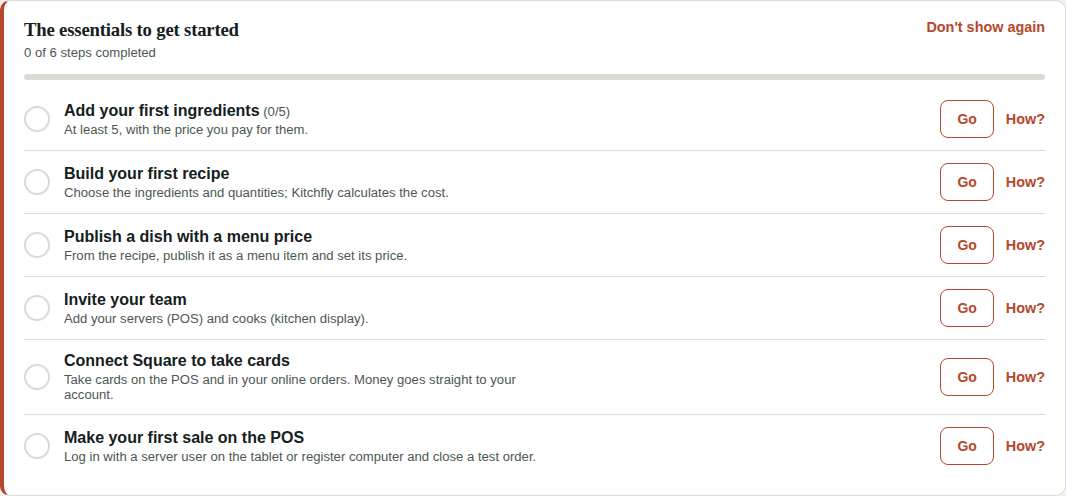
The Dashboard shows a list of steps. Kitchfly ticks each one off automatically as you complete it. Go takes you to the right screen and How? opens the guide for that step.
1. The essentials to get started (everyone):
- Add your first ingredients, build your first recipe and publish a dish with a menu price.
- Invite your team.
- Connect Square to take cards.
- Make your first sale on the POS.
2. Get more out of Kitchfly (shows up once the essentials are done). The steps depend on your type of restaurant:
- Everyone: log your first purchase and set up the register (printer and Windows app).
- Food trucks, fast food and cafés: turn on online ordering.
- Sit-down restaurants, bars and cafés: set up your table map and print your table QR codes. On the Basic plan they show as Pro, with a button to see the plans.
When you're done, or if you prefer not to see it, click Don't show again.
Next: Add your first ingredients →