Online orders
Customers order and pay from their phone on your page order.kitchfly.com/your-restaurant. You accept each order from the POS and it reaches the kitchen as a to-go order like any other: it deducts inventory, counts toward food cost and shows up in reports.
Kitchfly charges no per-order fee. The money goes straight to your Square account (Square charges its usual card processing fee).
It's available on both the Basic and Pro plans.
Turn them on
- Connect Square in Settings → Integrations → Card payments (Square) if you haven't yet.
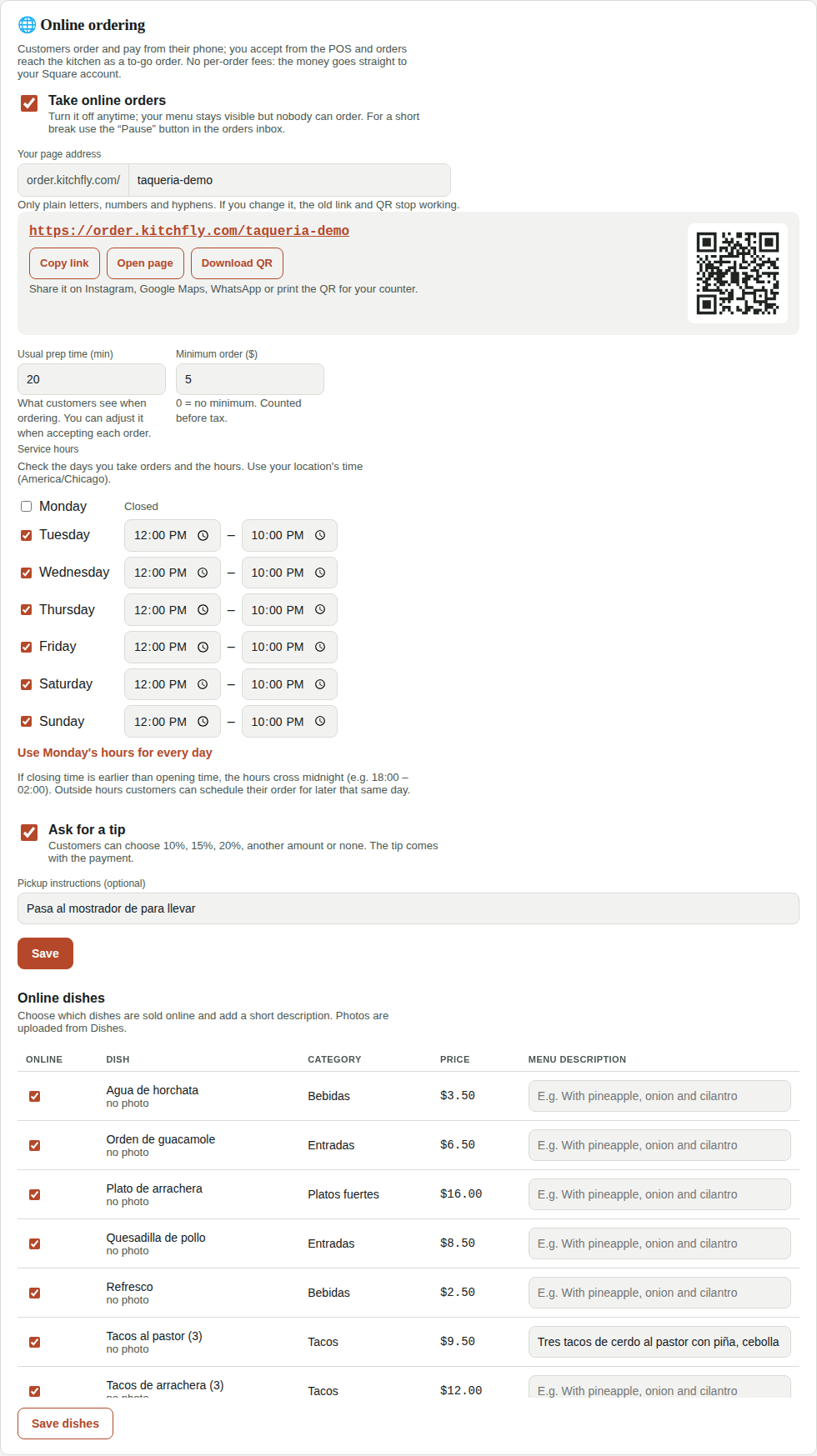
- In Settings → Online ordering:
- Check Take online orders.
- Review your page address (for example
taqueria-demo). - Set your usual prep time.
- Set your service hours: which days you take orders and from what time to what time (you can copy Monday's hours to every day).
- Decide whether to ask for a tip and whether there's a minimum order.
- Add pickup instructions (e.g. "Go to the to-go counter").
- Click Save.
- In Online dishes, uncheck anything you don't want to sell online (for example dishes that don't travel well) and add a short description. Photos come from Dishes.
Each location has its own page, hours and orders.
Share your page
In Settings → Online ordering you'll find the link, Copy link and Download QR. Put it on Instagram, Google Maps (as your order link), WhatsApp, or print the QR for your counter.
What the customer sees
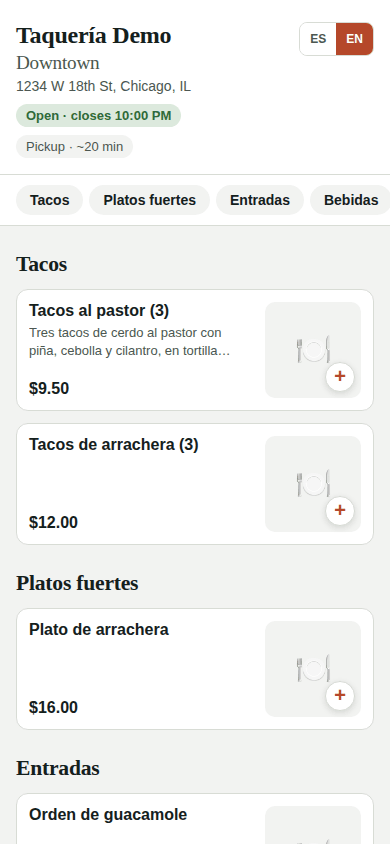
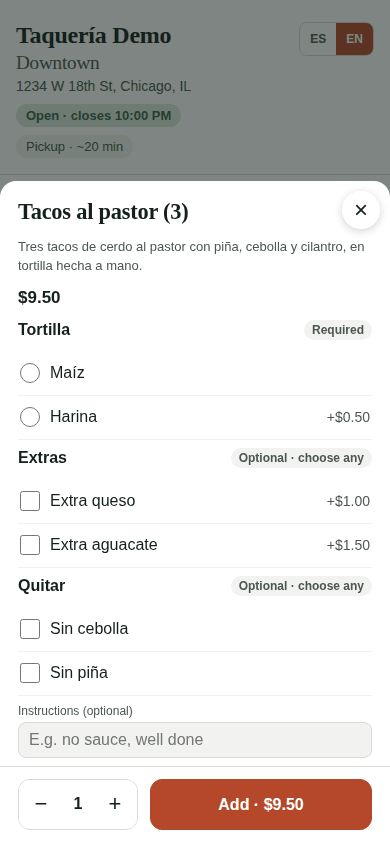
- Your menu with photos, by category, and each dish's options (for example tortilla type or extras).
- They choose as soon as possible or a pickup time later that day. If you turn on scheduled orders, they can also pick another day.
- They enter their name, phone and email, and pay by card.
- They see a page with their order status that updates on its own, and they get emails when you accept it and when it's ready. Emails go out in the language they ordered in.
Authorized first, charged later
At checkout the customer's card is only authorized. The charge happens when you accept the order. If you decline it or don't accept it in time, the authorization is released and they aren't charged.
Receive an order
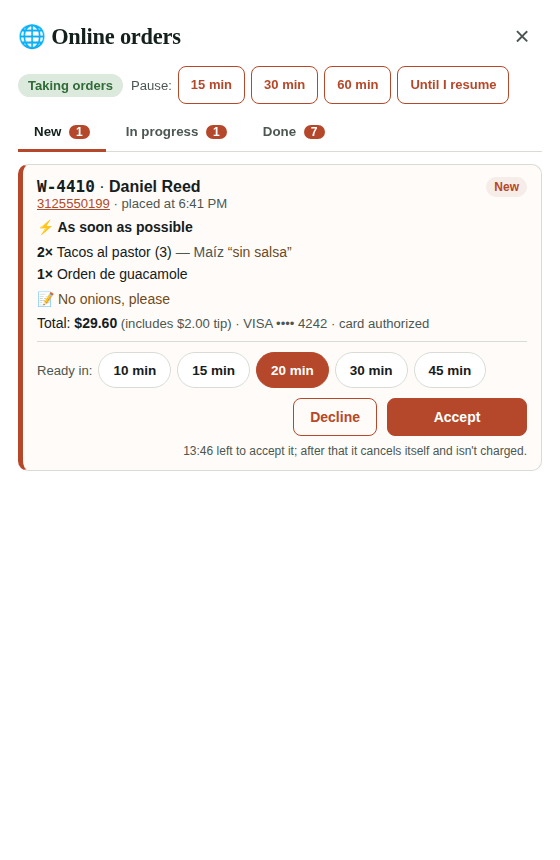
When a new order arrives, the POS (and the admin panel) plays a chime and shows a notice at the top: New online order. While there are orders waiting, the chime repeats every 30 seconds.

- Click View (or the 🌐 Online button: bottom left in the POS, bottom right in the admin panel).
- Review the order: dishes, options, notes, phone and whether it's as soon as possible or scheduled.
- Choose how long it'll take (10, 15, 20, 30 or 45 min).
- Click Accept. The card is charged, the order goes to the kitchen display and the customer gets the estimated time.
Scheduled orders are accepted the same way, but they reach the kitchen on their own, in time for their pickup. To start one early, use Send to kitchen now.
You have 15 minutes to accept
If an order isn't accepted within 15 minutes, it cancels itself, the payment is released and the customer is notified. The time left shows on each order.
Decline an order
Click Decline, choose a reason (We ran out of an item, We're too busy, We're about to close or other) and confirm. The customer sees the reason and isn't charged.
Kitchen and pickup
- On the kitchen display, online orders show 🌐 and the customer's name with the order number (e.g. Daniel · W-4821).
- When the kitchen marks everything ready, the customer gets the Your order is ready! email.
- Not using a kitchen display? Use Mark ready in the orders inbox.
- When the customer picks it up, click Picked up.
Pause orders
Slammed? In the orders inbox use Pause 15, 30 or 60 min or Until I resume. Your menu stays visible but nobody can order. To come back, click Resume.
To turn them off completely, uncheck Take online orders in Settings.
In reports
In Reports → Payments & tips you'll see Sales by channel: how much you sold in store and online. Online orders aren't credited to any server.
FAQ
Can I offer delivery? For now online orders are for pickup.
What if the customer doesn't pick up? The order is already charged. You can refund it from Orders like any other card order.
Can I change my page address? Yes, but the old link and QR stop working.
What do customers see outside my hours? Your menu, with a notice that you're closed and when you open. They can schedule their order for later that day, or for another day if you turn on scheduled orders.
Hours that cross midnight? Set the closing time earlier than the opening time (e.g. 6:00 PM – 2:00 AM).