Menu board
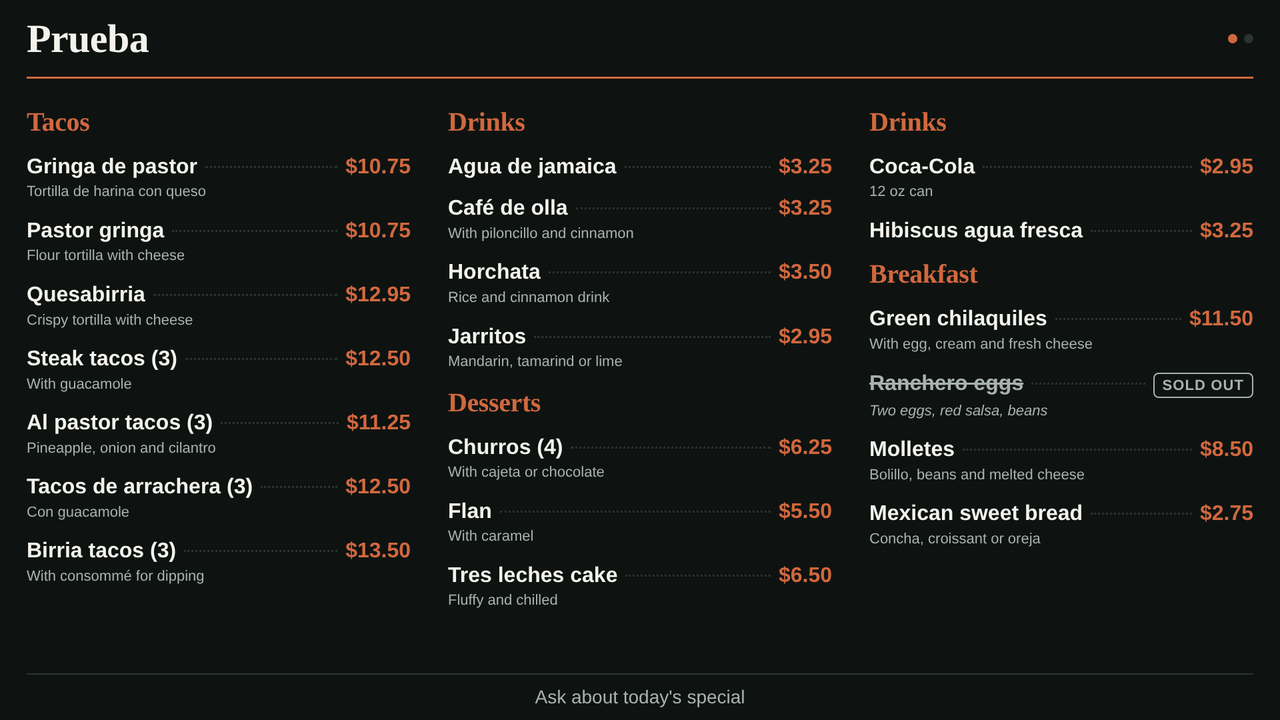
Show your menu on any TV in the restaurant. Prices, sold-out items and promotions update on their own: change something in Kitchfly and the TV shows it within seconds. There's nothing to design or export.
It works on any screen with a web browser: a smart TV, a Fire TV Stick, a Chromecast with Google TV, a tablet, or a computer connected to the TV. You can link up to 10 TVs per location, and each one shows what you choose.
1. Open the screen on the TV
In the TV's browser, open:
app.kitchfly.com/?pantalla=menu
A 6-digit code appears. Tap or click the screen to go full screen.
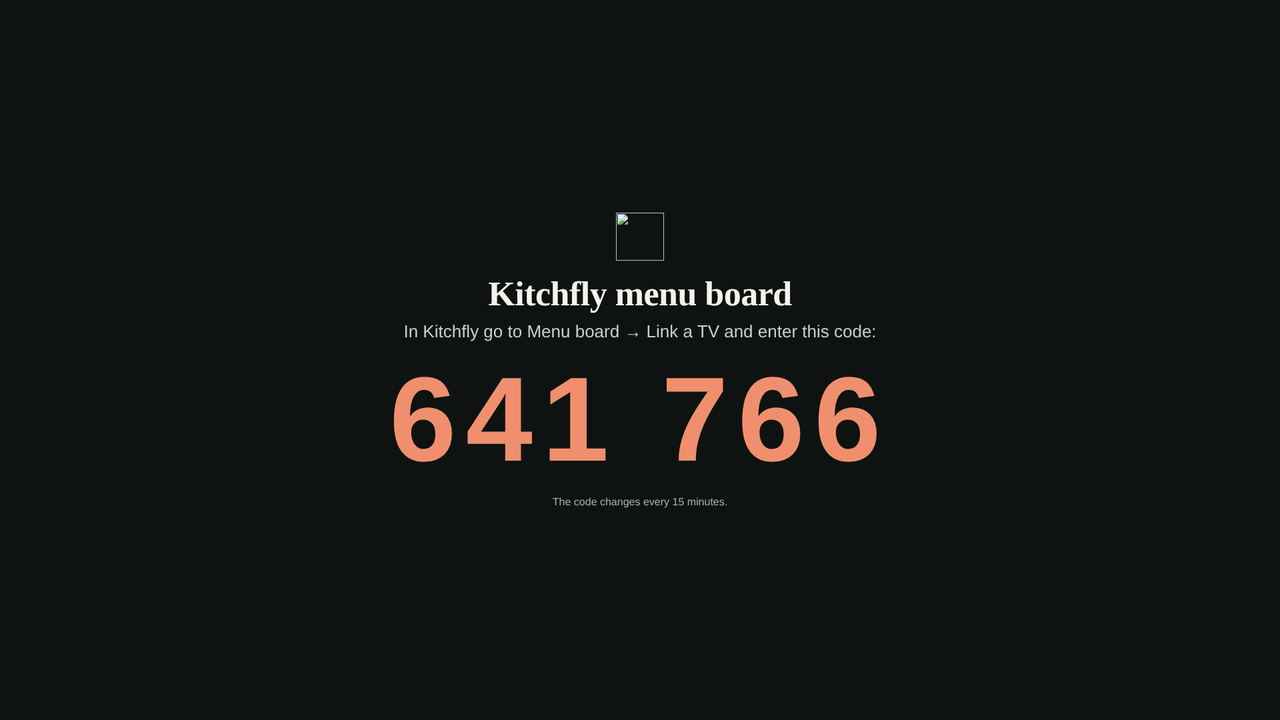
2. Link it
In Kitchfly, go to Daily operations → Menu board. Enter the code and a name (for example "Drinks TV") and tap Link. The TV shows your menu within a few seconds.
Only admins can link and set up TVs.
3. Choose the design and content
In the screen list, tap Design & content. On the right you'll see a preview with today's menu, landscape or portrait.
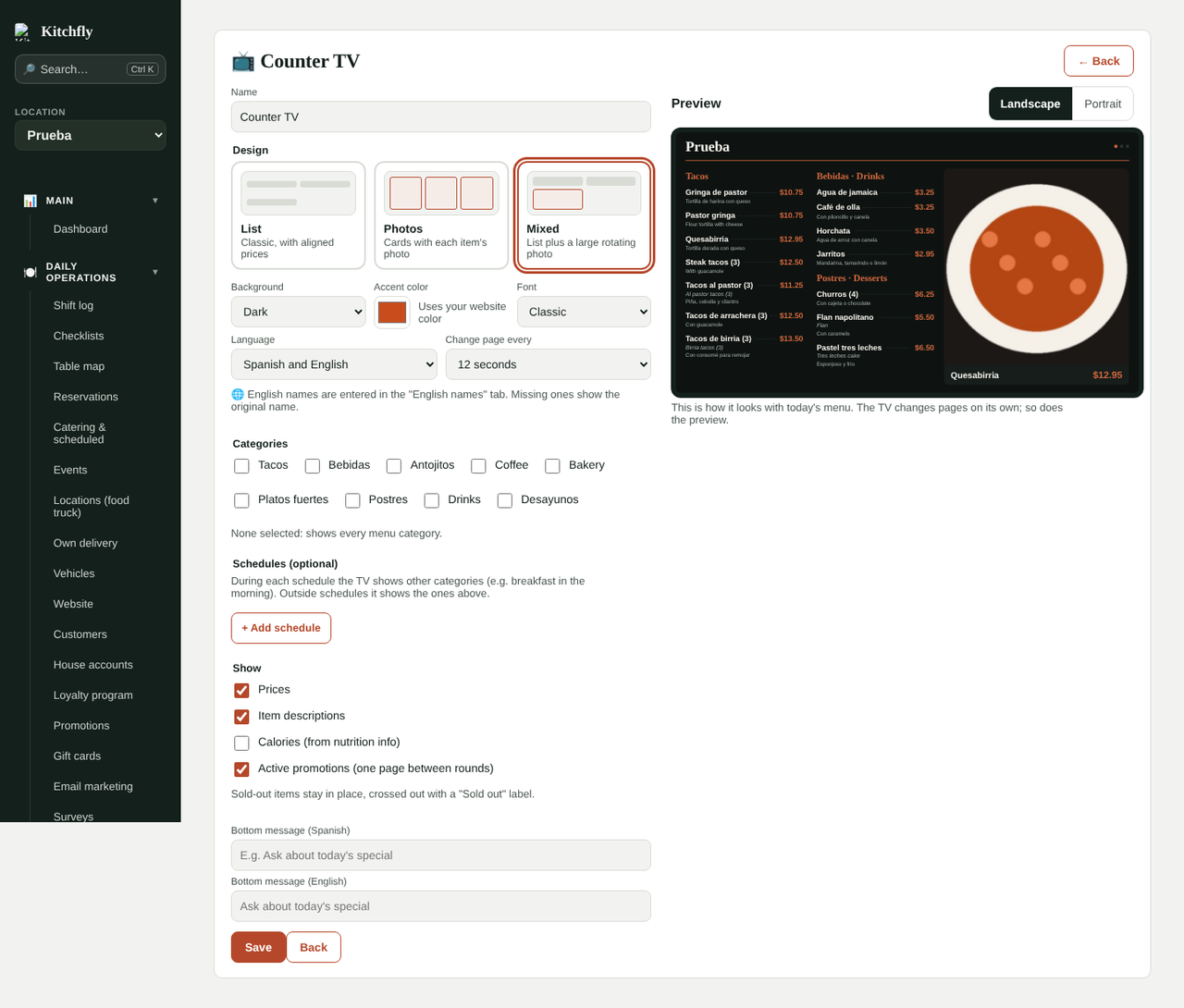
Design. There are three:
- List: the classic menu, with prices aligned in columns.
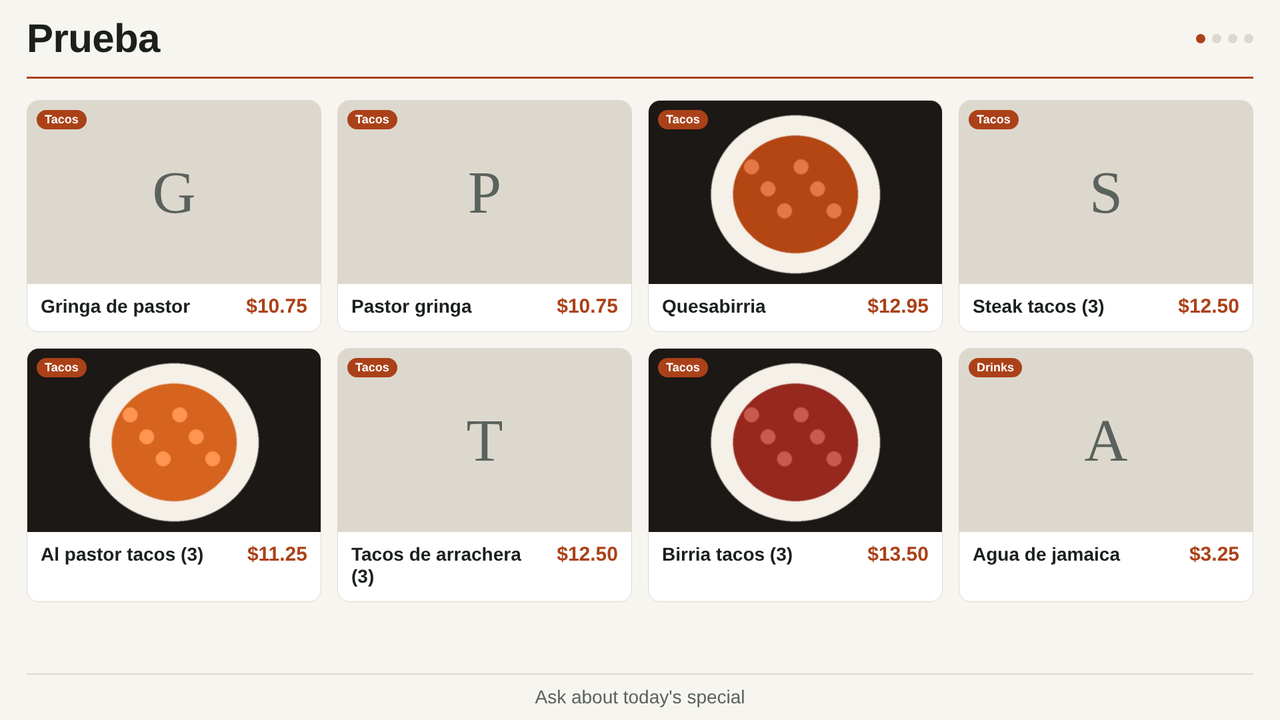
- Photos: a card with each item's photo. Items without a photo show their name.
- Mixed: the list plus a large photo on the side that rotates through your items with photos.
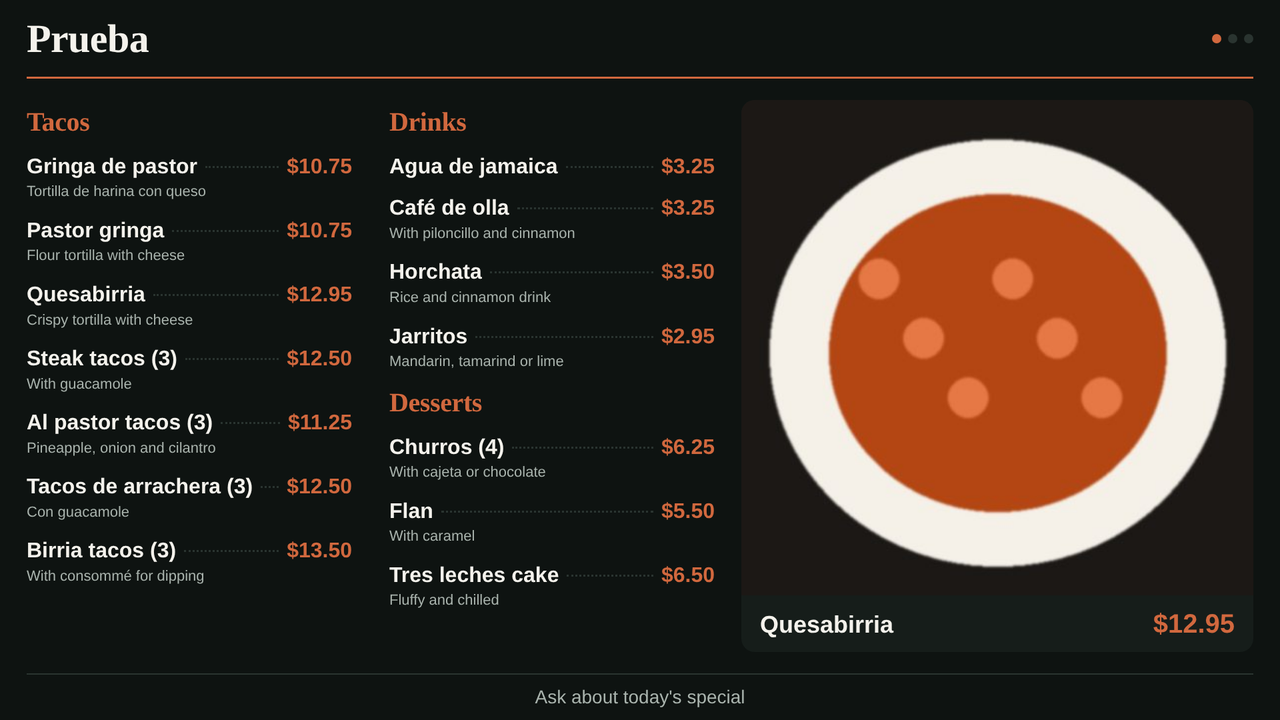
Background, color and font. Dark or light background, the accent color (if you don't pick one, it uses your website's color) and a classic or modern font. If your website has a logo, it appears at the top. Kitchfly adjusts the color if it's hard to read on the background.
Language. Each TV can show the menu in Spanish, English, or both.
Categories. Choose which categories this TV shows (for example, only drinks and desserts on the bar TV). If you don't choose any, it shows the whole menu.
Change page every. If the menu doesn't fit on one screen, the TV splits it into pages and flips through them on its own. The dots in the top right show which page it's on.
Show. Prices, item descriptions, calories (from your nutrition info) and a page with your active promotions at the end of each cycle.
Bottom message. A fixed line at the bottom of the screen, in Spanish and English (for example "Ask about today's special").
Tap Save. The TV updates within a few seconds.
Schedules: breakfast, lunch and dinner
Under Schedules, add for example "Breakfast" from 7:00 to 11:30 with the Breakfast category, and pick the days. During that time the TV shows those categories; outside any schedule it shows the categories above. A schedule can run past midnight (for example 22:00 to 2:00).
Sold-out items
When you mark an item as sold out, the TV keeps it in place, crossed out with a Sold out label. When you turn it back on, it goes back to normal on its own.
English names
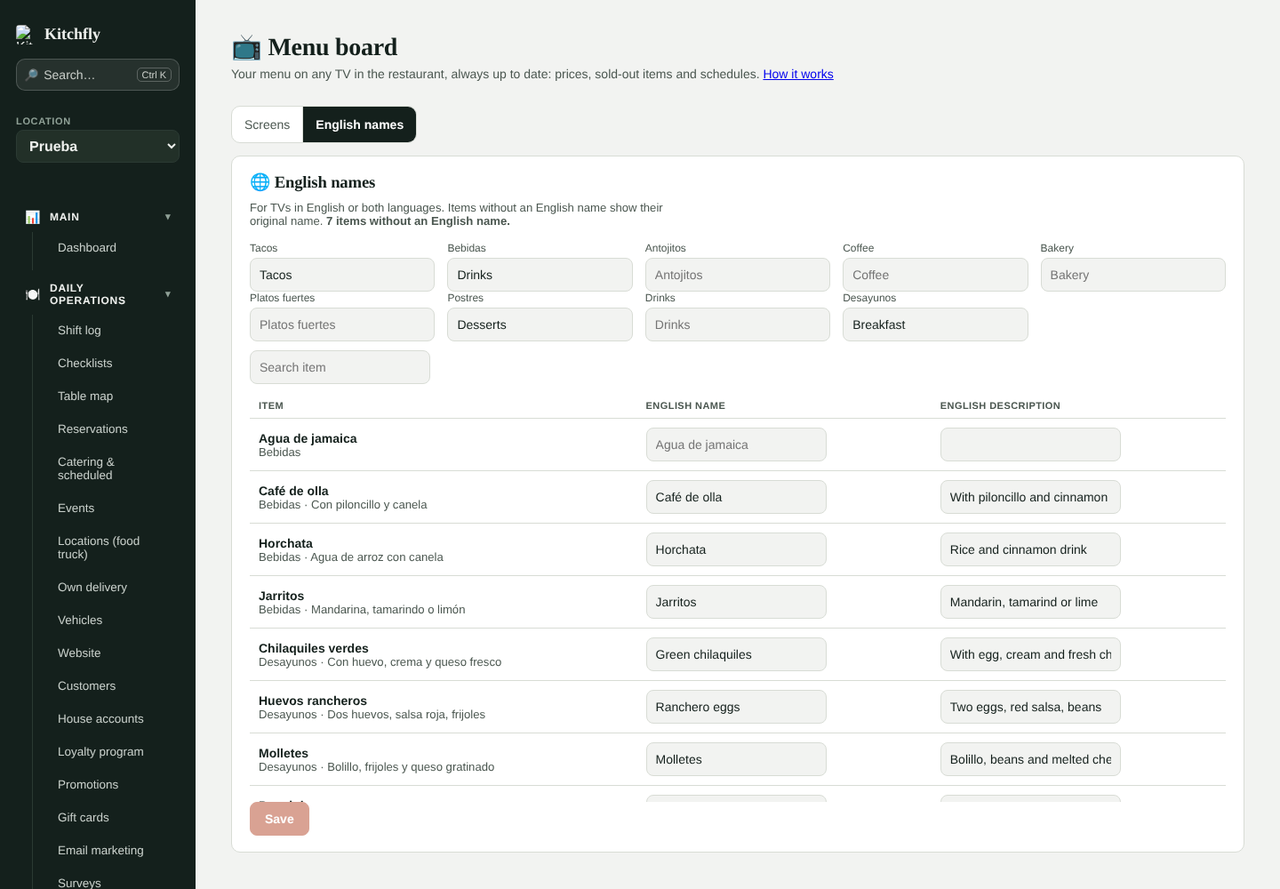
In the English names tab, enter the English name and description of each item and the name of each category. Use the search box to find items quickly. Items without an English name show their original name.
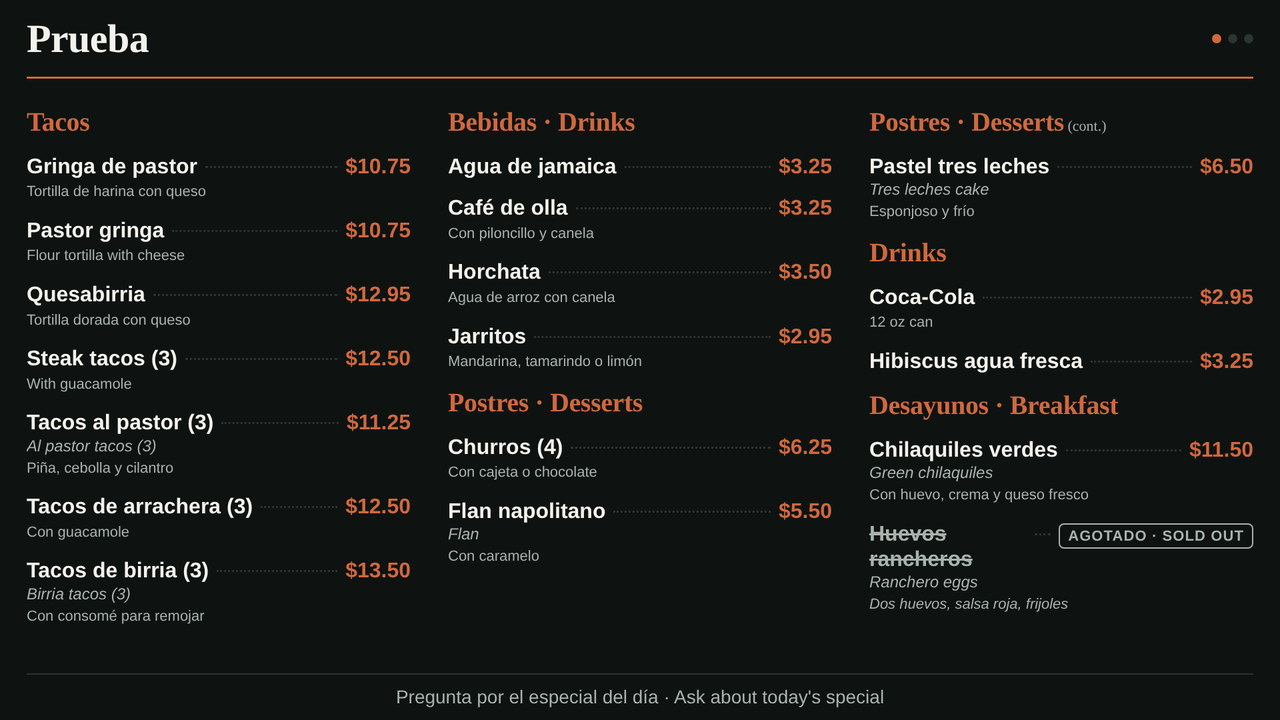
With Spanish and English, the TV shows both names for each item:
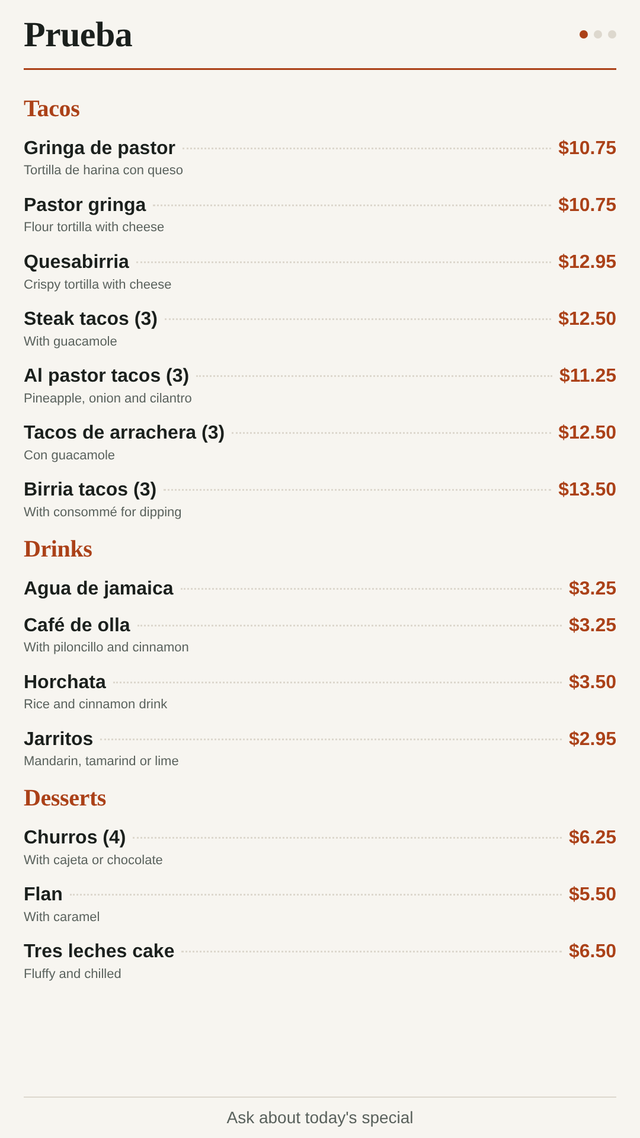
Portrait TV
If you mount the TV sideways, the screen arranges itself in a single column. Use the Portrait preview to see how it looks.
FAQ
Do I need an app? No, it's a web page. On a Fire TV Stick use the Silk browser; on Google TV, any browser.
Will the screen turn off? Kitchfly asks the browser to keep the screen on while it's open. If the TV turns off by itself, turn off power saving in its settings.
What if the internet goes down? The TV keeps showing the last menu and catches up when the connection is back.
How do I change or remove a TV? In the screen list, tap Unlink. The TV goes back to showing a code. The green dot means the TV is connected.