Prep labels
Put a barcode label on every container (sauces, cuts, mise en place). Anyone on the team scans it and knows what it is, who made it, when it expires and whether it's still good. From the same label you toss it as a loss or count it.
It's included in both plans. Admins find it in Daily operations → Labels; the kitchen, on the kitchen display under ⋮ → 🏷️ Labels.
What you need
- A label printer (Zebra, Brother, Rollo, DYMO…) installed on the computer or tablet. Kitchfly prints from the browser at your label size, with no extra software.
- A barcode scanner or the camera. See Barcodes.
Pick this device's printer
Next to the preview, tap Change:
- Label printer: choose the Label size (2 × 1, 2.25 × 1.25, 2 × 2, 3 × 2 or 4 × 6 inches). In the print dialog, pick your label printer.
- Receipt printer: if you don't have a label printer yet, they print on the receipt roll, one after another, to cut and tape on.
It's saved on that device only, so each computer or tablet uses its own printer.
Print labels
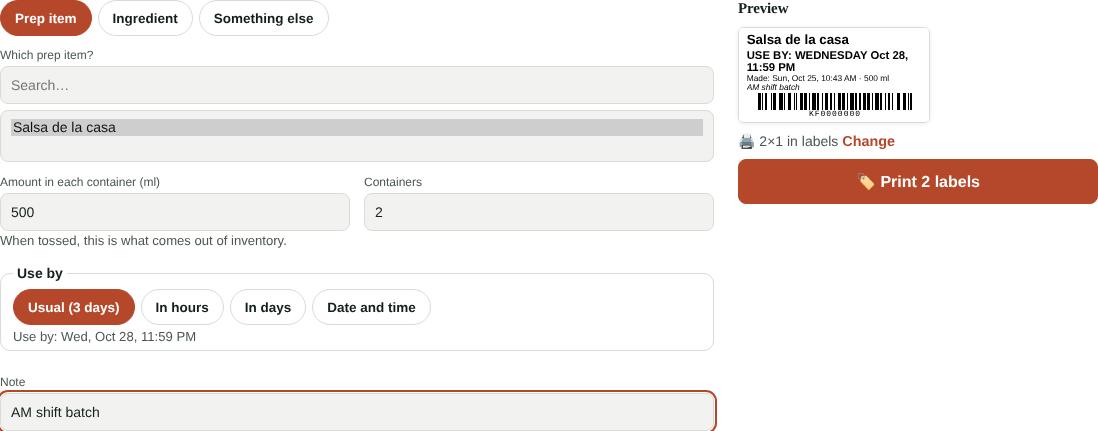
- Go to Labels → Print.
- Choose what it is: a Prep item (your sub-recipes), an Ingredient (a cut, shredded cheese) or Something else (type the name).
- Enter the Amount in each container and how many Containers. You get one label per container, each with its own code.
- Under Use by, keep Usual (how many days that prep item or ingredient lasts) or pick In hours, In days or Date and time.
- Add a Note if you like (for example AM shift batch) and tap Print N labels.
The label shows the name, USE BY in large type, when it was made and by whom, the amount, the recipe's allergens and the code.
From the prep list
When you mark a prep item ✓ Ready on the prep list, keep Print label checked and enter how many containers. They come out with a code, just like here.
Scan: is it still good?
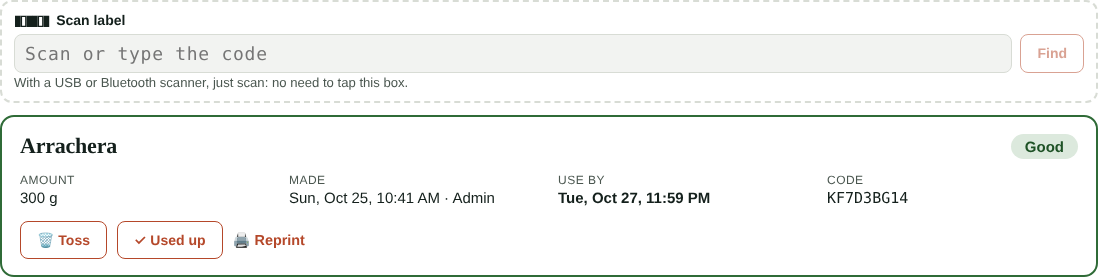
In Labels → Scan, scan the container's label. You'll see what it is, how much, who made it, when it expires and its status:
- Good: OK to use.
- Expires in … (for example Expires in 3 h): expires today, use it first.
- EXPIRED: toss it.
From there tap 🗑️ Toss (it comes out of inventory and is recorded as a loss with its cost), ✓ Used up (finished, no loss) or 🖨️ Reprint if the label got wet or fell off.
On other screens too
- In Losses → Record losses by scanning, scanning a label tosses the whole container.
- In a full count, scanning an ingredient label adds what the label says. Each label counts only once.
In the walk-in
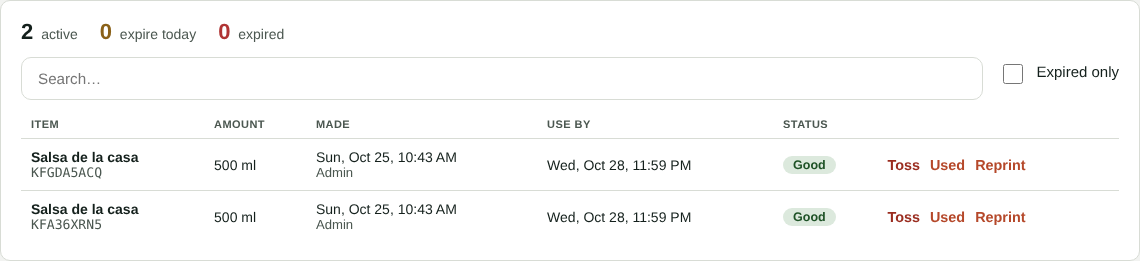
Labels → In the walk-in shows everything labeled that hasn't been used or tossed: how many are active, how many expire today and how many are expired. Search by name or code, or check Expired only. Toss all expired records them all at once.
Count the labels
To keep the walk-in list up to date:
- Go to Labels → Count.
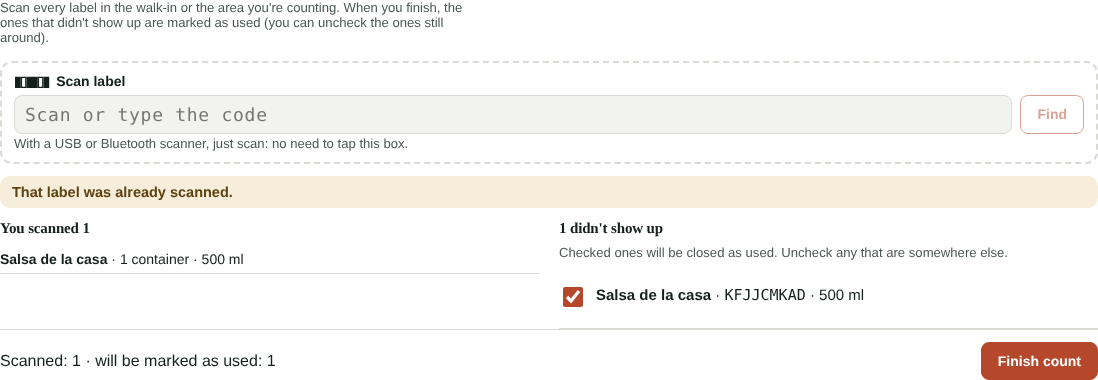
- Scan every label in the walk-in or the area you're counting.
- On the right you'll see the ones that didn't show up. They'll be marked as used when you finish; uncheck any that are somewhere else.
- Tap Finish count.
Alerts
- Bell: when expired containers haven't been tossed, we alert you with the list. Tapping it opens In the walk-in.
- Daily summary: includes a line with the expired containers.
In Labels → History you see what was used and what was tossed, who did it and what the tossed items cost.