Reorder suggestion
Inventory & Purchasing → Reorder suggestion tells you how much of each ingredient to buy so you don't run out, based on what you actually use. Only the admin can see it.
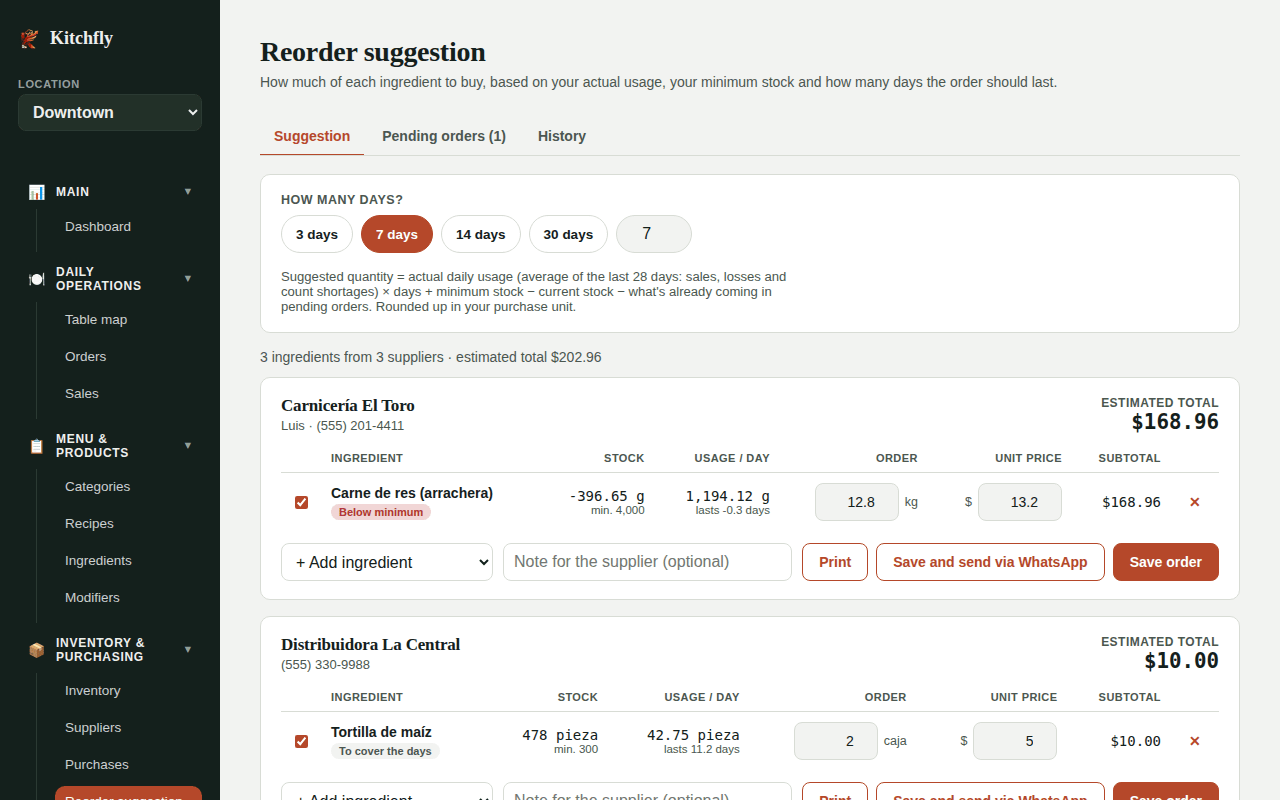
How the quantity is calculated
For each ingredient:
suggested quantity = daily usage × coverage days + minimum stock − current stock − what's already on the way
- Daily usage: the actual average usage over the last 28 days. It includes what was used in sales, recorded losses and shortages found in physical counts. If your restaurant has less than 28 days of history, it uses what's there.
- Coverage days: how many days the order should last. Use the 3, 7, 14 or 30 days buttons or type another number (up to 60). The default is 7.
- Minimum stock: the one you set on each ingredient. It works as a safety buffer.
- On the way: anything already in a pending order isn't suggested again.
The quantity is in your purchase unit (kg, case, piece…) and is rounded up: to one decimal if the unit can be split (kg, L, lb) or to a whole number if not (case, piece).
Each ingredient has a label with the reason:
| Label | What it means |
|---|---|
| Below minimum | You're already below your minimum stock. Order it first. |
| Runs out in X days | At your current usage, it runs out before the coverage days are over. |
| To cover the days | It still lasts, but not for the whole period plus the minimum. |
For a good suggestion
- Set a minimum stock and a main supplier on each ingredient (Ingredients screen).
- Record your purchases and losses, and do physical counts now and then, so actual usage is really actual.
Build the order
Ingredients are grouped by main supplier. For each supplier you can:
- Change the quantity or the estimated unit price.
- Uncheck a line to skip it this time, or remove it with the ✕.
- Add ingredient: add any ingredient even if it isn't suggested.
- Write a note for the supplier.
- If there are ingredients under No supplier, pick one with Assign supplier….
Then, for each supplier:
- Print: a letter-size purchase order, ready to print or save as PDF.
- Save & download PDF: saves the order and downloads the purchase order as a PDF with its number (for example OC-0012), your details, the supplier, items, quantities and estimated total. Ready to attach to an email to distributors like Sysco or US Foods.
- Save and send via WhatsApp: saves the order and opens WhatsApp with the order already written. If the supplier's Contact field has a phone number, their chat opens directly; otherwise you pick the contact in WhatsApp.
- Save order: saves it without sending.
You can also download the PDF of a saved order with the ⬇ PDF button in Pending orders, or from History.
Receive the order
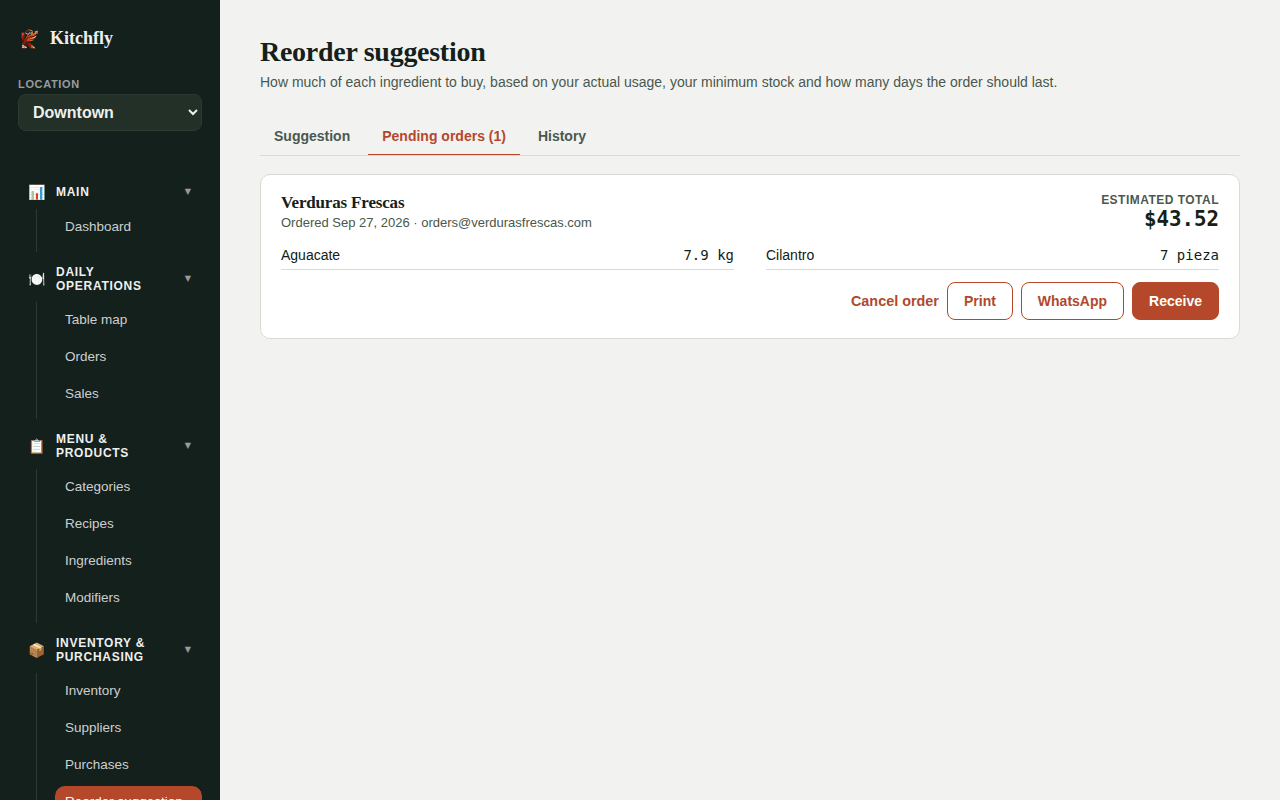
When the goods arrive, go to Pending orders and click Receive:
- Adjust the Received quantity and Unit price paid for each line. Enter 0 for anything that didn't arrive.
- Enter the invoice number and date if you like.
- Click Record purchases.
Each line is recorded as a purchase: it adds to stock, shows up in the ingredient's history, updates its price (and alerts you if it went up), and is sent to QuickBooks if connected. No need to enter them again.
If an order isn't coming, use Cancel order: no purchase is recorded and it no longer counts as "on the way".
The History tab shows received and cancelled orders.