Transfers between locations
If you have several locations, you can send ingredients from one to another: for example, 5 kg of beef from Downtown to North because they ran out. Only the admin can make transfers, from Inventory & Purchasing → Transfers. The option appears when your company has more than one location.
Send
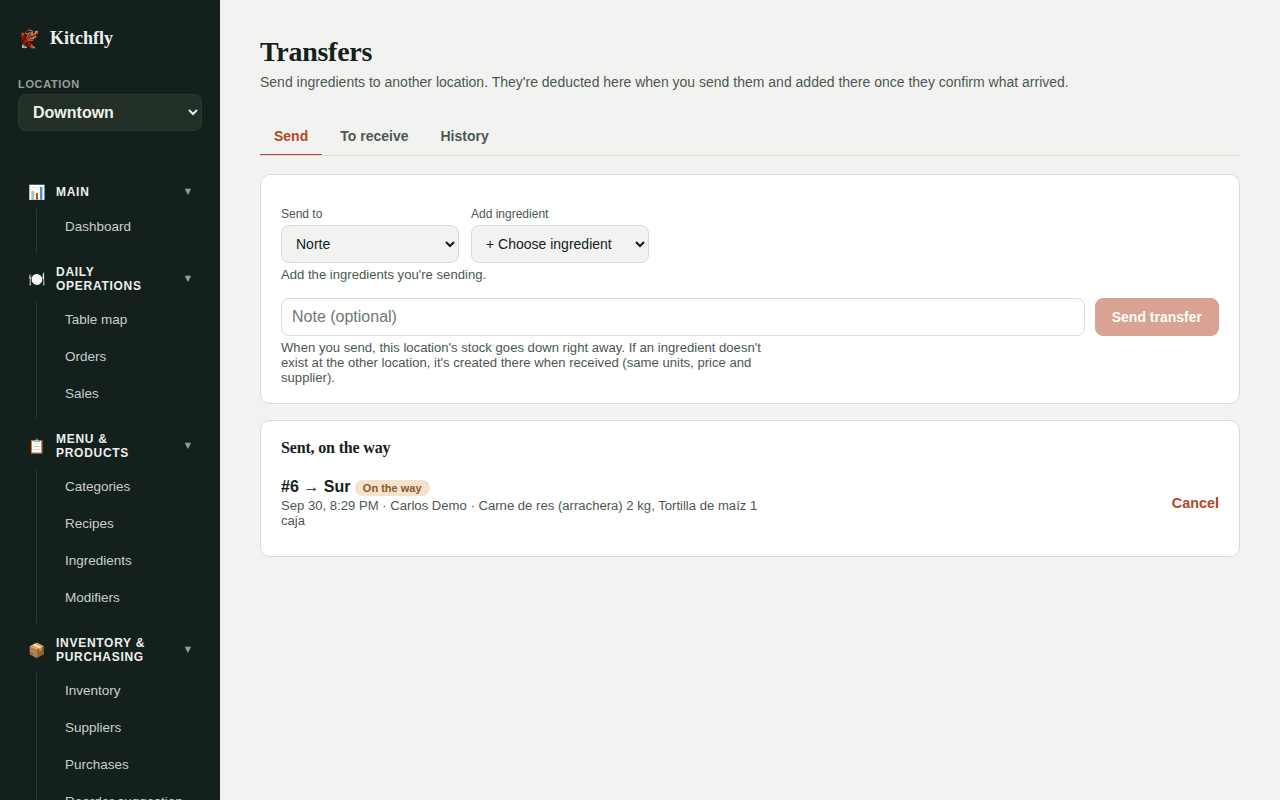
- Switch to the location that sends the product.
- In Send to, choose the receiving location.
- In Add ingredient, add each ingredient and enter the quantity in its purchase unit (kg, case…). Kitchfly shows the stock here and the value of what you're sending.
- Click Send transfer.
When you send, this location's stock goes down right away and the transfer is On the way. The receiving location gets a notice in the bell.
If you made a mistake, you can Cancel while it's still on the way: everything goes back to the sending location's stock.
Receive
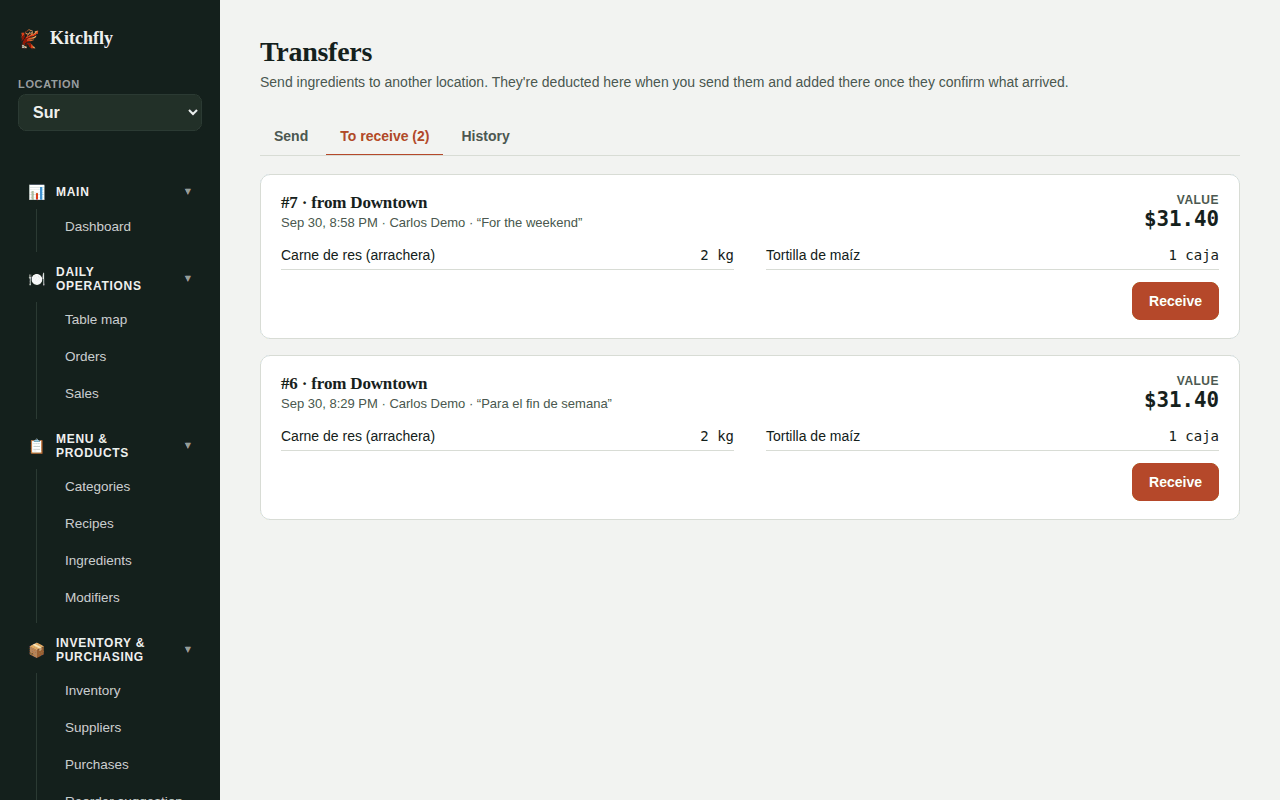
- Switch to the location that receives.
- In the To receive tab, open the transfer and click Receive.
- Check what arrived. If less came, correct the received quantity.
- Click Confirm receipt.
What you receive is added to this location's stock. If an ingredient didn't exist here, Kitchfly creates it the same as at the sending location (same units, price and supplier), with what arrived as its stock.
Whatever didn't arrive is recorded as a loss at the sending location, with the reason "Didn't arrive in a transfer". That way it shows up in its losses report and its actual food cost.
How it affects your numbers
- Transfers don't count as usage: they don't raise the sender's food cost or its reorder suggestion.
- In the food cost report, the inventory method shows a ± Transfers between locations line.
- Anything on the way to a location is taken into account in its reorder suggestion, so you don't buy it again.
- Each movement shows in the ingredient's history as Transfer out or Transfer in.
The History tab shows all of this location's transfers, sent and received, with what arrived in each one.