Customer order board (TV)
Daily operations → Order board turns any TV into a board for your customers: they see their order under Preparing and, when the kitchen finishes, under Ready! with their number and short name (e.g. #42 · Carlos M.). It's included in every plan.
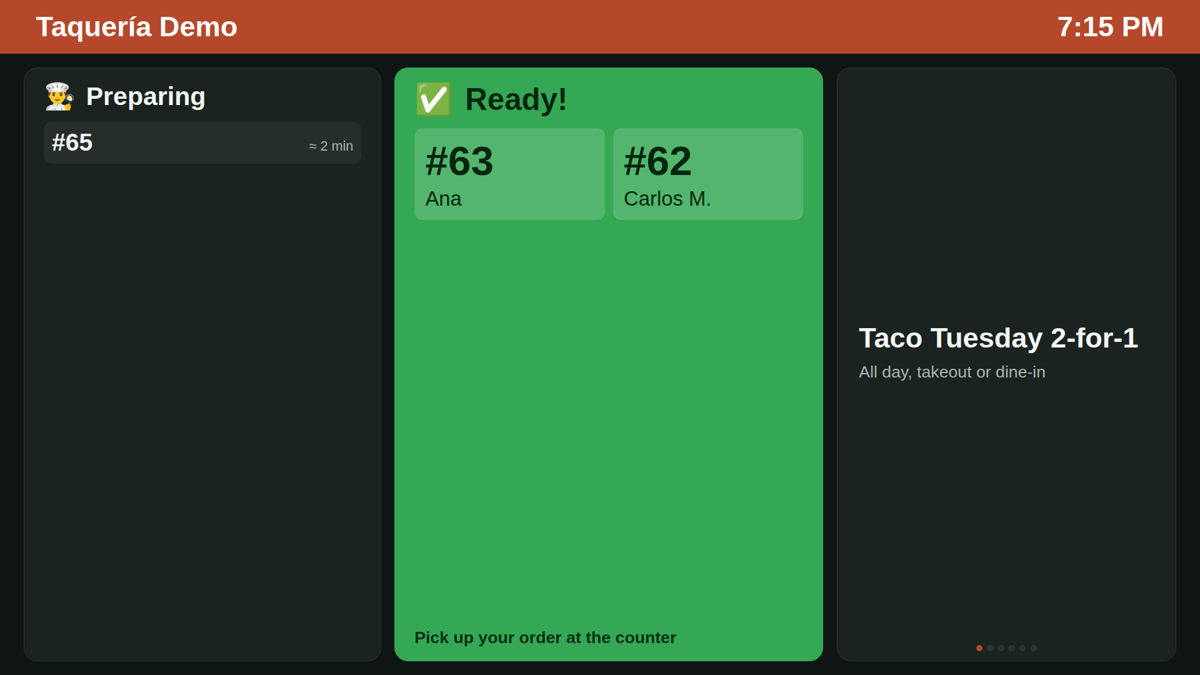
Which orders show up
You choose which ones to show:
- Counter takeout: to-go orders you take at the POS.
- Dine-in without a table: the customer orders at the counter and picks up their tray.
- Online orders: shown with their pickup code (the one in their email) and an Online tag.
Table orders (the server brings those) and delivery-app orders never show up. An order appears as soon as it's sent to the kitchen, even if it's already paid, and moves to Ready! when the kitchen marks all its items ready on the kitchen display.
Put it on the TV
- In Order board, turn on Screen on and save.
- Copy the screen link and open it in the TV's browser: a smart TV with a browser, a Fire TV Stick or a computer connected by HDMI.
- Tap Full screen and then Turn on sound (browsers need one tap before they can play sound).
- Turn off the TV's power saving. Kitchfly also asks the browser to keep the screen awake.
The screen refreshes on its own every few seconds; you don't need to reload it when you change the settings.
The link doesn't ask for a password
Anyone with the link can see the day's order numbers and short names. Don't share it. If someone copied it, use Change the link: the old one stops working and you open the new one on the TV.
When an order is ready
- A bell rings (if sound is on), the order blinks and “Your order is ready!” shows up large for a few seconds.
- It stays under Ready! until someone marks it Picked up or the minutes you chose go by (10 by default).
To mark it picked up, use On screen now, which appears on the order board page and in the POS under Order status (the bell icon). If you make a mistake, tap Undo. An online order marked this way is also marked picked up in Online orders. If something is added to the order later and it goes back to the kitchen, it returns to the screen.
Estimated time
With Estimated time on, each order under Preparing shows ≈ 8 min. Kitchfly uses the median time your kitchen takes (from when the order arrives until it's ready) over the last 2 weeks; for an online order it uses the time promised to the customer if that's later. With a minute or less left it says Almost ready.
Look
- Theme: dark (recommended: easier to read and less tiring) or light.
- Restaurant color for the header, alerts and prices. The text on top switches to white or black automatically so it stays readable.
- Color logo: a PNG with a transparent background looks best. It's separate from the black-and-white receipt logo. Without a logo, the name is shown.
- Language: Spanish, English or both at once (“Preparando · Preparing”).
The Preview shows how it looks on a landscape TV. On a portrait TV the columns stack one below the other.
Rotating promotions
Your promotions rotate on the right, every however many seconds you choose:
- Your best-selling dishes from the last 30 days, with photo and price (dishes with photos first). Sold-out dishes are skipped.
- Your own promotions (up to 12): a title, an optional detail and, if you want, a dish to show its photo and price.
Without promotions, the screen shows just the two columns, larger.