Table QR: order and pay from the table
Guests scan the QR code on their table, see your menu on their phone, order and pay without waiting for the server. Every order is added to that table's check, and your server sees it on the POS.
Pro plan
Table QR is part of the Pro plan and uses your table map. For guests to pay by card, connect Square. Kitchfly charges no commission on these payments; Square charges its standard card processing fee.
Turn it on
- Build your table map if you haven't yet.
- In Settings → Table QR:
- Check Take orders from tables.
- Choose what happens with each order:
- Are approved by the server (recommended): the order arrives on the POS and the server sends it to the kitchen. This prevents prank orders.
- Go straight to the kitchen: the server just gets a notification.
- Review the suggested tips (for example 15, 18, 20).
- Click Save.
Table QR takes orders during the service hours you set in Online ordering. If you have no hours set there, it takes orders at any time. You can turn table QR off anytime, or only for some tables.
Print the QR codes
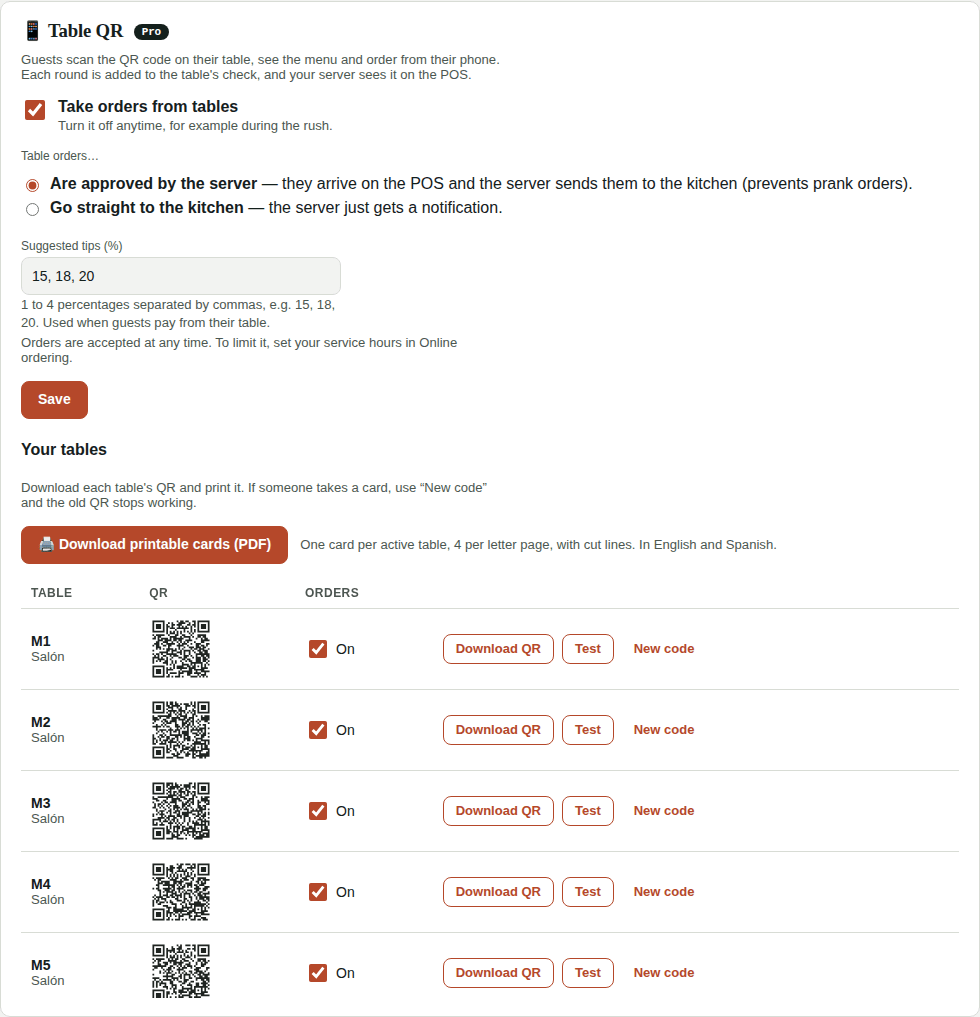
In Settings → Table QR → Your tables:
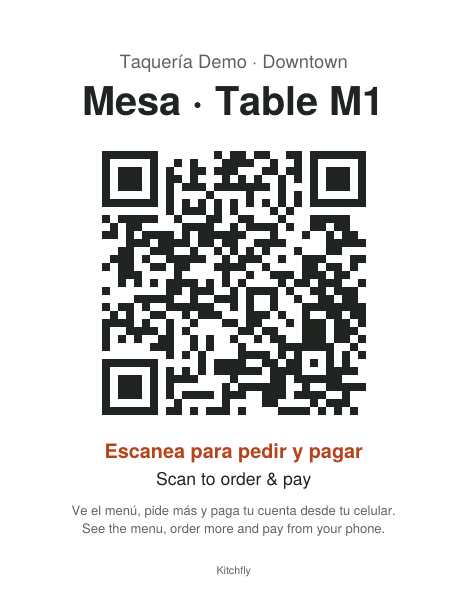
- Download printable cards (PDF): one card for each active table, 4 per letter page, with cut lines. Cards are in English and Spanish.
- Download QR: just the QR image for one table, if you want to make your own design.
- Test: opens that table's page exactly as a guest sees it.
- New code: if someone takes a card, create a new code; the old printed QR stops working and you print the new one.
- The On checkbox turns QR ordering on or off for a single table.
What guests see
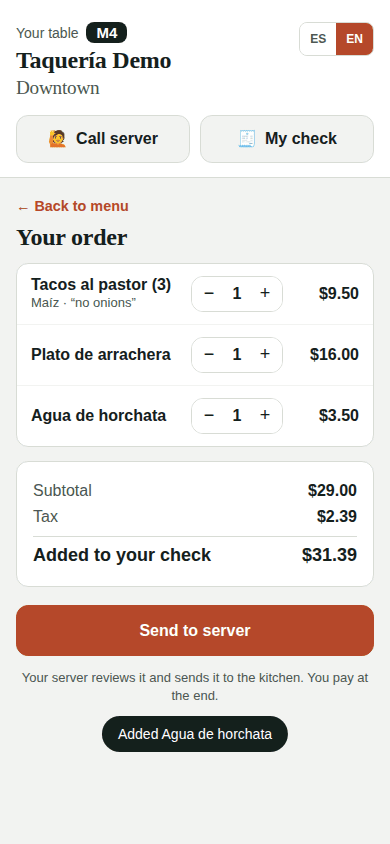
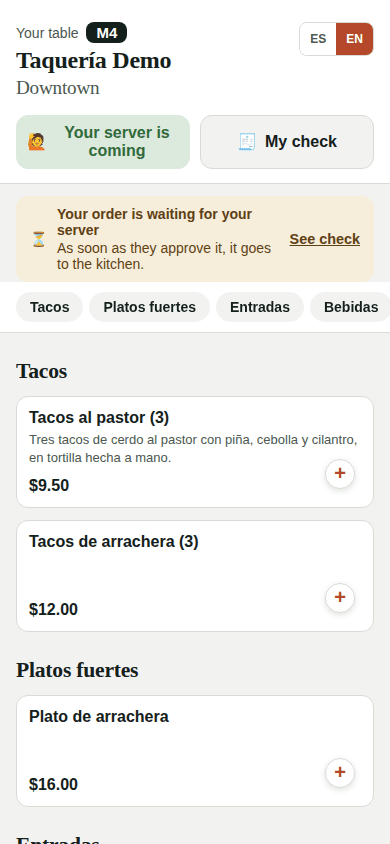
- They scan the QR and see "Your table M4", your full menu and the ES / EN buttons.
- They choose dishes with their options and notes ("no onions"), review the order and send it. If several people at the table order from their phones, everything goes on the same check.
- Above the menu they see how their last order is doing: waiting for the server, in the kitchen or not accepted (with the reason the server wrote).
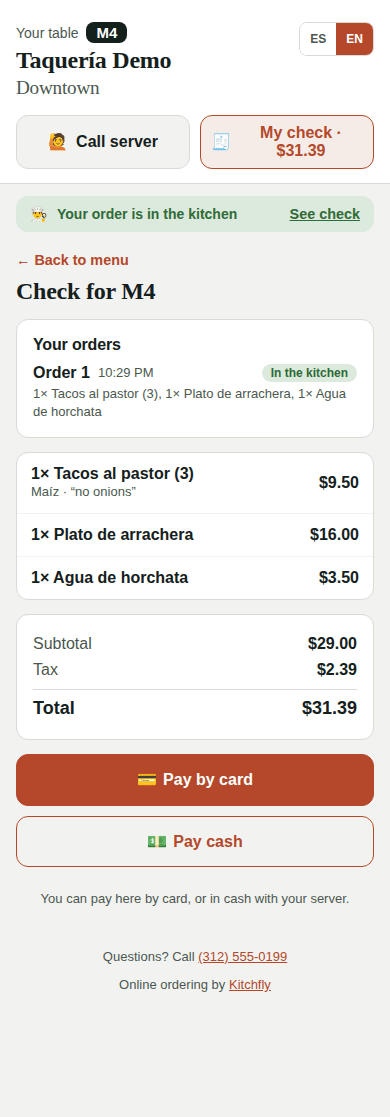
- Call server lets you know they need you, and My check shows what they've ordered and the total with tax.
On the POS
When a table orders or calls the server:
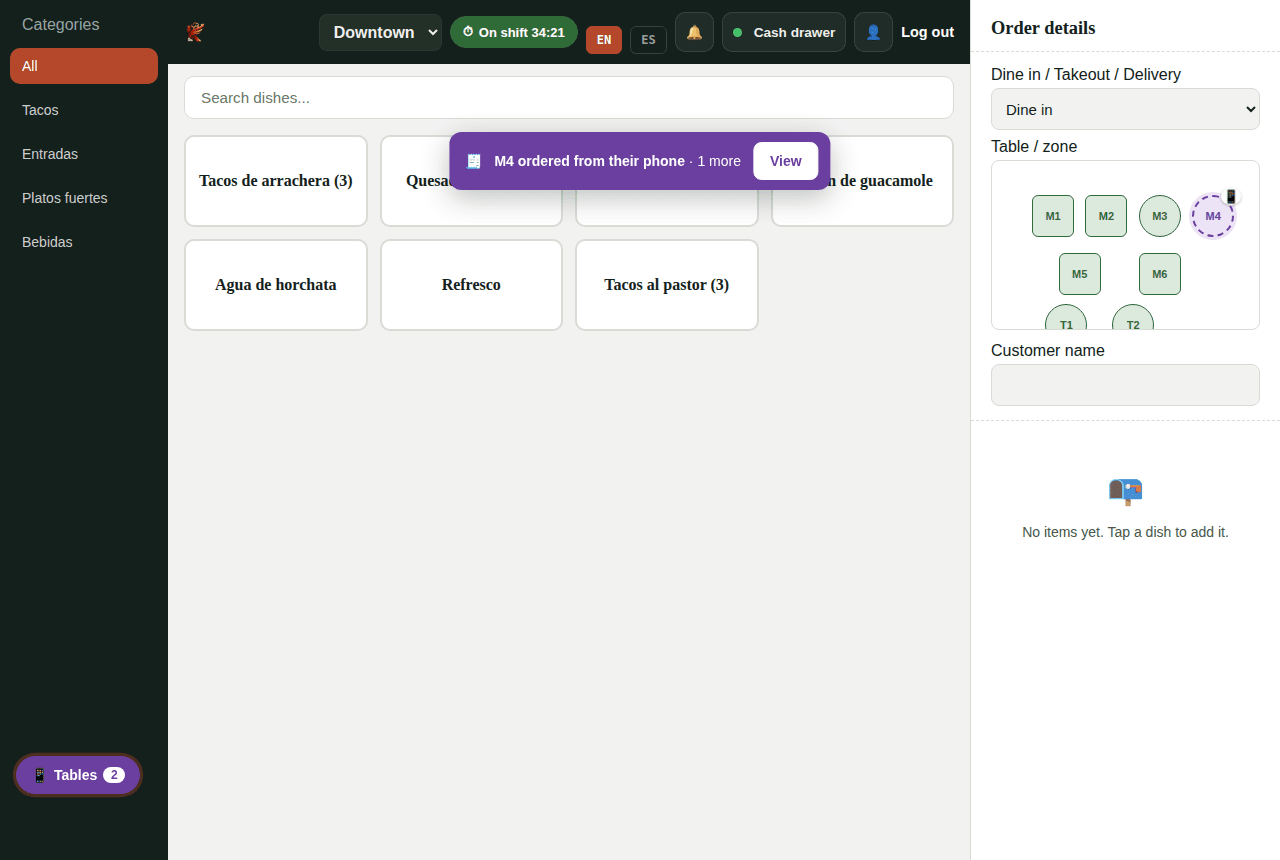
- An alert sounds and a message appears at the top, for example "M4 ordered from their phone".
- The purple Tables button shows how many notifications are pending.
- On the table map, the table turns purple with a 📱.
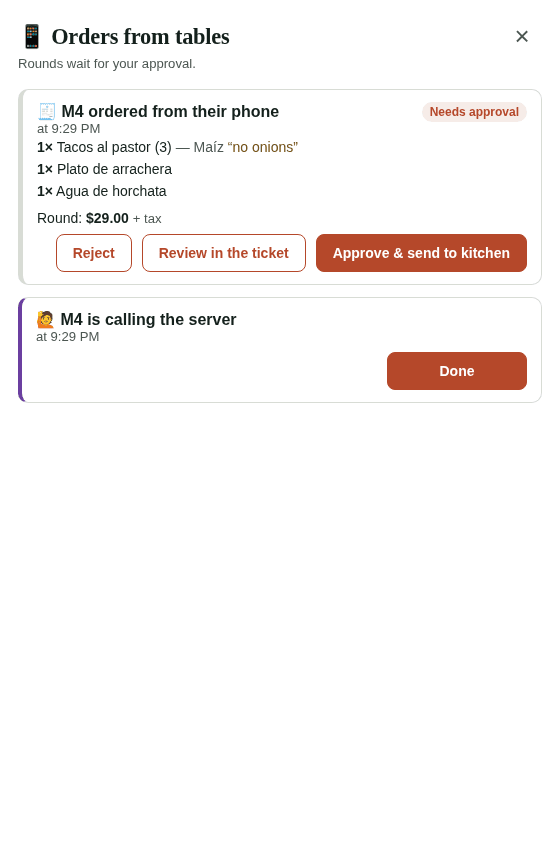
Tap View or the Tables button to open table orders:
- Approve & send to kitchen: the order is added to the table's check and goes to the kitchen display.
- Review in the ticket: it's added to the check without being sent, so you can change it before sending.
- Reject: write the reason (for example "We're out of horchata"); the guest sees it on their phone.
- Done: for when the table called you or asked for the check.
- If orders go straight to the kitchen, just tap Got it.
On the ticket and the kitchen display, dishes the guest ordered are tagged QR. The sale goes to the server who handles the table.
Paying from the table
In My check, the guest taps:
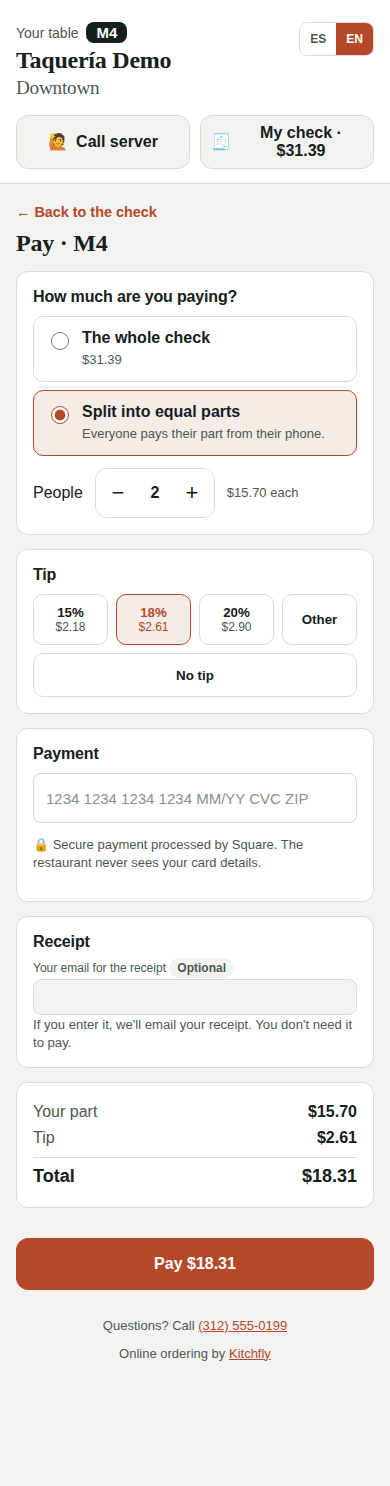
- Pay by card (if Square is connected):
- The whole check, or what's left if part of it was already paid.
- Split into equal parts: the first person chooses how many people (2 to 20). Everyone else sees "2 parts left" and pays just their part. The last part pays whatever is left, so the cents add up.
- They choose a tip (the ones you set, another amount or no tip). It's calculated on their part before tax.
- If they enter their email (optional), they get the receipt in their language. There's a separate, unchecked box to receive promotions from your restaurant.
- Pay cash: you get the alert "M4 wants to pay cash". Go collect it and record the payment on the POS as usual.
After paying, the guest sees their receipt on screen with what they paid, the tip, the card and what's left on the check. If they didn't enter an email, they can request the receipt by email from there.
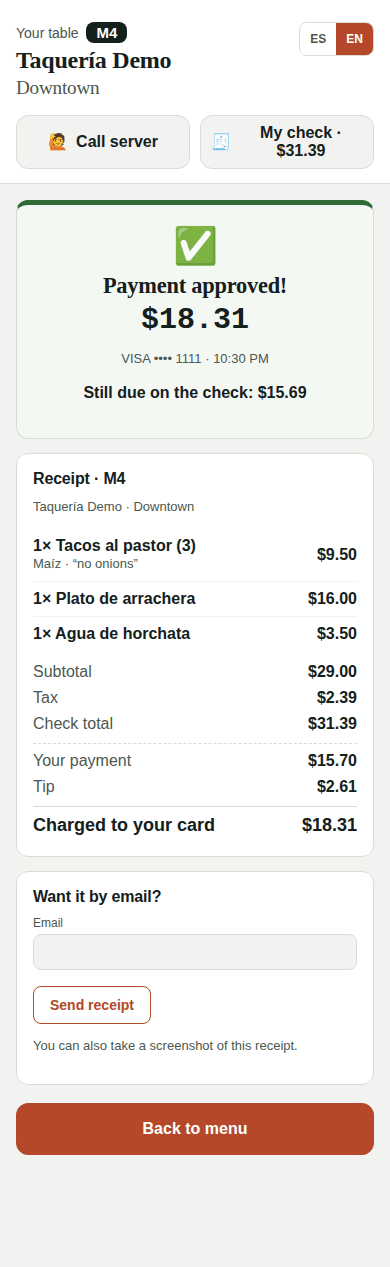
Every payment shows up on the POS as an alert ("M4 paid $12.81" or "M4 paid the full check") and is recorded on the order as a card payment, just as if you had charged it: it counts in the cash drawer, the server's tips and the reports. You can refund it from Orders; if the check was paid in parts, you choose which payment the refund comes from.
Tables on the map
| Color | What it means |
|---|---|
| 🟢 Green | Free. |
| 🔴 Red | Has an open order. |
| 🟣 Purple | Ordered from their phone or is calling the server. |
| 🟡 Yellow | Partially paid: underneath you see how much has been paid, for example $16/$31. |
| 🔵 Blue ✓ | Paid: they paid everything but are still seated. Tap it when they leave to free it. If nobody frees it, it turns green on its own after 30 minutes. |
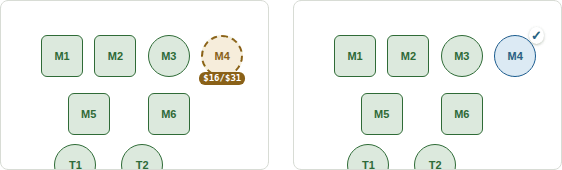
To see each table's details (dishes, kitchen, payments) and time alerts, open the live floor.
In reports
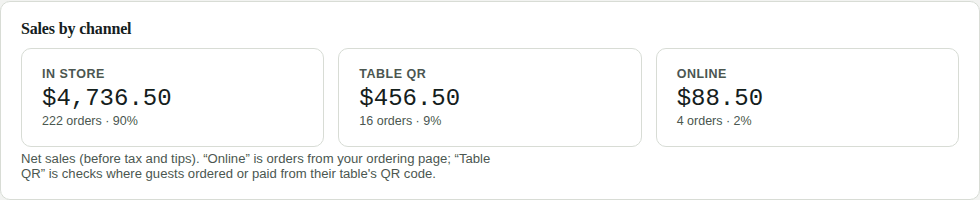
In Reports → Payments & tips, Sales by channel shows Table QR sales separately: checks where the guest ordered or paid from their table's QR code.
Emails of guests who opted in to promotions are in Your data, in the Business.xlsx file, Contacts (promotions) sheet.
FAQ
Do I need Square? Only for guests to pay by card from the table. Without Square, guests can order, call the server, ask for the check and pay cash with the server.
What if someone scans the card and orders from home? Orders are only accepted during your service hours, and with Are approved by the server nothing reaches the kitchen without the server seeing it. If someone takes a card, use New code.
Can they order more after they start paying? Not from their phone: once someone pays their part, the check is closed to new orders and the guest is told to ask the server.
What if two people pay the full check at the same time? It's only charged once. The second person sees that the check is already paid and their card isn't charged.
Do I need to reprint the QR codes if I change prices or the menu? No. The QR only holds the table's address; the menu is built the moment the guest scans it. Price changes, new or removed dishes, options, photos and recipes show up right away without reprinting anything. If someone opened the menu before a price change, the current price is charged when they send their order.
When do I need to reprint? Only if you use New code on a table (the old QR stops working) or if you delete a table and create another. If you rename a table, its QR keeps working; it's only worth reprinting so the card shows the new name.
Do guests need to download an app or sign up? No. They just scan the QR with their phone's camera.
Can the server still charge on the POS? Yes. They can add dishes, apply discounts with a PIN and charge cash or card as usual, even if the table ordered by QR.