Use Kitchfly on a tablet and phone
Kitchfly works in any browser, but on tablets and phones it's best to install it as an app: you get an icon on the home screen, it opens full screen without the browser bar, and it starts faster. There's nothing to download from an app store.
Who uses what
| Device | Who | What they see |
|---|---|---|
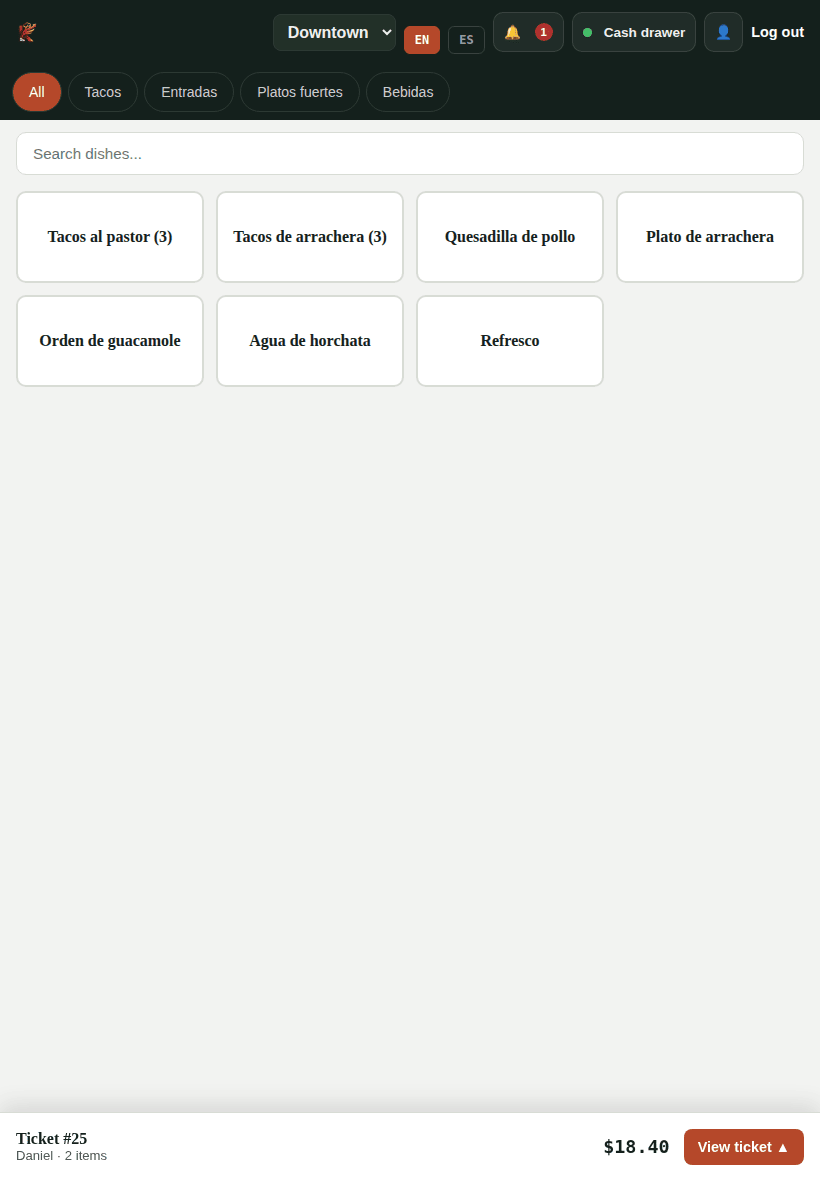
| Tablet in the dining room or at the counter | Servers and cashiers (Staff) | The POS to take and charge orders |
| Tablet in the kitchen | Cooks (Chef) | The kitchen display |
| Phone or computer | Owner or manager (Admin) | Dashboard, reports, inventory and everything else |
Install the app
- Open app.kitchfly.com in Safari (on iPhone/iPad it has to be Safari).
- Tap the Share button (the square with the up arrow).
- Choose Add to Home Screen, then Add.
- Open app.kitchfly.com in Chrome.
- Tap the ⋮ menu (top right).
- Choose Install app (on some phones it says Add to Home screen) and confirm.
- Open app.kitchfly.com in Chrome or Edge.
- Click the install icon at the end of the address bar (a screen with an arrow).
- Confirm with Install.
Firefox on desktop can't install web apps; use it as a regular page there.
On the Windows register computer, the Kitchfly app for Windows is a better fit: it prints directly and has kiosk mode. On Android tablets, the Kitchfly app for Android prints straight to Bluetooth or network printers.
Then open Kitchfly from the Kitchfly icon on your home screen and sign in.
Tips for the restaurant's tablets
- Sign in with the employee code. It's faster than typing an email and password. See Invite your team.
- Each tablet remembers its location (if you have several) and, if you use Square Terminal, its terminal. You only pick them the first time.
- Keep the screen on. On iPad: Settings → Display & Brightness → Auto-Lock → Never. On Android: Settings → Display → Screen timeout at the maximum. Keep it plugged in.
- If the internet drops, the POS keeps taking orders and charging cash. See Work without internet.
- Updates arrive on their own. Nothing to reinstall: when you open the app you already have the new version.
Kitchfly on the owner's phone
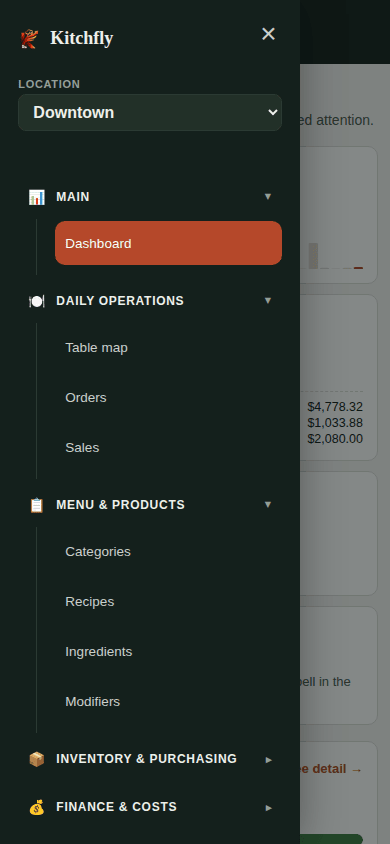
On a phone the side menu is hidden. Open it with the ☰ button (top left) to move between sections, and close it by tapping outside.
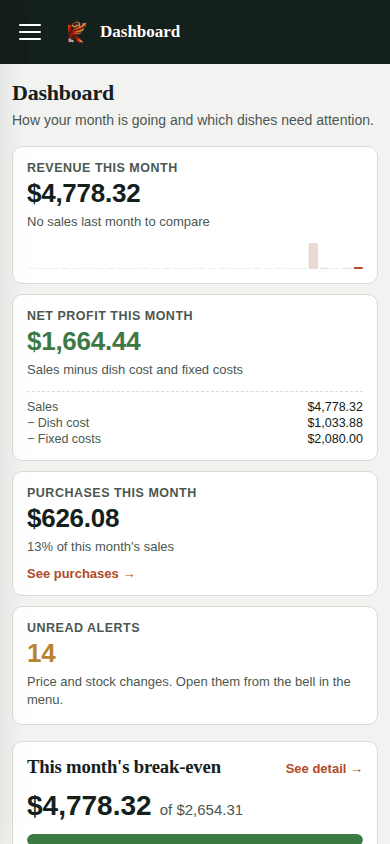
- Cards stack into a single column.
- Large tables hide a few columns so they fit, and the rest scroll sideways with your finger.
- Everything you do on a computer can also be done from your phone.
Still need help?Use the Support button inside Kitchfly (how) or email [email protected] with your restaurant name and a screenshot. We'll get back to you as soon as possible.