Accept cards with Square
Connect your Square account to charge cards directly from the Kitchfly POS. The money goes to your Square account under your normal Square rates; Kitchfly doesn't touch it or add fees.
What you need
- A Square account for your business (sign up at squareup.com if you don't have one).
- The Admin login in Kitchfly.
Connect
- Go to Settings → Integrations and find Card payments (Square).
- Click Connect with Square.
- Log in to Square and accept the permissions Kitchfly asks for.
- You'll return to Kitchfly with Your Square account was connected successfully! and the Connected account.

Charge a card
When you close an order, choose Card as the Payment method. A secure Square card form appears; enter the card and confirm. The total includes tax and tip.
Card data never touches Kitchfly
The card form is served by Square. Kitchfly never sees or stores card numbers.
Charge with Square Terminal
With a Square Terminal (Square's physical device) the customer pays by chip, tap or phone. Kitchfly sends the amount to the terminal, so nobody types it twice. Square charges its in-person rate, which is lower than keyed-in cards.
Pair the terminal (once, admin)
- Go to Settings → Integrations → Square Terminal.
- Type a name (for example Front counter) and click Pair terminal.
- A code appears. On the Square Terminal, sign in with Use a device code (or Settings → Device → Pair) and enter the code.
- Within seconds the terminal switches to Paired. If the code expires (5 minutes), click Create new code.
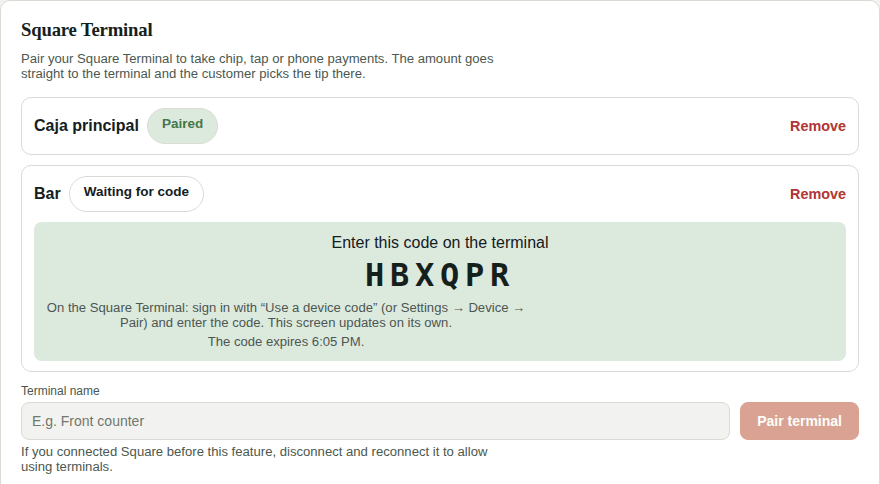
You can pair several terminals per location. To stop using one, click Remove.
Did you connect Square before this feature?
Disconnect and reconnect Square in Settings → Integrations to give Kitchfly permission to use terminals. Otherwise you'll see Reconnect Square in Settings...
Charge
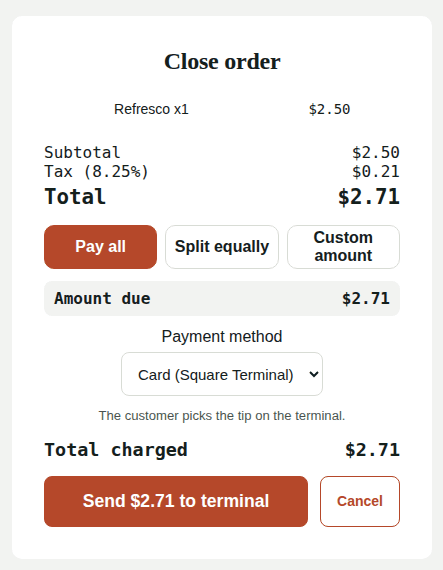
- When you close an order, choose Card (Square Terminal) as the payment method. You can charge the full amount, split equally or a custom amount, as usual.
- If there's more than one terminal, pick one. Each tablet remembers its terminal, so servers only pick it the first time.
- Click Send $... to terminal. The customer picks the tip on the terminal and pays.
While the customer pays, the POS shows Charging on.... When Square confirms the payment, Kitchfly records it with the tip the customer chose and, if it covers the total, closes the order.
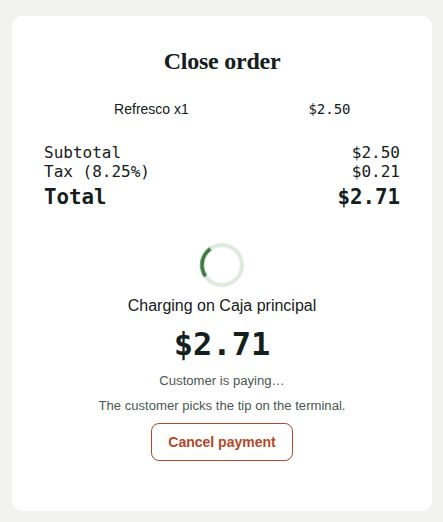
- Cancel payment stops the charge on the terminal. Nothing is charged.
- If the customer cancels or 5 minutes pass without paying, you'll see a notice and can try again or switch methods.
- While a payment is waiting on the terminal, the order won't accept another payment. That prevents double charges.
If the screen closes or the internet drops
The payment isn't lost. When you open that order's payment again, Kitchfly checks with Square: if the customer already paid, it records it; if it's still pending, it shows the wait screen again.
It says it was charged on the terminal but couldn't be recorded
This happens if the order was already paid another way. The customer did pay in Square: find the payment (the notice shows its id) in your Square dashboard and refund it if needed.
Printer
While paired with Kitchfly, the Square Terminal can't print to external printers. Tickets still print from Kitchfly as usual.
Disconnect
In Settings → Integrations → Card payments (Square), click Disconnect. You won't be able to charge cards from the POS until you connect again; Card will only record the payment method.
The card form doesn't load
You'll see There was a problem loading the card form. Check your internet connection and try again. If it persists, disconnect and reconnect Square from Settings → Integrations.